
Messenger, like many modern communication platforms, relies heavily on a sophisticated visual language to convey information swiftly and intuitively. These symbols, often subtle and integrated seamlessly into the interface, serve as crucial indicators for message status, user presence, interaction types, and even security features. Understanding this iconography is fundamental to navigating the application efficiently and interpreting conversations accurately, transforming a potentially complex array of data points into digestible visual cues. For tech-savvy users and casual communicators alike, deciphering these symbols enhances the overall app experience, ensuring clarity in digital interactions.
Mastering Message Delivery and Read Status Indicators
The most frequently encountered symbols in Messenger are those related to message delivery and read status. These small icons provide real-time feedback on the journey of your messages, from your device to the recipient’s eyes, eliminating ambiguity and fostering smoother communication. They are a cornerstone of user expectation management in asynchronous messaging.
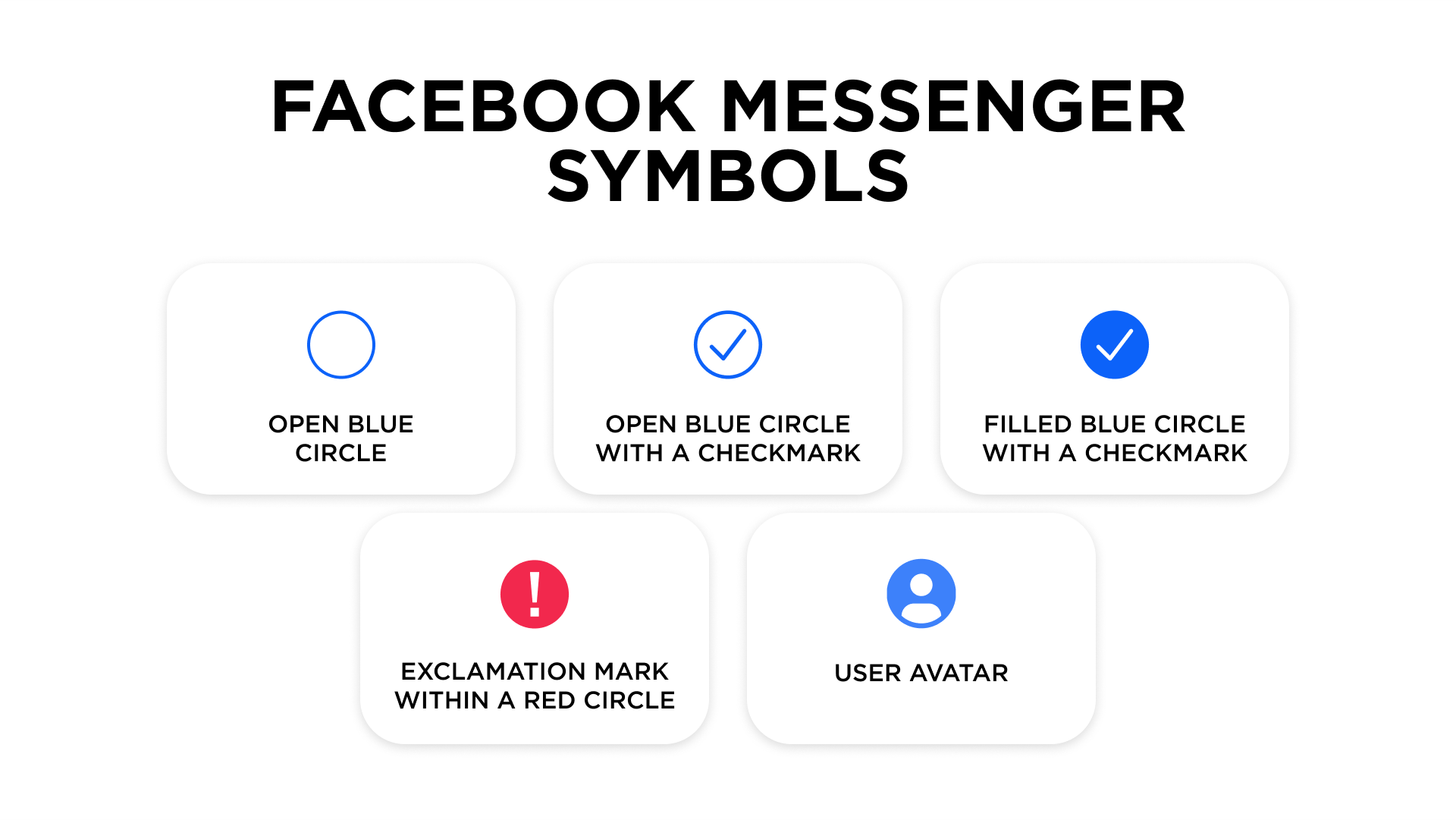
The Unsent/Sending Symbol (Empty Circle/Clock Icon)
When you send a message, the first symbol you might observe is typically an outline of a circle or, in some versions, a small clock icon. This indicates that your message is currently in the process of being sent from your device. It means Messenger is attempting to transmit the data. If this symbol persists for an unusual amount of time, it often suggests a connectivity issue on your end or the app struggling to establish a stable connection with Messenger’s servers. The message is queued but has not yet left your phone.
The Sent Symbol (Outline Checkmark/Blue Circle with Outline Check)
Once your message has successfully left your device and reached Messenger’s servers, the outline circle transforms into a blue circle with an outline checkmark. This “sent” status confirms that your message has been successfully uploaded to the Messenger infrastructure. It implies that the message is now awaiting delivery to the recipient’s device. While the message is safely stored on the server, it hasn’t necessarily reached the final destination yet, especially if the recipient is offline or has connectivity issues.
The Delivered Symbol (Filled Checkmark/Blue Circle with Filled Check)
The next stage in a message’s journey is indicated by a blue circle with a filled checkmark. This is the “delivered” symbol. It signifies that your message has not only reached Messenger’s servers but has also been successfully delivered to the recipient’s device. This means the message is now present in their Messenger inbox, ready for them to view. However, “delivered” does not equate to “read.” The recipient may have received the notification but not yet opened the conversation.
The Read Receipt (Profile Picture Thumbnail)
The ultimate confirmation of message engagement is the read receipt, represented by the recipient’s small profile picture thumbnail appearing beneath your message. This highly anticipated symbol confirms that the recipient has opened the conversation and viewed your message. This feature is particularly useful for time-sensitive communications, providing assurance that your message has been consumed. It’s important to note that users have the option to disable read receipts in their privacy settings, in which case this symbol will not appear even if they have read your message.
Error/Failed to Send (Red Exclamation Mark)
In instances where a message fails to send or deliver, a red exclamation mark inside a circle will appear next to your message. This symbol is a critical indicator of an error, often due to network problems, server issues, or sometimes even if the message contains content that violates platform policies. Tapping on this symbol usually provides an option to retry sending the message or to get more information about the failure.
Decoding User Presence and Interaction Symbols
Beyond message delivery, Messenger employs various symbols to indicate the real-time status and interaction capabilities of your contacts. These cues help users understand when and how to engage with others, fostering more effective and timely communication.
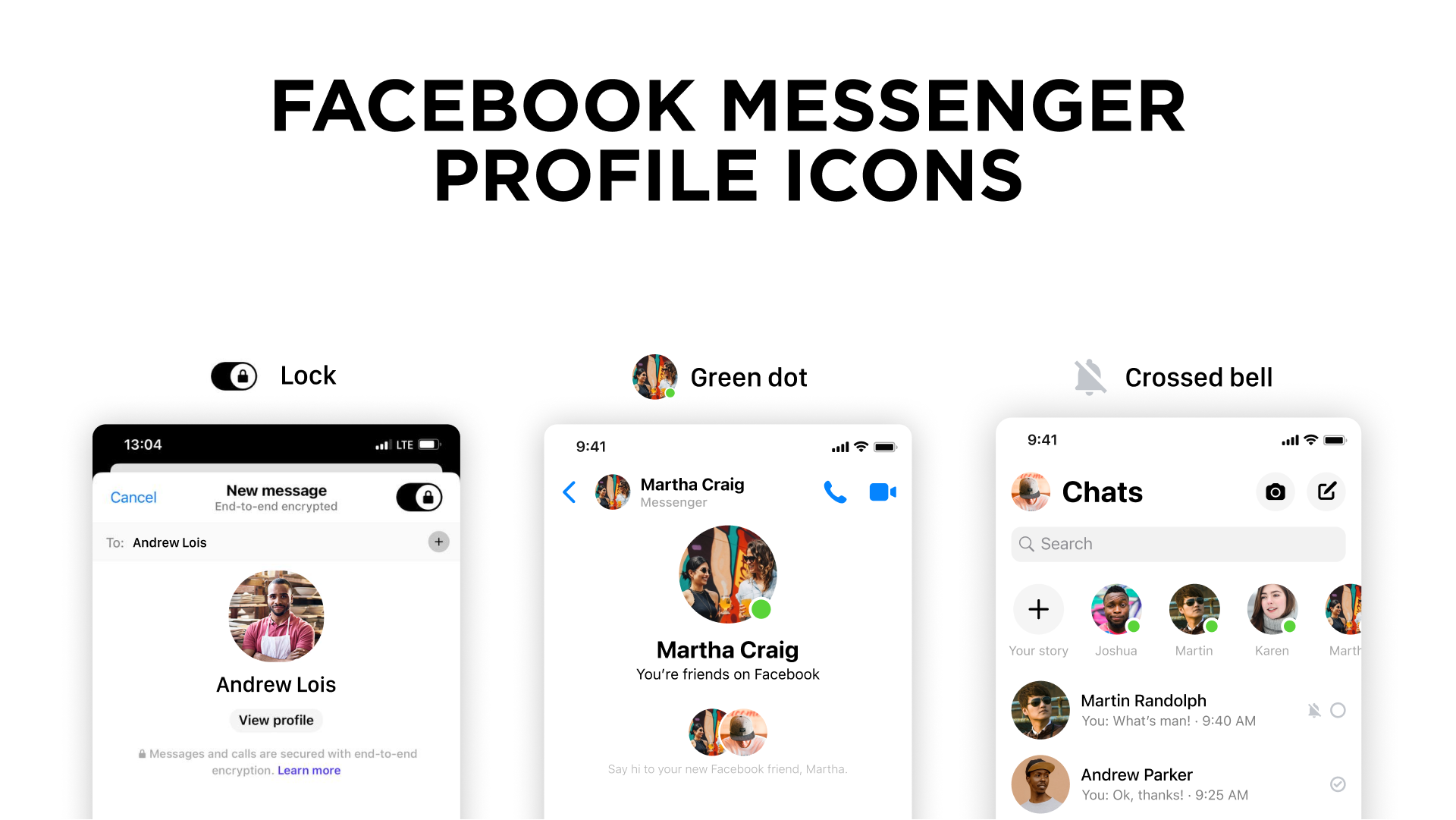
Online Status (Green Dot)
A small green dot superimposed on a contact’s profile picture or appearing next to their name in the active list signifies that the user is currently “Active Now.” This means they are either actively using the Messenger app, have it open in the foreground, or are using Facebook. It’s a prime indicator for initiating real-time conversations, as it suggests immediate availability.
Active Recently (Time Stamp)
If a contact isn’t showing a green dot but has a timestamp (e.g., “Active 5m ago,” “Active 1h ago”) next to their name, it means they were active on Messenger within that specified timeframe. While not indicating current active presence, it suggests recent availability and can still be a good indicator for reaching out, as they might check messages again soon.
Typing Indicator (Pulsing Dots)
Perhaps one of the most dynamic and universally recognized symbols in messaging, the typing indicator appears as a set of three pulsing dots within a chat bubble. This symbol instantly communicates that the person on the other end is currently composing a message. It creates a sense of real-time interaction, prompting you to wait for their response and preventing simultaneous typing, streamlining conversation flow.
Video Call/Voice Call Icons
When you see a video camera icon or a telephone receiver icon within a chat, these are direct links to initiate a video or voice call, respectively. During an ongoing call, these icons may change or be accompanied by duration timers. In group chats, these icons allow you to start group calls, dynamically shifting the mode of communication from text to live audio or video.
Story Indicators (Blue Ring/Colorful Ring)
A blue or colorful ring around a contact’s profile picture, particularly at the top of your Messenger feed, indicates that they have posted a new story. Stories are ephemeral photo or video updates that disappear after 24 hours. Tapping on these profile pictures allows you to view their recent story content, making these rings a visual prompt for engaging with short-form updates.
Exploring Rich Media and Feature-Specific Symbols
Messenger’s evolution has moved far beyond simple text, embracing rich media and diverse functionalities. Various symbols represent these advanced capabilities, enabling users to share a wider range of content and utilize specialized features.
Reaction Symbols (Emojis next to messages)
When you long-press a message, a selection of emoji reactions appears (e.g., Thumbs Up, Heart, Laughing Face, etc.). Once a reaction is chosen, a small version of that emoji appears directly below or next to the message, indicating how the recipient or sender felt about the content. These reactions offer a quick, non-verbal way to express sentiment without typing a full reply, enriching the emotional context of conversations.
File Attachment Symbols (Paperclip, Image, Video Camera)
Within the message composition bar, you’ll find symbols that allow you to attach various types of media. The paperclip icon is a universal symbol for attaching general files. A gallery or mountain-and-sun icon usually indicates the ability to attach photos from your device’s gallery. A video camera icon allows for capturing and sending videos. These icons streamline the process of sharing documents, images, and videos, integrating different communication modalities.
Location Sharing (Pin Icon)
The pin icon, often found in the message input area, allows users to share their current location or a specific place. This feature is particularly useful for coordinating meet-ups, providing directions, or simply letting friends know where you are. The symbol itself is a universally understood representation of a geographic point.
Payment Symbols (Dollar Sign/Currency Icon)
For regions where Messenger Pay is available, a dollar sign or a specific currency symbol (e.g., € for Euro, £ for Pound Sterling) indicates the ability to send or request money directly within the chat. This feature transforms Messenger into a peer-to-peer payment platform, adding a financial utility layer to the communication app, represented by intuitive currency iconography.
Group Chat Symbols (Multiple Profile Pictures)
Visually, group chats are distinguished by showing multiple small profile pictures as the chat icon or displaying the names of several participants. This immediately signifies that the conversation involves more than two individuals, setting expectations for a multi-party interaction and reflecting the collective nature of the discussion.
Privacy, Security, and Advanced Messaging Symbols
As digital privacy and security become paramount, Messenger has integrated symbols that communicate the status of encryption and advanced messaging features designed for enhanced privacy. These symbols are critical for users conscious of their digital footprint.
End-to-End Encryption (Lock Icon in Secret Conversations)
In “Secret Conversations” mode, a prominent lock icon appears, usually next to the contact’s name at the top of the chat window. This symbol is the primary indicator that the conversation is end-to-end encrypted. This means that messages are secured from the moment they leave your device until they reach the recipient’s, and only the sender and recipient can read them, not even Messenger. This lock icon provides a clear visual assurance of enhanced privacy.
Vanish Mode (Disappearing Message Icon)
Vanish Mode, activated by swiping up in a chat, is often indicated by a distinct symbol, sometimes a ghost icon or a disappearing timer icon. This mode ensures that messages disappear shortly after they’re seen and the chat is closed. The symbol serves as a constant reminder that messages in that specific conversation are ephemeral, promoting temporary and discreet communication.
Unsend/Delete Icons
While not appearing as static symbols within the chat stream, the options to “Unsend” or “Delete” messages are represented by standard trash can icons or similar deletion prompts when you interact with a sent message. “Unsend” removes the message for everyone in the chat, while “Delete” removes it only from your own chat view. These options provide post-transmission control over message visibility, offering a vital privacy and error correction mechanism.
Archived Chats (Box with Down Arrow)
The “Archive” feature allows users to hide conversations from their main inbox without deleting them. This is often represented by a box with a down arrow or a similar file-cabinet-like icon. This symbol, usually found in menu options or when swiping on a chat, signifies a management action to declutter the inbox while preserving conversation history for future retrieval, offering an organizational utility.
Mute Notifications (Bell with Slash)
When a conversation or group chat is muted, a bell icon with a diagonal line through it (a “slash”) often appears next to the chat’s name. This symbol clearly indicates that you will not receive audible or visual notifications for new messages in that specific chat, providing a means for users to manage notification fatigue and focus their attention without leaving a conversation.
Why These Symbols Matter: Enhancing the User Experience
The meticulous design and consistent application of these symbols are not arbitrary. They are a deliberate engineering and design choice that profoundly impacts the usability and intuitiveness of Messenger, contributing to a seamless user experience within the tech ecosystem.
Streamlining Communication Flow
Each symbol acts as a micro-instruction, guiding the user through the communication process without needing explicit text explanations. This visual shorthand allows for quicker comprehension of message status and recipient availability, reducing friction in conversations. It ensures that users can quickly ascertain if their message was received, read, or if they can expect an immediate reply, optimizing the rhythm of digital dialogue.
Intuitive Interaction Design
The universal nature of many of these icons (e.g., checkmarks for success, clocks for waiting, pins for location) leverages established cognitive patterns. This intuitive design minimizes the learning curve for new users and enhances efficiency for regulars. It reflects a core principle of good software design: making complex functionalities accessible through simple, recognizable visual cues, which is crucial for an app with billions of users.

Beyond Text: A Universal Language
In a global platform like Messenger, symbols transcend language barriers. A green dot for “online” or a profile picture for “read” is understood regardless of the user’s native tongue. This universality is a powerful aspect of their design, making Messenger a truly international communication tool that facilitates understanding across diverse linguistic backgrounds, a testament to effective global tech product development.
aViewFromTheCave is a participant in the Amazon Services LLC Associates Program, an affiliate advertising program designed to provide a means for sites to earn advertising fees by advertising and linking to Amazon.com. Amazon, the Amazon logo, AmazonSupply, and the AmazonSupply logo are trademarks of Amazon.com, Inc. or its affiliates. As an Amazon Associate we earn affiliate commissions from qualifying purchases.