
The “C drive” is a term almost universally recognized by computer users, yet its precise definition and underlying importance often remain shrouded in mystery. Far more than just a letter, the C drive represents the primary partition on most Windows-based computers, serving as the foundational repository for the operating system and the bulk of installed software. Understanding its role, management, and potential issues is crucial for anyone looking to maintain a healthy, efficient, and secure computing experience.
The Foundation of Your Digital World: Understanding the C Drive
At its core, the C drive is the default location where your computer’s operating system resides. For the vast majority of personal computers running Microsoft Windows, this means Windows itself, along with all its essential system files, drivers, and the program files for applications you install.

The Primary Partition Explained
When a computer’s storage device—be it a traditional Hard Disk Drive (HDD) or a modern Solid State Drive (SSD)—is first set up, it is typically divided into one or more sections called partitions. The C drive is almost always the primary partition, designated to house the OS. This strategic placement ensures that when you power on your computer, the system can quickly locate and load the necessary files to boot up and provide a functional environment.
The choice of the letter ‘C’ for this primary drive has historical roots. In the early days of personal computing, the letters ‘A’ and ‘B’ were reserved for floppy disk drives, which were common storage media before hard drives became standard. As hard drives emerged and became the main storage, ‘C’ was the next available letter in the alphabetical sequence, naturally becoming the designation for the primary internal storage. This convention has persisted, even though floppy drives are now largely obsolete.
Beyond the operating system, the C drive also typically contains:
- Program Files: The core files for most applications you install.
- User Profiles: Folders for each user account, including Desktop, Documents, Downloads, Pictures, and Videos. These often accumulate significant amounts of data.
- Temporary Files: Files created by the OS and applications for temporary use, which can sometimes persist and consume space.
- Page File (Virtual Memory): A hidden system file that Windows uses as an extension of RAM, storing data that isn’t actively being used by the CPU.
Its importance cannot be overstated; without a functional C drive, a computer cannot boot or operate. Any corruption, severe fragmentation (on HDDs), or lack of space on the C drive can lead to significant performance degradation or even system failure.
Physical vs. Logical Drives
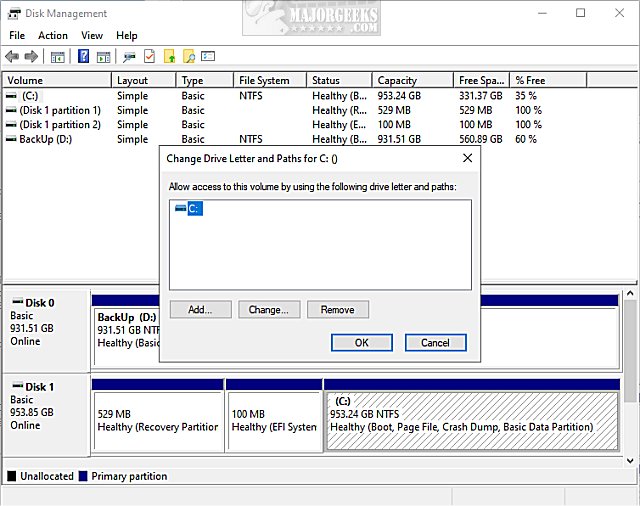
It’s vital to differentiate between a physical storage device and a logical drive (like the C drive). A single physical hard drive or SSD can be segmented into multiple logical drives, each assigned a different letter (e.g., C, D, E). This partitioning allows users to organize their data, perhaps keeping the operating system and programs on C, and personal files or backups on a D drive. While some users prefer a single partition for simplicity, others find multiple partitions useful for disaster recovery or managing different types of data. Regardless of how many partitions exist on a physical drive, the C drive remains the system’s designated boot partition. Both HDDs and SSDs can serve as the C drive, though the performance implications differ significantly due to their underlying technology.
Beyond C: A Look at Other Drive Letters and Storage Architectures
While the C drive holds the central position, a computer’s storage landscape often includes a variety of other drive letters, each serving specific purposes. Understanding this broader ecosystem is key to efficient data management.
The Alphabet Soup of Storage: D, E, F, and Beyond
The letters following ‘C’ are assigned to other storage devices or partitions present in your system. These can include:
- Other Internal Partitions: Many computers come with a second internal partition (often D or E) for data storage, or a dedicated “Recovery Partition” which contains a pristine copy of the operating system for system restoration purposes. Users can also manually create additional partitions to separate their OS and program files from personal documents, providing a layer of protection should the OS partition become corrupted.
- External Drives: USB flash drives, external hard drives, and portable SSDs are assigned drive letters dynamically when connected. These are invaluable for backups, transferring large files, or extending storage capacity.
- Optical Drives: CD, DVD, or Blu-ray drives, though less common in modern laptops, are also assigned a drive letter.
- Network Drives: In business or home network environments, shared folders on other computers or network-attached storage (NAS) devices can be “mapped” to a local drive letter, making them appear as if they are internal drives. This facilitates easy access to shared resources.
- Virtual Drives: Software can create virtual drives, often used for mounting ISO files (disk images) as if they were physical optical discs.
Drive letters are assigned sequentially as devices are detected, but users can often reassign them through Disk Management tools, allowing for better organization.
The Evolution of Storage Media: HDDs vs. SSDs
The performance and reliability of your C drive are heavily influenced by the type of storage media it utilizes:
- Hard Disk Drives (HDDs): These traditional drives store data on spinning platters accessed by read/write heads. They offer large storage capacities at a lower cost per gigabyte, making them suitable for mass data storage (often on D drives or external backups). However, their mechanical nature makes them slower, more susceptible to physical shock, and prone to fragmentation.
- Solid State Drives (SSDs): SSDs use flash memory to store data, similar to USB flash drives. They have no moving parts, resulting in significantly faster boot times, application loading, and overall system responsiveness. SSDs are also more durable, energy-efficient, and silent. Due to their speed, SSDs are the preferred choice for the C drive in modern systems, drastically improving the user experience.
- NVMe SSDs: A newer form factor of SSDs, NVMe (Non-Volatile Memory Express) drives connect directly to the motherboard’s PCIe bus, offering even greater speeds than traditional SATA SSDs. These are currently the fastest consumer storage option and are increasingly common for C drives in high-performance systems.
Choosing an SSD, especially an NVMe drive, for your C drive can provide the most noticeable performance boost, significantly reducing the time it takes for your operating system to load and applications to open.
Managing Your C Drive for Optimal Performance and Security
Effective management of your C drive is paramount for maintaining system performance, preventing slowdowns, and safeguarding your data. Neglecting it can lead to frustrating delays and potential data loss.
Space Management: Keeping Your C Drive Lean
One of the most common issues users face is a C drive running out of space. A full C drive can severely impede performance, as Windows requires free space for temporary files, system updates, and virtual memory.
- Regular Disk Cleanup: Windows includes a built-in “Disk Cleanup” utility (search for it in the Start menu) that helps identify and remove temporary files, system log files, old Windows update files, and items in the Recycle Bin.
- Utilize Storage Sense: Modern versions of Windows feature “Storage Sense” (Settings > System > Storage), an intelligent tool that can automatically free up space by deleting temporary files and managing your Recycle Bin and Downloads folder.
- Uninstall Unused Programs: Regularly review your installed applications (Settings > Apps > Apps & features) and uninstall any software you no longer use. These programs consume not only disk space but also system resources.
- Move User Data: Large files such as photos, videos, and documents stored in your user profile folders (Documents, Pictures, Videos, Downloads) can quickly fill up your C drive. Consider moving these to another internal partition (like a D drive), an external drive, or cloud storage services like OneDrive, Google Drive, or Dropbox.
- Clear Browser Cache: Web browsers accumulate significant amounts of cache data. Periodically clearing your browser’s cache can free up valuable space.
Drive Health and Maintenance
Maintaining the health of your C drive differs slightly depending on whether it’s an HDD or an SSD.
- Defragmentation (HDDs Only): For HDDs, files can become fragmented, meaning pieces of a single file are scattered across different areas of the disk. Defragmenting reorganizes these pieces to improve read/write speeds. SSDs do not require defragmentation; in fact, it can reduce their lifespan.
- TRIM (SSDs Only): TRIM is a command that helps SSDs manage their deleted data blocks more efficiently, ensuring optimal performance over time. Windows automatically manages TRIM for SSDs.
- Error Checking (chkdsk): The
chkdskutility (run from an elevated Command Prompt or through Drive Properties in File Explorer) can scan your C drive for file system errors and bad sectors, attempting to repair them. This is a crucial diagnostic tool. - System and Driver Updates: Regularly updating your operating system and device drivers (especially storage controllers) ensures that your C drive is operating with the latest optimizations and security patches.
Security and Backup Strategies
Given that your C drive contains your entire operating system, programs, and often much of your personal data, its security and backup are paramount.
- Comprehensive Backups: Implement a robust backup strategy. This can include:
- System Images: Creating a full image of your C drive allows you to restore your entire system, including the OS, programs, and settings, to a previous state in case of a catastrophic failure.
- File History/Cloud Sync: Use Windows File History or cloud storage services to automatically back up your important personal files and documents.
- External Drives: Regularly back up critical data to an external hard drive or SSD.
- Antivirus/Anti-malware Protection: Keep your antivirus software up to date and perform regular scans to protect your C drive from malware, viruses, and ransomware, which can corrupt or encrypt your entire system.
- Operating System Security Features: Utilize features like Windows Defender Firewall and User Account Control (UAC) to prevent unauthorized access and protect system integrity.
Common Issues and Troubleshooting for the C Drive
Despite best efforts, issues with the C drive can arise. Knowing how to identify and address them can save significant time and prevent data loss.
“Disk Full” Errors and Solutions
A persistent “C: Drive is full” notification is a critical warning sign. Beyond slowing down your computer, a completely full C drive can prevent system updates, application installations, and even cause crashes.
- Immediate Action: Run Disk Cleanup and empty the Recycle Bin immediately. Check your Downloads folder for large, unneeded files.
- Identify Culprits: Use tools like “Storage Sense” or third-party disk analysis software (e.g., WinDirStat, TreeSize Free) to visualize disk usage and pinpoint which folders or files are consuming the most space.
- Preventative Measures: Implement a routine for moving large personal files to other storage locations and regularly reviewing installed programs.
Boot Failures and System Instability
When the C drive encounters significant problems, your computer may fail to boot, crash frequently, or exhibit severe instability.
- Causes: These issues can stem from corrupted operating system files, a failing physical drive, critical malware infections, or incorrect driver installations.
- Basic Troubleshooting:
- Safe Mode: Attempt to boot into Safe Mode. If successful, you can often diagnose driver issues or remove problematic software.
- System Restore: Use System Restore (if enabled) to roll back your system to a previous point when it was functioning correctly.
- Startup Repair: Access Windows’ advanced startup options to run Startup Repair, which can fix many common boot problems.
- Reinstallation: In severe cases where the OS is heavily corrupted or infected, a clean reinstallation of Windows may be the most effective solution. Ensure you have backed up all essential data before attempting this.
Data Loss Prevention and Recovery Basics
The most devastating C drive issue is data loss. While prevention is always superior to recovery, understanding the basics is important.
- Backup, Backup, Backup: This cannot be stressed enough. A comprehensive backup strategy is your best defense against data loss from drive failure, corruption, or malware.
- Data Recovery Software: In some cases of accidental deletion or minor corruption, data recovery software can retrieve lost files, but success is never guaranteed, and attempting recovery on a failing drive can worsen the situation.
- Professional Services: For critical data on physically damaged or severely corrupted drives, specialized data recovery services may be able to retrieve data, though often at a significant cost.
The C drive is the unsung hero of your computer, tirelessly managing the operating system and ensuring your digital world runs smoothly. By understanding its functions, actively managing its space, prioritizing its health, and implementing robust security and backup practices, you can ensure a reliable and high-performing computing experience.
aViewFromTheCave is a participant in the Amazon Services LLC Associates Program, an affiliate advertising program designed to provide a means for sites to earn advertising fees by advertising and linking to Amazon.com. Amazon, the Amazon logo, AmazonSupply, and the AmazonSupply logo are trademarks of Amazon.com, Inc. or its affiliates. As an Amazon Associate we earn affiliate commissions from qualifying purchases.