
In the landscape of personal computing, audio quality and connectivity play a pivotal role in the overall user experience. While many users focus on the speakers or headphones they use, the underlying audio hardware and its output capabilities are equally, if not more, critical. Among the most ubiquitous names in PC audio is Realtek, a Taiwanese fabless semiconductor company renowned for its integrated circuit solutions, particularly its audio codecs. The term “Realtek Digital Output” refers specifically to the digital audio signals transmitted from a computer equipped with a Realtek audio chipset, rather than traditional analog signals. Understanding this distinction is key to unlocking superior audio quality and advanced sound setups.
The Fundamentals of Digital Audio
Before delving into Realtek’s specific implementations, it’s essential to grasp the core difference between analog and digital audio, and why digital output has become the preferred standard for high-fidelity sound.
Analog Versus Digital Sound
Sound, in its natural form, travels as continuous waves through a medium like air. When captured by a microphone, these waves are converted into analogous electrical signals – continuous voltage fluctuations that mirror the original sound wave’s amplitude and frequency. This is analog audio. When these analog signals are transmitted over cables, they are susceptible to interference, signal degradation, and noise pick-up, which can diminish sound quality over distance or in electrically noisy environments.
Digital audio, conversely, takes these continuous analog signals and converts them into discrete numerical values – a stream of ones and zeros. This process, known as analog-to-digital conversion (ADC), samples the analog waveform at incredibly high rates, capturing its characteristics as data points. Once digitized, sound becomes data. This digital data is highly resistant to noise and degradation during transmission because the receiving device only needs to interpret the specific pattern of ones and zeros, not the subtle voltage fluctuations. As long as the data arrives intact, the original sound can be perfectly reconstructed.
Why Digital Output Matters
The transition from analog to digital output revolutionized audio playback. Digital signals carry more information with greater accuracy, allowing for higher fidelity sound reproduction. For consumers, this translates to clearer audio, more precise sound staging, and the ability to handle multi-channel formats like Dolby Digital and DTS without loss of quality. A digital output ensures that the audio signal reaches your external audio equipment (like an AV receiver, soundbar, or DAC) in its purest, most unadulterated form, letting that equipment handle the final digital-to-analog conversion (DAC) with potentially higher quality components.
Realtek’s Place in PC Audio
Realtek has become synonymous with integrated audio on motherboards. Their codecs are found in millions of computers worldwide, serving as the primary interface between the CPU and the audio output ports.
Realtek Audio Codecs: The Engine Room
At the heart of Realtek’s audio solutions are their High Definition (HD) audio codecs, such as the ALC887, ALC1220, or ALC4080 series. A codec (coder-decoder) is a microchip that performs several crucial functions:
- Analog-to-Digital Conversion (ADC): For recording audio from microphones or line-in inputs.
- Digital-to-Analog Conversion (DAC): For converting digital audio data from the computer into analog signals for headphones or traditional speakers.
- Digital Signal Processing (DSP): For applying effects, equalization, and managing various audio streams.
- Interface Management: For controlling the various audio jacks and digital output ports.
While Realtek codecs perform both ADC and DAC functions for analog outputs, their digital output capabilities are where they shine for connecting to advanced audio systems. They encode the raw digital audio data from the PC into a format suitable for digital transmission, bypassing the internal DAC and preserving the digital integrity of the signal.
The Role of the Realtek HD Audio Manager
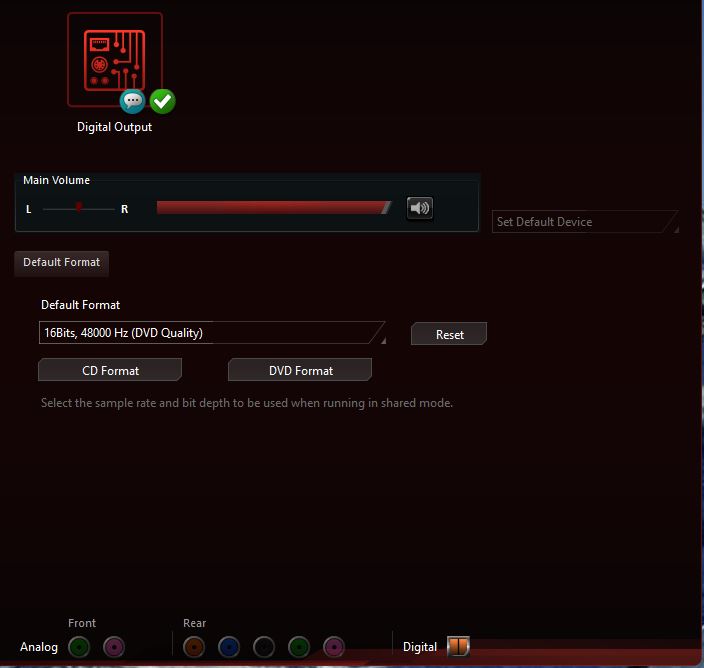
Most computers with Realtek audio hardware come bundled with the Realtek HD Audio Manager software. This control panel is the primary interface for users to configure their audio settings, including speaker setup, microphone properties, sound effects, and crucially, the digital output options. Within this manager, users can:
- Select the default playback device.
- Configure multi-channel audio setups (e.g., 5.1 or 7.1 surround sound) for digital outputs.
- Test speaker configurations.
- Enable or disable specific digital output ports.
- Choose between various output formats like PCM (Pulse Code Modulation) or bitstream formats (Dolby Digital, DTS).
This software tool is essential for ensuring that your Realtek digital output is correctly configured for your external audio receiver or sound system.
Deconstructing Realtek Digital Output
Realtek digital output typically refers to specific physical ports on your computer’s motherboard or sound card that transmit uncompressed or compressed digital audio data. The most common types include S/PDIF and, increasingly, HDMI.
S/PDIF: The Common Digital Connector
S/PDIF (Sony/Philips Digital Interface Format) is one of the oldest and most widely adopted digital audio transmission standards. Realtek codecs commonly support S/PDIF output, which can manifest in two physical forms:
Optical (TOSLINK)
The most recognizable S/PDIF connection is the optical port, often labeled “Optical Out” or “TOSLINK.” This port transmits audio data using pulses of light through a fiber optic cable. Its key advantage is complete electrical isolation, eliminating ground loops and electrical interference between devices, which can be a source of hum or noise in analog systems. Optical S/PDIF typically supports two-channel PCM stereo or compressed multi-channel audio like Dolby Digital or DTS (up to 5.1 or sometimes 7.1).
Coaxial Digital
Less common on modern consumer motherboards but still prevalent on older sound cards and dedicated audio equipment is the coaxial digital port. This connection uses a single RCA-type connector and a 75-ohm coaxial cable to transmit electrical pulses carrying the digital audio data. While it doesn’t offer the electrical isolation of optical, coaxial S/PDIF can sometimes support slightly higher bandwidths or longer cable runs without signal degradation compared to optical in certain scenarios. It supports the same audio formats as optical S/PDIF.

HDMI Audio: Integrated Digital Output
With the rise of integrated graphics and the convergence of video and audio, HDMI (High-Definition Multimedia Interface) has become a primary conduit for digital audio. While HDMI primarily serves video, it also carries digital audio signals. If your computer uses a modern Realtek audio codec in conjunction with an integrated GPU (e.g., Intel HD Graphics or AMD Radeon Graphics), the HDMI port from your graphics output can also serve as a digital audio output.
This is particularly convenient for connecting to AV receivers or TVs, as a single HDMI cable can transmit both high-definition video and multi-channel audio (including advanced formats like Dolby TrueHD and DTS-HD Master Audio, though this largely depends on the GPU’s capabilities and driver support, which often work in tandem with the Realtek codec’s processing). The Realtek Audio Manager will usually recognize the HDMI output as a separate digital output device, allowing you to configure its specific audio settings.
Understanding Bitstream and PCM
When configuring Realtek digital output, you’ll often encounter options for PCM or “bitstream” output.
- PCM (Pulse Code Modulation): This is uncompressed digital audio. When you select PCM, the Realtek codec decodes the audio data into its raw, uncompressed digital form before sending it out through the digital port. Your external receiver then performs the final DAC conversion. This is generally preferred for stereo audio or when your receiver has a high-quality internal DAC.
- Bitstream (Dolby Digital, DTS): When you select bitstream, the Realtek codec outputs the compressed digital audio data (e.g., Dolby Digital or DTS) directly to your receiver. The receiver then handles the decoding and DAC. This is necessary for multi-channel audio formats that require decoding by a specialized processor in your receiver or soundbar.
Choosing between PCM and bitstream depends on your external audio equipment and the type of audio content you are playing.
Advantages and Applications of Digital Output
The benefits of utilizing Realtek digital output extend beyond mere connectivity.
Superior Audio Fidelity
By bypassing the internal DAC and often the analog amplification stages of the computer, digital output ensures that the audio signal remains in its pure digital form until it reaches a dedicated external audio device. High-end AV receivers, soundbars, or external DACs typically possess superior DACs and amplification components compared to those integrated into a motherboard, leading to a noticeable improvement in sound clarity, dynamic range, and overall fidelity.
Multi-Channel Audio Support
Realtek digital output is essential for enjoying true surround sound from your PC. Whether it’s a 5.1 movie soundtrack or a 7.1 gaming experience, S/PDIF and HDMI outputs can transmit the necessary multi-channel audio data to a compatible receiver. This allows for immersive audio experiences that significantly enhance gaming, movie watching, and music listening.
Streamlined Connectivity
Using a single optical or HDMI cable to transmit audio simplifies cable management and reduces the number of connections needed between your PC and your audio system. This is particularly advantageous in home theater PC (HTPC) setups where minimizing clutter and maximizing performance are key considerations.
Configuring and Troubleshooting Realtek Digital Output
Setting up Realtek digital output is generally straightforward, but occasional issues can arise.
Connecting Your Digital Devices
- Identify Ports: Locate the optical (TOSLINK), coaxial digital, or HDMI output port on your computer.
- Cable Connection: Connect the appropriate cable (fiber optic, coaxial RCA, or HDMI) from your PC’s digital output to the corresponding digital input on your AV receiver, soundbar, or external DAC. Ensure optical cables are inserted firmly until a click is felt/heard.
- Input Selection: On your external audio device, select the correct digital input source.
Software Configuration: Realtek HD Audio Manager
- Open Manager: Access the Realtek HD Audio Manager (usually via the system tray icon, Control Panel, or Windows Settings).
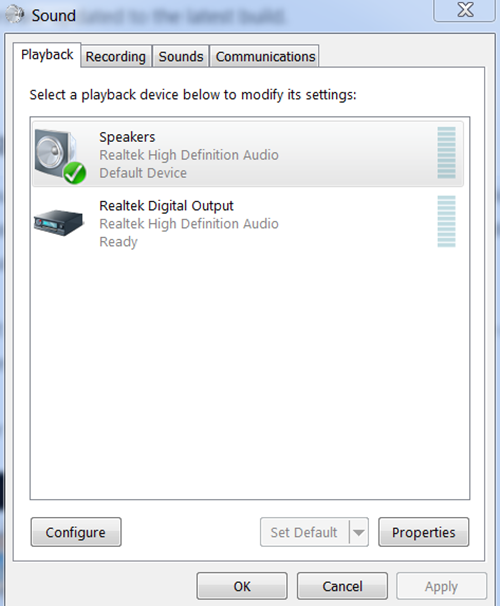
- Playback Devices: Navigate to the “Playback Devices” or “Speakers” tab.
- Set Default: Locate the “Digital Output” or “Optical Out” device (or the HDMI audio device if applicable), right-click, and set it as the “Default Device.”
- Configure Speakers: Click “Configure” to select your speaker setup (e.g., Stereo, 5.1 Surround).
- Format Selection: In the “Advanced” or “Supported Formats” tab, you can select whether to output PCM or various bitstream formats. Experiment with these settings based on your receiver’s capabilities and the content you’re playing. For movies with surround sound, enabling Dolby Digital and DTS bitstream formats is usually necessary.
Addressing Common Digital Output Issues
- No Sound:
- Check Cables: Ensure all digital cables are securely connected at both ends.
- Input Selection: Verify that your external audio device is set to the correct digital input.
- Default Device: Confirm “Digital Output” is set as the default playback device in Realtek HD Audio Manager and Windows Sound settings.
- Volume Levels: Check volume levels in Windows, Realtek Manager, and on your external audio device.
- Format Mismatch: Ensure the output format (PCM/Bitstream) matches what your receiver can decode. Try switching between them.
- Static or Intermittent Sound (Optical):
- Cable Damage: Fiber optic cables can be fragile. Inspect for kinks or damage.
- Port Cleanliness: Dust or debris in the optical ports can interfere with the light signal. Gently clean with compressed air.
- Surround Sound Not Working:
- Receiver Support: Verify your external receiver supports the desired multi-channel format (e.g., 5.1).
- Software Configuration: Ensure the speaker configuration is set to 5.1 or 7.1 in Realtek HD Audio Manager and the sound source (game/movie) is outputting surround sound.
- Bitstream Enabled: For Dolby Digital/DTS content, ensure bitstream output is enabled in Realtek settings.
Realtek digital output, whether via S/PDIF or HDMI, provides a crucial pathway for high-quality, multi-channel audio from your computer to external sound systems. By understanding its functionality and proper configuration, users can significantly elevate their audio experience, leveraging the full potential of their digital content and audio hardware.
aViewFromTheCave is a participant in the Amazon Services LLC Associates Program, an affiliate advertising program designed to provide a means for sites to earn advertising fees by advertising and linking to Amazon.com. Amazon, the Amazon logo, AmazonSupply, and the AmazonSupply logo are trademarks of Amazon.com, Inc. or its affiliates. As an Amazon Associate we earn affiliate commissions from qualifying purchases.