
The digital streaming landscape is in a constant state of flux. While YouTube TV has established itself as a premier “Virtual Multichannel Video Programming Distributor” (vMVPD), boasting a robust lineup of local channels, sports, and unlimited DVR, the needs of the modern tech consumer often change. Whether you are transitioning to a different service, looking to reduce your digital footprint, or simply taking a break from the rising costs of live-television software, understanding the technical nuances of service termination is essential.
Canceling a subscription in the modern “Software as a Service” (SaaS) era is rarely as simple as clicking a single button. Platforms are designed with retention loops and complex UI pathways. This guide provides an exhaustive technical walkthrough of how to navigate the YouTube TV ecosystem to successfully terminate or pause your service across various devices and billing configurations.
1. Master the Step-by-Step Cancellation Process Across Platforms
YouTube TV operates within the broader Google infrastructure, meaning your subscription is tied directly to your Google Identity. However, the interface for cancellation differs depending on whether you are accessing the service via a desktop environment, an Android mobile OS, or an iOS device.
Executing Cancellation via Desktop Web Browser
For most users, the web browser offers the most transparent view of account settings. This method is the most reliable because it bypasses the limitations often found in mobile applications.
- Authentication: Navigate to
tv.youtube.comand ensure you are logged into the primary “Family Manager” account. Sub-profiles cannot initiate a cancellation. - Accessing Settings: Click on your profile avatar in the top-right corner and select “Settings” (represented by the gear icon).
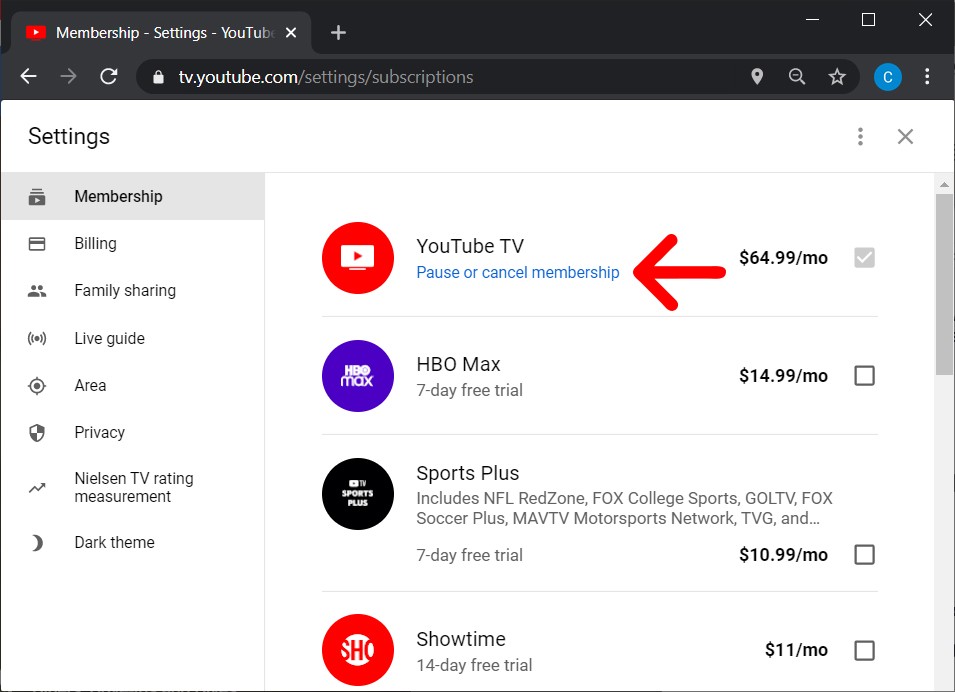
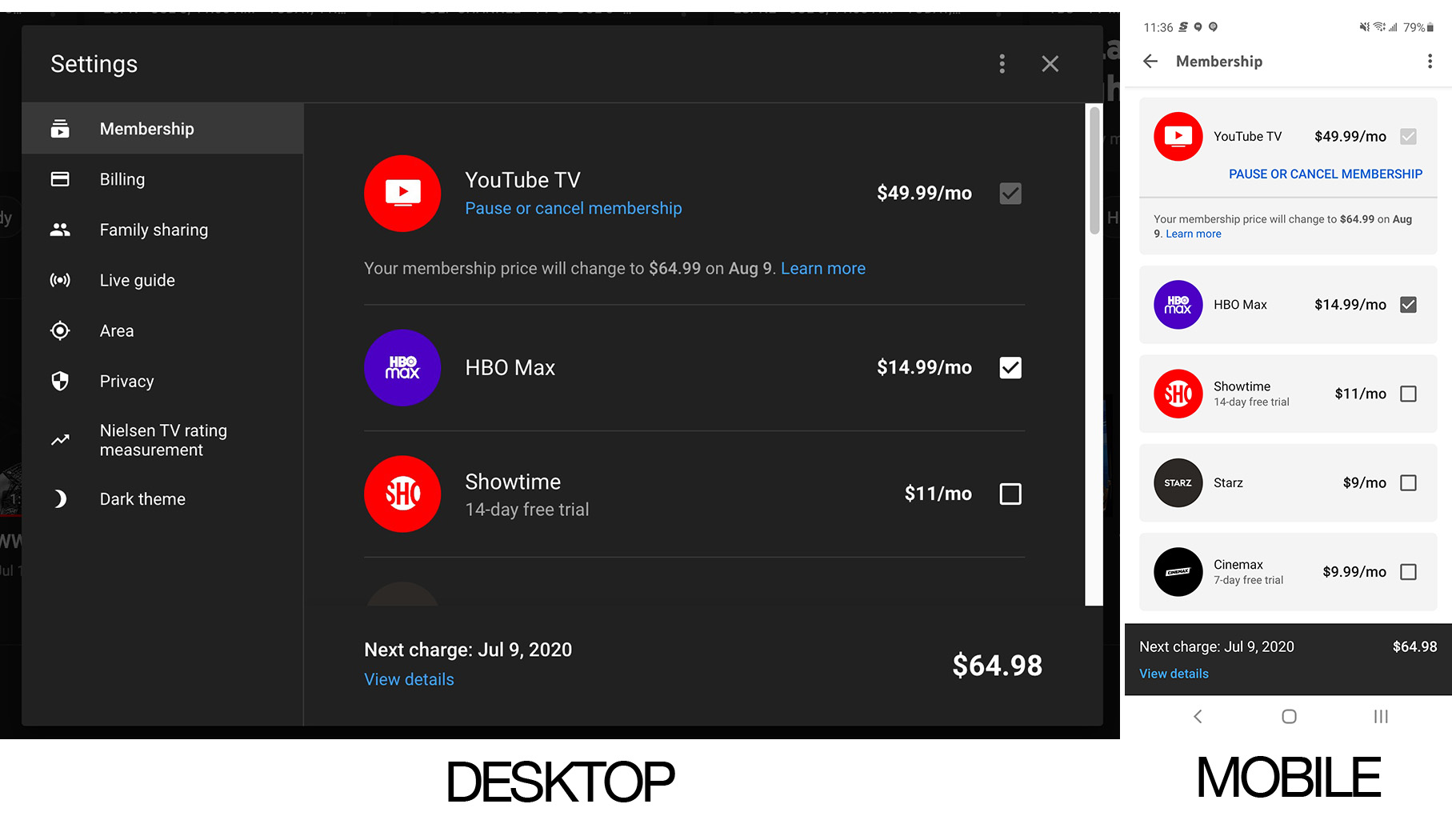
- Membership Management: In the left-hand sidebar, click on the “Membership” tab. This screen displays your current base plan and any active “add-on” networks.
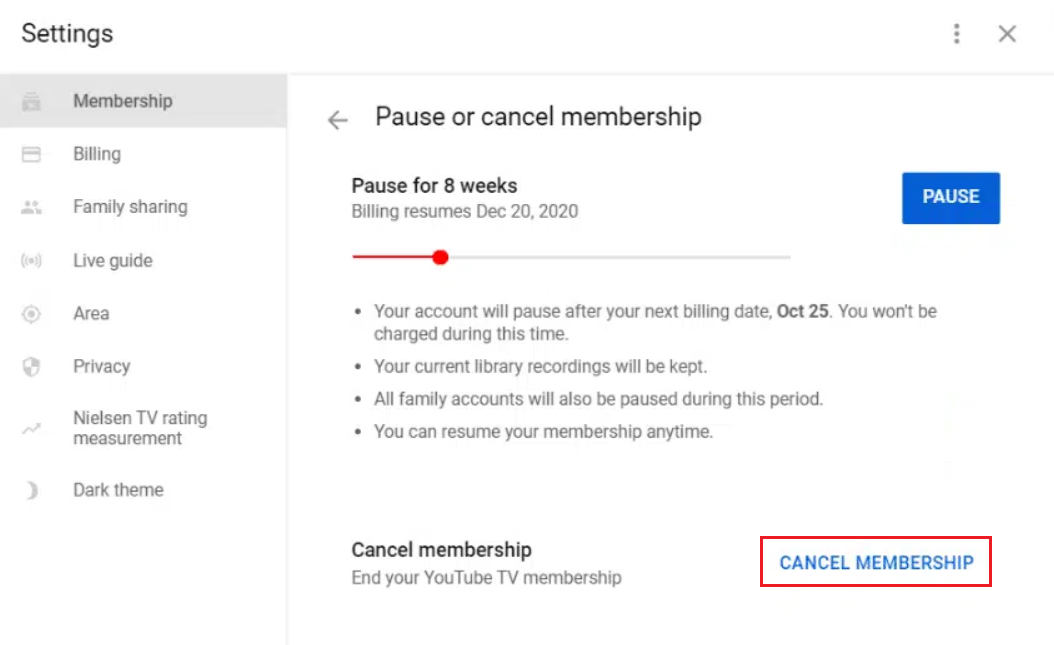
- Initiating Termination: Click the “Manage” button next to your base plan. You will be presented with the option to “Pause” or “Cancel membership.” To proceed with a full termination, select “Cancel.”
- The Retention Loop: Google will likely present a feedback survey or a promotional offer to stay. You must navigate through these prompts until you receive a final confirmation.
- Verification: Ensure you receive a confirmation email. In the world of digital security and subscriptions, if there is no paper trail, the technical handshake may not have been completed.
Navigating the Android Application Interface
On Android, the process is integrated into the app’s UI, but it effectively acts as a portal to your Google Play subscription settings.
- Open the YouTube TV app.
- Tap your profile photo.
- Go to Settings > Membership.
- Tap Manage and follow the prompts to “Cancel.”
The iOS and Apple Ecosystem Workaround
Due to the long-standing technical and financial disputes regarding “In-App Purchase” (IAP) fees between Google and Apple, users who signed up for YouTube TV via an iPhone or iPad may find that the “Membership” settings do not allow for direct cancellation within the app. In this scenario, the subscription is managed via the Apple ID billing system.
- Open the Settings app on your iPhone or iPad.
- Tap your Apple ID (your name at the top).
- Select Subscriptions.
- Find YouTube TV in the list and select Cancel Subscription.
2. Strategic Alternatives: Pausing vs. Permanent Deletion
Before finalizing a cancellation, it is important to understand the technical distinction between “Pausing” and “Canceling.” YouTube TV offers a sophisticated “Pause” feature that serves as a middle ground for users who intend to return for specific events, such as the NFL season or a specific election cycle.
The Technical Mechanics of Pausing
When you pause your membership, you essentially put a “hold” on your billing cycle for a duration ranging from 4 weeks to 6 months. This is a strategic move for the tech-savvy user because it preserves your digital library.
- State Retention: Your personalized recommendations, “Marked as Watched” history, and library organization remain intact.
- Billing Suspension: The pause takes effect at the end of your current billing cycle. You will not be charged again until the pause duration expires, at which point the system will automatically resume the service at the then-current market rate.
- Manual Resumption: You can manually unpause the service at any time if you decide to return earlier than planned.
Data Retention and the 21-Day DVR Rule
One of the primary technical concerns during cancellation is the fate of your Cloud DVR recordings. YouTube TV’s backend architecture handles recorded content differently than your account settings.
- The 21-Day Grace Period: If you cancel your membership entirely, Google typically retains your DVR recordings for 21 days. If you do not restart your service within that window, your library is purged from their servers to reclaim storage space.
- Long-Term Deletion: Unlike the “Pause” feature, which keeps recordings until their original 9-month expiration date, a full cancellation is a destructive action for your saved media. If you have spent months curating a library of rare films or sports matches, the Pause feature is technically superior to cancellation.
3. Managing Third-Party Billing and Multi-Service Integrations
In the modern digital economy, many users do not pay Google directly for YouTube TV. Instead, the service is often bundled with internet service providers (ISPs) or mobile carriers like T-Mobile or Frontier.
Resolving ISP-Bundled Subscriptions
If your YouTube TV subscription is part of a “Triple Play” or a specific hardware promotion (such as a free trial with the purchase of a Chromecast or a 5G home internet plan), the standard “Settings” menu in the YouTube TV app may be locked.
In these instances, you must log into the portal of your service provider (e.g., the T-Mobile “T-Life” app or the Frontier account dashboard). Terminating the service here triggers an API call to Google to deauthorize your account. Failure to do this through the provider may result in “phantom charges” where Google thinks the service is active because the provider is still reporting a valid billing token.
Auditing Add-on Networks and API Permissions
Often, users find they are being charged more than the base plan rate due to “add-on” networks like HBO Max, Red Zone, or 4K Plus.
- Individual De-provisioning: You can cancel these add-ons individually without canceling your entire YouTube TV subscription. This is handled in the same “Membership” tab.
- Third-Party App Access: When you cancel YouTube TV, you also lose “TV Everywhere” credentials. This means you will no longer be able to log into individual apps (like the ESPN app or the NBC app) using your YouTube TV credentials. If you rely on these integrations for your smart home or mobile viewing, ensure you have an alternative authentication method ready.
4. The Technical Evolution of the Streaming Market
To understand why you might be canceling, it is helpful to look at the broader technological shifts in the industry. We are currently witnessing a “Great Re-bundling” where the convenience of a single app like YouTube TV is being challenged by the fragmentation of direct-to-consumer (DTC) apps.
Evaluating Software Performance and Bitrates
One technical reason users cite for moving away from YouTube TV is the desire for higher fidelity. While YouTube TV has introduced a “4K Plus” add-on, much of the live content is still broadcast at 720p or 1080i, which is then transcoded by Google’s servers.
Power users often migrate toward specialized apps that offer higher bitrates or HDR10+ support for live sports. If your hardware (such as an Apple TV 4K or a high-end Sony OLED) is outperforming the stream quality provided by a vMVPD, canceling in favor of specific standalone apps can result in a significant upgrade in visual data throughput.
Digital Hygiene and Subscription Fatigue
From a digital security and financial tech perspective, canceling unused services is a form of “digital hygiene.” Every active subscription represents a potential vulnerability point for your payment data and a constant stream of outbound metadata regarding your viewing habits.
By terminating a subscription, you reduce your “data exhaust.” However, even after cancellation, Google retains your viewing history to improve recommendations across the broader YouTube ecosystem unless you specifically go into your Google Account “Data & Privacy” settings to delete your YouTube TV activity history.
Conclusion: Finalizing Your Digital Exit
Successfully canceling a YouTube TV subscription requires more than a cursory glance at the settings menu. It requires an understanding of the billing path (Direct vs. Third-Party), an evaluation of data retention needs (Pause vs. Cancel), and a verification of the final technical handshake via confirmation emails and bank statement monitoring.
As the tech world moves toward more automated, subscription-based models, the ability to pivot between services becomes a vital skill for the modern consumer. By following the steps outlined in this guide, you ensure that you remain the master of your digital subscriptions, rather than a passive participant in a recurring billing cycle. Whether you are moving toward a more minimalist tech setup or simply trying out a competitor’s new UI, the power to disconnect is just as important as the power to stream.
aViewFromTheCave is a participant in the Amazon Services LLC Associates Program, an affiliate advertising program designed to provide a means for sites to earn advertising fees by advertising and linking to Amazon.com. Amazon, the Amazon logo, AmazonSupply, and the AmazonSupply logo are trademarks of Amazon.com, Inc. or its affiliates. As an Amazon Associate we earn affiliate commissions from qualifying purchases.