
A mail client, often interchangeably called an email client, is a software application designed to allow users to access, manage, and send emails from their computer or mobile device. Instead of logging into a web browser to check email via a webmail service like Gmail or Outlook.com, a mail client acts as an intermediary, fetching emails from a mail server and presenting them in a dedicated interface on your device. It streamlines the email experience, offering features and functionalities that often go beyond what basic webmail interfaces provide, bridging the gap between a user and their digital correspondence.

Understanding the Core Functionality of a Mail Client
At its heart, a mail client’s primary role is to serve as an interface for email communication. It’s the user-facing application that interacts with remote mail servers using specific protocols to retrieve, send, and synchronize email data.
Bridging the Gap Between User and Server
When you send an email, your mail client communicates with an Outgoing Mail Server (SMTP – Simple Mail Transfer Protocol) to deliver your message. When you receive an email, your client interacts with an Incoming Mail Server, typically using either POP3 (Post Office Protocol version 3) or IMAP (Internet Message Access Protocol).
- POP3: Downloads emails from the server to your local device and then, by default, deletes them from the server. This means emails are primarily stored on your device, offering offline access but potentially limiting access from other devices.
- IMAP: Synchronizes emails with the server. This means emails remain on the server, and the client displays a synchronized copy. Any changes made in the client (e.g., marking as read, moving to a folder, deleting) are reflected on the server and thus across all devices accessing that account via IMAP. This is the more popular choice for users who access email from multiple devices.
This client-server interaction allows for a robust and flexible email management system, often offering greater control and features than a purely web-based approach.
Key Features and Capabilities
Mail clients come packed with an array of features designed to enhance productivity, organization, and security. Beyond the fundamental ability to send and receive emails, core capabilities often include:
- Unified Inbox: The ability to consolidate emails from multiple accounts (e.g., personal, work, university) into a single, cohesive inbox, reducing the need to switch between different applications or browser tabs.
- Offline Access: For desktop and some mobile clients, emails can be downloaded and stored locally, allowing users to read, compose, and organize messages even without an active internet connection. Outgoing messages are then sent automatically once connectivity is restored.
- Advanced Search and Filtering: Powerful search functionalities enable users to quickly locate specific emails based on sender, recipient, subject, keywords, attachments, or dates. Customizable rules and filters automatically sort incoming mail into designated folders, mark them, or forward them based on predefined criteria.
- Email Organization Tools: Features like folders, labels, tags, conversation views, and flagging allow for meticulous organization of correspondence, making it easier to manage large volumes of emails.
- Rich Text Editor: Enhanced tools for composing emails, including formatting options (fonts, colors, bolding, italics), hyperlinking, and embedding images or media, providing a professional presentation.
- Attachment Management: Easy drag-and-drop functionality for attaching files, along with previews and often direct integration with cloud storage services.
- Integration with Other Applications: Many clients integrate seamlessly with calendars, task managers, contact lists, and cloud storage solutions, creating a more cohesive workflow.
- Security Features: Support for email encryption (like S/MIME or PGP), robust spam filtering, and phishing protection to safeguard communications.
Types of Mail Clients
Mail clients manifest in various forms, each tailored to different user preferences, devices, and usage scenarios. Understanding these distinctions is crucial for choosing the right tool for your needs.
Desktop-Based Clients (Thick Clients)
These are standalone software applications installed directly on a computer’s operating system (Windows, macOS, Linux). They operate independently of a web browser and typically offer the most comprehensive feature sets.
- Characteristics: High level of customization, robust offline capabilities, local storage of emails and attachments, deep integration with the operating system and other desktop applications (e.g., calendar, contacts), and advanced security features. They often consume more system resources due to their rich functionality.
- Examples: Microsoft Outlook, Mozilla Thunderbird, Apple Mail, Mailbird, eM Client.
- Ideal for: Professionals, power users, individuals needing extensive offline access, those managing large email archives, or anyone who values deep integration and a highly customizable interface.
Web-Based Clients (Thin Clients)
Commonly referred to as webmail, these clients are accessed entirely through a web browser. They do not require any software installation on the user’s device, as all email management is handled by the mail server.
- Characteristics: Universal accessibility from any device with an internet connection and a web browser, no local storage requirements (emails reside on the server), typically free to use (often ad-supported), and minimal system resource consumption on the client side. They tend to have simpler interfaces compared to desktop clients.
- Examples: Gmail, Outlook.com, Yahoo Mail, Proton Mail, Zoho Mail.
- Ideal for: Users who prioritize accessibility and flexibility, those who frequently switch devices, or individuals with limited local storage or processing power on their devices.
Mobile Mail Clients
These are applications specifically designed for smartphones and tablets. They optimize the email experience for smaller screens and touch interfaces, leveraging mobile device features like push notifications and location services.
- Characteristics: Focus on quick access, push notifications for new mail, touch-friendly interfaces, integration with mobile OS features (e.g., share sheets, contacts), and often streamlined functionality compared to their desktop counterparts. They can be native apps (built into the OS) or third-party apps.
- Examples: Apple Mail (iOS), Gmail app (Android/iOS), Microsoft Outlook Mobile, Spark, Edison Mail.
- Ideal for: Users on the go, those needing constant updates, or anyone who primarily manages email from a mobile device.
Advantages and Disadvantages of Using a Mail Client
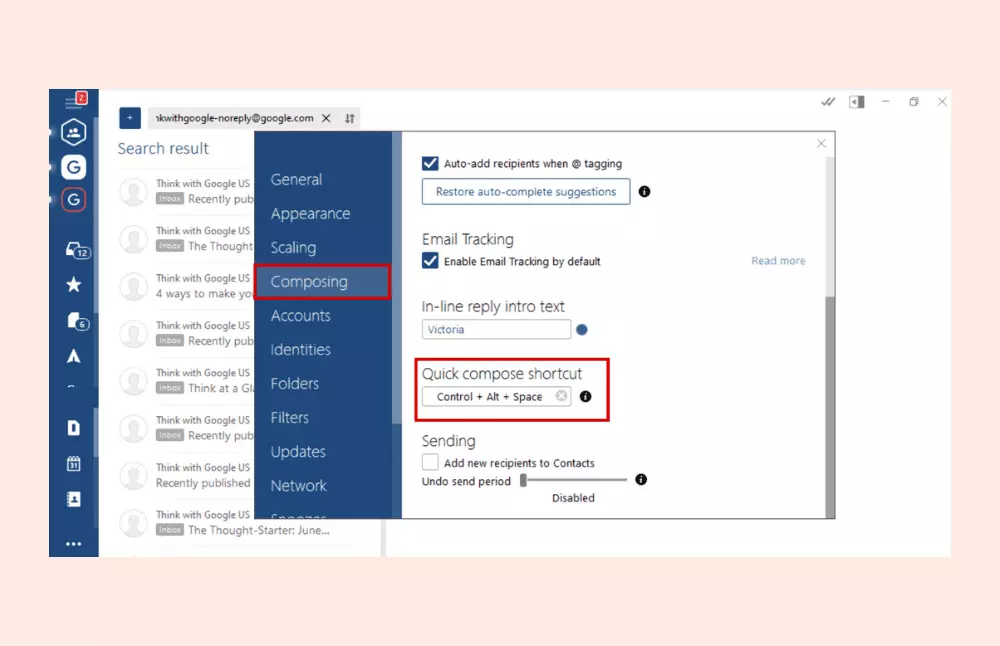
Choosing between a mail client and relying solely on webmail involves weighing several factors, each with its own set of benefits and drawbacks.
Benefits of Desktop/Mobile Clients
- Offline Access: The most significant advantage. Users can read, compose, and organize emails even without an internet connection, with actions syncing once connectivity is restored.
- Unified Inbox and Account Management: Centralizes all email accounts in one application, eliminating the need to log into multiple web interfaces. This provides a holistic view of all communications.
- Enhanced Performance and Speed: Desktop clients often feel snappier and more responsive, as they utilize local system resources rather than relying on continuous internet connection for every action.
- Robust Features and Customization: Generally offer more advanced features for organization, automation (rules, scripts), search, and reporting, with greater flexibility for UI customization.
- Data Control and Backup: For POP3 accounts, emails are stored locally, giving users direct control over their data and enabling local backups. IMAP also often allows for local caching.
- Stronger Integration: Seamless integration with other desktop applications like calendars, contact managers, CRM systems, and document editors.
- Advanced Security: Support for end-to-end encryption (e.g., PGP, S/MIME) directly within the client, offering a higher degree of privacy for sensitive communications.
Drawbacks to Consider for Desktop/Mobile Clients
- Installation Required: Software must be installed and configured on each device, which can be time-consuming.
- Device Dependency: Emails are typically tied to the device where the client is installed (especially with POP3), potentially limiting universal access.
- Resource Consumption: Desktop clients can be resource-intensive, especially with large email archives, impacting system performance on older machines.
- Maintenance: Requires updates and periodic maintenance, including managing local storage space.
Advantages of Webmail
- Universal Accessibility: Access emails from any internet-connected device with a web browser, without needing to install specific software.
- No Installation or Setup: Simply log in with your credentials, and you’re ready to go.
- Server-Side Storage and Backup: Emails are stored on the provider’s servers, eliminating concerns about local storage limits or device failures. Automatic backups are handled by the provider.
- Lower System Requirements: Operates within a browser, imposing minimal demands on the local device’s hardware.
- Often Free: Most popular webmail services are free, making them accessible to everyone.
Drawbacks of Webmail
- Internet Dependency: Requires a continuous internet connection to access and manage emails.
- Limited Offline Functionality: While some modern webmail services offer limited offline capabilities, they are generally less robust than dedicated clients.
- Less Customization: Interfaces are generally standardized, offering fewer customization options compared to desktop clients.
- Potential Privacy Concerns: Some free webmail services may scan emails for advertising purposes, raising privacy questions.
- Interface Limitations: May lack the advanced features, granular control, and deep integrations found in desktop clients.
Choosing the Right Mail Client for Your Needs
Selecting the ideal mail client hinges on understanding your specific requirements and how you typically interact with email. There’s no one-size-fits-all solution, as personal workflow and priorities dictate the best fit.
Factors to Consider
- Usage Frequency and Location: Do you check email constantly from multiple devices, or primarily from one workstation? For constant multi-device access, IMAP-based clients (both desktop and mobile) or webmail are superior.
- Number of Email Accounts: If you manage numerous accounts (personal, professional, various projects), a client with a robust unified inbox and excellent account management features will be invaluable.
- Offline Access Needs: Is it crucial to access and compose emails when you’re disconnected from the internet (e.g., during travel)? If so, a desktop client with local storage is essential.
- Security and Privacy: For highly sensitive communications, look for clients that support robust encryption standards (PGP, S/MIME) and offer strong privacy controls.
- Integration Requirements: Do you need your email client to integrate seamlessly with your calendar, task manager, CRM, or cloud storage? Some clients offer deeper native integrations than others.
- Operating System: Your OS (Windows, macOS, Linux, iOS, Android) will narrow down your options, as some clients are platform-specific.
- Budget: Many excellent clients are free (e.g., Thunderbird, webmail services), while others are part of paid suites (e.g., Microsoft Outlook within Office 365) or standalone purchases.
- User Interface Preference: Some prefer minimalist designs, others thrive with feature-rich dashboards. Try out a few to see what resonates.
- Technical Proficiency: While most clients are user-friendly, some advanced features might require a bit more technical comfort.
Popular Mail Client Examples
- Microsoft Outlook: A powerhouse desktop client, often bundled with Microsoft Office. Known for its deep integration with Exchange, calendar, contacts, and tasks. Also offers robust mobile and web versions.
- Mozilla Thunderbird: A free, open-source desktop client offering extensive customization, add-ons, and strong privacy features. A solid choice for users who prefer open-source solutions.
- Apple Mail: The default mail client for macOS and iOS devices. Offers a clean interface and excellent integration within the Apple ecosystem.
- Gmail (Web & App): Dominant webmail service with smart features like categorization, strong search, and vast storage. Its mobile app is also highly popular.
- Spark: A popular mobile and desktop client known for its “smart inbox” that prioritizes important emails, quick replies, and team collaboration features.
- Edison Mail: A mobile-first client focused on speed, smart assistant features (package tracking, unsubscribe), and a clean interface.
- Canary Mail: Focuses heavily on security with built-in PGP encryption, along with a modern interface and AI-powered features.
Enhancing Productivity and Security with Mail Clients
Beyond merely sending and receiving, a well-chosen and properly configured mail client can significantly boost productivity and fortify digital security.
Integration and Automation
Modern mail clients are designed to be more than just email handlers; they are communication hubs that integrate with various aspects of your digital life.
- Calendar & Task Integration: Most professional clients (like Outlook or Apple Mail) seamlessly integrate with your calendar, allowing you to convert emails into calendar events or tasks directly. This eliminates switching applications and ensures important deadlines or meetings aren’t missed.
- Rules and Filters: Automate your inbox management. Set up rules to automatically move emails from specific senders to designated folders, mark certain messages as read, forward correspondence, or even delete spam before it reaches your main view. This keeps your inbox tidy and highlights crucial messages.
- Templates and Quick Parts: For frequently sent emails, templates or “quick parts” can save immense time. Pre-written snippets or entire email structures can be inserted with a few clicks, ensuring consistency and efficiency.
- “Send Later” Functionality: Schedule emails to be sent at a specific time in the future, allowing you to manage communications outside of immediate working hours or align with recipients’ time zones.
- Unified Communications: Some advanced clients integrate with chat tools, video conferencing platforms, and even project management software, centralizing more communication channels.

Digital Security and Privacy Features
Email remains a primary vector for cyber threats. Mail clients offer several features to help protect your communications, though user vigilance remains paramount.
- Encryption Support: Many desktop and some mobile clients support industry-standard encryption protocols like S/MIME (Secure/Multipurpose Internet Mail Extensions) and PGP (Pretty Good Privacy). These encrypt the content of your emails, ensuring that only the intended recipient with the correct key can read them. This is critical for sensitive business or personal information.
- Spam and Phishing Filters: Robust built-in filters automatically detect and quarantine suspicious emails, reducing the risk of falling victim to phishing scams, malware, or unwanted solicitations. These filters often learn over time based on user feedback.
- Multi-Factor Authentication (MFA): While often managed at the email service provider level, mail clients are designed to integrate seamlessly with MFA, adding an extra layer of security beyond just a password.
- Privacy Settings and Tracking Prevention: Some clients offer features to block tracking pixels (which tell senders when you open an email) or provide more granular control over what data is shared with third parties.
- Attachment Sandboxing: Advanced clients might employ techniques to open suspicious attachments in a controlled, isolated environment to prevent malware from affecting your system.
- Local Data Control: For clients that store data locally (especially POP3), you have more direct control over backups and potential data loss, reducing reliance on remote servers.
By understanding and leveraging these advanced features, users can transform their mail client from a simple inbox into a powerful tool for secure and efficient digital communication. The right mail client doesn’t just manage email; it optimizes your entire workflow.
aViewFromTheCave is a participant in the Amazon Services LLC Associates Program, an affiliate advertising program designed to provide a means for sites to earn advertising fees by advertising and linking to Amazon.com. Amazon, the Amazon logo, AmazonSupply, and the AmazonSupply logo are trademarks of Amazon.com, Inc. or its affiliates. As an Amazon Associate we earn affiliate commissions from qualifying purchases.