
The grep command, an acronym for “Global Regular Expression Print,” stands as one of the most powerful and frequently used utilities in the Linux and Unix command-line environment. At its core, grep is a command-line tool designed to search for plain-text data sets that match a regular expression. It prints the lines containing a match to standard output. While seemingly simple, its ability to sift through vast amounts of data with complex pattern matching makes it an indispensable tool for developers, system administrators, security analysts, and anyone who regularly interacts with text files.
The Core Functionality of grep
Introduced in the early days of Unix, grep was designed to efficiently locate specific patterns within files or command output. Its fundamental purpose is to filter text, displaying only the lines that contain the specified search pattern. This pattern can be a simple string of characters or a highly complex regular expression, providing immense flexibility.
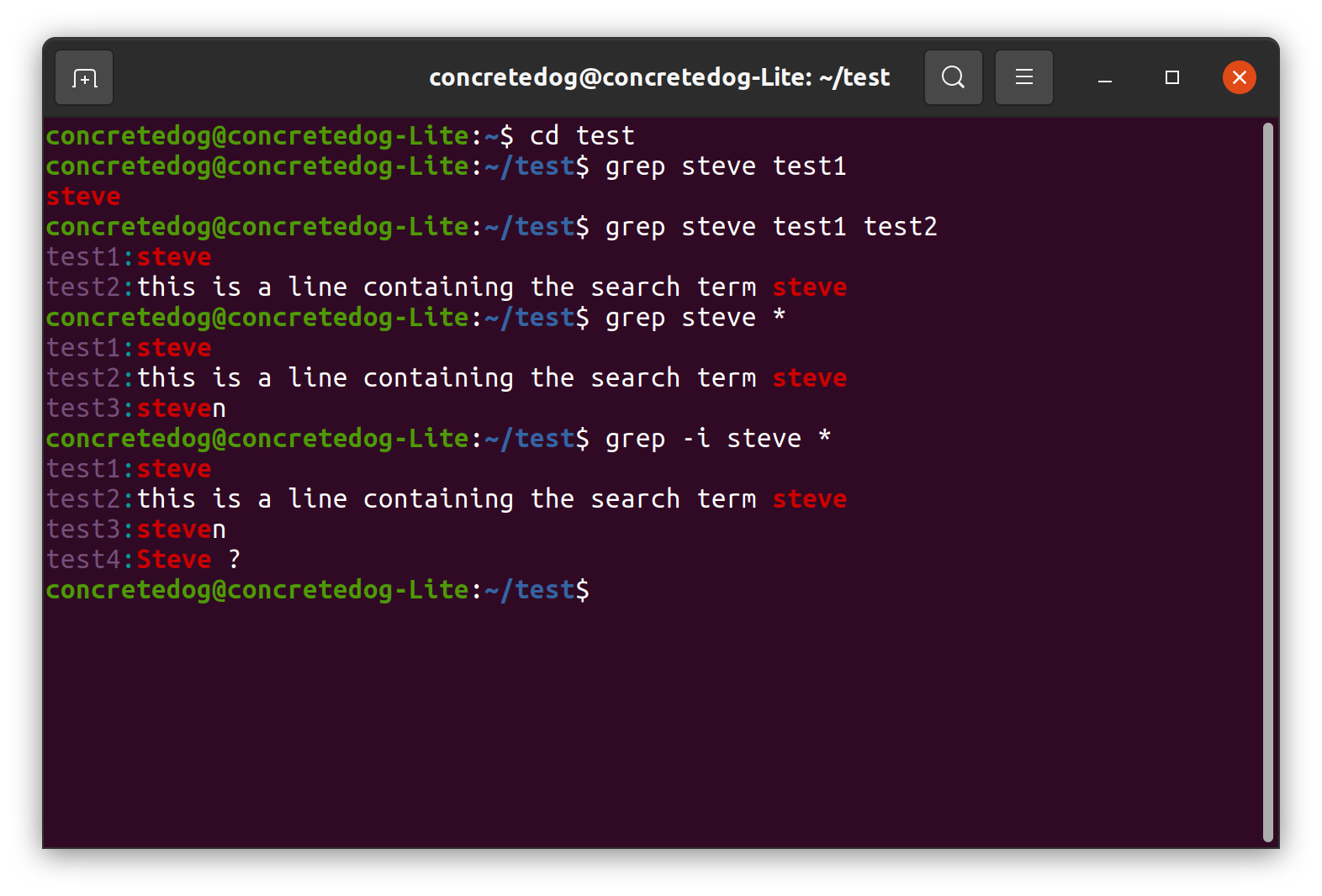
The basic syntax of the grep command is straightforward: grep [options] pattern [file...].
pattern: This is the string or regular expression you are searching for.file...: These are the filesgrepwill search within. If no files are specified,grepwill read from standard input, typically the output of another command piped into it.options: These modifygrep‘s behavior, allowing for case-insensitivity, inverse matching, recursive directory searches, and more.
Unlike a simple text editor’s search function, grep excels due to its reliance on regular expressions. This allows users to define intricate search criteria far beyond just exact string matches. For instance, you can search for lines containing any digit, or lines starting with a specific word, or even lines that conform to a particular email address format, all thanks to the expressive power of regular expressions.
Understanding Regular Expressions: The Power Behind grep
The true might of grep is unlocked through its integration with regular expressions (regex). Regular expressions are sequences of characters that define a search pattern. They are a concise and flexible way to match strings of text, such as particular characters, words, or patterns of characters.
Here are some fundamental regular expression components commonly used with grep:
- Literal Characters: Most characters match themselves (e.g.,
wordmatches “word”). - Metacharacters: These characters have special meanings:
.: Matches any single character (except newline).*: Matches zero or more occurrences of the preceding character or group.+: Matches one or more occurrences of the preceding character or group.?: Matches zero or one occurrence of the preceding character or group.^: Matches the beginning of a line.$: Matches the end of a line.[]: Matches any one of the characters inside the brackets (e.g.,[aeiou]matches any vowel).[^]: Matches any character not inside the brackets (e.g.,[^0-9]matches any non-digit).|: Acts as an OR operator (e.g.,cat|dogmatches either “cat” or “dog”).(): Groups multiple characters or expressions together.: Escapes a metacharacter to treat it as a literal character (e.g.,.matches a literal dot).
- Character Classes: Shorthand for common sets of characters:
d: Matches any digit (0-9). (Equivalent to[0-9])D: Matches any non-digit.w: Matches any word character (alphanumeric and underscore). (Equivalent to[a-zA-Z0-9_])W: Matches any non-word character.s: Matches any whitespace character (space, tab, newline, etc.).S: Matches any non-whitespace character.
Understanding these building blocks allows users to craft patterns ranging from simple word searches to complex email or IP address validation patterns. For example, to find lines containing an email address, you might use a pattern like [a-zA-Z0-9._%+-]+@[a-zA-Z0-9.-]+.[a-zA-Z]{2,}. While this specific pattern might seem daunting at first, breaking it down into its regex components reveals its logic. The mastery of regular expressions significantly amplifies grep‘s analytical capabilities.
Essential grep Options and Their Applications
grep offers a rich set of options that extend its functionality beyond basic pattern matching, making it adaptable to a multitude of scenarios.
Modifying Search Behavior
-i,--ignore-case: Performs a case-insensitive search. This is incredibly useful when you’re unsure of the exact capitalization of a term.grep -i "error" logfile.txtwill match “error”, “Error”, “ERROR”, etc.
-v,--invert-match: Inverts the match, displaying lines that do not contain the pattern.grep -v "#" config.iniwill show non-commented lines in a configuration file.
-w,--word-regexp: Matches the pattern only when it forms a whole word. This prevents partial matches.grep -w "run" script.shwill match “run” but not “running” or “rerun”.
-x,--line-regexp: Matches the pattern only if it matches the entire line.grep -x "start"will only match lines that contain exactly “start” and nothing else.
Controlling Output
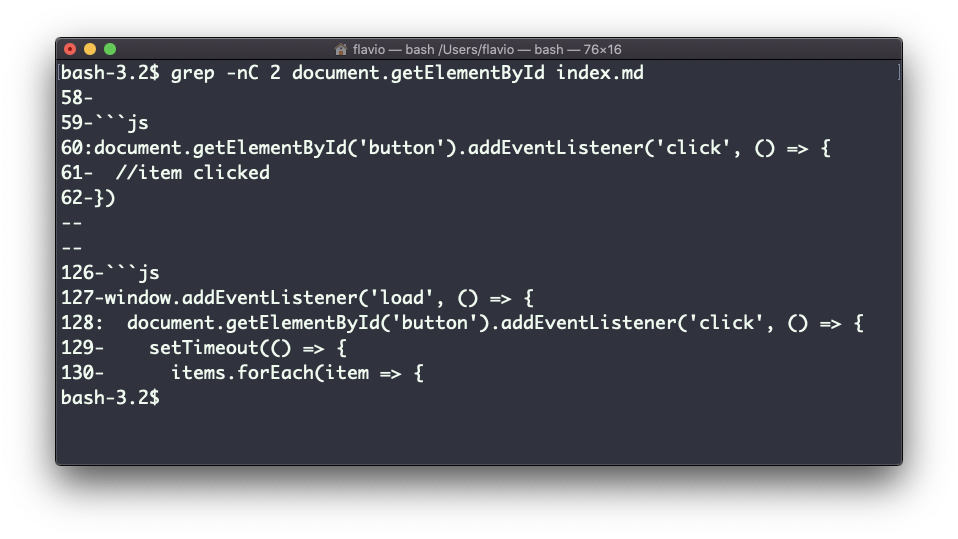
-n,--line-number: Displays the line number along with the matching line. Essential for debugging and referencing.grep -n "warning" sysloghelps pinpoint the exact location of warnings.
-c,--count: Suppresses normal output and prints only a count of the matching lines.grep -c "fail" report.loggives a quick summary of failures.
-l,--files-with-matches: Suppresses normal output and prints only the names of files that contain at least one match.grep -l "TODO" *.pyquickly identifies Python files needing attention.
-o,--only-matching: Prints only the matched (non-empty) parts of a matching line, with each match on a new output line. Great for extracting specific data.grep -o "[0-9]{3}-[0-9]{2}-[0-9]{4}" contacts.txtcould extract Social Security Numbers.
Searching Multiple Files and Directories
-r,--recursive: Recursively searches directories. This is one of the most powerful options for codebases or large log directories.grep -r "function_name" my_project/searches all files inmy_project/and its subdirectories.
-R,--dereference-recursive: Similar to-r, but follows symbolic links.--include='PATTERN',--exclude='PATTERN': Restricts the files searched by-r.grep -r "error" --include='*.log'searches only log files recursively.grep -r "DEBUG" --exclude='backup/*'skips backup directories.
Context and Performance
-A NUM,--after-context=NUM: Prints NUM lines of trailing context after each match.-B NUM,--before-context=NUM: Prints NUM lines of leading context before each match.-C NUM,--context=NUM: Prints NUM lines of context both before and after each match.grep -A 5 "failed login" auth.logprovides surrounding lines to understand the context of a failed login attempt.
-E,--extended-regexp: Interprets PATTERN as an extended regular expression. This is often used with more advanced regex features like+,?,|, and().egrepis a shortcut forgrep -E.-F,--fixed-strings: Interprets PATTERN as a list of fixed strings, separated by newlines, any of which is to be matched.fgrepis a shortcut forgrep -F. This is much faster for literal string searches as it bypasses the regex engine.
Practical Use Cases for grep
grep‘s versatility makes it invaluable across various technical domains.
Log File Analysis
System administrators and DevOps engineers frequently use grep to parse vast log files.
- Error Identification: Quickly find all instances of “error”, “fail”, or “exception” in application logs to diagnose issues:
grep -i "error|fail|exception" /var/log/myapp/*.log. - Performance Monitoring: Search for slow query markers or high resource usage patterns.
- Security Auditing: Look for suspicious IP addresses, failed login attempts, or unauthorized access patterns in
auth.logor other security logs.grep "Failed password for root" /var/log/auth.log
Codebase Navigation and Refactoring
Developers rely on grep to navigate large code repositories and manage code changes.
- Function/Variable Lookup: Locate where a specific function or variable is defined or used across multiple files:
grep -r "calculate_total" .. - Dead Code Identification: Search for patterns indicating deprecated functions or unused code sections.
- API Usage: Find all instances where a particular API endpoint or method is called.
- Configuration Management: Scan configuration files for specific settings or parameters.
System Administration
For managing operating systems, grep is a powerful filter.
- Process Monitoring: Filter the output of
ps auxto find specific processes:ps aux | grep "apache2". - Network Connections: Filter
netstatorssoutput to find connections to a particular port or IP:netstat -tulnp | grep ":80". - Disk Usage: Filter
df -hto show only relevant mounts. - User Management: Search
/etc/passwdor/etc/groupfor user and group information.
Data Extraction and Filtering
grep is an excellent tool for extracting specific data points from unstructured or semi-structured text.
- Email Address Harvesting: Extract all email addresses from a document:
grep -oE "b[A-Za-z0-9._%+-]+@[A-Za-z0-9.-]+.[A-Za-z]{2,6}b" document.txt. - IP Address Discovery: Find all IP addresses in a network scan report or log file.
- CSV/TSV Filtering: Filter lines in delimited files based on content in a specific “column” (though
awkorcutmight be more suitable for precise column work).

Advanced Techniques and Integration
grep rarely works in isolation. Its true power often comes from its integration with other command-line utilities through pipes (|) and command substitution.
- Piping Output: The output of one command can be piped as input to
grep.ls -l | grep "Dec"to list files modified in December.cat access.log | grep "404" | wc -lto count 404 errors.
- Combining with
find:findcan locate files, and thengrepcan search within them.find . -name "*.conf" -exec grep -l "ProxyPass" {} ;searches all.conffiles for “ProxyPass”.
- Using
xargs: For more complex scenarios or when dealing with a large number of files,xargscan be more efficient than-exec.find . -type f -print0 | xargs -0 grep "keyword"searches files found byfindfor “keyword”.
- Scripting:
grepis a cornerstone of shell scripting for automating tasks like log rotation, error reporting, and data processing.
When dealing with extremely large files or directories, performance can be a concern. Using fgrep (or grep -F) for literal string searches can be significantly faster than grep with regular expressions, as it bypasses the regex engine. Similarly, fine-tuning regular expressions to be as specific as possible can also improve performance by reducing backtracking.
In summary, grep is far more than a simple text search utility; it’s a foundational tool for data analysis, system diagnostics, and development workflows. Its mastery, particularly in conjunction with regular expressions and other command-line tools, significantly enhances efficiency and problem-solving capabilities in any technical role.