
Apple’s iOS is the bedrock of its mobile ecosystem, powering millions of iPhones worldwide. Staying informed about the latest version of this operating system is not merely about having access to new features; it’s crucial for security, performance, and overall device longevity. The “most recent iOS” is a dynamic target, evolving through a structured release cycle that includes major annual updates, incremental point releases, and critical security patches. Understanding this cycle and knowing how to identify and implement the latest version is fundamental for any iPhone user.
Understanding the iOS Release Cycle
Apple’s approach to software development is characterized by a predictable yet continuous update schedule, ensuring that iPhones consistently receive enhancements and security fortifications. This cycle can be broken down into distinct phases:
Annual Major Releases
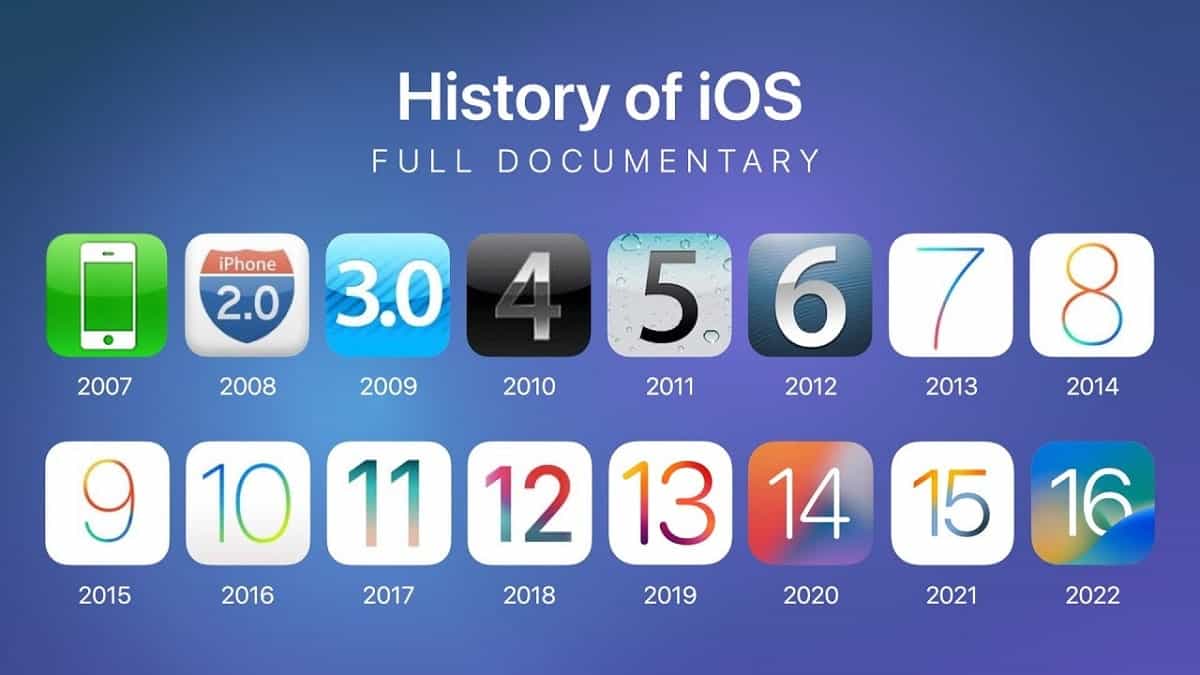
Every year, typically following its Worldwide Developers Conference (WWDC) in June, Apple unveils a new iteration of iOS. These major releases, such as iOS 16, iOS 17, and the impending iOS 18, represent significant leaps forward in functionality, user interface design, and core system architecture. They introduce groundbreaking features, revamp existing apps, and often set the stage for new hardware capabilities. For instance, an update might bring entirely new Lock Screen customization options, enhanced communication features, or substantial improvements to privacy controls. These versions are typically released to the public in the fall, coinciding with the launch of new iPhone models. They mark a new generational step for the operating system, fundamentally reshaping the user experience for supported devices.
Point Releases and Security Updates
Following a major annual release, Apple rolls out a series of point releases (e.g., iOS 17.1, iOS 17.2, iOS 17.3). These updates are critical for refining the initial major release. They often include bug fixes for issues discovered post-launch, performance optimizations, and sometimes introduce smaller, targeted features that weren’t ready for the initial big release. Crucially, these point releases are also the primary vehicle for delivering urgent security patches. In a world of evolving cyber threats, immediate deployment of security updates is paramount to protecting user data and device integrity. These updates are typically smaller in size and often downloaded and installed more frequently than major annual upgrades. They ensure the system remains stable, efficient, and robust against emerging vulnerabilities.
Beta Programs and Developer Previews
Before any version of iOS reaches the public, it undergoes rigorous testing through beta programs. Apple offers developer betas to registered developers, allowing them to test their applications against upcoming iOS versions and provide feedback. Shortly after, public betas are made available to a wider audience willing to test pre-release software. While these betas offer a sneak peek at future features, they are inherently unstable and not recommended for primary devices due to potential bugs, performance issues, and battery drain. They serve as a vital feedback loop for Apple, helping to identify and resolve issues before a stable public release. This multi-stage testing process is crucial for delivering a polished and reliable operating system to the masses.
Identifying Your Current iOS Version
Knowing which version of iOS your iPhone is currently running is straightforward and provides crucial context for understanding your device’s capabilities and security posture.
Checking Through Settings
To find your current iOS version:
- Open the Settings app on your iPhone.
- Tap on General.
- Tap on About.
- Look for the “iOS Version” entry. This will display the exact version number, for example, “iOS 17.3.1”.
This simple check gives you an immediate understanding of whether your device is up-to-date or if it’s running an older iteration. It’s often the first step in troubleshooting or when seeking support for specific features.
Implications of Older Versions
Running an outdated iOS version carries several significant implications. Foremost among these are security risks; older versions often lack critical patches for recently discovered vulnerabilities, leaving your device susceptible to malware, data breaches, and other exploits. Beyond security, older iOS versions might lead to compatibility issues with newer apps, as developers often target the latest stable OS for optimal performance and feature integration. You might also miss out on significant performance enhancements, battery optimizations, and the latest features that enrich the iPhone experience, potentially making your device feel slower or less capable than it should be.
The Latest Stable iOS Version: Features and Enhancements
As of early 2024, the most recent stable public release for compatible iPhones is iOS 17.x. Each major update, including iOS 17, builds upon its predecessors, introducing a suite of features designed to enhance user experience across various domains. While specific point releases within the 17.x series primarily deliver bug fixes and security updates, the overarching iOS 17 update brought substantial improvements.
Performance and Security Enhancements
Every new iOS iteration comes with under-the-hood optimizations aimed at making your iPhone faster, more responsive, and more energy-efficient. iOS 17, for instance, continued this tradition, refining animations, improving app launch times, and enhancing overall system stability. Critically, these updates also bundle essential security patches that protect against emerging threats, ensuring that your personal data remains private and secure from malicious actors. Features like Lockdown Mode, introduced in earlier versions and continually refined, offer extreme security for users facing sophisticated digital threats.
User Interface Refinements and New Customization Options
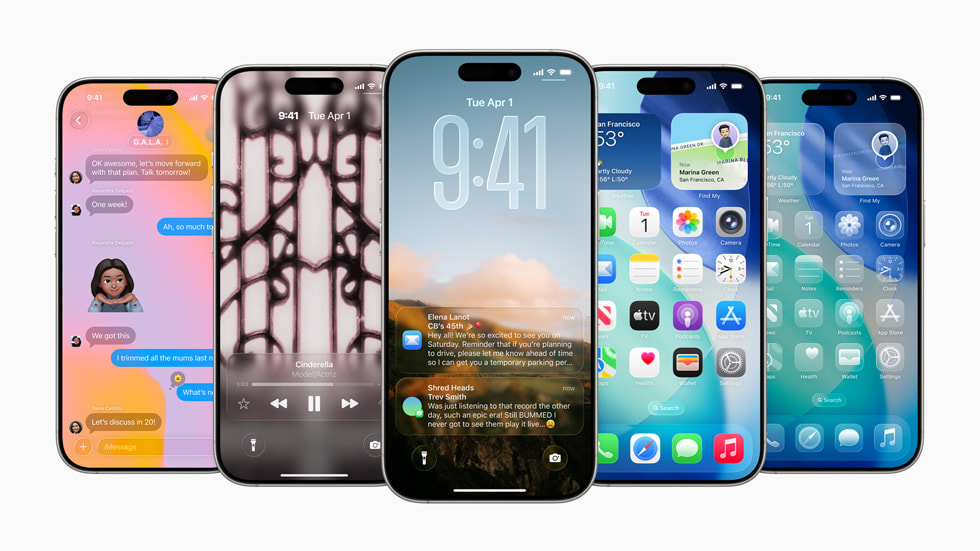
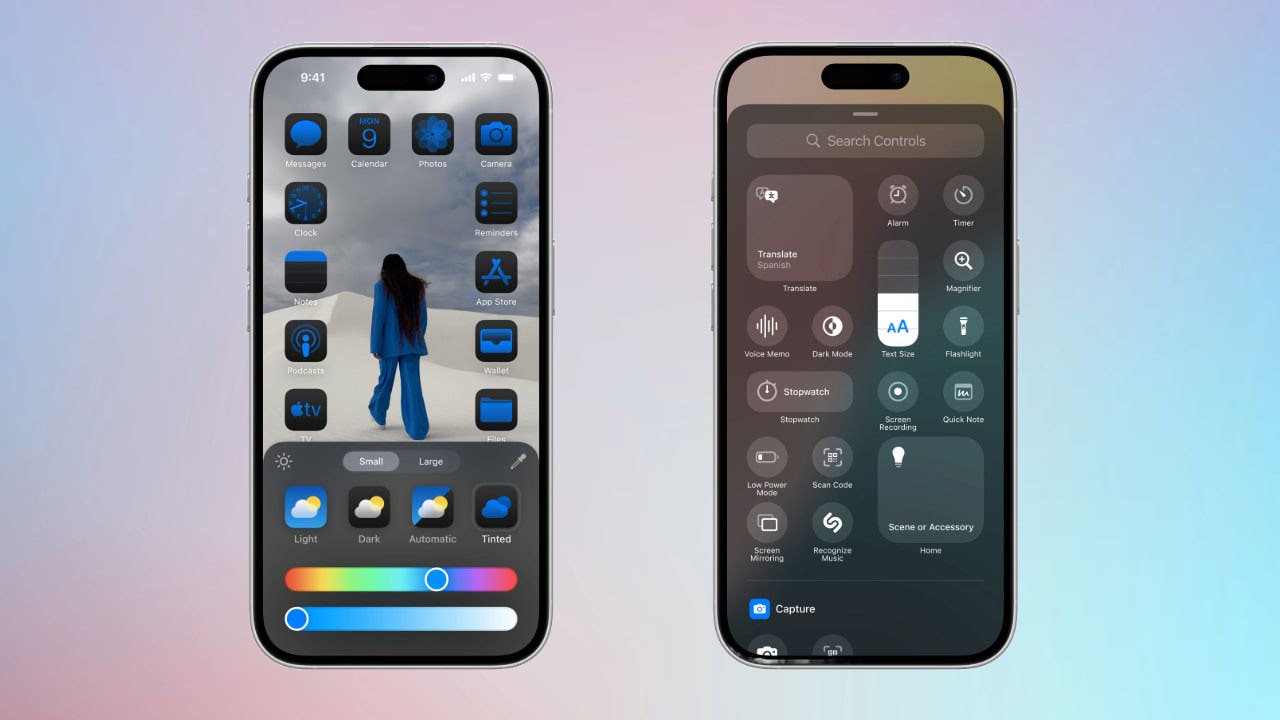
Apple consistently refines the visual and interactive elements of iOS. iOS 17 brought significant personalization options, particularly to the Lock Screen. Users gained greater control over fonts, colors, and widgets, allowing for a more unique and informative glanceable experience. Features like Contact Posters revolutionized how your contacts appear when you call them, making caller ID a much more visually engaging experience. StandBy mode transformed the iPhone into a smart display when charging horizontally, offering glanceable information and live activities. These changes empower users to tailor their device’s aesthetics and information display to their personal preferences.
Productivity and Communication Tools
Communication is at the heart of the iPhone experience, and iOS 17 introduced notable enhancements here. Improvements to Messages included searchable filters, new swipe-to-reply gestures, and Live Voicemail, which transcribes incoming voicemails in real-time. FaceTime received updates allowing for leaving video or audio messages when someone doesn’t pick up, and new reactions that can be triggered with hand gestures. For productivity, Journal app was introduced, offering a new way to reflect and practice gratitude, leveraging on-device machine learning to suggest moments for journaling. Safari received enhanced Private Browsing, and Profiles to separate browsing contexts.
Privacy and Health Features
Privacy remains a cornerstone of Apple’s philosophy, and each iOS update brings new safeguards. iOS 17 further enhanced privacy controls, giving users more transparency and control over their data. Improvements to Photos privacy, tracking prevention in Safari, and enhanced permissions for apps are standard. In the realm of health, the Health app continued to evolve, often integrating deeper with the Apple Watch for comprehensive health tracking. Mental health features were also expanded, allowing users to log their moods and emotions, offering insights into their well-being. These ongoing improvements underscore Apple’s commitment to user privacy and holistic health management.
Why Keeping Your iOS Updated Matters
Regularly updating your iOS device is far more than a suggestion; it is a critical practice for maintaining the optimal functionality, security, and longevity of your iPhone.
Crucial Security Patches
The digital threat landscape is constantly evolving, with new vulnerabilities discovered regularly. Apple issues security patches within its iOS updates to address these weaknesses, protecting your device from malware, phishing attempts, data breaches, and other cyber threats. Running an outdated iOS version means your device is exposed to known vulnerabilities, making it a potentially easy target for malicious actors. These patches are often silent but vital guardians of your personal and financial information.
Access to New Features and System Improvements
Each iOS update, especially the major annual releases, introduces exciting new features, improved functionalities, and enhancements to existing apps. From new camera modes and communication tools to advanced privacy controls and customization options, these updates enrich your iPhone experience. Failing to update means missing out on these innovations, potentially leaving you with a less capable and less enjoyable device.
Enhanced Device Performance and Battery Life
Apple continually optimizes iOS to run more efficiently on its hardware. Updates often include performance enhancements that make your apps launch faster, system animations smoother, and overall device responsiveness better. Furthermore, battery life optimizations are a regular part of these updates, ensuring your iPhone operates longer on a single charge. Running older software can sometimes lead to reduced performance and accelerated battery drain due to compatibility issues or unoptimized processes.
App Compatibility and Ecosystem Integration
App developers typically design and test their applications against the latest stable iOS versions. Running an older iOS might lead to apps crashing, not displaying correctly, or even becoming completely unusable. Some apps may even cease to support older iOS versions entirely. Additionally, keeping your iOS updated ensures seamless integration with other Apple devices and services within the ecosystem, allowing you to fully leverage features like Handoff, AirDrop, and iCloud synchronization.
How to Update Your iOS Device
Updating your iPhone to the most recent iOS version is a straightforward process, though it requires a few preparatory steps to ensure a smooth transition.
Pre-Update Checklist
Before initiating any software update, it’s wise to take the following precautions:
- Backup Your iPhone: This is the most critical step. Should anything go awry during the update process, a recent backup ensures you won’t lose your data. You can back up to iCloud (Settings > Your Name > iCloud > iCloud Backup) or to your computer via Finder (on Mac) or iTunes (on Windows).
- Ensure Sufficient Power: Your iPhone should be charged to at least 50% or, ideally, connected to a power source. The update process can be battery-intensive, and running out of power mid-update could corrupt your device.
- Connect to Wi-Fi: Software updates can be quite large. Using a stable Wi-Fi connection prevents cellular data overages and ensures a faster, more reliable download.
- Free Up Storage Space: Major iOS updates can require several gigabytes of free storage. Check your available space in Settings > General > iPhone Storage and delete unnecessary apps or media if needed.
Over-the-Air (OTA) Updates
The most common and convenient way to update your iOS device is wirelessly, directly on the device itself:
- Connect your iPhone to a power source and a stable Wi-Fi network.
- Open the Settings app.
- Tap on General.
- Tap on Software Update.
- Your iPhone will check for available updates. If an update is available, tap Download and Install. You may need to enter your passcode.
- Agree to the terms and conditions if prompted. The update will download and then your iPhone will restart to install it. Do not interrupt this process.
Updating via Computer (Finder/iTunes)
If you prefer, or if you encounter issues with OTA updates, you can update your iPhone using a computer:
- Mac (macOS Catalina or later): Open Finder. Connect your iPhone to your Mac using a USB cable. Select your iPhone in the Finder sidebar. Click “General” and then “Check for Update.” Click “Download and Update” if an update is available.
- Windows PC or Mac (macOS Mojave or earlier): Open iTunes. Connect your iPhone to your computer using a USB cable. Click the device icon when it appears in iTunes. In the “Summary” section, click “Check for Update.” Click “Download and Update” if an update is available.
The computer method often performs a full re-download of the operating system, which can sometimes resolve issues that OTA updates might not.
Troubleshooting Common Update Issues
- Update Not Showing: Ensure your iPhone is connected to Wi-Fi, has sufficient battery, and enough storage. If still no update, try restarting your device or checking via computer.
- Update Stuck/Frozen: If the update process appears frozen, try a force restart. The method varies by iPhone model (e.g., for iPhone 8 and later: Press and quickly release the Volume Up button. Press and quickly release the Volume Down button. Press and hold the Side button until you see the Apple logo).
- “Unable to Check for Update” / “Unable to Install Update”: This can often be resolved by restarting your Wi-Fi router, restarting your iPhone, or ensuring you have enough storage space. Server overload during major releases can also be a cause; waiting a few hours and trying again often helps.
Staying current with the most recent iOS version is a non-negotiable aspect of responsible iPhone ownership. It secures your digital life, enriches your user experience with new features, and ensures your device performs at its peak, protecting your investment in Apple’s ecosystem.
aViewFromTheCave is a participant in the Amazon Services LLC Associates Program, an affiliate advertising program designed to provide a means for sites to earn advertising fees by advertising and linking to Amazon.com. Amazon, the Amazon logo, AmazonSupply, and the AmazonSupply logo are trademarks of Amazon.com, Inc. or its affiliates. As an Amazon Associate we earn affiliate commissions from qualifying purchases.