
In the modern digital landscape, connectivity is the backbone of our personal and professional lives. Whether you are working from a home office, streaming high-definition content, or managing a network of smart devices, the reliability and security of your Wi-Fi connection are paramount. At the center of this connection lies a fundamental security protocol known as the network key. Often referred to by various names—including Wi-Fi password, WPA/WPA2/WPA3 key, or security key—this string of characters is the primary gatekeeper of your digital environment.
Understanding what a network key is, how it functions, and why it is essential for your cybersecurity is critical for anyone operating in a connected world. Without a robust key, your local area network (LAN) is left vulnerable to unauthorized access, potential data theft, and bandwidth exploitation.
The Technical Foundation: How Network Keys Protect Data
At its core, a network key is a cryptographic code used to authenticate devices attempting to connect to a secure wireless network. When you enter a password to join a Wi-Fi network, you are not simply verifying your identity; you are providing the decryption mechanism that allows your device to communicate with the router.
The Role of Encryption Protocols
To understand the network key, one must understand encryption. Modern routers utilize specific protocols—the most common being WPA2 (Wi-Fi Protected Access 2) and the newer, more robust WPA3—to scramble the data traveling through the air. The network key acts as a “shared secret” between the router and the client device. This secret is used to generate the encryption keys that secure the data packets sent between the two points. Without the correct network key, any data intercepted by a third party would appear as indecipherable gibberish.
Authentication and Handshaking
The process of connecting to a network involves a “handshake.” When you input the network key, your device engages in a mathematical exchange with the router. If the key matches the one stored in the router’s firmware, the router grants the device permission to join the network and begins the process of assigning it an IP address. This handshake is designed to prevent “Man-in-the-Middle” attacks, ensuring that you are connecting to the legitimate access point and not a malicious mimic.
Distinguishing the Network Key from Other Identifiers
It is common for users to confuse the network key with other identifiers associated with a router. However, in the context of network security, these terms are not interchangeable. Distinguishing between them is vital for troubleshooting and setup.
SSID vs. Network Key
The SSID (Service Set Identifier) is simply the name of your network—the public label you see when you open the Wi-Fi menu on your smartphone or laptop. It is public information, designed to be broadcast so that devices can find the network. The network key, conversely, is private. While the SSID identifies the destination, the network key verifies the right of passage.
Router Admin Password vs. Network Key
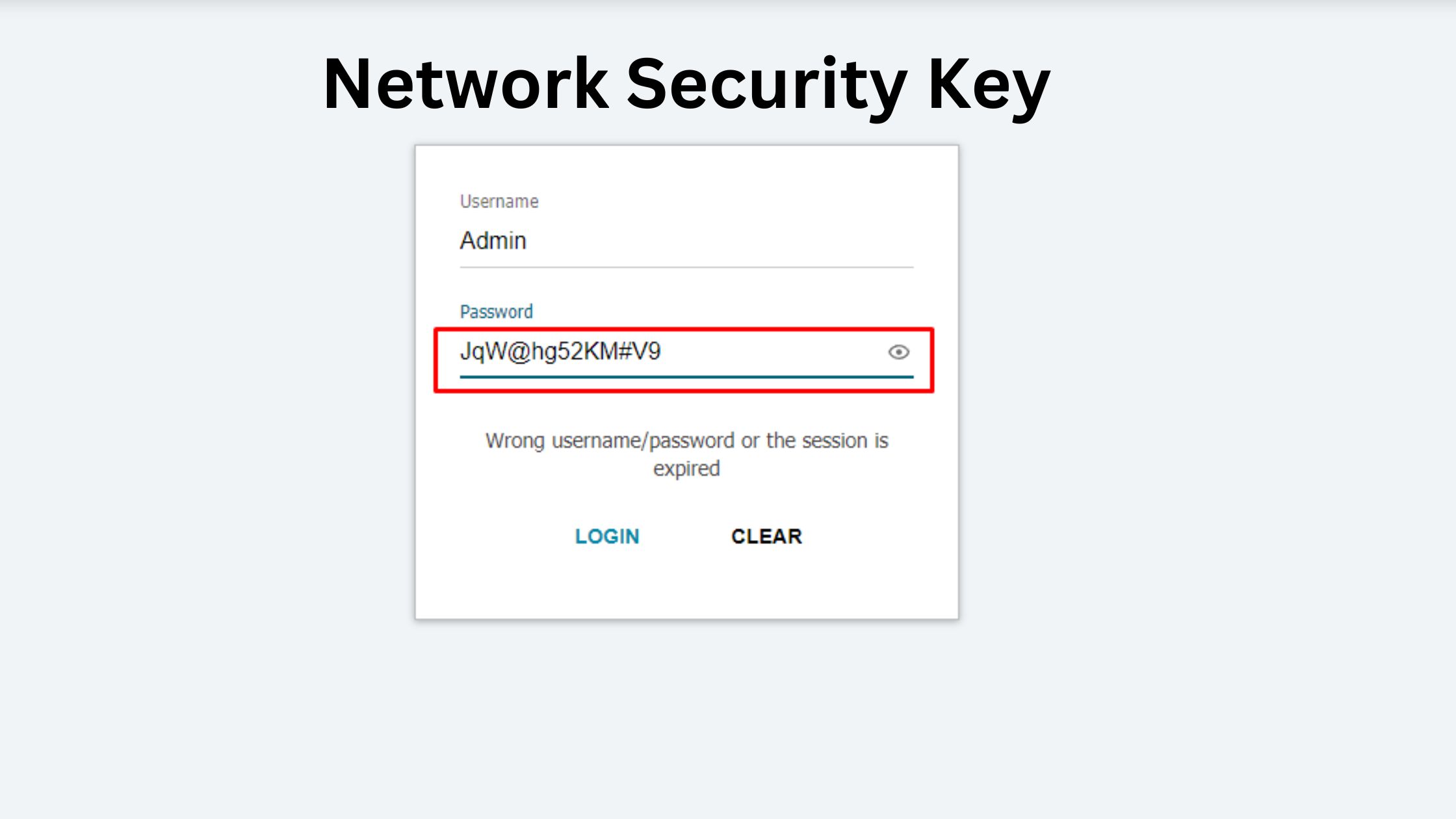
Another frequent point of confusion is the difference between the network key and the router’s administrative credentials. The admin password allows you to log into the router’s internal settings (the web-based interface) to change configurations, update firmware, or reboot the hardware. The network key is strictly for the wireless connection. While you can technically set these to be the same, it is highly discouraged from a security standpoint. If someone gains access to your network, they should not automatically have the administrative power to alter your router’s core settings.
Security Best Practices for Your Network Key
Because the network key is the front line of your digital defense, the way you manage it significantly impacts your risk profile. A weak, predictable, or shared network key is an invitation for intruders to exploit your internet connection.
The Importance of Complexity
Many users choose keys based on convenience, such as the name of a pet or a simple sequence of numbers. These are highly susceptible to “brute force” attacks, where software programs automatically cycle through millions of common password combinations until they find a match. A secure network key should follow modern password best practices:
- Length: Aim for at least 12 to 16 characters.
- Entropy: Combine uppercase letters, lowercase letters, numbers, and symbols.
- Avoid Context: Do not include identifiable information such as your address, name, or birthday, as this data is often easily harvested from social media.
Periodic Rotation
Security experts recommend changing your network key periodically, particularly if you have allowed guests to use your network in the past. If you suspect that a device may have been compromised or if you want to perform a “digital housecleaning,” updating the key is a highly effective way to disconnect all unauthorized devices instantly.
WPA3: The Current Gold Standard
If your router supports it, ensure that you are using WPA3 encryption. WPA3 improves upon WPA2 by offering more sophisticated encryption algorithms and providing better protection against automated brute-force guessing. It also provides forward secrecy, which ensures that even if a future key is compromised, it cannot be used to decrypt data that was captured in the past.
How to Locate or Reset Your Network Key
Inevitably, there comes a time when you forget the network key. Whether you have recently purchased a new device or are attempting to reconnect after a power outage, knowing how to recover your key is an essential skill.
Finding the Key on the Router Label
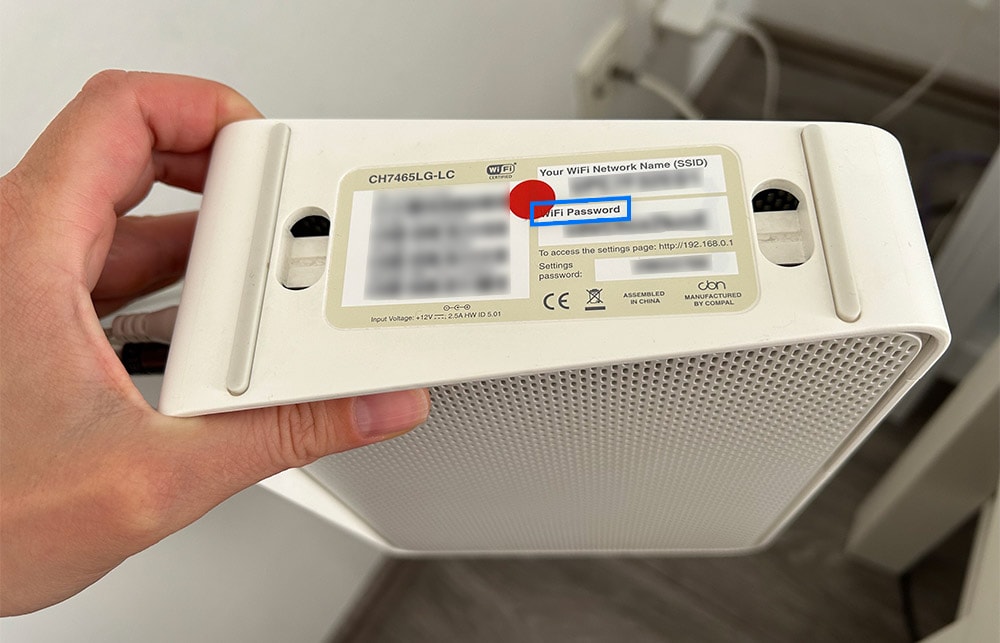
Most consumer-grade routers come with a default network key printed on a sticker on the bottom or back of the chassis. If you have never changed the password, this is the first place you should look. It is often labeled as “WPA Key,” “Security Key,” or “Password.”
Accessing the Web Interface
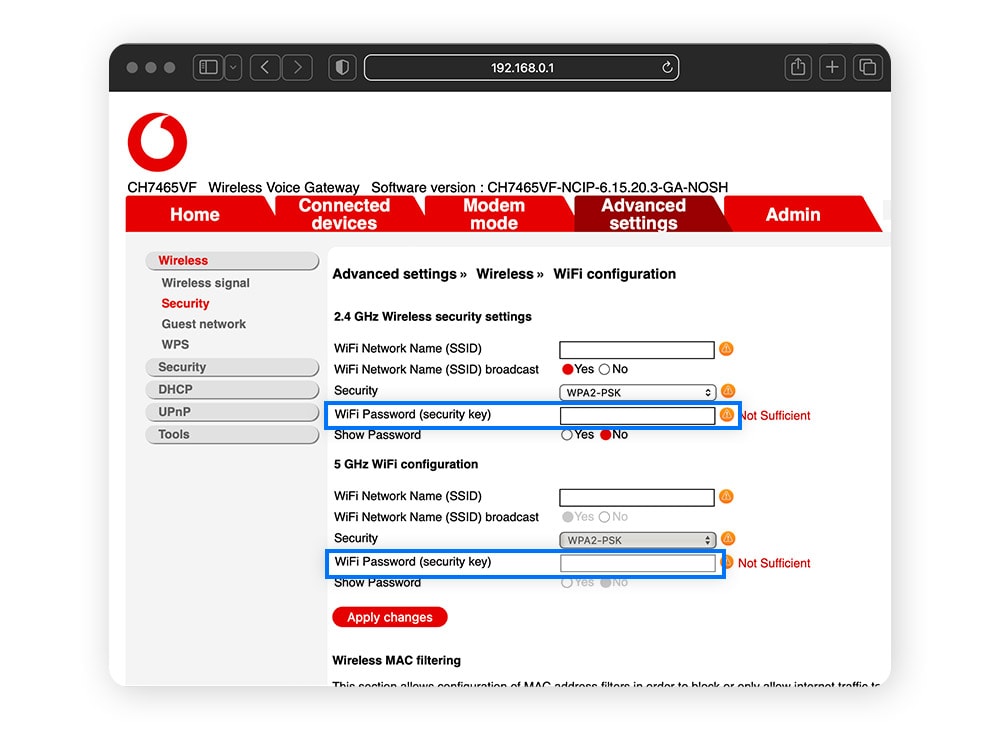
If you have changed the default password and forgotten it, you will need to access the router’s administrative interface. This is done by typing your router’s IP address (typically 192.168.1.1 or 192.168.0.1) into a web browser. Once logged in using your administrative credentials, you can navigate to the “Wireless” or “Security” tab. Here, you will find the field displaying your current network key. Many modern router apps, such as those provided by ISP-branded hardware or mesh systems like Eero or Google Nest, make this even easier by allowing you to view and share the password directly from a mobile dashboard.
The Last Resort: A Factory Reset
If you have lost both the network key and the administrative login credentials, you may be forced to perform a factory reset. This involves pressing a small, recessed button on the router (usually with a paperclip) for 10 to 30 seconds. Note that this will revert all settings—including the SSID, custom security configurations, and port forwarding rules—back to their original factory state. Only perform this action if you are prepared to reconfigure your entire network from scratch.
The Future of Network Access
As the Internet of Things (IoT) continues to expand, the way we handle network security is evolving. We are moving toward a world where simple alphanumeric keys may eventually be supplemented or replaced by more seamless authentication methods. Technologies such as QR code scanning, Near Field Communication (NFC) handshakes, and advanced certificate-based authentication are beginning to simplify the user experience while hardening security.
However, for the foreseeable future, the network key remains the standard. It is the gatekeeper of your personal data, your financial interactions, and your digital privacy. By understanding its role and maintaining it with the necessary rigor, you ensure that your local network remains a secure sanctuary in an increasingly interconnected, and often unpredictable, global digital environment. Protect your key, protect your network, and maintain the integrity of your digital life.
aViewFromTheCave is a participant in the Amazon Services LLC Associates Program, an affiliate advertising program designed to provide a means for sites to earn advertising fees by advertising and linking to Amazon.com. Amazon, the Amazon logo, AmazonSupply, and the AmazonSupply logo are trademarks of Amazon.com, Inc. or its affiliates. As an Amazon Associate we earn affiliate commissions from qualifying purchases.