
If you have ever encountered a sudden system crash, a mysterious application failure, or a puzzling Windows performance degradation, you have likely looked for a way to peer under the hood of your operating system. For IT professionals and power users, the Event Viewer is the primary diagnostic instrument. It is a built-in Windows administrative tool that maintains comprehensive logs of system, security, and application events. Think of it as the “black box” flight recorder for your computer—it logs exactly what happened, when it happened, and, often, what caused the failure.
Understanding the Architecture of Event Logs
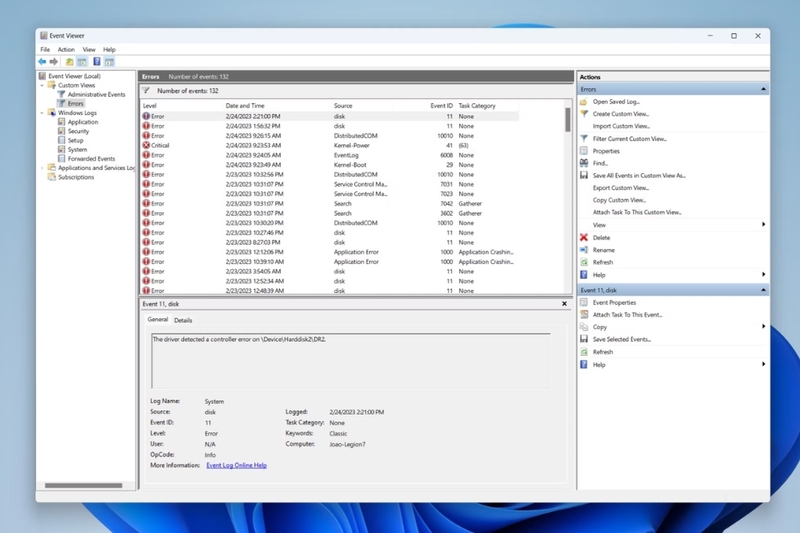
At its core, Event Viewer is a centralized interface that aggregates thousands of data points generated by the Windows operating system and its installed software. When any significant action occurs—such as a service starting, a user logging in, a driver failing to initialize, or a software update completing—Windows records this event in a structured log file.
How Windows Categorizes Data
Event Viewer organizes these logs into three primary categories:
- System Logs: These track events generated by the Windows operating system components. This includes issues with hardware drivers, system services, and critical kernel-level operations. If your computer blue-screens (BSOD) or fails to boot a critical service, the System log is where you begin your investigation.
- Security Logs: These logs monitor authentication and authorization events. They record successful and failed login attempts, changes to security policies, and access to protected files or folders. This category is vital for digital security and auditing compliance.
- Application Logs: These record events related to software programs. If a third-party application crashes unexpectedly, it will write a diagnostic message here.
Beyond these three, Windows also maintains “Setup” logs for software installations and “Forwarded Events” logs for networks using centralized server logging.
The Anatomy of an Event
Every entry within Event Viewer follows a standard schema that provides the metadata necessary for troubleshooting. Each log entry includes:
- Level: The severity of the event (e.g., Information, Warning, Error, Critical).
- Date and Time: The exact timestamp of the occurrence.
- Source: The component or software that triggered the log.
- Event ID: A specific numerical code that identifies the event type.
- Task Category: A classification of the event task.
- User/Computer: The context in which the event took place.
How to Navigate and Use Event Viewer
Accessing Event Viewer is straightforward for any administrator. You can simply press the Windows key, type “Event Viewer,” and hit Enter. Once the application opens, the user interface presents a tree structure on the left side, allowing you to browse different log categories.
Filtering and Custom Views
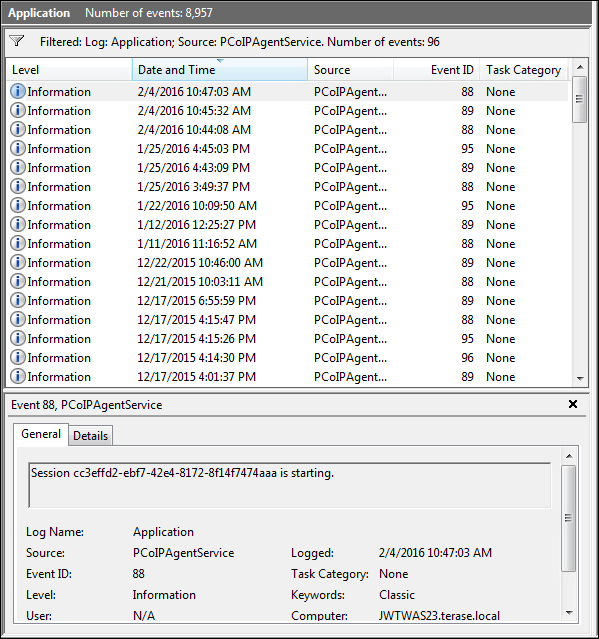
One of the most daunting aspects of Event Viewer is the sheer volume of data. On a healthy machine, Windows generates hundreds of events per hour. To make sense of this noise, power users rely on filtering.
Within the “Action” pane, you can select “Filter Current Log.” This allows you to isolate specific events based on:
- Time Range: Narrowing the scope to when the specific issue occurred.
- Severity Levels: Filtering out “Information” logs to focus exclusively on “Critical” or “Error” events.
- Event Sources: Drilling down into a specific driver or software process.
Creating “Custom Views” is another efficiency hack. You can save your filter parameters so that you don’t have to re-configure them every time you need to check for specific error patterns. This is particularly useful for sysadmins who need to monitor specific error IDs related to database connectivity or authentication failures.
Troubleshooting Common Scenarios
Event Viewer is not just a repository of history; it is a diagnostic engine. By learning how to interpret the data, you can move from “guessing” to “fixing” in a matter of minutes.
Diagnosing Application Crashes
When an application stops responding, the first step should be checking the Application log. Look for “Error” levels that coincide with the time of the crash. Often, you will find an Event ID associated with the application, which may cite a faulty dynamic link library (DLL) file or an memory access violation. A quick search of the Event ID on Microsoft’s support forums or community tech hubs often reveals that other users have encountered the same issue, frequently providing a direct solution or a path to a necessary software patch.
Identifying Hardware Instability
If your system experiences random reboots, the System log is your greatest ally. Navigate to the “Windows Logs” -> “System” section and look for events originating from “Kernel-Power.” Event ID 41, for instance, indicates that the system rebooted without cleanly shutting down first. While this code itself doesn’t explicitly state the cause, it confirms that the power interruption was sudden. By correlating this with other events occurring milliseconds prior—such as thermal warnings or driver timeouts—you can deduce whether the problem is a failing power supply, an overheating GPU, or a corrupted driver.
Auditing Security Breaches
For administrators, the Security log acts as a frontline defense. By enabling “Audit Policies” in the Windows Group Policy Editor, you can force the system to log specific activities, such as failed login attempts or attempts to clear the event logs themselves. If you suspect an unauthorized person has accessed a machine, the Security log will show you the exact time of the attempt and the account that was targeted, providing the forensic evidence necessary to contain a security incident.
Advanced Techniques and Automation
For those who manage multiple machines or require proactive monitoring, the standard Event Viewer interface can feel limiting. This is where advanced administration techniques come into play.
Event Subscriptions
In a corporate environment, administrators often use “Event Subscriptions.” This allows a central server to collect events from multiple client computers. Instead of logging into twenty different workstations to check for disk errors, a technician can see all critical hardware warnings for the entire network in one centralized dashboard.
Using PowerShell for Log Management
PowerShell has revolutionized how IT professionals interact with logs. Rather than clicking through the GUI, you can use cmdlets like Get-WinEvent to parse logs with surgical precision.
For example, to list the last 50 errors in the System log, you could run a single line of script:
Get-WinEvent -FilterHashtable @{LogName='System'; Level=2} -MaxEvents 50
This level of automation allows you to write scripts that automatically alert you via email if a specific “Critical” error ID appears in the log, turning Event Viewer from a passive diagnostic tool into an active monitoring solution.

Best Practices for Log Maintenance
Logs can grow quite large, potentially consuming significant disk space over time. Windows manages this by “wrapping” logs—once a log file reaches a maximum size, it starts overwriting the oldest entries. For standard users, this is fine. However, in sensitive environments, it is best practice to configure log rotation and archival, ensuring that important diagnostic history is saved to a secondary storage location before it is overwritten.
In summary, the Event Viewer is an indispensable pillar of the Windows administration toolkit. Whether you are a casual user attempting to resolve a stubborn app crash or an IT professional maintaining a complex network, understanding how to read, filter, and interpret the events logged by your operating system provides the clarity needed to keep your digital environment stable, secure, and performant. By spending time familiarizing yourself with the architecture of these logs, you gain the ability to preemptively address technical failures and resolve complex conflicts with confidence.
aViewFromTheCave is a participant in the Amazon Services LLC Associates Program, an affiliate advertising program designed to provide a means for sites to earn advertising fees by advertising and linking to Amazon.com. Amazon, the Amazon logo, AmazonSupply, and the AmazonSupply logo are trademarks of Amazon.com, Inc. or its affiliates. As an Amazon Associate we earn affiliate commissions from qualifying purchases.