
Navigating the ecosystem of Microsoft operating systems can sometimes feel like a daunting task, especially with the frequent updates and version iterations that characterize the modern computing landscape. Whether you are troubleshooting a technical issue, preparing to install new software, or simply curious about the feature set currently powering your machine, knowing exactly which version of Windows you are running is fundamental. This guide will walk you through the most efficient methods to identify your Windows build, ensuring you have the precise information needed for compatibility and support.
Utilizing the System Settings Menu
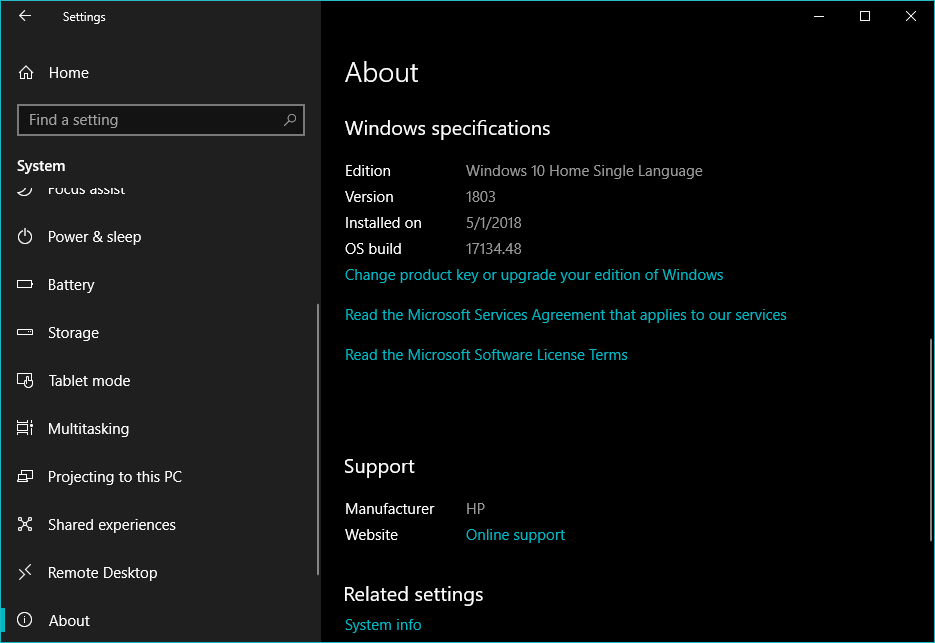
The most user-friendly and modern approach to identifying your Windows version involves the Settings application. This method is standard for users running Windows 10 or Windows 11, providing a clean, readable interface that consolidates all your system information into one location.
Navigating to the About Page
To begin, click on the “Start” button located on your taskbar and select the gear-shaped icon labeled “Settings.” Alternatively, you can use the keyboard shortcut Windows Key + I to open the window instantly. Once the Settings interface is open, navigate to the “System” tab, which is usually the first option in the left-hand sidebar. Scroll down to the bottom of the list until you find the “About” option.
Interpreting Your Device Specifications
Upon clicking “About,” you will be presented with an overview of your computer’s health and identity. Under the “Windows specifications” section, you will see exactly which edition of Windows you are using—such as Windows 10 Home, Windows 10 Pro, or Windows 11 Enterprise. Further down, you will see the “Version” number (e.g., 22H2) and the “OS build,” which is a granular identifier of the specific update state of your machine. This information is vital if you are contacting technical support, as it tells the technician exactly which features and patches are present on your system.
The WinVer Command: A Quick Shortcut
If you are looking for a method that works across virtually every modern version of the Windows operating system, the “WinVer” command is the gold standard. It is lightweight, requires no navigation through complex menus, and displays the vital statistics in a dedicated, pop-up dialog box.
Executing the Command
To utilize this method, press the Windows Key + R simultaneously on your keyboard. This action opens the “Run” dialog box in the bottom-left corner of your screen. In the text field provided, type exactly winver and press the “Enter” key, or click the “OK” button.
Understanding the Dialog Box
A window titled “About Windows” will appear immediately. This window clearly states the version of Windows you are running, along with the specific build number. This method is particularly useful for legacy systems or environments where the full Settings application might be restricted or unresponsive. It is a no-frills, highly effective diagnostic tool that provides the “source of truth” regarding your OS.
Using System Information for Advanced Details

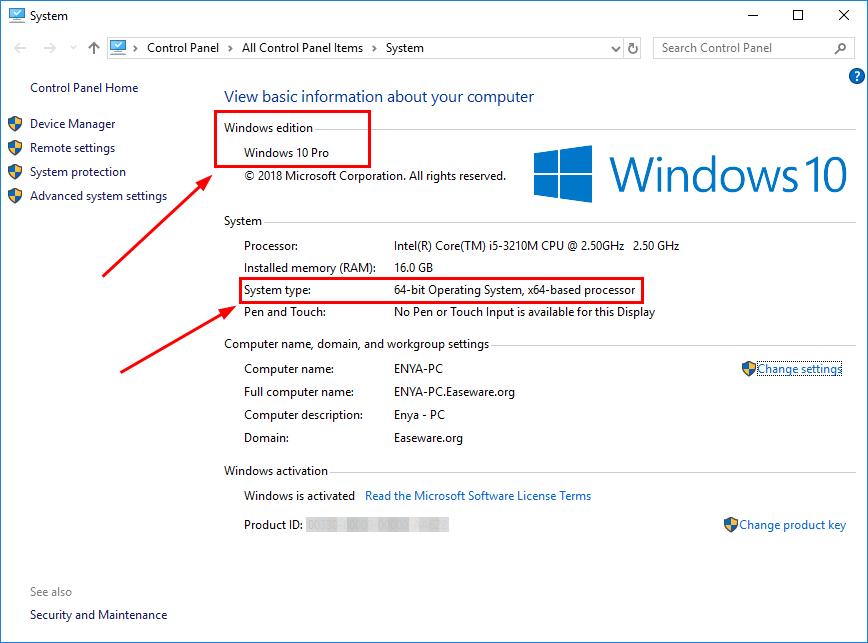
For power users or those troubleshooting complex driver conflicts, the “System Information” utility offers a deeper dive into your hardware and software configuration. While the methods mentioned above provide basic version information, this utility lists every specific patch and component version associated with your installation.
Opening System Information
Click on the “Start” button and type “System Information” into the search bar. Select the application that appears in the search results. This will open a comprehensive management console that categorizes information into a tree-like structure.
Analyzing the Summary
The “System Summary” page—which opens by default—acts as a comprehensive dashboard. Under the “Item” column, look for “OS Name” and “Version.” This will provide you with the full name of your operating system, including whether it is a 32-bit or 64-bit architecture. This distinction is crucial when downloading software drivers or games, as installing the wrong architecture can lead to crashes or performance limitations.
Troubleshooting Version Discrepancies
Sometimes, you may encounter scenarios where you suspect an update hasn’t applied correctly, or you are questioning why your interface looks different from others. Understanding your Windows version can help you diagnose if you are falling behind on critical security updates.
Check for Pending Updates
If you find that your version number is significantly outdated, your first step should be to navigate back to “Settings” and select “Windows Update.” Clicking “Check for updates” will prompt the system to communicate with Microsoft’s servers to determine if your specific version is still supported. If you are running an end-of-life version, such as Windows 7 or an early build of Windows 10, the system may prompt you to upgrade to a newer, more secure version of the platform.
Compatibility Implications
Knowing your specific OS build is often a prerequisite for software installation. Many modern applications, particularly those focused on gaming or professional video editing, require a minimum Windows 10 or 11 build number to function. If you are ever met with a “System Requirements Not Met” error, verify your OS build using the methods described above to ensure your platform is actually the bottleneck.
Why Version Identification Matters
Beyond simple curiosity, maintaining an awareness of your OS version is a core pillar of digital hygiene. Microsoft frequently issues “Cumulative Updates” that resolve security vulnerabilities, patch software bugs, and improve system performance.
Security and Maintenance
Operating systems that have been left unpatched for long durations become susceptible to malware and exploits. By regularly checking your system specifications, you can verify that your computer is receiving these updates automatically. If you notice that your OS version is stagnating, it may indicate a corrupt update service, requiring manual intervention or the use of the Windows Update Troubleshooter.
Future-Proofing Your Hardware
As hardware evolves, so too do the software requirements needed to interface with it. New peripherals—such as high-end graphics cards, specialized input devices, or high-speed external storage—often require the latest Windows APIs to achieve peak performance. By confirming that your Windows version is up to date, you ensure that you are getting the full value out of the physical hardware you have purchased.
Final Thoughts on Management
Identifying your Windows version takes only a few seconds, yet it provides the clarity needed to navigate the vast world of software and troubleshooting. Whether you rely on the visual simplicity of the Settings menu, the efficiency of the WinVer command, or the exhaustive detail of System Information, you now have the tools to keep your machine well-managed. Remember that a computer is a living tool; keeping its operating system clearly identified and updated is the best way to ensure it remains a reliable, high-performing partner in your professional and personal endeavors. Always cross-reference your version with official manufacturer documentation if you ever encounter persistent issues, as this is the primary data point any support professional will require to assist you further.
aViewFromTheCave is a participant in the Amazon Services LLC Associates Program, an affiliate advertising program designed to provide a means for sites to earn advertising fees by advertising and linking to Amazon.com. Amazon, the Amazon logo, AmazonSupply, and the AmazonSupply logo are trademarks of Amazon.com, Inc. or its affiliates. As an Amazon Associate we earn affiliate commissions from qualifying purchases.