
The modern computing experience is defined by efficiency. Whether you are a creative professional, a data analyst, or simply someone trying to navigate a cluttered web interface, your keyboard is the primary bridge between your intent and the digital environment. Among the myriad keys that populate a standard QWERTY layout, the function keys—the “F-keys” spanning the top row—often remain the most underutilized tools in the average user’s arsenal. When users find themselves wondering, “What F-key is refresh?”, they are usually tapping into a deeper need for speed, workflow optimization, and a better understanding of how their operating system communicates with the web.
The Standard Refresh Command: F5
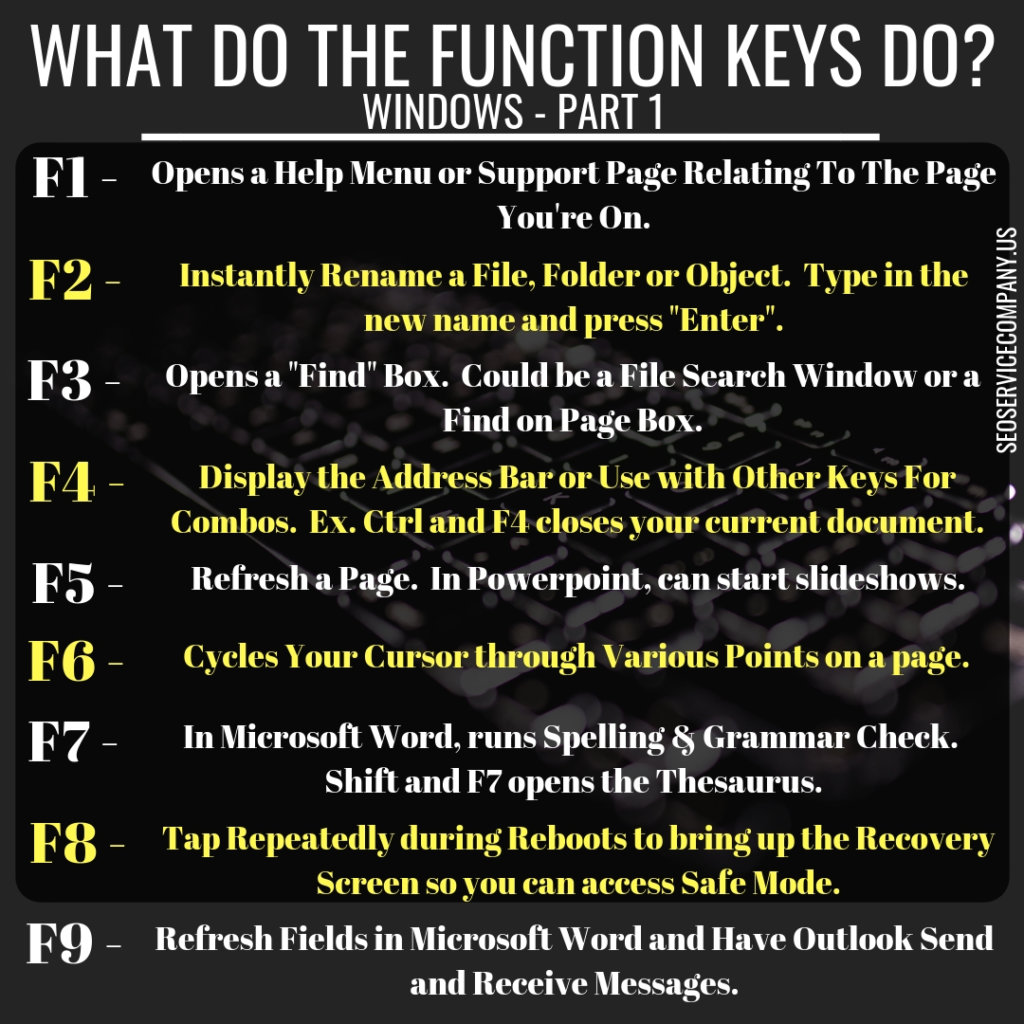
The most common answer to the question of which key refreshes a page is the F5 key. In almost every major web browser—including Google Chrome, Mozilla Firefox, Microsoft Edge, and Safari—pressing F5 will trigger a standard page refresh.
Understanding the Refresh Mechanism
When you press F5, the browser sends a request to the server hosting the webpage, asking for the most current version of the content. However, it is important to distinguish between a standard refresh and a “hard” refresh. A standard refresh often relies on the browser’s cache—a collection of temporary files stored on your hard drive intended to make websites load faster by not re-downloading images or scripts that haven’t changed.
When F5 Falls Short
Sometimes, a standard refresh isn’t enough. If you are a web developer testing changes to CSS files or a user struggling with a webpage that appears “stuck” in an outdated state, a standard F5 refresh might simply pull the same cached version you were already seeing. In these instances, you need to force the browser to ignore the cache entirely and fetch fresh data from the server.
Advanced Refresh Techniques: Beyond F5
For power users, knowing the basic refresh key is only the beginning. Professional workflows often require more granular control over how a page reloads. This is where keyboard shortcuts involving multiple keys become essential.
Hard Refresh Shortcuts
To perform a “hard refresh” (or “force refresh”), you must clear the cache for the current page. The shortcut varies slightly depending on your operating system and your browser:
- Windows and Linux: Press
Ctrl + F5orCtrl + R. Alternatively, holdingShiftwhile clicking the “Reload” icon in the browser interface often achieves the same result. - macOS: Press
Cmd + Shift + R.
These commands are invaluable when you are editing websites or when a banking or news site is displaying stale information. By utilizing these combinations, you bypass the cached files, ensuring that every asset—from JavaScript bundles to high-resolution images—is retrieved fresh from the host server.
The Context of F11 and F12
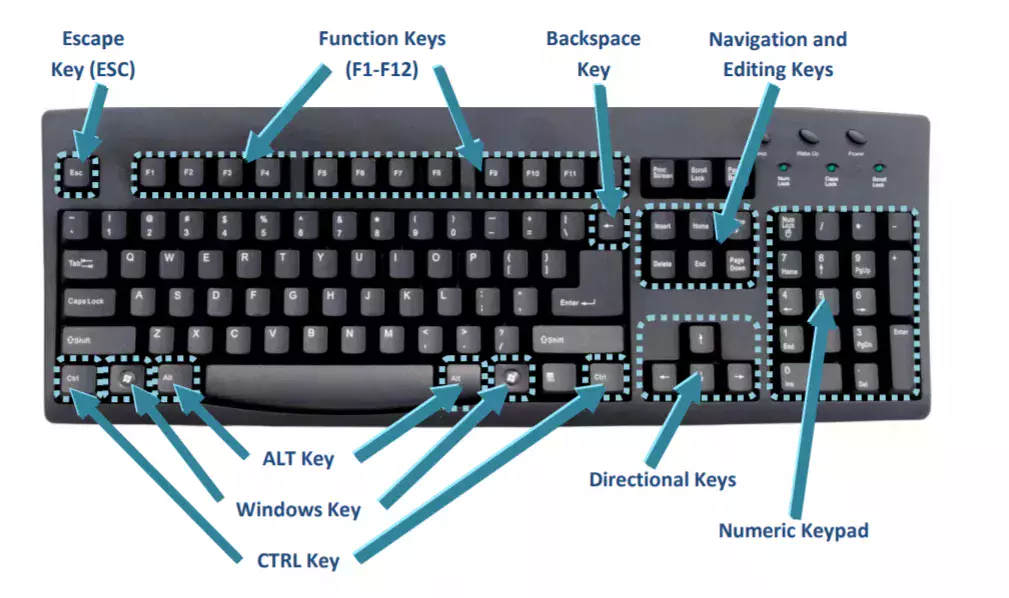
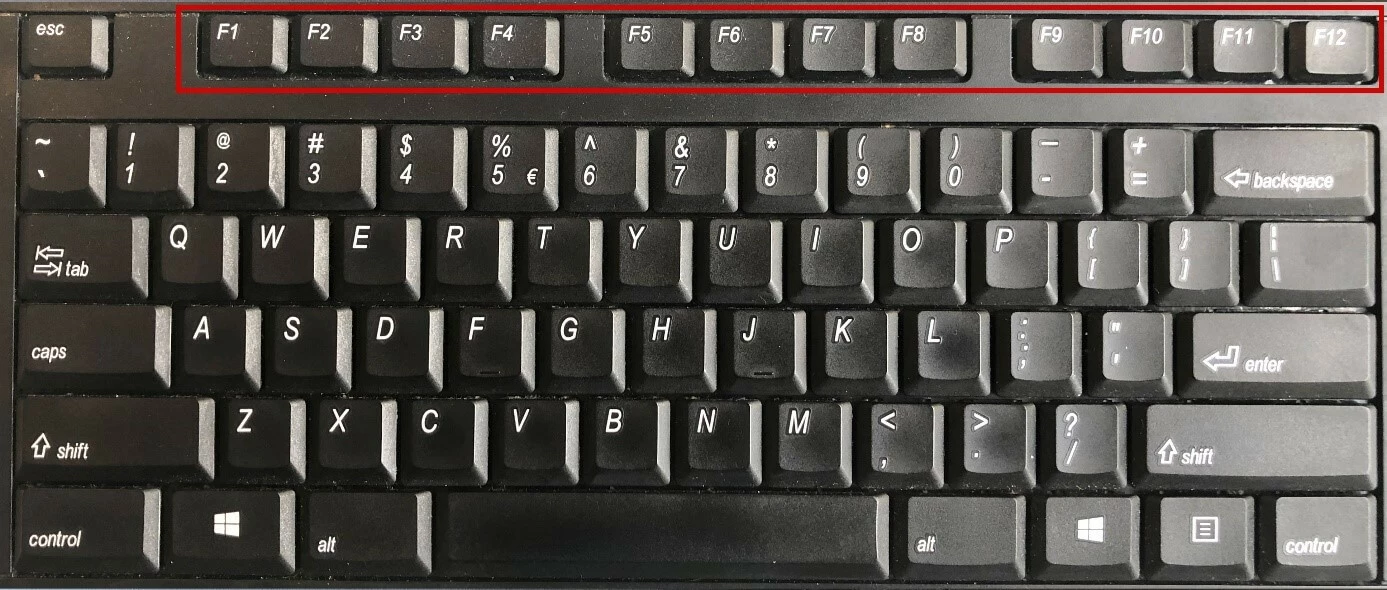
While F5 is the refresh command, it is often grouped with other critical keys that enhance the browsing experience. The F11 key, for example, toggles Full-Screen mode, which is often used in conjunction with refreshing when you need to view an interface without the distraction of browser toolbars. Meanwhile, the F12 key opens the Developer Tools console. For those who frequently ask, “What F-key is refresh?”, learning the F12 key is the natural next step, as it allows you to see the network traffic and inspect the very elements that aren’t updating properly.
Optimizing Workflow with Keyboard Shortcuts
The mastery of F-keys is not just about a single command; it is about cultivating a “keyboard-first” mindset. When you minimize the time your hands spend traveling between the mouse and the keys, you significantly reduce cognitive load and increase focus.
Browser Navigation Efficiency
Beyond refreshing, the function keys and their associated shortcuts are the backbone of browser navigation:
- Ctrl + L (or Cmd + L): Immediately jumps your cursor to the address bar. This is a massive time-saver for typing new URLs.
- Ctrl + T (or Cmd + T): Opens a new tab, allowing you to multitask without losing your current page.
- Ctrl + W (or Cmd + W): Closes the current tab instantly.
By pairing these with the F5 refresh command, you can manage complex research tasks or deep-dive browsing sessions without ever breaking your flow to click a menu button.
Customizing Your Shortcuts
If you find that F5 is uncomfortable to reach or if your keyboard has a “Function Lock” that changes how your F-keys behave, you have options. Most modern mechanical keyboards or laptop software suites (like Logitech Options or Razer Synapse) allow you to remap your keys. If you frequently perform hard refreshes, you can create a macro that assigns Ctrl + F5 to a single, more accessible function key. This level of customization transforms your hardware from a generic input device into a specialized productivity tool tailored specifically to your needs.
Troubleshooting Function Keys and Hardware Issues
Sometimes, the F5 key might stop working altogether, or it might trigger an alternative action (such as adjusting screen brightness or volume). This is a common point of confusion for laptop users.
The Role of the “Fn” Key
Most laptops feature a dedicated Fn (Function) key. This key acts as a modifier, similar to Shift or Alt. If your F5 key has a volume or brightness icon on it, your system might prioritize those “media” functions over the standard system F5 command.
- How to fix this: You may need to press
Fn + F5to trigger the actual refresh command. - Changing the Behavior: You can usually toggle this preference in your BIOS/UEFI settings or through your keyboard manufacturer’s software. Setting the “Function Keys” as the primary behavior ensures that F5 always acts as a refresh key, while the media controls can be accessed via
Fn + F5if needed.
Hardware Obstructions
If pressing F5 (or Fn + F5) produces no result, consider whether there is a software conflict. Some applications, particularly gaming software or background utilities, “hijack” function keys to use as shortcuts for their own features. If you are experiencing this, check the settings of any software that runs in the background. A simple restart of your browser or your computer often clears these temporary software locks, restoring functionality to your keys.
The Future of Navigation: Beyond the Browser
As the line between desktop applications and web-based tools continues to blur, the importance of universal shortcuts like refresh becomes even more pronounced. Modern Progressive Web Apps (PWAs) behave increasingly like native software, but they still rely on the underlying browser architecture. The refresh command remains the universal “reset button” for these digital environments.
Whether you are using F5 to refresh a news feed, Ctrl + F5 to debug a web application, or Cmd + Shift + R to clear a stubborn cache, these keys represent the fundamental control you have over your digital space. By moving beyond the mouse and internalizing these commands, you are doing more than just saving seconds; you are mastering the interface. The next time you find yourself waiting for a webpage to update, don’t reach for the mouse. Remember the F-keys, trust the shortcut, and reclaim your time.