
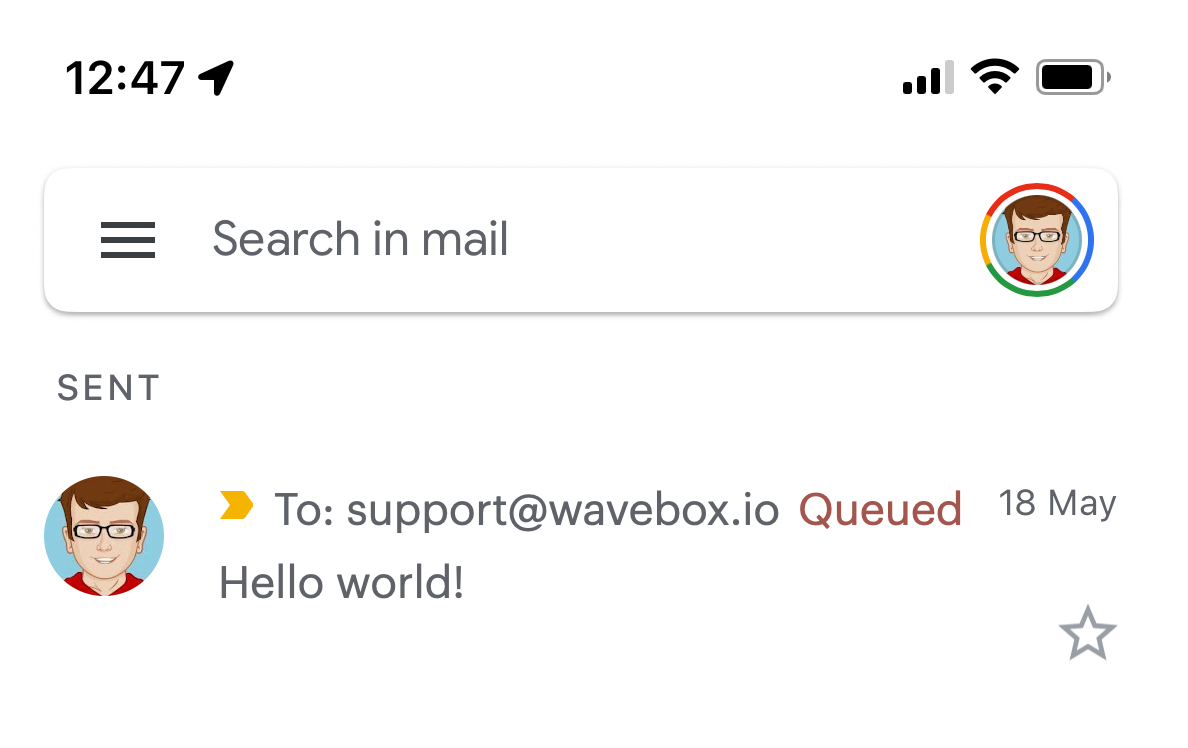
In the fast-paced world of digital consumption, we have become accustomed to instant gratification. Whether you are installing a new mobile application, updating your operating system, or downloading a high-resolution game, the process is usually seamless. However, occasionally you will encounter a status indicator that halts your momentum: “Queued for download.” While it may sound like an error message, it is actually a fundamental function of how modern software management systems balance resource allocation.
Understanding why a download sits in a queue—and what the system is doing behind the scenes—can save you time and frustration when dealing with sluggish devices or stalled software updates.
The Architecture of Digital Queuing
At its core, a download queue is a management system designed to prevent system crashes and data bottlenecks. When your device displays “Queued for download,” it signifies that your request has been received, logged, and placed in a line waiting for execution.
Bandwidth and Resource Management
Modern operating systems and digital storefronts, such as the Google Play Store, the Apple App Store, or Steam, do not allow every requested file to download simultaneously. If a device attempted to pull data for five different applications at the same time, it would lead to a severe degradation in connection speed. By queuing downloads, the system ensures that the bandwidth available is dedicated to one or two tasks at a time, allowing them to complete more reliably.
The Role of System Priority
Your device does not treat every download as equal. Operating systems are programmed with an internal hierarchy of importance. For instance, a security patch for the kernel of your phone will almost always jump to the front of the queue, while a non-essential background app update or a game installation may be forced to wait. This prioritization is an automated safety mechanism designed to keep the most critical parts of your digital environment functioning optimally.
Why Your Downloads Get Stuck in the Queue
If a download remains in a “Queued” state for an extended period, it is rarely due to a system failure. More often, it is a response to environmental conditions surrounding your device’s network and storage state.
Network Congestion and Connectivity
The most frequent cause of a stagnant queue is an unstable internet connection. If your Wi-Fi signal is intermittent, the device may pause the queue, waiting for a stable handshake with the server before it attempts to pull the data. Furthermore, if you are downloading over cellular data, many operating systems have strict policies against downloading large files to protect you from data overage charges. In this case, the system queues the download until you connect to a stable, unmetered Wi-Fi network.
Storage and Cache Limitations
Before a file begins to download, the system must verify that your device has enough physical storage space to house the data. If your storage is nearly full, the system may initiate a “cleaning” phase or simply wait for you to clear space. In other instances, the application cache—a repository of temporary files—might be corrupted. When the system detects a conflict in the cache, it will often “pause” or “queue” pending downloads to prevent a corrupted installation, effectively protecting the integrity of your file system.
Simultaneous Process Conflicts
We live in an age of multi-tasking. If you have several background processes running—such as a cloud backup syncing photos to the cloud, a video streaming in the background, and a browser refreshing multiple tabs—your device may reach a limit on concurrent I/O (Input/Output) operations. The system queues the download to prevent your processor and memory (RAM) from being overwhelmed, which would otherwise lead to device overheating or total system unresponsiveness.
Troubleshooting and Resolving Queue Issues
If you find yourself staring at a “Queued for download” status for an unreasonable amount of time, there are several methodical steps you can take to clear the bottleneck.
Clearing the Cache and Data
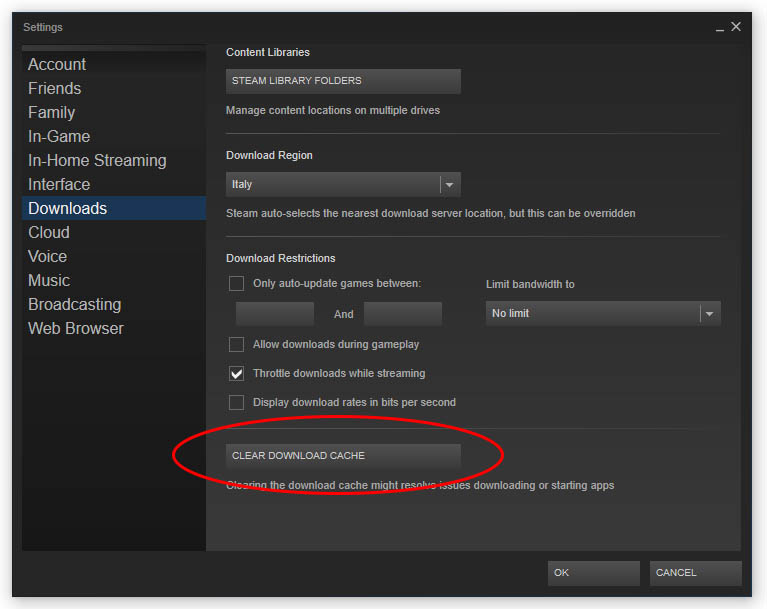
For Android and PC users, the most effective solution is often clearing the cache of the app store or the download manager. Over time, these managers accumulate temporary files that can lead to “ghost” processes—where the software thinks a download is already in progress, even if it is not. By navigating to your system settings, selecting the application responsible for the download, and clearing both its cache and data, you force the system to reset its queue manager and re-evaluate your pending requests.
Managing Background Downloads
If you are attempting to download a massive file, such as a high-fidelity game or an OS update, manually pausing other active downloads is a highly effective strategy. By reducing the number of concurrent requests, you concentrate your device’s processing power and network bandwidth on the single task you prioritize. Once the priority file finishes, you can resume the secondary tasks without straining the system’s resources.
Checking Device Compatibility and Permissions
Sometimes a file stays in the queue because the device is waiting for a permission approval that you haven’t seen yet. This is common with third-party app installations or enterprise-managed devices. Check your notification shade or security settings to ensure that the device has the necessary permissions to install software from the source you are currently using. If the “Install from Unknown Sources” setting is disabled, the system will keep the file in a permanent queue, unable to proceed with the final stage of the installation.
The Future of Seamless Background Transfers
As we transition toward 5G connectivity and edge computing, the traditional concept of the “download queue” is evolving. Engineers are currently working on systems that prioritize “predictive caching”—where the software anticipates what you are likely to download next and fetches the data during idle time.
Intelligent Background Synchronization
In the near future, the “Queued” status will become increasingly invisible. Modern OS updates already utilize “delta updates,” where instead of downloading an entire software package, the device only downloads the small bits of code that have changed. This reduces the time spent in the queue significantly. As artificial intelligence integration improves, your device will learn your usage patterns, ensuring that the heavy lifting of downloading files happens while you are sleeping or while your device is charging, effectively removing the “Queued” bottleneck from the user experience entirely.

Balancing User Control and Automation
While automation is the goal, power users often prefer manual control. The tension between the system wanting to manage your resources for you and the user wanting to trigger a download immediately is the primary reason the “Queued” message persists. Maintaining transparency—letting the user know exactly why a file is queued—is the hallmark of a well-designed user interface. Whether the delay is due to a lack of storage, a slow connection, or a server-side limitation, knowing the cause turns a moment of frustration into an informed digital experience.
By understanding the logic behind the queue, you move from being a passive user waiting for a progress bar to move, to being an informed manager of your digital environment. Next time you see that “Queued for download” message, you will know exactly what the system is trying to accomplish: ensuring that your device remains fast, stable, and secure.
aViewFromTheCave is a participant in the Amazon Services LLC Associates Program, an affiliate advertising program designed to provide a means for sites to earn advertising fees by advertising and linking to Amazon.com. Amazon, the Amazon logo, AmazonSupply, and the AmazonSupply logo are trademarks of Amazon.com, Inc. or its affiliates. As an Amazon Associate we earn affiliate commissions from qualifying purchases.