
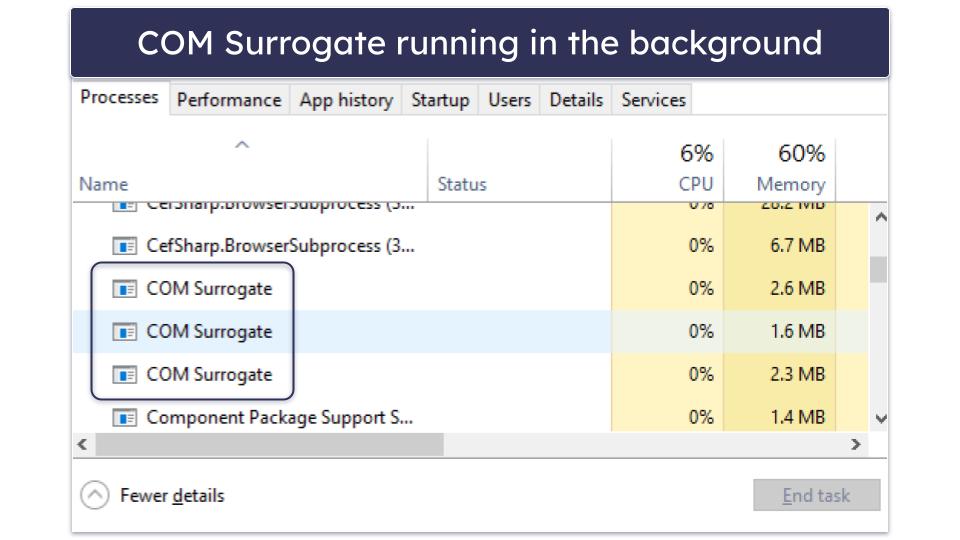
If you have ever opened the Windows Task Manager to investigate a system slowdown or check on your computer’s performance, you have likely encountered a process labeled “COM Surrogate” (Dllhost.exe). For many users, seeing an unfamiliar process consuming CPU or memory resources triggers immediate concern. Is it a virus? Is it spyware? In the vast majority of cases, the answer is no. COM Surrogate is a foundational component of the Windows operating system, though its function is often misunderstood due to its cryptic name.
Understanding the COM Architecture
To grasp what the COM Surrogate is, one must first understand the Component Object Model (COM), a technology introduced by Microsoft in the early 1990s. COM serves as a standardized interface that allows different software components to communicate with one another, regardless of the language in which they were written or how they are structured.
The Role of Extensions and Shells
In the context of the Windows desktop experience, Windows Explorer uses these COM objects to generate thumbnails for images, videos, and other documents. When you open a folder filled with photos, your system needs to read the file metadata and render a preview icon for each one. Without a standardized interface, the operating system would be forced to load the code for every single file type directly into the Windows Explorer process.
The Problem of Process Stability
If a third-party application’s thumbnail generator crashes—perhaps due to a corrupt image file or a poorly written codec—it would take down the entire Windows Explorer process along with it. This would cause your taskbar to flicker, your desktop icons to disappear, and your file management workflow to be interrupted. To prevent this, Microsoft created the “Surrogate” process. Instead of running these extensions directly within the Explorer process, Windows offloads the execution to the Dllhost.exe (COM Surrogate). If the extension crashes, only the surrogate process dies; your main file browser remains stable and functional.
Why Does COM Surrogate Consume High Resources?
While the COM Surrogate is a vital safety layer for your system, it can occasionally become a source of frustration. Users often report seeing the process spiking in CPU usage or consuming large amounts of RAM. Understanding why this happens requires looking at the interaction between your file system and third-party software.
Corrupt Media Files and Metadata
The most common culprit for high CPU usage by the COM Surrogate is a corrupt media file—specifically images or videos. If you have a folder containing a video file with a broken header or an image with malformed metadata, the COM Surrogate may get stuck in a “loop” trying to render a thumbnail. It repeatedly attempts to process the file, fails, and tries again, resulting in sustained high resource usage.
Conflicts with Third-Party Codecs
Windows supports a wide range of file formats natively, but many users install third-party codec packs to support specialized video formats or professional photography files (like RAW formats). If these codecs are outdated, incompatible with your version of Windows, or buggy, they can cause the Dllhost.exe to struggle during the thumbnail generation process.
External Drives and Network Folders
Performance issues often manifest when browsing directories on external hard drives, USB flash drives, or mapped network drives. Because these devices have slower read/write speeds than your internal SSD, the COM Surrogate may hold onto system resources longer while waiting for data to arrive. If the connection to the external drive is unstable, the process may hang, leading to a temporary system freeze.

Troubleshooting and Managing the COM Surrogate
Because the COM Surrogate is a system-level process, you cannot—and should not—simply “end task” it in the long term, as it will likely restart immediately to continue its work. However, you can manage the conditions under which it operates to improve system stability.
Clearing Thumbnail Caches
If your system is sluggish, the thumbnail cache may have become bloated or corrupt. Windows stores these generated icons in a database to speed up folder loading. You can clear this cache by running the Disk Cleanup utility. Select “Thumbnails” from the list of files to delete, and Windows will rebuild the cache the next time you browse your folders. This often resolves persistent COM Surrogate performance spikes.
Identifying Problematic Extensions
If the process is consistently problematic, you can attempt to isolate which application is triggering the behavior. Reliability Monitor—a built-in Windows diagnostic tool—is an excellent starting point. By searching for “View reliability history” in the Start menu, you can see if Dllhost.exe has been crashing repeatedly. If it has, the report will often list the “Faulting module name,” which tells you exactly which software or codec is causing the issue. Uninstalling or updating the software associated with that module usually provides an immediate fix.
Adjusting Folder Options
If you find that the COM Surrogate is constantly taxing your CPU when browsing certain directories, you can adjust how Windows handles file previews. Open File Explorer Options (accessible via the Control Panel or the View tab in a folder), go to the “View” tab, and check the box labeled “Always show icons, never thumbnails.” This will stop Windows from attempting to generate previews for your files. While you lose the visual convenience of thumbnails, you will essentially eliminate the heavy lifting currently performed by the COM Surrogate.
Security Considerations: Is it a Virus?
The name “COM Surrogate” is often utilized by malware authors to disguise malicious activity. Because users are trained to ignore system processes, a virus or Trojan might rename itself to “COM Surrogate” or “Dllhost.exe” to avoid detection.
Verifying the Process Location
You can verify the legitimacy of your COM Surrogate process in seconds. Open your Task Manager, right-click on the “COM Surrogate” process, and select “Open file location.” A legitimate Dllhost.exe process must reside in the C:WindowsSystem32 folder. If the file location points to a random folder in Users, AppData, or a temporary directory, your computer is likely infected with malware.
Best Practices for Digital Security
If you find the process running from an unauthorized folder, immediately terminate the task and run a comprehensive scan with a reputable antivirus or anti-malware solution. Keeping your operating system updated is the best defense, as Microsoft regularly patches vulnerabilities that might allow malicious software to hijack system processes. Furthermore, avoid downloading “codec packs” from untrustworthy third-party websites, as these are a common delivery vector for malware masquerading as system utilities.
Conclusion: The Silent Guardian of Stability
The COM Surrogate is a classic example of “invisible” software engineering. It is designed to be unseen, performing complex tasks in the background to ensure that your primary user interface remains fluid and crash-resistant. While it may appear as a mysterious resource hog during moments of system instability, it is almost always working on your behalf to handle the heavy lifting of file rendering. By understanding that it is a wrapper for external code, users can move from a place of suspicion to one of informed management. Whether you are clearing a corrupt cache or updating a buggy codec, troubleshooting the COM Surrogate is a straightforward process that reaffirms the importance of keeping your software ecosystem clean and up to date.
aViewFromTheCave is a participant in the Amazon Services LLC Associates Program, an affiliate advertising program designed to provide a means for sites to earn advertising fees by advertising and linking to Amazon.com. Amazon, the Amazon logo, AmazonSupply, and the AmazonSupply logo are trademarks of Amazon.com, Inc. or its affiliates. As an Amazon Associate we earn affiliate commissions from qualifying purchases.