
In the dynamic world of business, keeping your essential software up-to-date is not merely a recommendation; it’s a critical operational imperative. For countless small and medium-sized businesses, QuickBooks Desktop serves as the backbone of their financial management. It’s a powerful tool, but like any sophisticated software, its true potential and reliability are unlocked through consistent maintenance, which prominently includes regular updates. This guide delves into the technical aspects of updating QuickBooks Desktop, outlining why it’s crucial, how to prepare for it, the step-by-step process, and what to do post-update, all from a purely technological standpoint. Embracing these technical routines ensures that your financial data remains secure, your software performs optimally, and you leverage the latest technological advancements designed to streamline your accounting processes.
Understanding the Importance of QuickBooks Desktop Updates
Software updates are far more than just incremental version bumps; they are comprehensive packages designed to enhance, secure, and stabilize your application. For a mission-critical tool like QuickBooks Desktop, the implications of neglecting these updates can range from minor inefficiencies to significant security vulnerabilities and data integrity issues.
Accessing New Features and Enhancements
Each new version or patch update of QuickBooks Desktop typically introduces a host of new features and usability enhancements. These can include anything from redesigned user interfaces that improve workflow efficiency to entirely new modules for specific accounting tasks, such as enhanced reporting tools, improved payroll functionalities, or deeper integration capabilities with other software ecosystems. For instance, an update might introduce a new method for categorizing transactions, a more intuitive dashboard, or improved search functionalities within the ledger. From a technology perspective, these are advancements in software engineering aimed at providing a more robust and user-friendly experience, making the application more powerful and adaptive to evolving business needs. Staying updated ensures you’re always working with the most technologically advanced iteration of the software, designed to make your accounting tasks smoother and faster.
Bolstering Security and Data Integrity
Perhaps the most critical reason for maintaining current software versions is digital security. Software vulnerabilities are constantly discovered by malicious actors, and developers like Intuit work tirelessly to identify and patch these security holes. Updates often contain crucial security patches designed to protect your sensitive financial data from unauthorized access, malware, phishing attempts, and other cyber threats. These patches might address flaws in data encryption protocols, strengthen authentication mechanisms, or close loopholes that could be exploited to compromise your company files. Beyond external threats, updates also frequently include bug fixes that enhance data integrity, preventing data corruption or loss due to internal software errors. In essence, an update is a technological shield, constantly evolving to protect the digital assets stored within your QuickBooks environment from a perpetually evolving threat landscape.
Ensuring Compatibility and Performance
Software exists within an ecosystem. QuickBooks Desktop interacts with your operating system (Windows, typically), your hardware, and potentially other third-party applications. As operating systems evolve, introducing new frameworks, APIs, and security protocols, older software versions can encounter compatibility issues. Updates ensure that QuickBooks Desktop remains fully compatible with the latest versions of Windows, ensuring stable operation and preventing crashes or unexpected behavior. Furthermore, updates often include performance optimizations. These might involve refining code to reduce memory consumption, improving data processing algorithms for faster report generation, or enhancing network communication for multi-user environments. The result is a more responsive, efficient, and reliable application that minimizes downtime and maximizes productivity, leveraging your hardware resources more effectively.
Regulatory Compliance
While the core act of updating is technical, the reason for some updates often ties into regulatory compliance. Tax laws, reporting standards (like GAAP or IFRS in some contexts), and industry-specific regulations frequently change. Intuit integrates these changes into QuickBooks Desktop through updates, ensuring that the software’s calculations, forms, and reporting capabilities adhere to the latest legal requirements. From a technology perspective, this means the underlying algorithms and data structures are adjusted to meet new specifications, allowing the software to accurately process and present financial information in a legally compliant manner. This ensures your business remains audit-ready and avoids potential penalties due to outdated accounting practices reflected in your software.
Preparing for a Smooth Update Process
A successful software update isn’t just about clicking “install”; it requires careful preparation to mitigate risks and ensure a seamless transition. Neglecting these preparatory steps can lead to data loss, installation errors, or significant downtime.
Backing Up Your Company File
This is arguably the most critical preparatory step. Before initiating any major software change, especially one involving a core application like QuickBooks, you must create a comprehensive backup of your company file (or files). This ensures that if any unforeseen issue arises during the update process—such as a power outage, a software conflict, or an installation error—you can revert to your most recent stable data state. QuickBooks offers an in-built backup utility that creates a compressed .qbb file. It’s advisable to save this backup not only locally but also to an external drive or a cloud storage service for maximum redundancy. This technical safeguard is your primary defense against data integrity issues during an update.
Checking System Requirements
Before updating, especially to a new year version (e.g., from QuickBooks 2023 to 2024), it’s crucial to verify that your operating system and hardware meet the minimum system requirements for the new version. Software requirements can evolve, demanding newer versions of Windows, more RAM, or faster processors. Intuit publishes these specifications on their support website. Attempting to install a newer version on an incompatible system can lead to poor performance, instability, or even installation failure. This technical pre-check prevents potential compatibility nightmares.
Ensuring an Active Internet Connection
Most QuickBooks Desktop updates are delivered electronically, requiring a stable and active internet connection for downloading the necessary files. A slow, intermittent, or frequently disconnecting internet connection can corrupt downloaded files, interrupt the installation process, or cause the update to fail entirely. Ensure your network connection is robust before you begin the download and installation.
Closing Other Applications
To prevent potential software conflicts or resource contention during the update process, it’s a best practice to close all other open applications, especially those that might interact with QuickBooks or consume significant system resources. This includes web browsers, email clients, word processors, and particularly any antivirus software that might aggressively monitor file system changes. Temporarily disabling your antivirus (if comfortable and for a short period) might also be necessary in rare cases where it interferes with the installer.
Step-by-Step Guide to Updating QuickBooks Desktop
QuickBooks Desktop offers a few primary methods for updating the software, ranging from automated in-product tools to manual downloads for specific scenarios. Understanding each method ensures you can choose the most appropriate one for your situation.
Method 1: In-Product Update
This is the most common and recommended method for applying minor patches and maintenance releases.
- Open QuickBooks Desktop: Launch the application. If you have multiple company files, you don’t necessarily need to open a specific one.
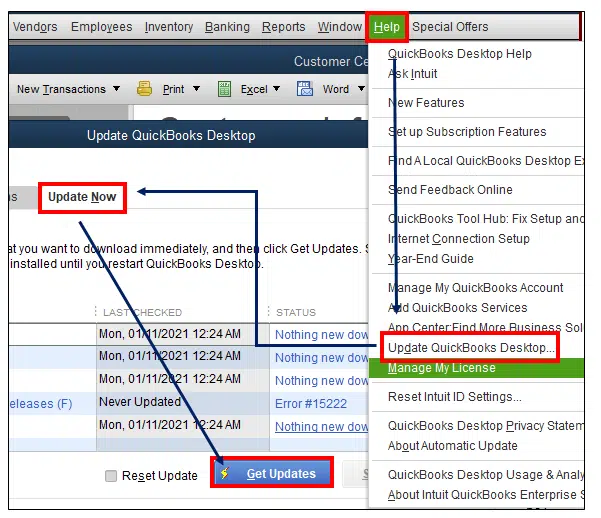
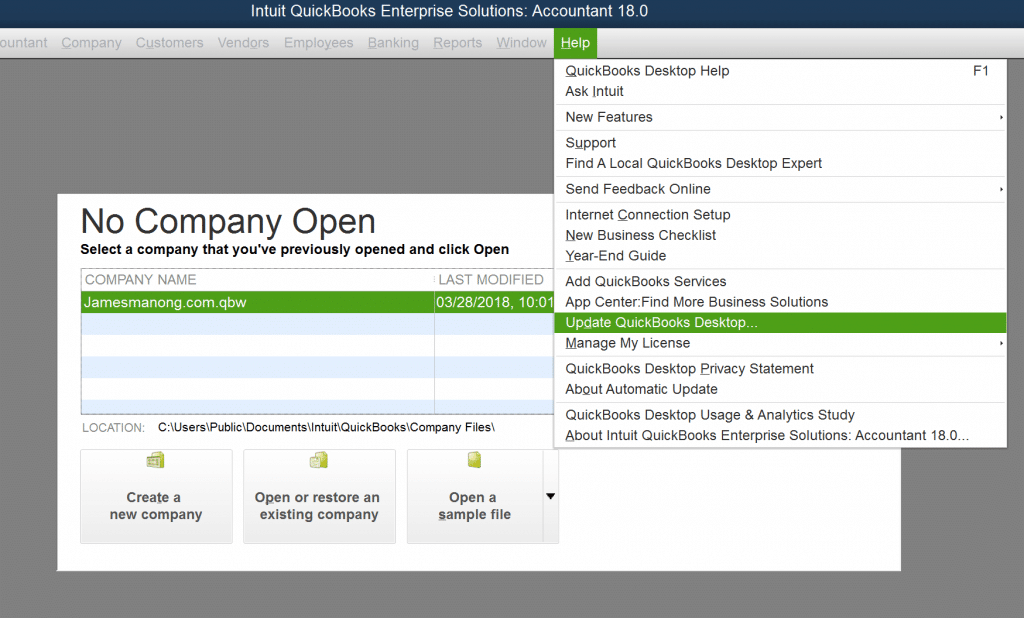
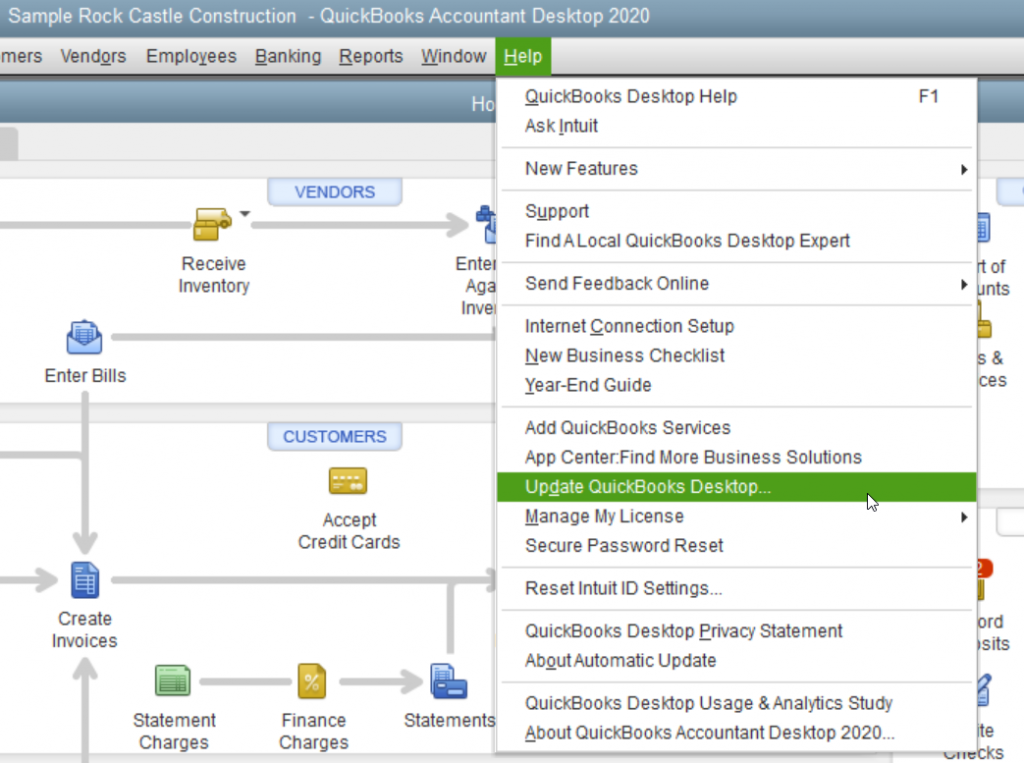
- Access the Update Feature: Go to the Help menu at the top, then select Update QuickBooks Desktop….
- Check for Updates: In the Update QuickBooks Desktop window, navigate to the Update Now tab. You might see a list of available updates.
- Select and Get Updates: Check the box next to the updates you wish to install. It’s generally recommended to select all available updates. Click the Get Updates button. QuickBooks will then download the necessary files. This process can take some time depending on your internet speed and the size of the updates.
- Install Updates: Once the download is complete, you’ll be prompted to install them. You may need to close and reopen QuickBooks for the installation to take effect. If you have multiple users, ensure all users are logged out of QuickBooks before performing the installation.
Method 2: Manual Download from Intuit Website
This method is particularly useful if you’re installing a brand new year version (e.g., upgrading from 2023 to 2024), if the in-product update feature isn’t working, or if you need to install updates on a computer without direct internet access (by downloading elsewhere and transferring via USB).
- Visit the Official QuickBooks Desktop Support Page: Open your web browser and navigate to Intuit’s official QuickBooks Desktop support or download page.
- Locate the Specific Version/Year Update: Find the download link for your specific QuickBooks Desktop product and year (e.g., QuickBooks Desktop Premier 2024).
- Download the Installer: Click the download link to save the installer file (an
.exefile) to your computer. - Run the Installer: Once the download is complete, locate the
.exefile and double-click it to start the installation process. Follow the on-screen prompts, which will typically guide you through accepting license agreements, specifying installation directories, and initiating the file copy. You might need your QuickBooks license and product numbers for a full version upgrade. - Reboot: After a major version upgrade, a system reboot is often required to finalize the installation and integrate the new software components properly.
Automated Update Schedule (Optional)
QuickBooks Desktop also offers an option to automate update downloads. Within the “Update QuickBooks Desktop” window (Help > Update QuickBooks Desktop), navigate to the Options tab. Here, you can select “Yes” for automatic updates. This will allow QuickBooks to download updates in the background when the application is not in use, making the installation process quicker when you next open the software. While convenient, always remember to perform a manual backup before installing any downloaded updates.
Post-Update Verification and Troubleshooting
After the update process is complete, it’s crucial to verify that everything installed correctly and that your software is functioning as expected. Should issues arise, understanding common troubleshooting steps can save significant time.
Verifying the Update Installation
To confirm the update was successful, open QuickBooks Desktop. Go to Help > About QuickBooks Desktop. A window will appear displaying your product name, release number, and version. Ensure this matches the expected version number for the update you just installed. This technical check confirms the new code base is active.
Running a Test Transaction
Beyond just checking the version number, it’s wise to perform a quick functional test. Open a company file (preferably your primary one, since you have a backup) and attempt a few routine tasks. For example, create a new invoice, record a payment, generate a basic report (like a Profit & Loss statement), or enter a bill. This verifies that core functionalities are intact and that your data file is accessible and processing transactions correctly with the updated software.
Common Update Issues and Solutions
Even with careful preparation, technical issues can sometimes occur.
- Download Errors: If updates fail to download, check your internet connection and ensure no firewalls or antivirus software are blocking QuickBooks’ access to Intuit’s update servers. Temporarily disabling them might help, but ensure you re-enable them afterward.
- Installation Failures: If the update won’t install, ensure you have administrator rights on your computer. Sometimes, running the QuickBooks application or the installer file “as administrator” (right-click the icon and select “Run as administrator”) can resolve permission-related issues. Close all other programs, as conflicts can prevent installation.
- Data File Issues: If your company file becomes inaccessible or corrupted post-update, immediately restore from the backup you created before the update. This underscores the paramount importance of the pre-update backup.
- Error Codes: QuickBooks often displays specific error codes (e.g., “Error 15271,” “Error 15215”). These codes are valuable for troubleshooting. Note the code and search Intuit’s support website or community forums for specific solutions related to that error.
Best Practices for Ongoing QuickBooks Maintenance
Maintaining an updated and stable QuickBooks Desktop environment is an ongoing commitment, not a one-time task. Adopting a few best practices can significantly reduce future technical headaches and ensure long-term reliability.
Regular Backup Routines
Beyond pre-update backups, implement a consistent and automated backup schedule for your QuickBooks company files. Daily or weekly backups (depending on transaction volume) to multiple locations (local, external, cloud) are crucial. This safeguards against hard drive failures, accidental deletions, or unforeseen data corruption, independent of software updates.
Monitoring Intuit Announcements
Stay informed about upcoming QuickBooks Desktop updates, new version releases, and important announcements from Intuit. Subscribing to their newsletters or regularly checking their official support website ensures you’re aware of critical patches, end-of-life dates for older versions, or new features that could benefit your operations. This proactive approach allows you to plan updates rather than reacting to critical issues.
Considering Professional IT Support
While many updates are straightforward, some complex environments, multi-user setups, or persistent technical issues might warrant professional assistance. If you encounter errors you can’t resolve, or if you prefer to offload the technical burden, consulting an IT professional specializing in QuickBooks or small business technology can save time and prevent costly mistakes. They can ensure optimal installation, configuration, and troubleshooting for your specific setup.
In conclusion, regularly updating QuickBooks Desktop is a fundamental technical practice for any business relying on the software. It’s a proactive measure that secures your sensitive financial data, introduces valuable new functionalities, improves software performance, and ensures compliance with evolving regulations. By understanding the underlying technical reasons and following a structured approach to preparation, installation, and post-update verification, businesses can leverage their QuickBooks Desktop investment to its fullest, maintaining a stable, secure, and efficient financial management system.
aViewFromTheCave is a participant in the Amazon Services LLC Associates Program, an affiliate advertising program designed to provide a means for sites to earn advertising fees by advertising and linking to Amazon.com. Amazon, the Amazon logo, AmazonSupply, and the AmazonSupply logo are trademarks of Amazon.com, Inc. or its affiliates. As an Amazon Associate we earn affiliate commissions from qualifying purchases.