
QuickBooks Desktop remains the backbone of financial management for countless small to medium-sized businesses worldwide. Its robust features, customizable reports, and offline accessibility make it an indispensable tool for managing everything from payroll and invoicing to inventory and taxes. However, like any sophisticated software, users occasionally encounter challenges, whether it’s a technical glitch, a complex accounting query, or simply a need for guidance on a specific feature. Knowing how and where to access reliable support for QuickBooks Desktop isn’t just a convenience; it’s a critical component of business continuity and operational efficiency.

This article delves into the various avenues available for QuickBooks Desktop users seeking assistance, from official channels provided by Intuit to a vibrant ecosystem of third-party professionals and self-help resources. By understanding the landscape of available support, users can quickly identify the most appropriate and effective solution for their specific needs, minimizing downtime and maximizing their software’s potential. Navigating technical issues and accounting complexities can be daunting, but with the right support strategy, businesses can confidently leverage QuickBooks Desktop to its fullest, ensuring their financial operations run smoothly and accurately.
Understanding the Landscape of QuickBooks Desktop Support
The digital age has transformed how users interact with software support. No longer confined to phone calls and endless waiting, a multi-faceted approach to support has emerged, offering flexibility and diverse options to address a wide range of issues. For QuickBooks Desktop, this spectrum includes direct manufacturer support, community-driven assistance, expert consulting, and a wealth of self-help resources. Understanding this landscape is the first step towards effectively resolving any challenge that arises.
The Importance of Reliable Support for Business Continuity
In the realm of business finance, even minor disruptions can have significant ripple effects. An inability to process invoices, run payroll, or generate critical financial reports due to a software issue can lead to delayed payments, compliance problems, and ultimately, a loss of revenue and reputation. Reliable QuickBooks Desktop support acts as a safety net, ensuring that when problems do occur, they can be addressed swiftly and effectively. This mitigates potential financial losses, maintains operational momentum, and allows businesses to focus on their core activities rather than getting bogged down by technical difficulties. Proactive engagement with support channels can also prevent issues from escalating, transforming potential crises into minor inconveniences. For businesses where QuickBooks Desktop is central to daily operations, access to timely and accurate support is not merely an add-on; it’s an essential element of risk management and strategic planning.
Differentiating Between General Queries and Technical Issues
Before seeking support, it’s crucial to categorize the nature of your problem. This distinction helps you choose the most appropriate support channel and articulate your issue more clearly, leading to a faster resolution.
General Queries often relate to “how-to” questions, best practices for certain accounting tasks within QuickBooks, understanding specific reports, or navigating new features. Examples include: “How do I reconcile my bank account in QuickBooks?” “Where can I find the profit and loss report?” or “What’s the best way to track job costs?” These types of questions typically don’t involve software malfunctions but rather a need for guidance on functionality or accounting principles as applied within QuickBooks.
Technical Issues, on the other hand, involve actual software errors, performance problems, installation failures, data corruption, or integration challenges. Examples include: “QuickBooks won’t open,” “I’m getting an error message when trying to save an invoice,” “My data file is corrupt,” or “Payroll updates aren’t downloading.” These issues often require diagnostic steps, troubleshooting, or direct intervention by a support specialist to resolve underlying technical faults.
While some support channels can address both, others are better suited for one over the other. For instance, community forums are excellent for general queries and peer advice, while direct phone or chat support with Intuit is usually preferred for critical technical issues. Understanding this difference streamlines your support journey and directs you to the most efficient path.
Official QuickBooks Support Channels
Intuit, the creator of QuickBooks, provides a comprehensive suite of official support channels designed to assist users with various aspects of their QuickBooks Desktop experience. These channels are often the first and most reliable port of call for any issue, as they offer direct access to product specialists and verified information.
Direct Contact: Phone and Chat Support
For immediate and personalized assistance, Intuit offers direct phone and live chat support. These channels are particularly valuable for resolving urgent technical issues, complex error messages, or when you require step-by-step guidance that’s difficult to convey through written documentation.
Phone Support: Users can typically find the dedicated support phone number on the official QuickBooks support website. When calling, be prepared to provide your product and license information. The advantage of phone support is the ability to communicate directly with a representative, explain your problem in detail, and receive real-time troubleshooting instructions. However, wait times can sometimes be a factor, especially during peak hours or tax season.
Chat Support: Live chat offers a convenient alternative, allowing you to multitask while waiting for a representative. It’s excellent for less urgent technical issues, general “how-to” questions, or when you need a written record of the conversation for future reference. Many users find chat support less intimidating than phone calls, and it allows for easy sharing of screenshots or error codes. Both phone and chat support are typically available during standard business hours, with some regions offering extended or 24/7 support for premium service tiers.
The QuickBooks Community Forum
The QuickBooks Community is an active online platform where users can connect with peers, ask questions, share insights, and find solutions. Moderated by Intuit staff and populated by experienced users, including certified ProAdvisors, the forum is an invaluable resource for both general inquiries and specific troubleshooting advice.
Users can browse existing discussions to see if their question has already been answered or post a new query. The collaborative nature of the forum often leads to creative solutions and diverse perspectives that might not be found in official documentation alone. It’s an excellent place to learn best practices, discover hidden features, and get feedback on accounting workflows within QuickBooks. While not ideal for urgent or highly sensitive technical issues (due to the public nature of discussions), it serves as a robust self-help tool and a vibrant knowledge exchange hub.
Knowledge Base and Self-Help Articles
Intuit maintains an extensive online knowledge base filled with articles, guides, and troubleshooting steps for QuickBooks Desktop. This comprehensive library is accessible 24/7 and covers a vast array of topics, from initial installation and setup to advanced features, common error messages, and accounting workflows.
The knowledge base is typically searchable, allowing users to quickly find relevant articles by typing in keywords, error codes, or specific questions. Many articles include step-by-step instructions, screenshots, and even video tutorials, making them easy to follow. For users who prefer to find solutions independently or who have non-urgent questions, the knowledge base is often the quickest path to resolution. Regularly consulting this resource can help users develop a deeper understanding of QuickBooks Desktop and empower them to solve many common issues on their own, reducing reliance on direct support channels.
In-Product Help and Diagnostics Tools
QuickBooks Desktop itself often includes built-in help features and diagnostic tools designed to assist users without requiring external support.
In-Product Help (F1): Within the software, pressing the F1 key (or clicking the Help menu) typically opens a context-sensitive help window or directs you to relevant articles in the online knowledge base. This is particularly useful when you’re unsure about a specific field, a menu option, or how to perform a task directly within the interface you’re currently viewing.
Diagnostic Tools: QuickBooks Desktop also incorporates several utility tools to help identify and resolve common issues. For example, the QuickBooks Tool Hub is a standalone application provided by Intuit that includes a collection of tools to fix common errors, network problems, installation issues, and company file corruption. Running these tools before contacting support can often resolve problems quickly and independently, saving time and effort. These in-product resources are designed to empower users with immediate solutions and proactive problem-solving capabilities.
Leveraging Third-Party and Professional Assistance
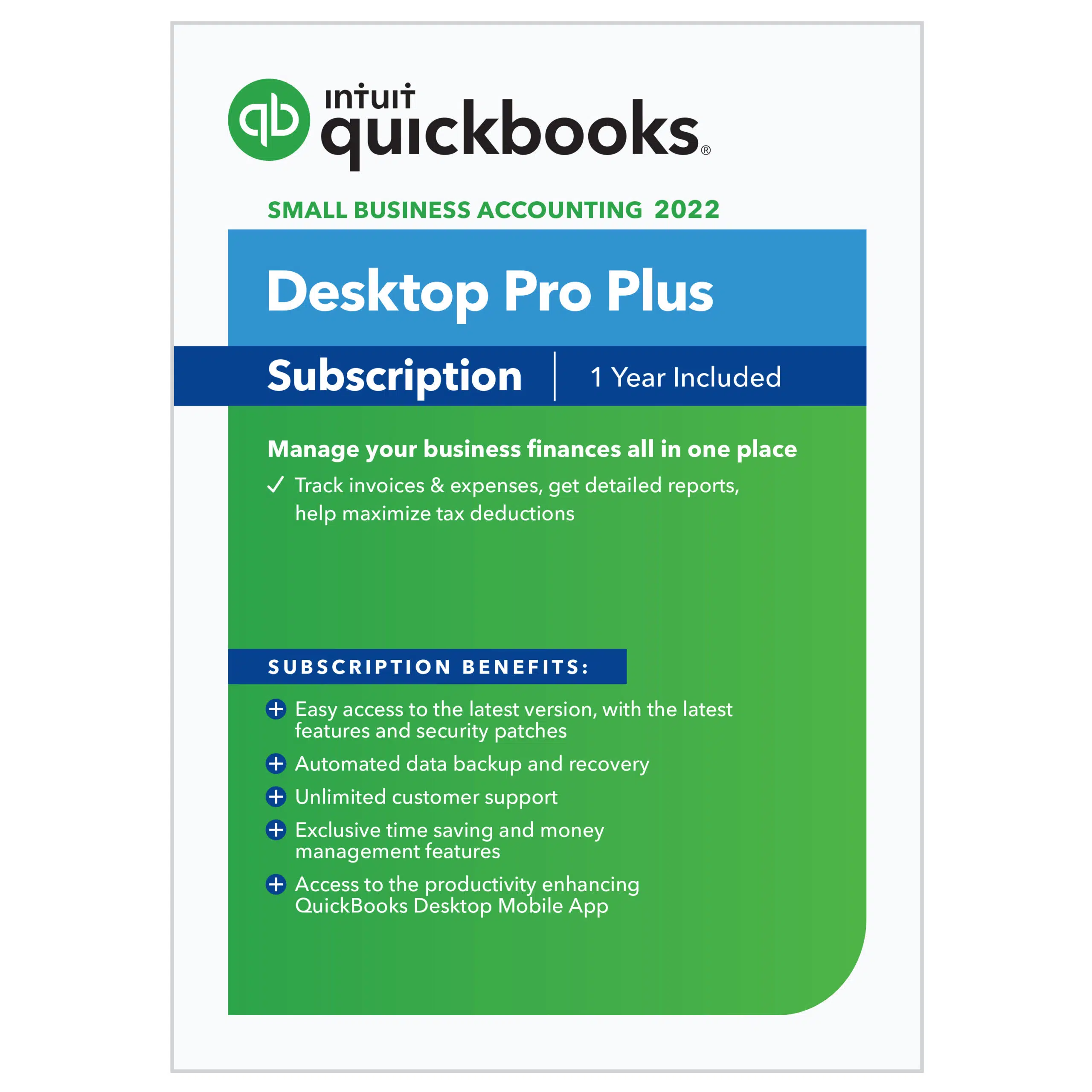
While Intuit’s official channels are invaluable, a broader ecosystem of third-party professionals and resources also plays a significant role in supporting QuickBooks Desktop users. These options can offer specialized expertise, localized support, or alternative learning styles that complement the official offerings.
Certified QuickBooks ProAdvisors
QuickBooks ProAdvisors are independent accounting professionals (accountants, bookkeepers, business consultants) who have been certified by Intuit after undergoing rigorous training and passing certification exams. They possess deep expertise in QuickBooks products, including Desktop versions, and often specialize in specific industries or complex accounting scenarios.
Engaging a ProAdvisor can be particularly beneficial for:
- Complex Accounting Setups: Assisting with initial company file setup, chart of accounts customization, and advanced reporting.
- Troubleshooting Accounting Discrepancies: Investigating balance sheet imbalances, reconciliation issues, or transaction errors that stem from accounting principles rather than software bugs.
- Training and Consulting: Providing personalized training sessions for staff, offering strategic advice on optimizing QuickBooks usage, or helping with year-end closing procedures and tax preparation.
- Integration Issues: Assisting with integrating QuickBooks Desktop with other third-party applications.
- Data File Management: Helping with data file repair, consolidation, or migration.
ProAdvisors offer a level of personalized, hands-on support that direct Intuit channels may not provide, bridging the gap between technical software functionality and practical accounting application. They can be found through Intuit’s “Find a ProAdvisor” directory on the QuickBooks website, allowing businesses to search for specialists based on location, industry, and specific expertise.
IT Support for System-Level Issues
Sometimes, a QuickBooks Desktop issue isn’t directly related to the software itself but rather to the underlying computer system or network environment. In these cases, traditional IT support becomes crucial.
IT professionals can assist with:
- Hardware Compatibility: Ensuring your computer meets QuickBooks’ minimum system requirements.
- Network Configuration: Resolving issues related to multi-user access over a network, shared company files, or server connectivity.
- Operating System Conflicts: Addressing problems caused by conflicts with the operating system (e.g., Windows updates affecting QuickBooks performance).
- Security Software Interference: Configuring firewalls, antivirus programs, or other security software to allow QuickBooks to function correctly without being blocked.
- Printer and Peripheral Issues: Troubleshooting problems with printing invoices, checks, or reports.
- Data Backup and Recovery: Implementing robust backup solutions and assisting with data recovery in case of system failures.
While Intuit support can often diagnose if an issue is system-related, they typically cannot provide direct IT intervention. Collaborating with an IT specialist ensures that your computer and network infrastructure are optimally configured to support QuickBooks Desktop, preventing many potential performance and connectivity problems.
Online Tutorials and Unofficial Forums
Beyond official channels and certified experts, a vast amount of unofficial support and learning resources exists online. Platforms like YouTube, independent blogs, and general tech forums (e.g., Reddit’s r/quickbooks) host a wealth of user-generated content, tutorials, and discussions.
YouTube Tutorials: Many content creators and small businesses share video guides on specific QuickBooks Desktop tasks, troubleshooting common errors, or demonstrating best practices. Visual learners often find these videos incredibly helpful for understanding complex processes step-by-step.
Blogs and Independent Websites: Numerous accounting and small business blogs publish articles offering tips, tricks, and solutions for QuickBooks Desktop users. These often delve into niche topics or provide alternative perspectives on common challenges.
Unofficial Forums and Social Media Groups: While not moderated by Intuit, these communities can provide quick answers, peer-to-peer advice, and real-world experiences from other QuickBooks users. Caution should be exercised when relying solely on unofficial advice, especially for critical accounting or technical issues, as the information may not always be accurate or up-to-date. However, for general guidance or to quickly gauge if others are experiencing similar problems, these platforms can be quite useful.
Best Practices for Efficient Support Engagement
Navigating the support landscape effectively requires more than just knowing where to go; it also involves adopting certain practices to make the support process as smooth and efficient as possible. By being prepared and methodical, users can significantly reduce resolution times and improve the quality of assistance they receive.
Preparing for Your Support Call/Chat
Before initiating contact with any support channel, especially direct phone or chat support, preparation is key. A well-articulated problem statement can save a lot of back-and-forth and lead to a quicker diagnosis.
Here’s what to prepare:
- QuickBooks Version and Release: Know the exact version (e.g., QuickBooks Desktop Premier 2023) and release number (e.g., R3P) you are using. This information is usually found in the Help menu under “About QuickBooks.”
- Operating System: Note your computer’s operating system (e.g., Windows 10, Windows 11) and whether it’s 64-bit.
- Error Messages: Write down the exact error message, including any numbers or codes. A screenshot is even better if using chat support.
- Steps to Recreate the Issue: Clearly describe the sequence of actions that lead to the problem. For example, “I opened QuickBooks, clicked on ‘Vendors,’ then ‘Enter Bills,’ and when I tried to save the bill, the error appeared.”
- Recent Changes: Did you install new software, update your operating system, or make any changes to your network recently? This context can be invaluable for troubleshooting.
- Account/License Information: Have your QuickBooks license number and any relevant account details ready for verification.
- Attempts to Fix: List any troubleshooting steps you’ve already tried (e.g., restarting the computer, running the QuickBooks Tool Hub).
Being organized with this information empowers the support representative to understand your situation quickly and accurately, minimizing diagnostic time.
Documenting Your Issue and Resolution
Maintaining a record of your support interactions and the solutions provided is a best practice that pays dividends over time.
- Problem Log: Keep a simple log of issues encountered, including the date, a brief description of the problem, and any error codes.
- Support Interaction Details: For each support interaction, note the date, the name of the support representative (if applicable), the case or ticket number, and a summary of the conversation.
- Resolution Steps: Most importantly, meticulously document the steps taken to resolve the issue. If the support representative provided specific instructions, write them down or request they be emailed to you. This includes changes to settings, files deleted, or utilities run.
This documentation serves multiple purposes: it helps you recall how to solve similar problems in the future, provides a historical record for recurring issues, and can be referenced if you need to escalate a problem or contact support again for the same issue. It transforms a one-off resolution into reusable knowledge.

Understanding Support Tiers and Escalation
Many support organizations, including Intuit, operate with a tiered support system. Understanding this structure can help manage expectations and know when to push for further assistance.
- Tier 1 Support: Often the first point of contact, Tier 1 representatives handle common issues, provide basic “how-to” guidance, and perform initial troubleshooting steps using standard knowledge base articles. They are equipped to resolve a high percentage of routine inquiries.
- Tier 2 Support: If a Tier 1 agent cannot resolve the issue, it may be escalated to Tier 2. These agents have more in-depth technical knowledge, access to advanced diagnostic tools, and can spend more time on complex problems. They might specialize in certain areas of the software or specific types of errors.
- Tier 3 Support: The highest tier typically consists of senior technical experts, product engineers, or development teams. They handle the most challenging or unique problems, including potential software bugs, data corruption requiring specialized tools, or issues that require code-level analysis.
If you feel your issue is not being adequately addressed at the initial tier, politely ask for an escalation to a higher tier. Referencing your detailed documentation and previous troubleshooting attempts can strengthen your request. While most issues are resolved at Tier 1 or 2, knowing the escalation path ensures that even the most stubborn problems can eventually reach the appropriate level of expertise.
In conclusion, effective QuickBooks Desktop support is not a luxury but a necessity for businesses relying on the software for their financial health. By familiarizing themselves with the diverse range of support channels – from Intuit’s official phone and chat services, extensive knowledge base, and community forums, to the specialized expertise of certified ProAdvisors and general IT professionals – users can navigate challenges with confidence. Coupled with best practices for efficient engagement, such as thorough preparation and meticulous documentation, businesses can ensure that any QuickBooks Desktop issue is a temporary blip rather than a significant roadblock, allowing them to maintain operational fluidity and focus on growth.
aViewFromTheCave is a participant in the Amazon Services LLC Associates Program, an affiliate advertising program designed to provide a means for sites to earn advertising fees by advertising and linking to Amazon.com. Amazon, the Amazon logo, AmazonSupply, and the AmazonSupply logo are trademarks of Amazon.com, Inc. or its affiliates. As an Amazon Associate we earn affiliate commissions from qualifying purchases.