
In an era defined by digital convenience, managing travel plans often happens at our fingertips. Yet, even the most meticulously planned itineraries can sometimes require adjustments, leading to the need for cancellations. For users of online travel agencies like Expedia, understanding the digital pathways to initiate and complete a cancellation is paramount. This guide delves into the technical intricacies of cancelling an Expedia trip, offering a professional, insightful, and engaging tutorial designed to empower users with the knowledge to navigate Expedia’s digital interface efficiently and effectively. We will explore the precise steps, highlight key features, address common technical challenges, and outline best practices for a seamless digital cancellation experience.
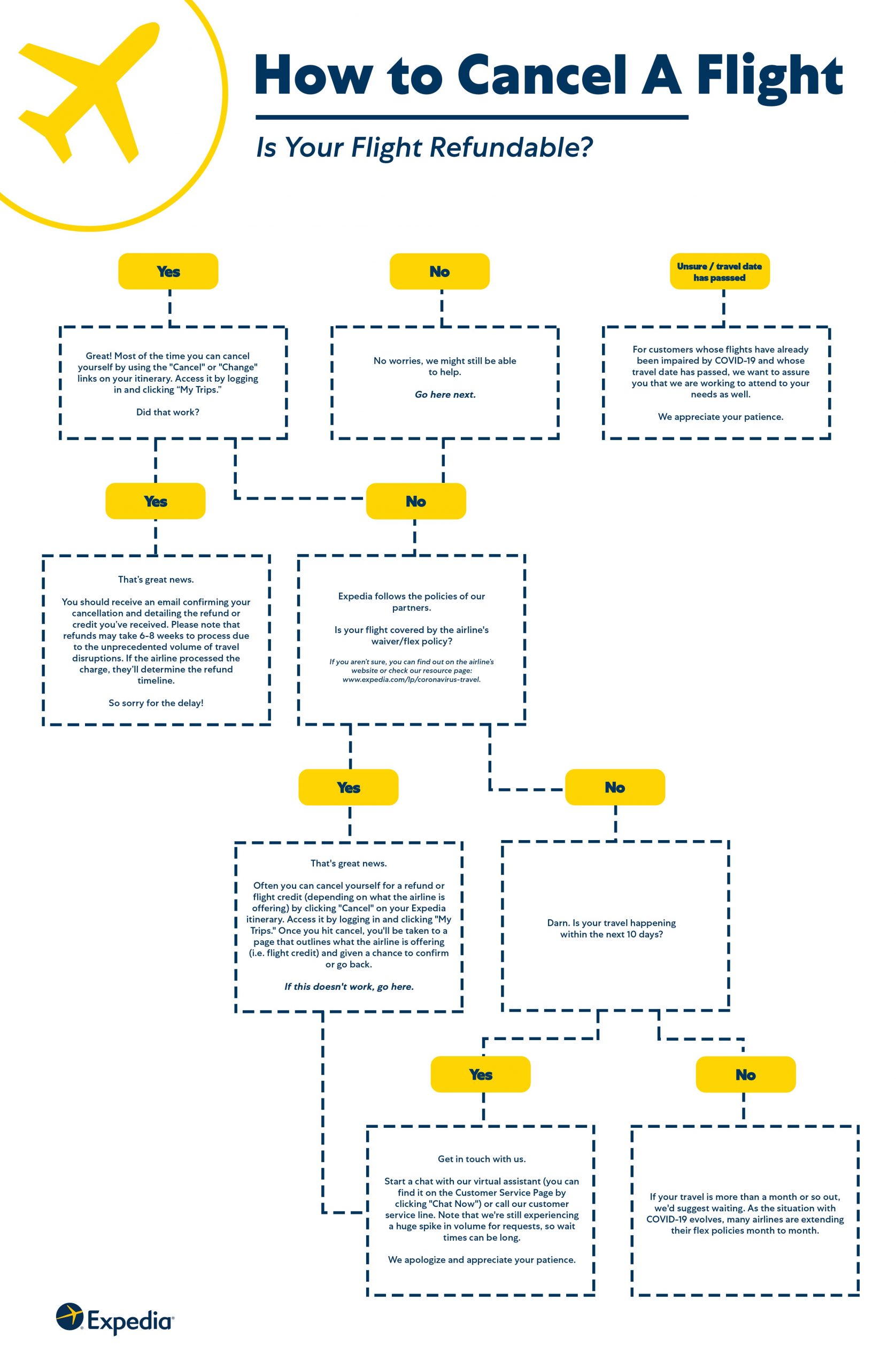
Navigating Expedia’s Digital Cancellation Interface
The first step in any digital interaction is often a fundamental understanding of the platform’s layout and navigational cues. Expedia, like most modern online platforms, is designed with a user-centric approach, yet specific functions like cancellations can sometimes be less intuitive than booking. This section will guide you through the initial stages of accessing your trip details and identifying the crucial digital touchpoints for cancellation.
Account Access and Trip Identification
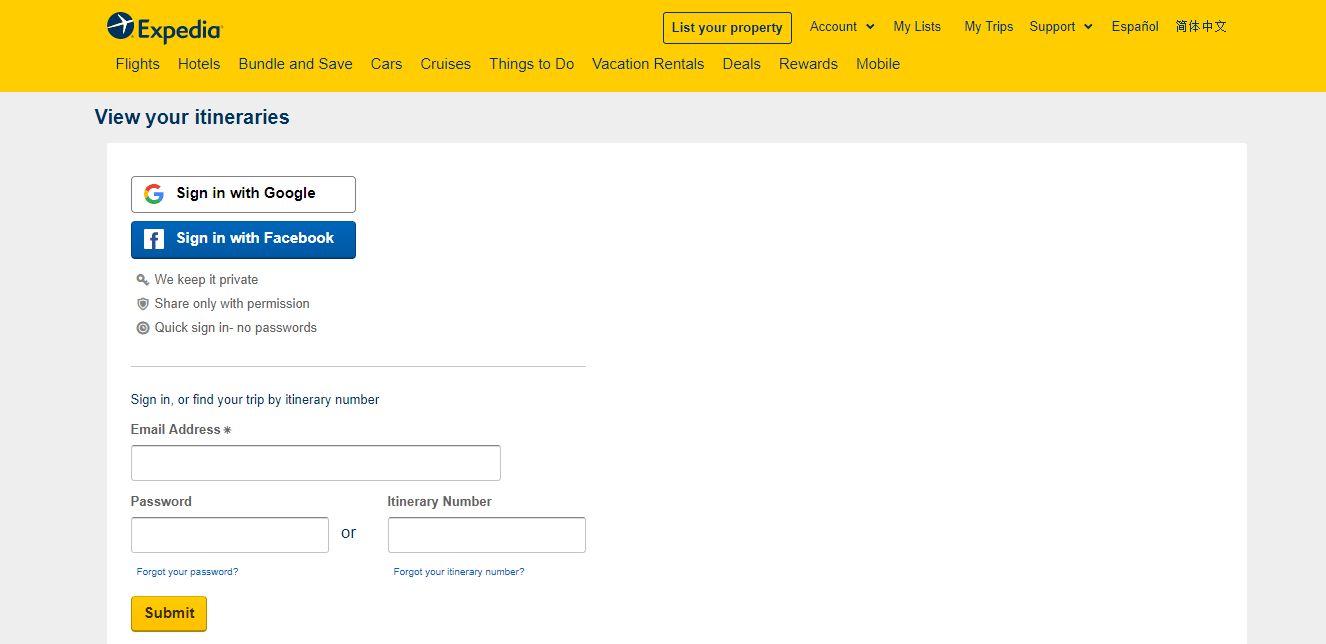
Before any action can be taken, you must securely access your Expedia account. This typically involves logging in via their website (expedia.com) or the Expedia mobile application using your registered email address and password. If you booked as a guest, the process is slightly different but still digitally driven; you’ll typically need your itinerary number and the email address used for the booking to retrieve your trip details.
Once logged in, the primary hub for managing your booked trips is usually found under a section titled “My Trips,” “Trips,” or a similar designation, often accessible from the top navigation bar or a dropdown menu associated with your profile icon. Clicking this will display a dashboard of your past, current, and upcoming reservations. The interface typically provides a summary view of each trip, including dates, destinations, and a main booking reference number. Identifying the specific trip you wish to cancel is crucial, especially if you have multiple active bookings. Each trip will have a dedicated card or listing, often with a “Manage Trip” or “View Details” button associated with it.
Locating the “Manage My Trip” Feature
Upon selecting the specific trip, you will be directed to a detailed itinerary page. This page serves as the control panel for your reservation. Here, you’ll find comprehensive information about your flights, hotel stays, car rentals, or activity bookings. Within this detailed view, your objective is to locate the “Manage Trip,” “Change/Cancel Trip,” or “Cancel Booking” option. This feature is typically presented as a prominent button or a clickable link, usually located either at the top of the itinerary summary, in a sidebar menu, or at the bottom of the individual component details (e.g., flight details, hotel details).
It’s important to note that the precise placement and phrasing of this option can vary slightly depending on whether you are using the desktop website or the mobile app, and also based on the type of booking (e.g., a standalone flight versus a vacation package). On the desktop site, these options are generally more explicitly laid out, while the mobile app might use more compact iconography or nested menus. Familiarizing yourself with both interfaces can be beneficial for a consistent user experience.
Understanding Cancellation Eligibility Indicators
Before proceeding with the actual cancellation, Expedia’s digital interface is designed to provide critical information regarding your eligibility for cancellation and any potential associated fees or refunds. On the “Manage Trip” page, you will often find summary information or direct links to the cancellation policy specific to your booking. This might appear as a small text link, a collapsible section, or an integrated part of the cancellation workflow.
Crucially, the platform will typically display whether your booking is refundable, non-refundable, or partially refundable, and may even indicate deadlines for free cancellation. For instance, a hotel booking might show “Free cancellation before [date and time],” while a flight might simply state “Non-refundable.” This digital pre-assessment helps set expectations regarding financial implications, which are an output of the technical process. Understanding these indicators directly from the platform’s display is vital to avoid unexpected charges and to make informed decisions about proceeding with the cancellation. This data is dynamically retrieved and presented by Expedia’s backend systems, offering real-time insights based on the specific fare rules or hotel policies linked to your reservation ID.
The Step-by-Step Online Cancellation Process
Once you’ve successfully navigated to the “Manage Trip” section and reviewed the basic eligibility, the actual cancellation process is a structured sequence of digital interactions designed to ensure accuracy and provide clear acknowledgements. This part of the guide details each step, from initiating the request to receiving digital confirmation.
Initiating the Cancellation Request
With the “Manage Trip” page open, locate and click the “Cancel Booking” or “Change/Cancel Trip” button. This action triggers the platform to initiate the cancellation workflow. Depending on your booking type (e.g., a package deal vs. a standalone flight), you might be prompted to select which specific component of your trip you wish to cancel. For instance, if you booked a flight and hotel package, you might have the option to cancel just the hotel, just the flight, or both. The interface will clearly present these choices, often with checkboxes or radio buttons, allowing for granular control over the cancellation scope.
After making your selection, Expedia’s system will perform a real-time check against the booking’s terms and conditions. This is where the platform dynamically calculates any applicable fees or displays refund estimates. The responsiveness and clarity of this step are critical for user confidence, as it translates complex contractual terms into digestible digital information.
Reviewing Cancellation Policies and Fees
Following the initiation, the system will present a detailed summary of the cancellation policy applicable to your specific booking or selected components. This digital display will outline any cancellation fees, penalties, or non-refundable amounts. It is imperative to meticulously review this information. The interface will typically show:
- Original Booking Cost: The total amount you paid.
- Cancellation Fees/Penalties: Specific charges levied by the airline, hotel, car rental company, or Expedia itself.
- Estimated Refund Amount: The projected sum you will receive after all deductions.
- Refund Timeline: An estimated timeframe for the refund to be processed and credited back to your original payment method.
This information is usually presented in a clear, itemized format. Expedia often requires an explicit digital acknowledgment that you have read and understood these terms before proceeding. This might be a checkbox labeled “I understand and agree to the cancellation policy” or similar. This digital agreement serves as a binding acceptance of the terms and is a crucial part of the process for both the user and the platform.
Confirming Your Cancellation Digitally
Once you have reviewed and accepted the terms, the final step involves a clear digital confirmation. This is usually presented as a button labeled “Confirm Cancellation,” “Proceed with Cancellation,” or “Complete Cancellation.” Clicking this button sends a definitive instruction to Expedia’s backend systems to process your request.
At this point, the system will often present a final warning or a “Are you sure?” prompt, giving you one last opportunity to reconsider. This is a common UI/UX pattern designed to prevent accidental cancellations. Once confirmed, the status of your trip in your “My Trips” section should immediately update to “Cancelled” or “Pending Cancellation.” It is essential to wait for this on-screen confirmation, as it signifies that the instruction has been received by Expedia’s servers. A failure to receive this immediate digital feedback might indicate a system error or an incomplete process, requiring further investigation.
Digital Confirmation and Record Keeping
Upon successful cancellation, Expedia’s systems will automatically generate and send a cancellation confirmation email to the email address associated with your account. This email is a critical digital record of your transaction. It will typically include:
- Confirmation Number: A unique reference for your cancellation.
- Cancelled Trip Details: A summary of the components that were cancelled.
- Refund Summary: The estimated refund amount and information on its processing.
- Cancellation Policy Snapshot: A reiteration of the key terms you agreed to.
It is highly recommended to save this email in a dedicated folder for travel documentation. Furthermore, within your Expedia account, the “My Trips” section will usually retain a record of cancelled trips, allowing you to access the cancellation details digitally at any future point. This digital trail is invaluable for tracking refunds, resolving disputes, or simply for your personal financial record-keeping, emphasizing the robust digital infrastructure underlying these operations.
Addressing Common Technical Hurdles and Error Messages
While Expedia’s platform is generally robust, users may occasionally encounter technical difficulties or confusing error messages during the cancellation process. Understanding these common hurdles and how to troubleshoot them is a vital aspect of digital literacy in travel management.
When Online Cancellation Isn’t Available
One of the most frequent technical issues is when the “Cancel Booking” option is simply not present or is greyed out. This typically happens for several reasons:
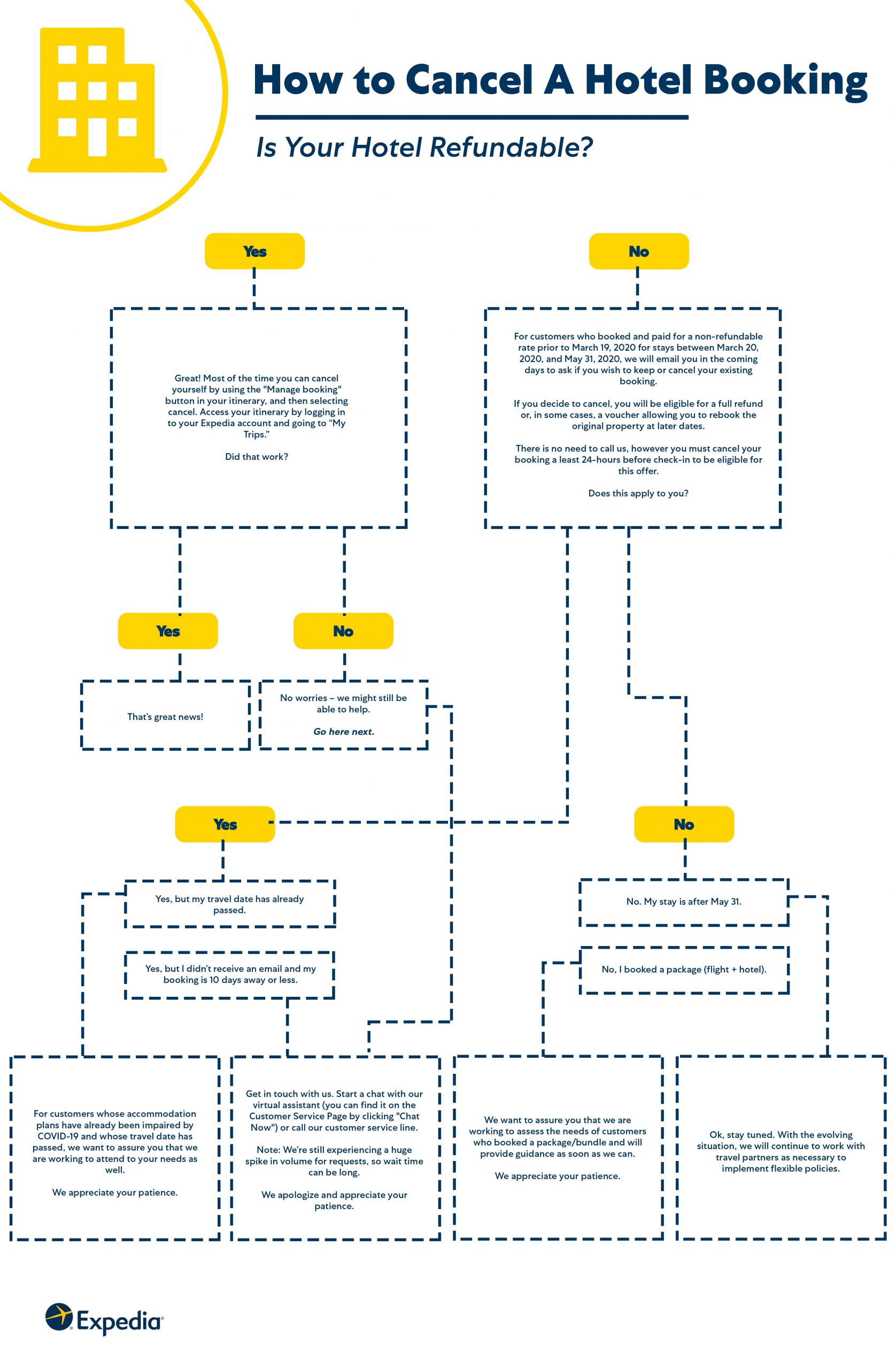
- Within Cancellation Window: The booking might be too close to the travel date, past the free cancellation period, or the booking type itself (e.g., certain deeply discounted, non-refundable fares) does not allow online changes or cancellations. In such cases, the system’s logic explicitly disables the online function.
- Third-Party Booking Integration: Sometimes, components of a package might be handled by a third-party supplier whose systems are not fully integrated for direct online cancellations via Expedia.
- Technical Glitch: Less commonly, a temporary server issue or a browser-specific problem might prevent the button from rendering correctly.
When online cancellation is unavailable, the interface usually provides an alternative: a prompt to “Contact Customer Service.” This directs users to the human support channel, often with a dedicated phone number or a link to a chat interface. It is crucial to respect the system’s indication here and not attempt workarounds that might invalidate future claims. The system is designed to route complex cases appropriately.
Troubleshooting Payment or System Glitches
Occasionally, a user might encounter an error message during the confirmation step related to payment processing or a general system error. These can be frustrating but are often temporary.
- Payment-Related Errors: If the error mentions payment, it might be an issue with processing a cancellation fee, or a refund credit card issue. Double-check that your payment information on file (if required for a fee) is correct.
- General System Errors: Messages like “An unexpected error occurred” or “Please try again later” usually indicate a temporary server overload, a network issue on your end, or a minor bug.
Troubleshooting steps include:
- Clear Browser Cache and Cookies: This can resolve many website rendering issues.
- Try a Different Browser: Compatibility issues can sometimes arise.
- Use the Expedia Mobile App: If the desktop site is problematic, the app might offer a smoother experience, as it often operates on a different technological stack.
- Check Internet Connection: Ensure your connection is stable.
- Wait and Retry: For server-side issues, waiting a few minutes or hours can resolve the problem.
If these steps fail, contacting Expedia’s digital customer support channels (chat, email, or social media support) is the next logical step, providing screenshots of the error message for faster resolution.
Leveraging the Expedia App vs. Desktop Site
While both the Expedia website and mobile app offer similar functionalities, their interfaces and underlying technical processes can sometimes differ, providing alternative pathways to problem resolution.
- Mobile App Advantages: The app is often optimized for touch interactions and can sometimes offer a more streamlined, step-by-step guided experience. It may also provide real-time push notifications for status updates. Furthermore, the app might bypass certain browser-specific issues encountered on the desktop site.
- Desktop Site Advantages: The desktop site generally offers a larger viewing area, which can be beneficial for reviewing complex itineraries or detailed cancellation policies. Navigation might feel more traditional and less “nested” than in a mobile app. It also typically allows for easier printing of documents.
When facing an issue on one platform, switching to the other can often provide a solution or at least a different perspective on the problem. Both are designed to interface with the same backend booking systems, but their front-end presentation and client-side processing can vary, making them valuable alternative tools for managing your digital travel requirements.
Post-Cancellation Digital Management and Follow-Up
The cancellation process doesn’t conclude with the confirmation click; effective digital management extends to tracking refunds and ensuring all necessary documentation is accessible. This section focuses on the post-cancellation digital tools provided by Expedia.
Tracking Refund Status within the Platform
Expedia’s platform is designed to provide transparency regarding refund processing. After a successful cancellation, your “My Trips” section, or the specific cancelled trip detail page, will typically update to show the status of your refund. This might appear as “Refund Pending,” “Refund Processed,” or “Refund Completed.” The platform often includes an estimated timeline for the refund to appear on your original payment method.
It is advisable to check this status periodically within your Expedia account rather than solely relying on bank statements, especially in the initial days following cancellation. The platform acts as the authoritative source for the refund status as determined by Expedia’s internal processing systems and communication with financial institutions. If the estimated refund timeline passes and the status has not updated or you haven’t received the funds, this digital status is your primary reference point for initiating an inquiry with customer support.
Accessing Cancellation Documents Electronically
Beyond the initial confirmation email, all relevant cancellation documents are usually stored within your Expedia account. This includes a detailed summary of the cancellation, any applicable fees, and the final refund amount. These documents can be accessed at any time by navigating to your “My Trips” section and viewing the details of the cancelled booking.
Many users find it beneficial to download these documents as PDFs for their personal records. The option to “Print Itinerary” or “Download Confirmation” will often be available on the cancelled trip’s detail page. Maintaining digital copies on your local device or cloud storage provides a robust backup, independent of internet access or the ongoing availability of Expedia’s online records, although Expedia typically retains these indefinitely in your account.
Utilizing Digital Customer Support Channels
Should you encounter issues with refund processing, need clarification on a policy, or face any post-cancellation challenges, Expedia offers multiple digital customer support channels. These include:
- Live Chat: Often available directly on the website or app, providing real-time text-based assistance. This is excellent for quick queries or when providing screenshots.
- Email Support: For less urgent matters, sending an email through their support portal allows for a detailed explanation of your issue and provides a written record of communication.
- Social Media: Expedia often has active customer service teams monitoring platforms like X (formerly Twitter) or Facebook, which can sometimes provide rapid responses, especially for public-facing issues.
When engaging with digital support, be prepared to provide your booking reference number, cancellation confirmation number, and a clear description of the issue. The more information you can provide digitally, the more efficiently the support team can access your records and assist you.
Proactive Digital Strategies for Flexible Travel Planning
In an increasingly dynamic travel landscape, leveraging digital tools for flexibility is as important as knowing how to cancel. Expedia provides features designed to help users mitigate the risk of needing to cancel, by making informed choices at the booking stage.
Exploring Expedia’s “No-Change-Fee” Filters
When searching for flights or hotels, Expedia’s search interface includes powerful filters that can significantly impact the flexibility of your booking. One of the most important for cancellation considerations is the “No Change Fees” or “Free Cancellation” filter. By activating these filters during your initial search, the platform will only display results from airlines or hotels that offer more lenient policies regarding changes or cancellations.
This digital filtering capability allows users to proactively select bookings that inherently provide greater flexibility, reducing the likelihood of incurring penalties if plans change. While such options might sometimes come at a slightly higher initial cost, the peace of mind and potential savings from avoiding cancellation fees can be substantial. Understanding and utilizing these filters is a sophisticated digital strategy for risk management in travel planning.
Understanding Different Fare Types and Their Digital Footprint
Expedia’s booking platform clearly differentiates between various fare types, especially for flights and hotels. For flights, you might see options like “Basic Economy,” “Economy,” “Flex,” or “Business Class,” each with distinct rules regarding cancellations and changes prominently displayed during the booking process. Similarly, hotels often offer “Non-Refundable,” “Semi-Flexible,” or “Fully Flexible” rates.
The “digital footprint” here refers to how these fare rules are explicitly presented on the screen, often requiring users to click to expand details or acknowledge specific terms. It’s crucial to actively engage with this information, rather than passively clicking through. The platform’s design requires explicit user interaction to reveal these details, which are directly tied to your ability to cancel without penalty later. Investing a few extra minutes at the booking stage to understand these digital disclosures can prevent significant frustration and financial loss down the line.
Setting Up Digital Trip Alerts and Reminders
Modern digital travel platforms like Expedia often offer features for setting up alerts and reminders, which can be invaluable for managing bookings and preventing missed cancellation deadlines. While not directly a cancellation feature, these proactive tools indirectly support flexible planning.
For example, you might be able to set reminders within the Expedia app for “free cancellation deadlines” or receive notifications about changes to your itinerary. Integrating your Expedia bookings with digital calendar apps (like Google Calendar or Outlook Calendar) can also automatically add key dates, including cancellation cut-offs, to your personal schedule. These digital integrations provide a layered defense against oversight, leveraging the power of interconnected software to keep you informed and empowered to make timely decisions about your travel plans, including the decision to cancel when necessary.
By mastering the digital intricacies of cancelling an Expedia trip, from initial navigation to post-cancellation management and proactive planning, travelers can approach their journeys with greater confidence and control. The tools and features embedded within Expedia’s platform are powerful, provided users understand how to leverage them effectively, turning potential frustrations into seamless digital interactions.
aViewFromTheCave is a participant in the Amazon Services LLC Associates Program, an affiliate advertising program designed to provide a means for sites to earn advertising fees by advertising and linking to Amazon.com. Amazon, the Amazon logo, AmazonSupply, and the AmazonSupply logo are trademarks of Amazon.com, Inc. or its affiliates. As an Amazon Associate we earn affiliate commissions from qualifying purchases.