
In the evolving landscape of digital finance, managing your online accounts is not just about convenience; it’s a critical component of personal cybersecurity and data privacy. PayPal, as one of the oldest and most ubiquitous online payment platforms, has served millions, but circumstances often dictate the need to part ways with digital services. Whether you’re decluttering your digital footprint, have security concerns, are consolidating financial tools, or simply no longer use the service, knowing how to properly cancel your PayPal account is essential. This isn’t merely about clicking a button; it’s a methodical process that, when executed correctly, safeguards your financial information and ensures a clean break.
This comprehensive tutorial will guide you through the technical intricacies of closing your PayPal account, emphasizing the preparatory steps, the closure process itself, and crucial post-cancellation digital hygiene. Our focus is strictly on the technical “how-to,” providing you with an insightful and engaging walkthrough to manage your digital assets responsibly.
Preparing for Account Closure: Essential Pre-Cancellation Steps
Before you even consider hitting the “close account” button, there are several vital technical and administrative tasks you must complete. Skipping these steps can lead to complications, financial headaches, or even prevent the successful closure of your account. Think of this as backing up your data and clearing your workspace before decommissioning an old server – it’s about thoroughness and security.
Emptying Your PayPal Balance
The most immediate and critical step is to ensure your PayPal account balance is at zero. PayPal will not allow you to close an account with a positive or negative balance. A positive balance means you have funds available that need to be withdrawn; a negative balance indicates an outstanding debt that must be settled.
- Transfer Funds to Your Bank Account: The most common method is to transfer any remaining balance to a linked and verified bank account. Navigate to the “Wallet” or “Money” section within your PayPal dashboard. Select the option to “Transfer Money” or “Withdraw Funds” and choose your preferred bank account. Be aware that this transfer might take a few business days to process, depending on your bank and the amount. It’s crucial to initiate this well in advance of your intended closure date.
- Spend the Balance: You can also use your PayPal balance to make online purchases until it reaches zero. This might be a faster way to clear small amounts.
- Send Money to a Friend or Family Member: Another option for small balances is to send the remaining funds to a trusted individual, who can then return the funds via an alternative method or simply hold them for you.
- Pay Off a Negative Balance: If your account has a negative balance (perhaps due to a reversed payment or a failed transaction), you must add funds from a linked bank account or card to bring the balance to zero or positive before proceeding. PayPal will usually guide you through this process if you attempt to close an account with a negative balance.
Disconnecting Linked Financial Instruments
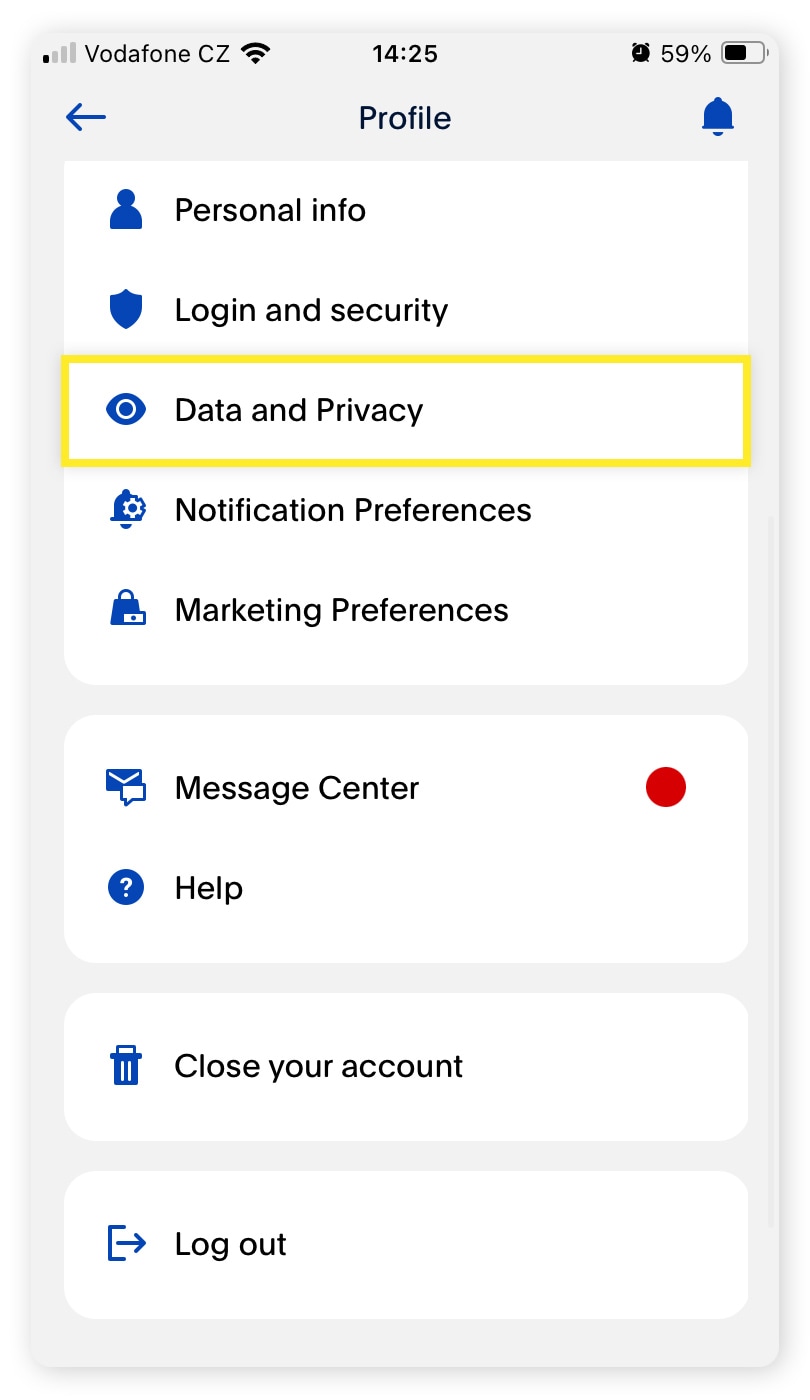
For digital security and privacy, it’s paramount to remove all linked bank accounts, credit cards, and debit cards from your PayPal profile. Even if the account is closed, leaving these connections active can be a potential point of concern for data retention or accidental re-association if you were to open a new account later.
- Access Your Wallet/Money Settings: Log into your PayPal account and navigate to the “Wallet” or “Money” section. This area lists all your linked financial instruments.
- Remove Each Instrument Individually: For each bank account, credit card, or debit card listed, select it and look for an option to “Remove,” “Delete,” or “Unlink.” Confirm the removal when prompted. This action ensures that PayPal no longer holds active connections to your personal banking details, reducing your digital footprint. This is a crucial step for preventing any unintended future charges or data vulnerabilities.
Canceling Automatic Payments and Subscriptions
One of the most frequently overlooked steps is canceling recurring payments, automatic subscriptions, or pre-approved payments authorized through PayPal. Failing to do so can result in continued charges even after your PayPal account is closed, leading to disputes and potential financial inconvenience.
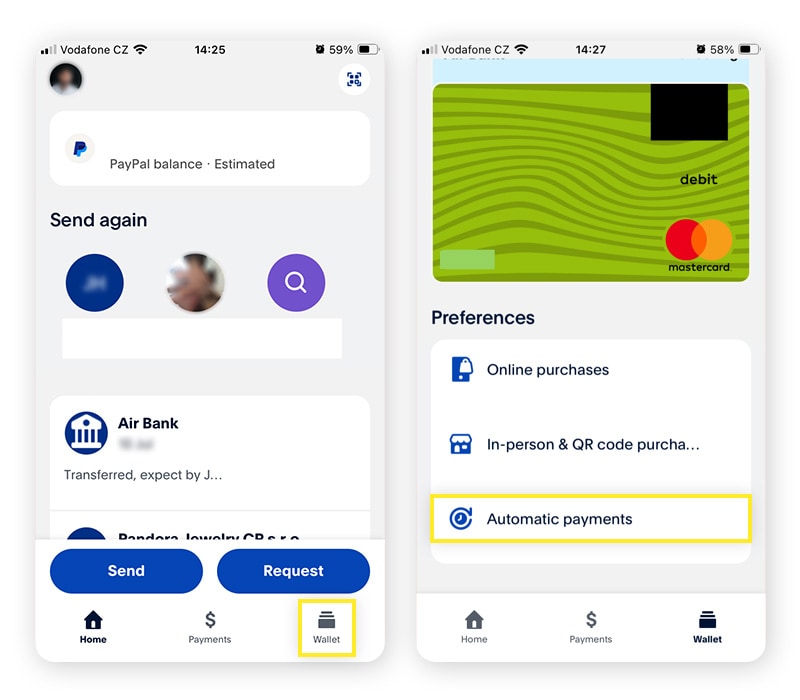
- Review Your Automatic Payments: Within your PayPal settings, usually under “Payments” or “Account Settings,” there’s a section for “Automatic Payments,” “Pre-approved Payments,” or “Manage Payments.” Here, you’ll find a list of all merchants and services you’ve authorized to pull funds directly from your PayPal account.
- Update Payment Methods with Merchants: For each active subscription, you must either cancel the service directly with the merchant or, if you wish to continue the service, update your payment method directly on the merchant’s website using a different credit card or bank account. Do not rely on PayPal account closure to stop these payments; you must sever the authorization proactively. Once you’ve updated the merchant, you can then cancel the pre-approved payment agreement within PayPal.
Downloading Transaction History and Reports
While this article is centered on tech and not personal finance per se, maintaining robust digital records is a core aspect of digital management. Before closing your account, it’s highly advisable to download a complete record of your transaction history. This data can be invaluable for tax purposes, personal budgeting, resolving future disputes, or simply for your own archival needs.
- Access Activity/History: Navigate to the “Activity” or “History” section of your PayPal account.
- Generate and Download Reports: Look for options to “Download Activity,” “Statements,” or “Reports.” PayPal usually allows you to select a custom date range. Download your full transaction history in a format like CSV or PDF and store it securely on your personal device or a cloud storage service. This ensures you retain a copy of your financial interactions facilitated by PayPal, independent of the platform.
The Step-by-Step Technical Process of Closing Your Account
Once all preparatory steps are complete, and your account balance is zero with no linked financial instruments or active subscriptions, you are ready to initiate the account closure. This is the technical execution of the cancellation.
Accessing Account Settings
The first direct step to account closure is navigating to the correct section within the PayPal interface.
- Log In Securely: Log into your PayPal account using your verified credentials. Ensure you are on the official PayPal website (paypal.com) to avoid phishing scams.
- Navigate to Settings: Once logged in, locate the “Settings” icon (often a gear icon) or a link to “Profile Settings.” This is typically found in the top right corner of the dashboard.
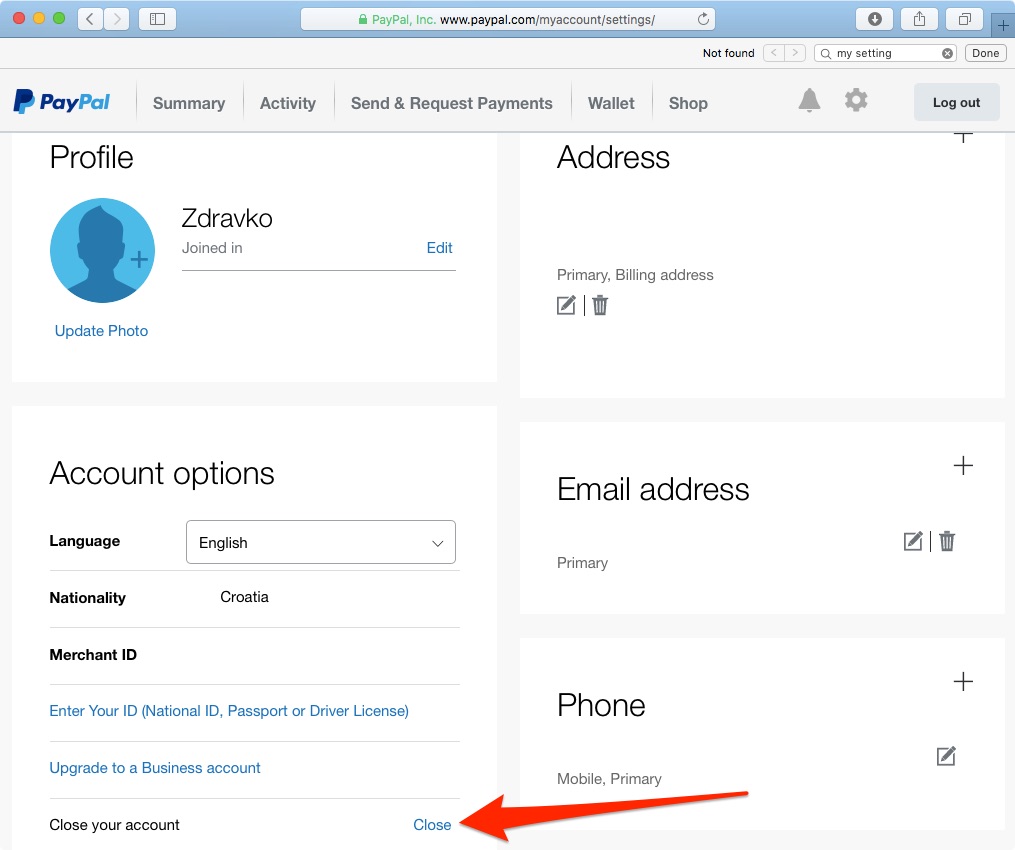
- Find Account Options: Within the settings menu, you’ll need to locate the “Account Options” or “Account Type” section. The exact naming can vary slightly depending on your region or if you have a Personal vs. Business account. For most personal accounts, you’ll find an option related to “Closing your account” or “Account closure.”
Initiating the Closure Request
This is where you directly tell PayPal you wish to terminate your service.
- Locate the “Close Account” Link/Button: Within the account settings, scroll down or look for a prominent link or button labeled “Close Account,” “Cancel Account,” or “Deactivate Account.”
- Follow the Prompts: PayPal will likely present a series of prompts. These might include:
- Confirmation of Intent: A message asking if you’re sure you want to close your account, possibly highlighting reasons why you might reconsider.
- Reasons for Closure: You might be asked to select a reason for closing your account from a dropdown list (e.g., “No longer use PayPal,” “Security concerns,” “Too many fees”). Providing feedback, while optional, can help PayPal improve its service.
- Final Review: A summary of things to consider, reiterating the points covered in our preparatory steps.
- Confirm the Action: After reviewing any final warnings or prompts, click the final “Confirm,” “Close Account,” or “Submit” button to initiate the closure.
Addressing Pending Issues
While you should have resolved all issues in the preparatory phase, PayPal’s system will perform a final check. If there are any unresolved disputes, holds on funds, or pending transactions (even if your balance is zero), your account closure might be temporarily paused.
- Resolving Disputes: If you have an open dispute as either a buyer or seller, the account cannot be closed until the dispute is fully resolved and closed. This can take time, as it involves communication and potentially PayPal’s review process.
- Funds on Hold: Occasionally, funds might be on hold (e.g., for new sellers or large transactions). These funds must clear and be withdrawn before closure is possible.
- Waiting Periods: PayPal might enforce a waiting period after recent activity to ensure all transactions have fully settled and no chargebacks are initiated, typically around 180 days after the last transaction for full data deletion, though account closure can happen sooner. If such an issue arises, PayPal will typically notify you and provide instructions on how to resolve it before you can proceed. You may need to contact customer service for specific guidance.
Confirming Closure and Data Retention
After successfully navigating the prompts and resolving any pending issues, PayPal will typically send you a confirmation email acknowledging the account closure.
- Confirmation Email: Keep this email as a record. It serves as proof that you officially requested and completed the account termination.
- Understanding Data Retention: Be aware that while your account is functionally closed, PayPal, like many financial institutions, is legally obligated to retain certain transaction data and personal information for a specified period (e.g., 5-10 years) for regulatory compliance, fraud prevention, and audit purposes. This doesn’t mean your account is active, but rather that your historical data is securely archived. This is standard practice across the financial technology sector and aligns with digital security best practices for regulated entities.
Digital Security Post-Cancellation: What to Know and Do
Closing your account is a significant step in managing your digital identity, but proactive digital security doesn’t end there. There are a few crucial post-cancellation actions and considerations to solidify your digital hygiene.
Verifying Account Status
It’s good practice to verify that your account has indeed been closed as intended.
- Attempt a Login: A few days after receiving your confirmation, try to log in to your PayPal account. A successfully closed account should either deny your login attempt with a message indicating the account is closed, or it might prompt you to create a new account. If you can still log in normally, contact PayPal customer support immediately.
- Monitor Linked Accounts: Continue to monitor your bank accounts and credit card statements for a few billing cycles to ensure no unexpected or unauthorized charges appear that might have been linked to old PayPal authorizations.
Protecting Your Digital Footprint
Beyond PayPal itself, consider the broader implications for your digital footprint.
- Delete Associated Apps: If you had the PayPal mobile app installed on your smartphone or tablet, delete it. This frees up device storage and removes a potential vector for future data interaction.
- Update Passwords (If Reused): While not recommended, some users unfortunately reuse passwords across multiple services. If you were one of them and your PayPal password was identical to other accounts, it’s a critical moment to update those other passwords to unique, strong ones. This is a fundamental aspect of robust digital security.
Handling Former PayPal-Linked Services
Ensure a smooth transition for any services that previously relied on PayPal.
- Set Up Alternative Payment Methods: For any recurring services or merchants where you previously used PayPal, ensure you have updated your payment information directly with them to an alternative credit card or bank account. This prevents service interruptions or missed payments.
- Communicate with Vendors: If you foresee issues, inform your service providers about the change in your payment method to avoid automatic cancellations.
Understanding Reactivation Policies (or lack thereof)
Generally, once a PayPal account is formally closed, it cannot be reactivated.
- New Account Required: If you decide in the future that you need a PayPal account again, you will typically need to sign up for a brand-new account. This usually means starting fresh with new settings, linked accounts, and transaction history. Your old history and profile information (beyond regulatory retention) will not be accessible. This reinforces the importance of downloading your transaction history before closure.
Common Technical Challenges and Troubleshooting
While the process is usually straightforward, users can encounter technical hurdles. Knowing how to troubleshoot these can save significant time and frustration.
Inability to Close Due to Pending Transactions
As mentioned, pending items are the most common reason for stalled closures.
- Resolve All Disputes: Actively engage in any open disputes. Respond to messages, provide requested information, and await resolution.
- Wait for Holds to Clear: If funds are on hold, patience is key. These holds are typically temporary and designed to protect both buyers and sellers. Monitor your account regularly for updates on the hold status.
- Contact Customer Support for Clarity: If you’re unsure why your account has a pending issue or how to resolve it, PayPal’s customer service is your best resource. Be prepared with your account details and a clear explanation of the problem.
Account Limitations or Restrictions
Sometimes, an account might be restricted or limited due to security concerns, unverified identity, or unusual activity. An account under restriction cannot typically be closed.
- Lift Restrictions First: You must first resolve any limitations by following PayPal’s instructions, which usually involve providing additional documentation (e.g., proof of identity, address verification, business details). Once the restrictions are lifted, you can proceed with the closure.
- Provide Required Documentation (KYC): Be prepared to upload scanned copies of government-issued IDs, utility bills, or business registration documents as part of PayPal’s Know Your Customer (KYC) compliance.
Technical Glitches or UI Issues
Occasionally, a website or app might have temporary issues preventing you from completing the process.
- Clear Browser Cache and Cookies: This can often resolve display or functionality issues. Go into your browser settings and clear your browsing data, specifically cache and cookies.
- Try a Different Browser or Device: If one browser or device isn’t working, try another (e.g., switch from Chrome to Firefox, or from desktop to mobile app, or vice-versa).
- Check Internet Connection: Ensure you have a stable internet connection.
- Contact Customer Service as a Last Resort: If you’ve tried all troubleshooting steps and still can’t close your account, contact PayPal customer support. They can often provide specific technical assistance or even process the closure manually on their end if warranted.
Conclusion
Canceling your PayPal account is more than a simple act of digital decluttering; it’s an exercise in proactive digital security and responsible account management. By meticulously following the preparatory steps, understanding the technical closure process, and adhering to post-cancellation best practices, you ensure a smooth, secure, and complete termination of your service. This comprehensive guide has equipped you with the knowledge to navigate this process with confidence, empowering you to take full control of your online financial tools and maintain a robust digital footprint. In the fast-evolving digital world, vigilance and informed action remain your strongest defenses.
aViewFromTheCave is a participant in the Amazon Services LLC Associates Program, an affiliate advertising program designed to provide a means for sites to earn advertising fees by advertising and linking to Amazon.com. Amazon, the Amazon logo, AmazonSupply, and the AmazonSupply logo are trademarks of Amazon.com, Inc. or its affiliates. As an Amazon Associate we earn affiliate commissions from qualifying purchases.