
In the intricate symphony that is a modern computer system, drivers play a role akin to the conductor, ensuring every instrument – from your graphics card to your mouse – performs in perfect harmony with the operating system. These small yet mighty software components are the crucial bridge between your Windows OS and the hardware it interacts with. Overlooking their maintenance is a common oversight that can lead to a cascade of performance issues, from stuttering graphics and audio glitches to outright system instability and connectivity failures.
Keeping your drivers updated isn’t merely a suggestion; it’s a fundamental aspect of maintaining a healthy, efficient, and secure Windows environment. This comprehensive guide will demystify the process, explain its profound importance, and provide you with actionable steps to ensure your system always operates at its peak potential. We’ll delve into the various methods for updating drivers, highlight best practices, and equip you with the knowledge to troubleshoot common issues, transforming you from a passive computer user into an empowered digital guardian.

The Indispensable Role of Drivers in Your Windows Ecosystem
To truly appreciate the necessity of driver updates, one must first understand their foundational role and the impact they have on your daily computing experience.
What Exactly Are Drivers and Why Do They Matter?
Imagine trying to speak a foreign language without a translator. The operating system (Windows) and your hardware components (like a printer, webcam, or graphics card) are like two entities speaking different languages. A driver is that essential translator. It’s a piece of software that tells your operating system how to communicate with a specific hardware device. Without the correct driver, your hardware is essentially a paperweight – the OS doesn’t know how to send instructions to it or receive information from it.
Every single piece of hardware in your computer, whether internal (like the chipset, CPU, or SSD) or external (like a keyboard, monitor, or external hard drive), requires a driver to function correctly. These drivers are developed by the hardware manufacturers themselves and are tailored specifically to their products. As hardware evolves, new features are introduced, and bugs are discovered, these drivers also need to be updated to reflect those changes, optimize performance, and ensure compatibility with the latest versions of Windows.
Common Symptoms of Outdated or Corrupt Drivers
Neglecting driver updates can manifest in a variety of frustrating symptoms that degrade your computing experience. Recognizing these signs is the first step toward diagnosis and resolution.
- Performance Degradation: Your games might experience lower frame rates, video editing software could become sluggish, or general system responsiveness might decline. This is often a tell-tale sign of outdated graphics or chipset drivers.
- Hardware Malfunctions: A device might stop working entirely, or exhibit erratic behavior. Your Wi-Fi adapter might drop connections, your webcam might fail to activate, or your printer might refuse to print.
- System Instability and Crashes: Frequent “Blue Screens of Death” (BSODs), random reboots, or application crashes can often be traced back to corrupt or incompatible drivers, particularly for critical components like storage controllers or graphics cards.
- Audio and Video Issues: Crackling sound, no audio output, distorted video, or resolution problems are common indicators of outdated audio or display drivers.
- Connectivity Problems: Inability to connect to the internet, slow network speeds, or issues with USB devices often point to problems with network adapter or USB controller drivers.
- New Feature Incompatibility: If you’ve upgraded to a new version of Windows or installed new software, and a piece of hardware isn’t working as expected, its driver might not be compatible with the new environment.
The Benefits of Keeping Your Drivers Current
Proactive driver maintenance offers a multitude of advantages that significantly enhance your Windows experience:
- Improved Performance: New driver versions often include optimizations that squeeze more performance out of your hardware, whether it’s faster frame rates in games, quicker data transfers, or more efficient power management.
- Enhanced Stability: Updated drivers fix bugs and address compatibility issues, reducing the likelihood of system crashes, freezes, and unexpected errors.
- Increased Security: Manufacturers sometimes release driver updates that patch security vulnerabilities, protecting your system from potential exploits.
- Access to New Features: Drivers can unlock new functionalities or capabilities in your hardware that were not available with older versions. For example, a new graphics driver might enable support for a new display technology or a specific game optimization.
- Better Compatibility: As Windows evolves, new driver versions ensure your hardware remains fully compatible with the latest operating system updates and software applications.
- Extended Hardware Lifespan: While not directly extending physical life, optimal driver performance can reduce undue strain on components, contributing to their overall health.
Navigating the Driver Update Landscape: Methods and Best Practices
There are several pathways to updating drivers in Windows, each with its own advantages and considerations. Understanding these methods will help you choose the most appropriate approach for your situation.
Method 1: The Automated Approach via Windows Update
Windows Update is the most convenient and often the safest way to update many drivers, especially for less critical components. Microsoft works with hardware manufacturers to deliver certified drivers directly through its update service.
- How to do it:
- Go to
Settings > Update & Security > Windows Update. - Click
Check for updates. - If updates are found, they will download and install automatically. You might find optional driver updates under “View optional updates.”
- Go to
- Pros: Extremely easy, drivers are usually stable and tested by Microsoft, covers a wide range of hardware.
- Cons: Not always the latest versions, especially for graphics cards or specialized peripherals where manufacturers release very frequent updates. May not find drivers for very new or niche hardware.
Method 2: Manual Updates Through Device Manager
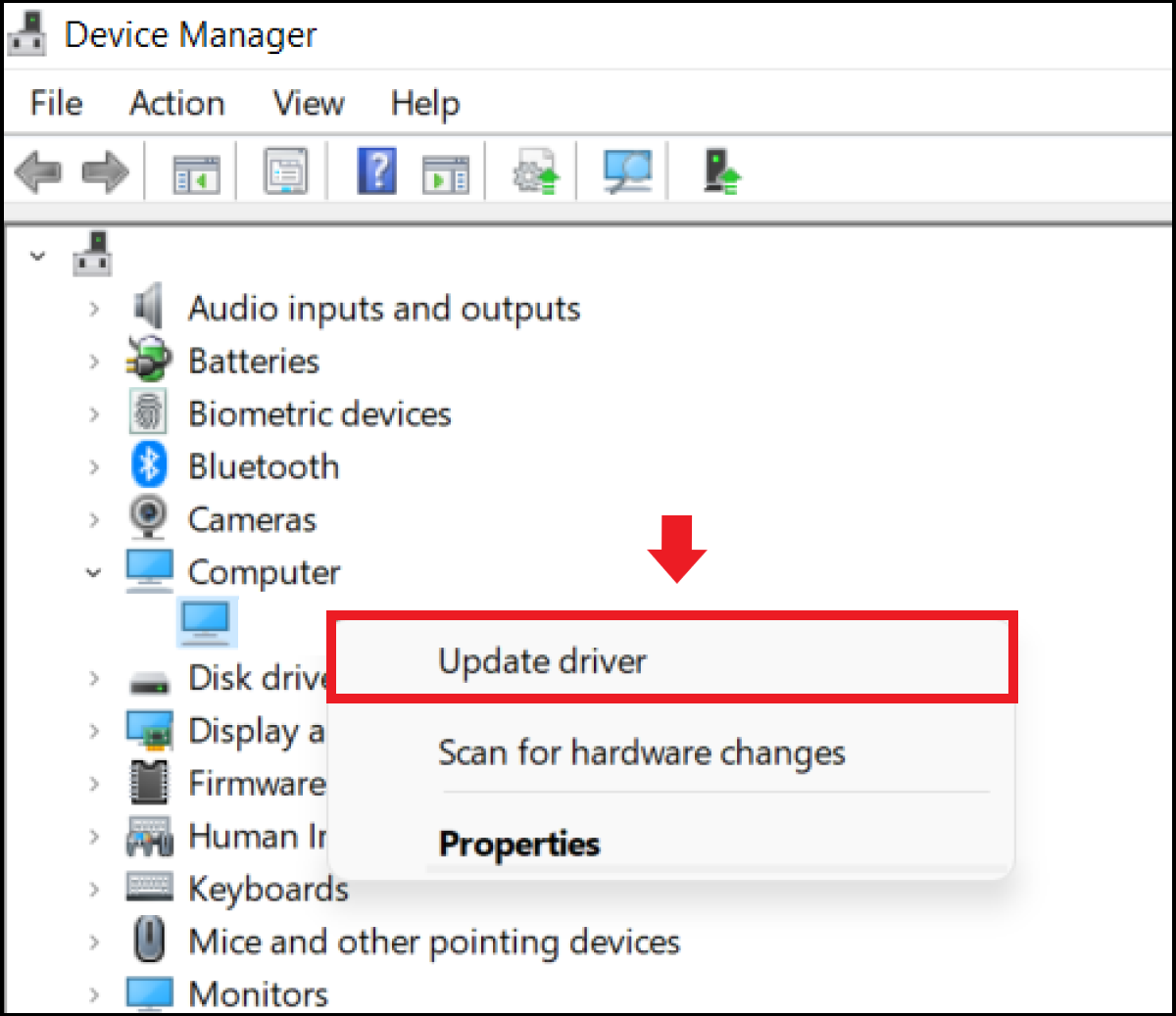
The Device Manager is a powerful built-in tool in Windows that allows you to view and manage all the hardware connected to your computer. It can also be used to update individual drivers.
- How to do it:
- Right-click the Start button and select
Device Manager. - Expand the category for the device you want to update (e.g., “Display adapters,” “Sound, video and game controllers”).
- Right-click on the specific device and select
Update driver. - Choose
Search automatically for updated driver software. Windows will attempt to find a newer driver online or from local files. - Alternatively, select
Browse my computer for driver softwareif you have downloaded a driver file (.inf, .sys, .cat) manually.
- Right-click the Start button and select
- Pros: Gives you granular control, useful for specific device updates, can revert drivers if a new one causes issues.
- Cons: Windows might not always find the absolute latest driver. Still reliant on Microsoft’s driver repository unless you manually point it to a downloaded file.
Method 3: Directly From the Manufacturer’s Website (The Gold Standard)
For critical components like graphics cards, chipsets, or network adapters, obtaining drivers directly from the hardware manufacturer’s website is often the best approach. This ensures you get the absolute latest, most optimized version.
- How to do it:
- Identify your hardware component’s manufacturer and model number (e.g., NVIDIA GeForce RTX 3080, Intel Core i7-12700K, Realtek RTL8111H). You can usually find this information in Device Manager or by using system information tools (like
dxdiagfor graphics). - Navigate to the official support or download section of the manufacturer’s website (e.g., NVIDIA, AMD, Intel, Dell, HP, ASUS).
- Search for your specific product model.
- Download the latest driver package compatible with your version of Windows (e.g., Windows 10 64-bit).
- Run the downloaded installer and follow the on-screen instructions. Often, it’s recommended to perform a “clean installation” for graphics drivers.
- Identify your hardware component’s manufacturer and model number (e.g., NVIDIA GeForce RTX 3080, Intel Core i7-12700K, Realtek RTL8111H). You can usually find this information in Device Manager or by using system information tools (like
- Pros: Guaranteed to get the very latest and most optimized drivers, often includes manufacturer-specific software utilities, essential for gaming and professional applications.
- Cons: Requires identifying hardware accurately, can be more time-consuming, and carries a slight risk if you download from unofficial sources (always use official websites).
Method 4: Utilizing Third-Party Driver Update Utilities (Use with Caution)
There are many third-party software tools designed to scan your system for outdated drivers and update them automatically. While some are reputable, many can be problematic.
- How to do it: Install and run the utility. It will scan your system and present a list of outdated drivers. You then choose which ones to update.
- Pros: Can be convenient for identifying multiple outdated drivers quickly.
- Cons: Many free versions come bundled with bloatware or adware. Some can install incorrect or malicious drivers. They might not always offer the absolute latest official drivers. It’s generally safer to stick to methods 1-3. If you do use one, research it thoroughly and ensure it’s from a highly reputable source.
A Step-by-Step Guide to Updating Specific Driver Types
While the general methods apply broadly, some critical drivers warrant specific attention due to their impact on system performance and stability.
Graphics Card Drivers: Unleashing Visual Performance
Graphics drivers are perhaps the most frequently updated and performance-critical drivers, especially for gamers, video editors, and designers.
- Identify your GPU: Open
dxdiag(typedxdiagin the Start search) and go to the “Display” tab to see your graphics card model (NVIDIA, AMD, Intel). - Download from Manufacturer:
- NVIDIA: Go to
nvidia.com/drivers. Use the auto-detect tool or manually select your product type, series, and OS. - AMD: Go to
amd.com/drivers. Use the auto-detect tool or manually select your graphics product. - Intel: Go to
intel.com/support/graphics. Use the Intel Driver & Support Assistant or manually search.
- NVIDIA: Go to
- Installation: Run the downloaded installer. For NVIDIA and AMD, choose “Custom” or “Clean Installation” during setup to ensure all old driver remnants are removed, which often prevents issues. Your screen may flicker or go black briefly during the process.
Audio Drivers: Ensuring Crisp Sound
Issues with sound are often resolved by updating audio drivers.
- Identify your Audio Device: In
Device Manager, expand “Sound, video and game controllers.” Note down the device name (e.g., Realtek High Definition Audio). - Download from Manufacturer:
- For integrated audio (most common): Visit your motherboard manufacturer’s website (e.g., ASUS, MSI, Gigabyte) and search for your specific motherboard model’s support page.
- For dedicated sound cards (less common): Visit the sound card manufacturer’s website (e.g., Creative Labs, ASUS Xonar).
- Installation: Run the downloaded setup file. A system reboot is often required.
Network Adapter Drivers: Maintaining Connectivity
Network drivers are crucial for maintaining a stable internet connection, whether wired (Ethernet) or wireless (Wi-Fi).
- Identify your Network Adapters: In
Device Manager, expand “Network adapters.” Note the names of your Wi-Fi and/or Ethernet adapters. - Download from Manufacturer:
- For integrated adapters: Check your motherboard manufacturer’s website.
- For discrete adapters: Visit the adapter manufacturer’s website (e.g., Intel, Realtek, Killer Networking, TP-Link).
- Installation: Run the installer. If you’re updating a Wi-Fi driver, you might temporarily lose internet connection during the update.
Chipset Drivers: The Foundation of System Stability
Chipset drivers are fundamental as they manage communication between the CPU and other components like storage, USB, and PCIe slots. Outdated chipset drivers can lead to general system instability or underperformance.
- Identify your Chipset: Use a system information tool (like CPU-Z) or check your motherboard’s specifications. It will usually be an Intel (e.g., Z690, B550) or AMD (e.g., X570, B450) chipset.
- Download from Manufacturer:
- Intel: Use the Intel Driver & Support Assistant or visit
intel.com/support/chipsets. - AMD: Visit
amd.com/support/chipsets. Select your processor family and then the correct chipset.
- Intel: Use the Intel Driver & Support Assistant or visit
- Installation: Run the downloaded installer. A reboot is almost always necessary after a chipset driver update.
Troubleshooting Common Driver Update Issues
Even with the best intentions, driver updates can sometimes introduce new problems. Knowing how to troubleshoot is key to resolving these situations swiftly.
Reverting to Previous Driver Versions
If a new driver causes issues, Windows provides a straightforward way to “roll back” to the previously installed version.
- How to do it:
- Open
Device Manager. - Right-click the problematic device and select
Properties. - Go to the
Drivertab. - Click
Roll Back Driver. If this option is grayed out, Windows doesn’t have a previous driver to revert to.
- Open
- Note: If the Roll Back option isn’t available, you’ll need to uninstall the current driver and then manually install an older version you’ve downloaded from the manufacturer’s website.
Dealing with Driver Conflicts and System Instability
Sometimes, drivers from different components or poorly designed drivers can conflict, leading to system crashes or unresponsiveness.
- Safe Mode: If your system is too unstable to troubleshoot in normal mode, boot into Safe Mode. This loads Windows with only essential drivers, allowing you to access Device Manager and uninstall problematic drivers.
- Event Viewer: Use the
Event Viewer(typeeventvwrin Start search) to look for critical errors or warnings related to drivers that occurred around the time of the issue. This can provide clues about the conflicting driver. - Driver Verifier: For advanced users,
Driver Verifier(verifierin Start search) can help identify misbehaving drivers by subjecting them to intense stress and checks. Use with extreme caution, as it can cause frequent BSODs if a bad driver is found.
When to Perform a Clean Driver Installation
For graphics drivers, a “clean installation” is highly recommended, especially when switching between major driver versions or troubleshooting persistent issues. This process thoroughly removes all traces of the old driver before installing the new one.
- Tools for Clean Installation: NVIDIA and AMD driver installers usually offer a “Custom” or “Clean Install” option. Alternatively, you can use a third-party utility like
Display Driver Uninstaller (DDU)for graphics drivers, which should be run in Safe Mode for best results. - Process:
- Download the new driver.
- (Optional, but recommended for graphics) Run DDU in Safe Mode to remove the old driver.
- Reboot into normal mode.
- Install the new driver.
Establishing a Proactive Driver Maintenance Routine
Consistent driver maintenance is far more effective than reactive troubleshooting. Incorporating these practices into your routine will help keep your Windows system robust and performant.
Frequency of Driver Checks
- Critical Drivers (Graphics, Chipset): Check monthly or when new major game titles or software versions are released. Manufacturers often release updates frequently for these.
- Other Drivers (Audio, Network, Peripherals): Check every 2-3 months or if you notice any performance issues or when major Windows feature updates are installed.
- Windows Update: Keep Windows Update enabled and check for updates weekly to ensure OS patches and common driver updates are applied regularly.
Backing Up Your Drivers
Before installing any major driver update, especially for critical components, consider backing up your current drivers. This provides a safety net if the new driver causes problems and you can’t roll back.
- Third-Party Tools: Utilities like Double Driver or Driver Store Explorer can help you back up and restore drivers.
- Manual Copy: You can manually copy the driver files from
C:WindowsSystem32DriverStoreFileRepository, but this is more complex.

Future-Proofing Your Windows System
By diligently keeping your drivers updated, you’re not just fixing current problems; you’re actively preparing your system for the future. Modern software and operating systems are constantly evolving, demanding more from hardware and its underlying drivers. Regular updates ensure your system remains secure against emerging threats, compatible with new technologies, and continues to deliver the performance you expect. It’s an investment in the longevity and reliability of your digital workspace, allowing you to focus on productivity, creativity, and entertainment without being hampered by avoidable technical glitches.
In conclusion, understanding and managing your drivers in Windows is a fundamental skill for any computer user. While it might seem daunting at first, by following the structured approach outlined in this guide, you can ensure your hardware and software continue to communicate effectively, leading to a smoother, faster, and more secure computing experience. Embrace proactive driver maintenance – your Windows system will thank you for it.
aViewFromTheCave is a participant in the Amazon Services LLC Associates Program, an affiliate advertising program designed to provide a means for sites to earn advertising fees by advertising and linking to Amazon.com. Amazon, the Amazon logo, AmazonSupply, and the AmazonSupply logo are trademarks of Amazon.com, Inc. or its affiliates. As an Amazon Associate we earn affiliate commissions from qualifying purchases.