
The thrill of a new car often comes with a desire for all your favorite creature comforts and technologies to seamlessly migrate with you. For many drivers, SiriusXM satellite radio is an indispensable companion, offering a vast array of ad-free music, talk, news, and entertainment channels. The prospect of losing access to your curated listening experience, even temporarily, can be a minor headache amidst the excitement of a new vehicle. Fortunately, transferring your existing SiriusXM subscription to your new car is a straightforward process, primarily falling within the realm of digital service management and gadget integration. This guide will walk you through the essential steps, ensuring your tunes and talk shows are ready to go the moment you drive off the lot.
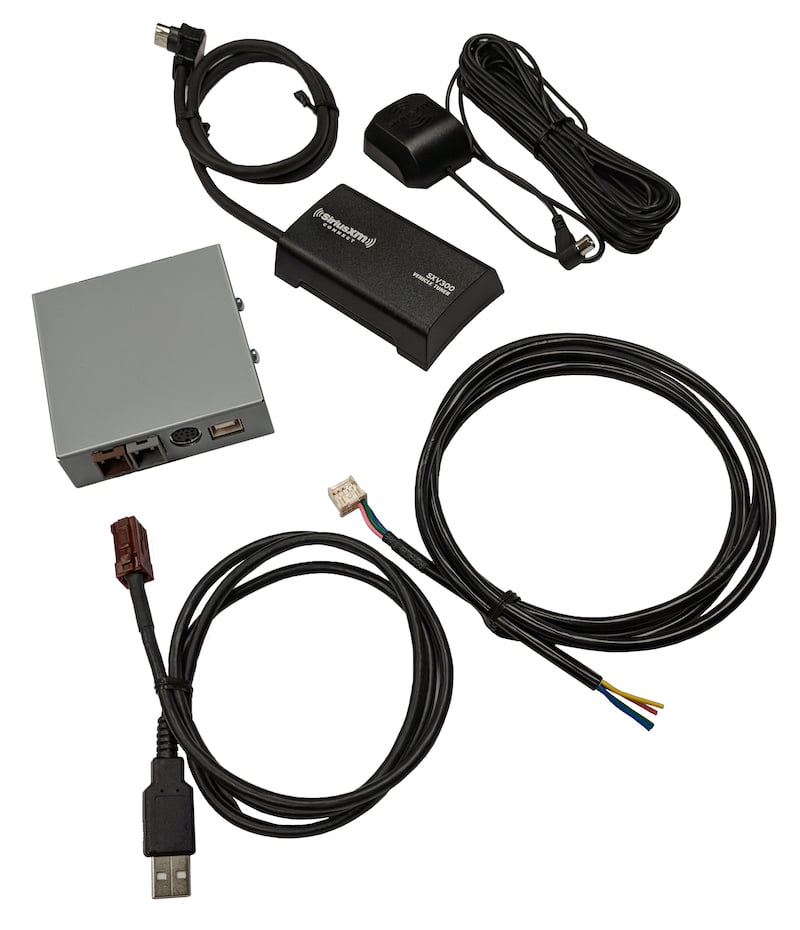
Understanding Your SiriusXM Subscription and Hardware
Before initiating any transfer, it’s crucial to grasp the nuances of your current SiriusXM setup. This understanding forms the foundation for a smooth transition, helping you identify what needs to be moved and how your access is currently configured. SiriusXM’s service delivery relies on both physical hardware (the satellite radio receiver in your car) and your digital account, often complemented by app-based streaming.
Differentiating Between Vehicle-Specific and App-Based Subscriptions
SiriusXM subscriptions can be broadly categorized in two ways that impact the transfer process. Many subscriptions are tied directly to the satellite radio receiver in a specific vehicle. This is often the case when you purchase a new car with a promotional trial. The service is activated for that car’s unique Radio ID. However, most modern SiriusXM plans also include “All Access” or “Streaming” components, which allow you to listen via the SiriusXM app on your smartphone, smart devices, or web browser, independent of any specific car.
It’s important to know which type of subscription you primarily have. If your current service is solely tied to your old car’s radio, you’ll need to transfer that service. If you have an All Access plan, your app-based listening will continue uninterrupted, but you’ll still need to link the satellite service to your new vehicle’s radio. This distinction helps manage expectations and streamline the activation process in your new car.
Identifying Your Current Radio ID and Account Information
To facilitate a transfer, SiriusXM will need specific details about both your old and new vehicles. For your current subscription, you should have your account number readily available. This can usually be found on your billing statements, in your online account portal, or by calling customer service. More importantly, you’ll need the Radio ID of the satellite receiver in your new car.
The Radio ID (sometimes referred to as an ESN or SID) is a unique 8- to 12-digit alphanumeric code assigned to each SiriusXM-equipped radio. To find it in your new car, tune your radio to channel 0. The Radio ID will typically display on the screen. If it doesn’t appear immediately, consult your car’s owner’s manual for specific instructions on how to access the Radio ID or the ESN (Electronic Serial Number) for the satellite radio module. Having this information prepared before you contact SiriusXM will significantly expedite the transfer process.
The Role of SXM App and Streaming Access
For many users, the SiriusXM App is an integral part of their listening experience. It provides access to thousands of hours of on-demand content, personalized stations, and live channels outside the car. If your current subscription includes streaming access, this typically remains active even during a vehicle transfer. Your login credentials for the app will usually remain the same. The transfer process primarily concerns moving the satellite radio signal from your old car to your new one.
Leveraging the app during the transition can be a lifesaver. While you wait for your new car’s satellite radio to activate, you can simply use the app on your phone via Bluetooth or Apple CarPlay/Android Auto in your new vehicle to continue enjoying your favorite SiriusXM content. This ensures a seamless continuation of service with minimal disruption, highlighting the flexible nature of modern digital entertainment platforms.
Step-by-Step Guide to Transferring Your Service
Transferring your SiriusXM service is generally a straightforward process that can often be completed in a single interaction with the company. The core idea is to deactivate the service on your old vehicle’s radio and activate it on your new vehicle’s radio, all while keeping your existing account and subscription plan intact.
Activating SiriusXM in Your New Vehicle
The first practical step in your new car is to ensure its SiriusXM radio is ready for activation. Drive your new car to an open area where it has a clear view of the sky – parking garages or heavily wooded areas can block the satellite signal. Turn on your car, then tune the radio to channel 0 to locate the Radio ID (ESN or SID) as discussed earlier. Make a note of this number.
Next, tune the radio to one of the preview channels, typically channel 1. You should hear a short loop of SiriusXM programming, often prompting you to activate your service. This confirms the radio is functioning and receiving a basic signal, ready for activation. If you encounter issues hearing anything on channel 1, check your car’s antenna connection or consult the dealer, as there might be a hardware issue.
Contacting SiriusXM: The Primary Transfer Method
The most reliable and comprehensive way to transfer your service is by contacting SiriusXM directly. You can do this either by phone or through their online chat service.
When you connect with a representative, clearly state that you wish to transfer your existing SiriusXM subscription from your old vehicle to your new one. The representative will typically ask for:
- Your current SiriusXM account number or the phone number/email associated with your account. This allows them to locate your existing subscription.
- The Radio ID of your old car. They will need this to deactivate the service on that specific receiver.
- The Radio ID of your new car. This is the critical piece of information for activating service on your new vehicle.
- The make, model, and year of both your old and new vehicles. This helps them confirm the correct devices and troubleshoot any compatibility issues.
The representative will then process the transfer. This usually involves deactivating the old radio and sending an activation signal to your new radio. Once the signal is sent, you may need to wait a few minutes (sometimes up to an hour) in your new car, with the radio on channel 1, for the channels to fully populate. They will confirm once the process is complete and provide any further instructions.
Utilizing Online Self-Service Options (If Available/Applicable)

SiriusXM is continually enhancing its online self-service capabilities. Depending on your specific account type and current promotions, you might be able to initiate a transfer directly through your online account portal on the SiriusXM website.
To check for this option, log in to your account at siriusxm.com. Look for sections related to “My Subscriptions,” “Add a Radio,” or “Transfer Service.” The online interface will guide you through entering the Radio IDs of both vehicles and confirming the transfer. While convenient, some complex subscription types or promotional packages might still require a phone call for full resolution. It’s always worth checking the online portal first, as it can often save time.
What to Do with Your Old Vehicle’s Service
After successfully transferring your service to your new car, your old vehicle’s SiriusXM radio should become inactive. If you’re selling or trading in the old car, it’s good practice to confirm with SiriusXM that the service has indeed been terminated for that specific Radio ID. This prevents any confusion or potential charges related to the old vehicle.
If the old vehicle is staying in your possession (e.g., as a secondary family car), and you wish to have SiriusXM in both vehicles, you would typically need to set up a new separate subscription for the old car. SiriusXM often offers multi-radio discounts, so it’s worth inquiring about those options if you plan to keep both vehicles active with satellite radio.
Navigating Potential Challenges and Optimizing Your Experience
While the transfer process is generally smooth, occasional technical glitches or unique circumstances can arise. Being prepared to troubleshoot and understand your options can save you time and frustration, ensuring you quickly return to enjoying your favorite channels.
Troubleshooting Activation Issues
Occasionally, after receiving confirmation that your service has been transferred, your new car’s radio might not activate immediately or fully. Here are common troubleshooting steps:
- Clear Line of Sight: Ensure your car is in an open area with a clear view of the sky, away from tall buildings, trees, or tunnels that might obstruct the satellite signal.
- Time: Give it time. While often instant, some activations can take 15-60 minutes to fully process. Keep the radio on an active SiriusXM channel (like channel 1) during this waiting period.
- Refresh Signal: Many modern SiriusXM radios have an option in their settings to “Refresh Signal” or “Update Subscription.” Consult your car’s infotainment manual.
- Send Refresh Signal Online/By Phone: If you still don’t have all channels, you can go to siriusxm.com/refresh and enter your new car’s Radio ID to send a refresh signal. Alternatively, call SiriusXM customer service and request them to send another refresh signal.
- Check Antenna: In rare cases, especially with aftermarket installations, the satellite antenna might be faulty or improperly connected. If all else fails, a visit to a car audio specialist or your dealership might be necessary.
Understanding Subscription Downgrades, Upgrades, and Promotions
A new car often comes with its own SiriusXM trial offer, which might differ from your current subscription level or price. When transferring, it’s a good opportunity to review your plan. You might be able to:
- Integrate the new car’s trial: Sometimes, SiriusXM can integrate a new vehicle’s trial offer with your existing account, potentially extending your paid service period or upgrading your package temporarily.
- Upgrade or Downgrade: If your listening habits have changed, consider upgrading to a more comprehensive package (e.g., adding Howard Stern, NFL, etc.) or downgrading to a more basic plan if you primarily use the app for specific content.
- Negotiate: Don’t hesitate to ask about current promotions or loyalty discounts. SiriusXM often has offers for existing customers or those adding additional radios. Be proactive in discussing your options with the representative.
Exploring SiriusXM Features in Your New Car’s Infotainment System
New cars often feature advanced infotainment systems that enhance the SiriusXM experience. Take some time to explore these features:
- Channel Presets: Re-program your favorite channels.
- Artist/Song Alerts: Set up alerts to notify you when your favorite artists or songs are playing on any channel.
- On-Demand Content: If your car’s system supports it (often via Wi-Fi hotspot or connected services), you might be able to access SiriusXM’s on-demand library directly through the car’s display.
- Personalized Stations: Utilize features like “My Channels” or “For You” to discover content tailored to your listening preferences.
- Voice Control: Learn how to use your car’s voice command system to change SiriusXM channels or access features hands-free.
Leveraging the SiriusXM App for Seamless Transition
As mentioned earlier, the SiriusXM App is your ultimate backup and companion during the transfer process.
- Immediate Listening: Use the app to stream SiriusXM through Bluetooth or Apple CarPlay/Android Auto in your new car while you wait for the satellite signal to activate.
- Beyond the Car: The app extends your listening experience to your home (via smart speakers or casting devices) and any location with an internet connection.
- Personalization: The app often provides a more robust personalization engine, allowing you to create custom stations, follow shows, and bookmark content for later.
- Pre-listening: You can preview channels and explore content on the app before committing to them on your car’s radio.
Beyond the Transfer: Maximizing Your SiriusXM Membership
Once your SiriusXM service is successfully transferred and you’re comfortably enjoying it in your new vehicle, consider how you can further integrate and maximize your membership within your broader digital ecosystem. SiriusXM isn’t just for the car; it’s a comprehensive entertainment platform that spans various technologies.
Integrating with Smart Home Devices and Voice Assistants
Many SiriusXM subscriptions include streaming access, which opens up possibilities for smart home integration. Link your SiriusXM account to popular voice assistants like Amazon Alexa or Google Assistant. This allows you to:
- Play Channels at Home: Simply say, “Alexa, play channel 20 on SiriusXM” to listen to your favorite news or music in your living room.
- Control via Voice: Navigate through channels, pause, or skip content using voice commands without ever touching a device.
- Synchronized Listening: Start listening to a show in your car and seamlessly pick it up where you left off at home on a smart speaker. This level of technological integration showcases the power of a unified digital subscription.
Discovering Personalized Content and Recommendations
SiriusXM has invested significantly in its content discovery and personalization engines, particularly within the app and web player. Don’t just stick to your old favorites; explore what’s new:
- “For You” Section: This personalized feed suggests channels, shows, and artists based on your listening history and preferences.
- Custom Stations: Create your own ad-free music stations based on artists you love, similar to other music streaming services.
- Podcast Library: Dive into the extensive library of exclusive podcasts and shows, many of which are only available to SiriusXM subscribers.
- Original Programming: Discover the depth of original programming across comedy, talk, and specialized music genres that you might not stumble upon otherwise.

Staying Updated with SiriusXM Technology Enhancements
The technology behind SiriusXM is continually evolving, from enhanced satellite delivery to improved app features and deeper integration with automotive infotainment systems.
- Regular App Updates: Keep your SiriusXM app updated on your smartphone to ensure you have the latest features, bug fixes, and performance improvements.
- Car Software Updates: Pay attention to any over-the-air (OTA) or dealer-installed software updates for your new car’s infotainment system, as these can sometimes improve SiriusXM functionality or introduce new features.
- SiriusXM Newsletter/Blog: Subscribe to SiriusXM’s communications to stay informed about new channels, features, and technological advancements that can enhance your listening experience.
Transferring SiriusXM to your new car is a fundamental step in ensuring continuity of your digital entertainment experience. By understanding your subscription, following the transfer steps, and leveraging the full suite of SiriusXM’s technological offerings, you can transform a simple service transfer into an opportunity to discover new content and fully integrate your favorite audio companion into your modern lifestyle, both on and off the road.
aViewFromTheCave is a participant in the Amazon Services LLC Associates Program, an affiliate advertising program designed to provide a means for sites to earn advertising fees by advertising and linking to Amazon.com. Amazon, the Amazon logo, AmazonSupply, and the AmazonSupply logo are trademarks of Amazon.com, Inc. or its affiliates. As an Amazon Associate we earn affiliate commissions from qualifying purchases.