
In an increasingly digital world, the convenience of managing travel essentials from your smartphone has become paramount. Gone are the days of fumbling through printouts or emails at the airport; modern travelers expect seamless integration and instant access. For those flying with American Airlines, leveraging Apple Wallet to store your boarding pass offers a streamlined, efficient, and stress-free way to navigate your journey from check-in to gate. This guide delves into the technical process, benefits, and practical tips for making your American Airlines ticket a digital companion in your Apple Wallet.
The Modern Traveler’s Essential: Why Apple Wallet Matters
The evolution of travel documentation has been a remarkable journey, transforming from bulky paper tickets to a highly integrated digital experience. Apple Wallet stands at the forefront of this transformation, acting as a crucial tool for millions of travelers worldwide. Understanding its role and benefits is key to appreciating the convenience it offers.
The Evolution of Travel Documentation
Historically, air travel necessitated a physical paper ticket, a tangible piece of documentation that served as proof of purchase and a boarding pass. The advent of e-tickets brought a significant shift, allowing passengers to check in online and receive boarding passes via email. While certainly an improvement, this still often required printing at home, using airport kiosks, or sifting through emails on a mobile device.
The next natural progression was the integration of these digital passes directly into mobile operating systems, with Apple Wallet (formerly Passbook) leading the charge. This innovation streamlined the entire process, making the digital boarding pass not just an electronic document, but an interactive, easily accessible, and context-aware tool stored securely on your iPhone. Airlines like American Airlines have embraced this technology, offering travelers an elegant solution to manage their flight information.
Advantages of a Digital Boarding Pass
The benefits of storing your American Airlines boarding pass in Apple Wallet extend far beyond mere convenience. They fundamentally enhance the travel experience:
- Instant Access: Your boarding pass is always just a double-click of the side button away (or home button on older iPhones), even from the lock screen, eliminating the need to unlock your phone, open an app, or search your email.
- Real-time Updates: Gate changes, flight delays, and other crucial updates can be pushed directly to your digital boarding pass, ensuring you always have the most current information without needing to constantly check the airline app or airport screens.
- Organization: Apple Wallet centralizes not just your boarding passes, but also loyalty cards, event tickets, and payment cards, decluttering your physical wallet and digital life.
- Environmental Friendliness: Reducing the need for printed documents contributes to a more sustainable travel footprint.
- Security and Backup: While your phone itself is secure, the boarding pass stored in Apple Wallet also acts as a secure, encrypted digital item. Should you lose your phone, your account remains secure, and passes can be restored on a new device. It also provides a digital backup against physical loss.
- Reduced Stress: Knowing your boarding pass is easily accessible and up-to-date significantly reduces pre-flight anxiety, allowing you to focus on the journey itself.
Apple Wallet as a Centralized Hub
Apple Wallet isn’t just for flights; it’s designed to be a comprehensive digital wallet. For travelers, this means a single application can house your American Airlines boarding pass, your AAdvantage loyalty card, potentially hotel reservation confirmations (if the hotel supports it), and even your credit cards for easy contactless payments. This centralized approach simplifies managing multiple aspects of your trip, making it a powerful and indispensable tool for the modern traveler.
Preparing for Seamless Integration: What You Need
Before you can enjoy the convenience of an American Airlines boarding pass in your Apple Wallet, a few prerequisites must be met. Ensuring you have the correct device, software, and information in advance will guarantee a smooth and frustration-free experience.
Device and Software Requirements
To successfully add and utilize an American Airlines ticket in Apple Wallet, you’ll need:
- An iPhone: Apple Wallet is an exclusive feature of iOS. While some services allow adding passes to Apple Wallet from an iPad or Mac, the primary functionality for boarding passes is designed for the iPhone.
- A Recent iOS Version: Ensure your iPhone is running a reasonably current version of iOS (e.g., iOS 15 or later). While older versions might support basic Apple Wallet functions, newer versions often come with enhancements and security updates that improve the overall experience and compatibility with airline apps.
- An Active Apple ID: You must be signed in to your Apple ID on your iPhone. This links your device to your Apple services and ensures the secure functioning of Apple Wallet.
Essential Information and Applications
Beyond your device, you’ll need specific information and applications ready:
- American Airlines Mobile App: This is often the easiest and most reliable way to add your boarding pass. Download the American Airlines app from the App Store and ensure you are logged in with your AAdvantage credentials or have access to your flight reservation.
- American Airlines Reservation Code/Ticket Number: Your six-character alphanumeric reservation code (also known as a PNR or record locator) or your 13-digit e-ticket number will be necessary to retrieve your booking within the app or on the website.
- Stable Internet Connection: A reliable Wi-Fi or cellular data connection is required to retrieve your boarding pass details and add them to Apple Wallet. This is crucial during the initial setup but not necessarily for accessing the pass once it’s stored.
- Completed Online Check-in: In most cases, the “Add to Apple Wallet” option only becomes available after you have successfully checked in for your flight. American Airlines typically allows check-in 24 hours prior to departure.
Understanding the “Add to Apple Wallet” Functionality
The “Add to Apple Wallet” button, commonly seen in airline apps or email confirmations, utilizes Apple’s PassKit framework. This technology allows developers to create digital passes (like boarding passes, loyalty cards, or coupons) that can be stored and managed within Apple Wallet. When you tap this button, the airline’s system generates a pass file (.pkpass) containing your flight details, a unique QR or barcode, and other relevant information, which is then securely transferred to your device and integrated into your Wallet. This ensures that the pass is authentic, readable by airport scanners, and can receive updates directly from the airline.
Step-by-Step Guide: Adding Your American Airlines Boarding Pass
The process of adding your American Airlines boarding pass to Apple Wallet is designed to be straightforward, typically offering two main methods: through the official American Airlines mobile app or via an email/web check-in confirmation.
Method 1: Via the American Airlines Mobile App (Recommended)
This is generally the most reliable and user-friendly method, providing a seamless experience directly within the airline’s ecosystem.
- Download and Open the American Airlines App: If you haven’t already, download the American Airlines app from the App Store. Launch the app on your iPhone.
- Log In or Find Your Trip:
- If you have an AAdvantage account, log in. Your upcoming trips should automatically appear under a section like “My Trips” or “Upcoming Flights.”
- If you don’t have an account or didn’t log in when booking, you can typically use a “Find Trip” or “Guest” option, entering your reservation code and last name.
- Check In for Your Flight: As mentioned, the “Add to Apple Wallet” option usually appears after you have completed the check-in process. Follow the prompts within the app to check in for your flight (available 24 hours before departure).
- Select Your Flight: Once checked in, navigate to the specific flight for which you want to add the boarding pass. You’ll often see your boarding pass displayed with your seat number, gate information, and barcode.
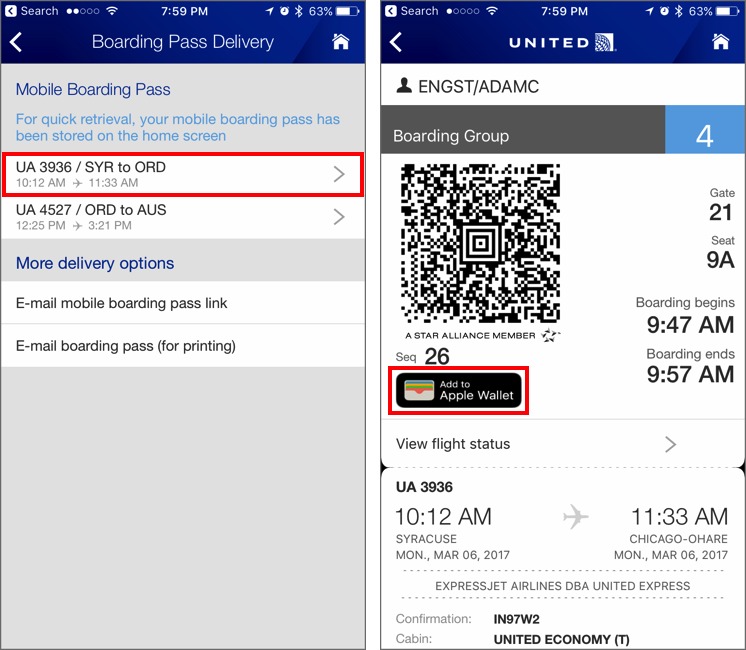
- Locate the “Add to Apple Wallet” Button: Look for a prominent button that says “Add to Apple Wallet,” “Add to Wallet,” or features the distinctive Apple Wallet icon. It’s usually located near your digital boarding pass details.
- Review and Add: Tap the button. A preview of your boarding pass will appear, showing details like your flight number, gate, seat, and a scannable code. Review the information to ensure it’s correct.
- Confirm Addition: Tap “Add” in the top right corner (or similar confirmation) to finalize the process. Your American Airlines boarding pass will now be stored in your Apple Wallet.
Method 2: From Email or Web Check-in Confirmation
If you checked in online via the American Airlines website or received your boarding pass via email, you can still add it to your Apple Wallet.
- Check-in Online: Go to the American Airlines website on your computer or mobile browser. Navigate to the “Check In” section and enter your reservation code and last name to complete the check-in process.
- Locate the “Add to Apple Wallet” Link/Button:
- From Web Check-in Page: After successfully checking in, the confirmation page on the website will often display a link or button directly to “Add to Apple Wallet.”
- From Email Confirmation: American Airlines will typically send a confirmation email after check-in, which includes a link to your boarding pass. Open this email on your iPhone and look for the “Add to Apple Wallet” button within the email itself or on the web page it directs you to.
- Tap the Button/Link: Tap the “Add to Apple Wallet” button or link. This will usually open a preview of the boarding pass on your iPhone.
- Review and Add: As with the app method, review the boarding pass details.
- Confirm Addition: Tap “Add” to save the pass to your Apple Wallet.
Post-Addition: Accessing and Using Your Digital Boarding Pass
Once added, your American Airlines boarding pass is incredibly easy to access:
- Quick Access (Lock Screen): When you’re near the airport or within a few hours of your flight, your boarding pass might automatically appear on your iPhone’s lock screen for quick access. Simply tap it.
- Quick Access (Side/Home Button): Double-click the side button (on iPhones with Face ID) or the home button (on iPhones with Touch ID). This will bring up your Apple Wallet, with your boarding pass often as the first card if it’s contextually relevant (based on location and time).
- Via the Wallet App: You can always open the Wallet app directly and scroll through your passes to find your American Airlines boarding pass.
When going through security or boarding the plane, simply present your iPhone with the digital boarding pass displayed. The airport staff or gate agent will scan the QR or barcode directly from your screen. Ensure your screen brightness is turned up for optimal scanning.
Managing and Troubleshooting Your Digital Boarding Pass
While adding your American Airlines boarding pass to Apple Wallet is generally straightforward, understanding how to manage it and troubleshoot common issues can further enhance your travel experience.
Updating and Automatic Information Refresh
One of the significant advantages of a digital boarding pass in Apple Wallet is its ability to update automatically. Airlines like American Airlines integrate their systems with Apple’s PassKit framework, allowing for real-time notifications and updates:
- Gate Changes: If your gate changes, your boarding pass in Apple Wallet will typically update to reflect the new gate number, often accompanied by a notification.
- Flight Delays: Should your flight be delayed, the updated departure time will usually be pushed to your pass.
- Seat Assignments: If your seat changes or is assigned after the initial pass creation, this information can also be updated.
These updates happen in the background as long as your iPhone has an internet connection, ensuring you always have the most current information without actively checking the airline’s app.
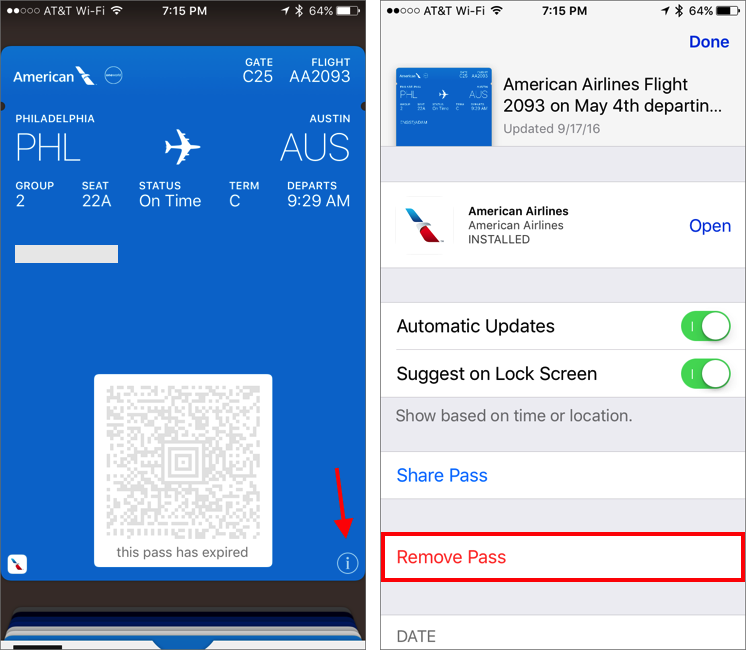
Removing an Expired or Unwanted Boarding Pass
Once your trip is complete, or if you accidentally added the wrong pass, you can easily remove it from your Apple Wallet to keep it clutter-free.
- Open Apple Wallet: Launch the Wallet app on your iPhone.
- Select the Pass: Find and tap on the American Airlines boarding pass you wish to remove.
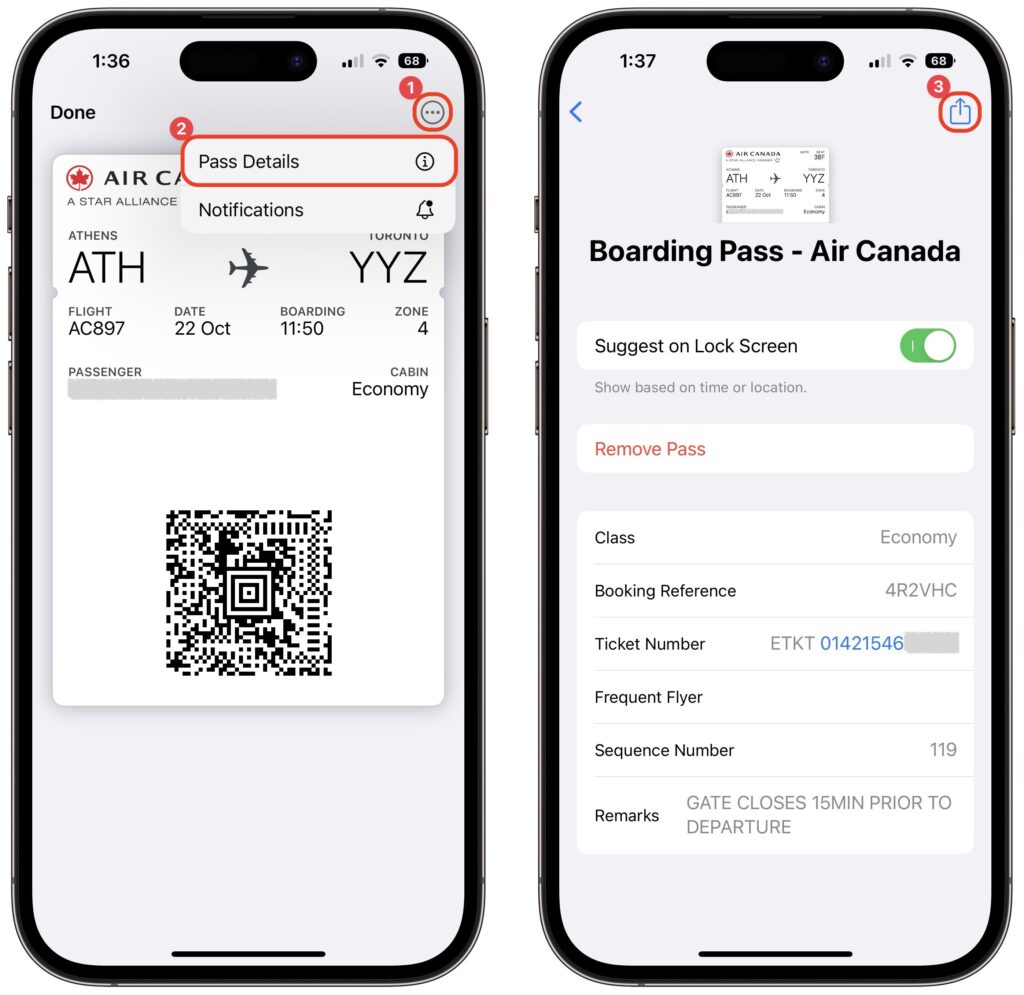
- Access Pass Details: Tap the three-dot icon (ellipsis) in the top right corner of the pass. This will open the pass details screen.
- Scroll and Remove: Scroll to the bottom of the details screen and tap “Remove Pass.” Confirm your decision when prompted.
Alternatively, some passes, especially expired ones, might offer a “Hide Expired Passes” option in Wallet settings (Settings > Wallet & Apple Pay), which can help declutter without permanently deleting.
Common Issues and Solutions
While the system is robust, you might occasionally encounter minor hiccups. Here are some common issues and their solutions:
- “Add to Apple Wallet” Button Missing/Not Appearing:
- Solution: Ensure you have completed online check-in for your flight. The option typically only becomes active 24 hours before departure and after you’ve checked in.
- Solution: Update your American Airlines app to the latest version. App bugs or outdated versions can sometimes cause this.
- Solution: Check your internet connection. A poor connection might prevent the button from loading or the pass from being generated.
- Boarding Pass Not Showing Correct Details/Not Updating:
- Solution: Pull down on the pass within Apple Wallet to force a refresh.
- Solution: Check the American Airlines app or website for the most current information to see if the discrepancy is widespread or specific to Wallet.
- Solution: Ensure your phone has an active internet connection for updates to push through.
- Boarding Pass Won’t Scan at Security/Gate:
- Solution: Increase your iPhone’s screen brightness to maximum. The scanners rely on a clear contrast.
- Solution: Ensure there are no cracks or smudges on your screen that might obscure the barcode.
- Solution: If scanning fails repeatedly, politely ask the agent if they can manually enter your information or scan from a physical backup if you have one.
- Phone Battery Dies:
- Solution: Always travel with a portable power bank. A dead phone means no digital boarding pass.
- Solution: As a backup, consider taking a screenshot of your boarding pass (though this won’t receive live updates) or, for critical travel, carry a physical printout of your boarding pass. While the goal is paperless, a backup is always wise.
- Pass is showing an old flight or a non-AA pass:
- Solution: Ensure you’ve selected the correct flight/pass in Wallet. Sometimes multiple passes can be stored, and you might be showing the wrong one. Swipe left or right to navigate through your passes.
Beyond Boarding Passes: Maximizing Apple Wallet for Travel
Apple Wallet’s utility extends far beyond simply storing your American Airlines boarding pass. For the tech-savvy traveler, it can become an indispensable travel companion, centralizing various aspects of your journey.
Integrating Loyalty Programs and Hotel Reservations
Many airlines, including American Airlines with its AAdvantage program, offer the ability to add their loyalty cards to Apple Wallet. This means you can quickly access your membership number when booking or checking in, or present it at airline lounges or car rental desks to earn points. Similarly, some hotel chains and car rental companies are integrating their reservation confirmations and loyalty cards into Apple Wallet, further consolidating your travel essentials. Imagine having your flight, hotel booking, car rental confirmation, and loyalty programs all accessible from a single, intuitive interface.
Contactless Payments on the Go
Apple Pay, integrated within Apple Wallet, revolutionizes how you make purchases while traveling. Instead of fumbling with physical credit cards or dealing with foreign currencies, you can use your iPhone or Apple Watch to make secure, contactless payments almost anywhere that accepts card payments. This is particularly convenient in international travel, as it often bypasses the need to convert currency or carry large amounts of cash, simplifying transactions and enhancing security by not exposing your physical card details.
Future Innovations in Digital Travel
The capabilities of Apple Wallet are continuously evolving. Future enhancements could include:
- Digital Identity: Integration of government-issued IDs (like driver’s licenses) is already being rolled out in some US states, potentially streamlining airport security in the future.
- Enhanced Itinerary Integration: More comprehensive integration of entire travel itineraries, including multi-leg flights, train travel, and local transport passes.
- Personalized Notifications: Even smarter, location-aware notifications for baggage claim, transit connections, or gate changes.
- Biometric Boarding: While airlines already use biometrics, deeper integration with digital passes could lead to even faster and more secure boarding processes.
These advancements underscore Apple Wallet’s potential to become an even more powerful and intelligent tool for orchestrating every aspect of the modern travel experience.
Conclusion
Adding your American Airlines ticket to Apple Wallet is a simple yet impactful step towards a more efficient and stress-free travel experience. By centralizing your boarding pass, receiving real-time updates, and enjoying quick, secure access, you embrace a modern way of flying that prioritizes convenience and digital fluency. Beyond just flights, Apple Wallet serves as a versatile digital hub for loyalty cards, payments, and potentially even digital IDs, streamlining various facets of your journey. As technology continues to reshape how we travel, mastering tools like Apple Wallet ensures you remain at the forefront, enjoying a smoother, more organized, and ultimately more enjoyable passage to your destination. Embrace the digital convenience, and let your iPhone be your ultimate travel assistant.
aViewFromTheCave is a participant in the Amazon Services LLC Associates Program, an affiliate advertising program designed to provide a means for sites to earn advertising fees by advertising and linking to Amazon.com. Amazon, the Amazon logo, AmazonSupply, and the AmazonSupply logo are trademarks of Amazon.com, Inc. or its affiliates. As an Amazon Associate we earn affiliate commissions from qualifying purchases.