
YouTube stands as an undisputed titan in the digital landscape, a vast ocean of content ranging from educational tutorials and breaking news to entertainment and personal vlogs. While anyone can watch videos on YouTube, signing in or creating an account unlocks the platform’s full potential, transforming a passive viewing experience into an interactive, personalized journey. Understanding the technicalities of signing on is the fundamental step to harnessing YouTube’s powerful ecosystem.
The Essential Gateway: Why Logging In Transforms Your YouTube Experience
Logging into YouTube is far more than a mere formality; it’s the key that unlocks a personalized, interactive, and seamless digital experience. Without signing in, YouTube remains a largely generic platform. With an account, however, it becomes a tailored hub designed around your interests, viewing habits, and aspirations, whether as a consumer or a creator.

Personalization: Recommendations, Watch History, and Playlists
At the core of the signed-in experience is personalization. YouTube’s sophisticated algorithms learn from your viewing history, liked videos, and subscribed channels to offer highly relevant video recommendations. This dynamic feed evolves with your tastes, ensuring you constantly discover new content that genuinely interests you. Your watch history is meticulously tracked, allowing you to easily revisit videos you’ve enjoyed or paused midway. Furthermore, signed-in users can curate custom playlists, organizing videos into thematic collections for easy access and sharing, be it for a workout routine, a learning curriculum, or a compilation of favorite music videos.
Interaction: Comments, Likes, Subscriptions
Engagement is a cornerstone of the YouTube community, and signing in makes you an active participant. Logged-in users can leave comments, contributing to discussions and interacting directly with creators and other viewers. The ability to like or dislike videos provides valuable feedback, influencing content visibility and creator incentives. Perhaps most importantly, signing in enables subscriptions to channels. Subscribing ensures you receive notifications for new uploads from your favorite creators, fostering a direct connection and supporting their work. This interaction transforms YouTube from a passive viewing platform into a vibrant social space.
Content Creation & Management: Uploads, Analytics, Monetization
For those aspiring to be content creators, signing in is non-negotiable. A logged-in account provides access to YouTube Studio, a comprehensive dashboard for managing uploaded videos. From here, creators can upload new content, edit video details, manage comments, and apply monetization settings. Crucially, YouTube Studio offers in-depth analytics, providing insights into audience demographics, watch time, traffic sources, and revenue generation. These tools are indispensable for understanding audience behavior, optimizing content strategy, and growing a channel effectively.
Seamless Cross-Device Experience
The digital world is inherently multi-device, and YouTube’s signed-in experience embraces this reality. When logged in, your watch history, subscriptions, and playlists sync across all your devices—be it a desktop computer, a smartphone, a tablet, or a smart TV. Start a video on your phone during your commute, and pick up exactly where you left off on your smart TV when you get home. This seamless continuity ensures that your personalized YouTube environment is consistently available, regardless of how or where you choose to access it.
Prerequisites for Access: Your Google Account
At the heart of the YouTube login process lies a fundamental prerequisite: a Google account. Google, as the parent company of YouTube, has integrated its services deeply, meaning that your Google account serves as your universal digital identity across a multitude of Google products, including Gmail, Drive, Calendar, and, crucially, YouTube.
The Fundamental Link: YouTube and Google’s Ecosystem
This integration is not merely a convenience; it’s a foundational architectural choice. When you create a Google account, you are inherently establishing an identity that can authenticate you across various Google platforms. For YouTube, this means that any action requiring a user identity—such as signing in, subscribing, commenting, or uploading videos—is managed directly through your associated Google account credentials. There is no separate “YouTube account” in the traditional sense; your YouTube profile is intrinsically tied to your Google identity. This streamlined approach simplifies account management and enhances security by centralizing authentication.
Checking for an Existing Account
Before proceeding with signing in or creating a new account, it’s prudent to determine if you already possess a Google account. Many internet users unknowingly have one, particularly if they use Gmail, an Android smartphone, or other Google services.
To verify:
- Recall Email Addresses: Think of any email addresses you might use, especially those ending in
@gmail.com. These are inherently Google accounts. - Attempt Login: Try to log in to any Google service (like Gmail or even YouTube itself) using a suspected email address. If you can access it, you have an active Google account.
- Account Recovery: If you suspect you have an account but can’t recall the password, Google’s account recovery process (often requiring a phone number or secondary email) can help you regain access.
Identifying an existing Google account saves time and avoids the unnecessary creation of multiple digital identities, which can complicate management later on.
Step-by-Step: Logging In to YouTube
Logging in to YouTube is a straightforward process, whether you’re using a desktop browser or a mobile device. The key is to have your Google account credentials – your email address (or phone number) and password – readily available.
On a Desktop Browser
Accessing YouTube from a web browser on a computer offers a full-featured experience.
- Navigate to YouTube.com: Open your preferred web browser (Chrome, Firefox, Edge, Safari, etc.) and type
www.youtube.cominto the address bar, then press Enter. - Locating the ‘Sign In’ Button: Once the YouTube homepage loads, look for the “Sign In” button. It’s typically located in the top-right corner of the page. Click on it.
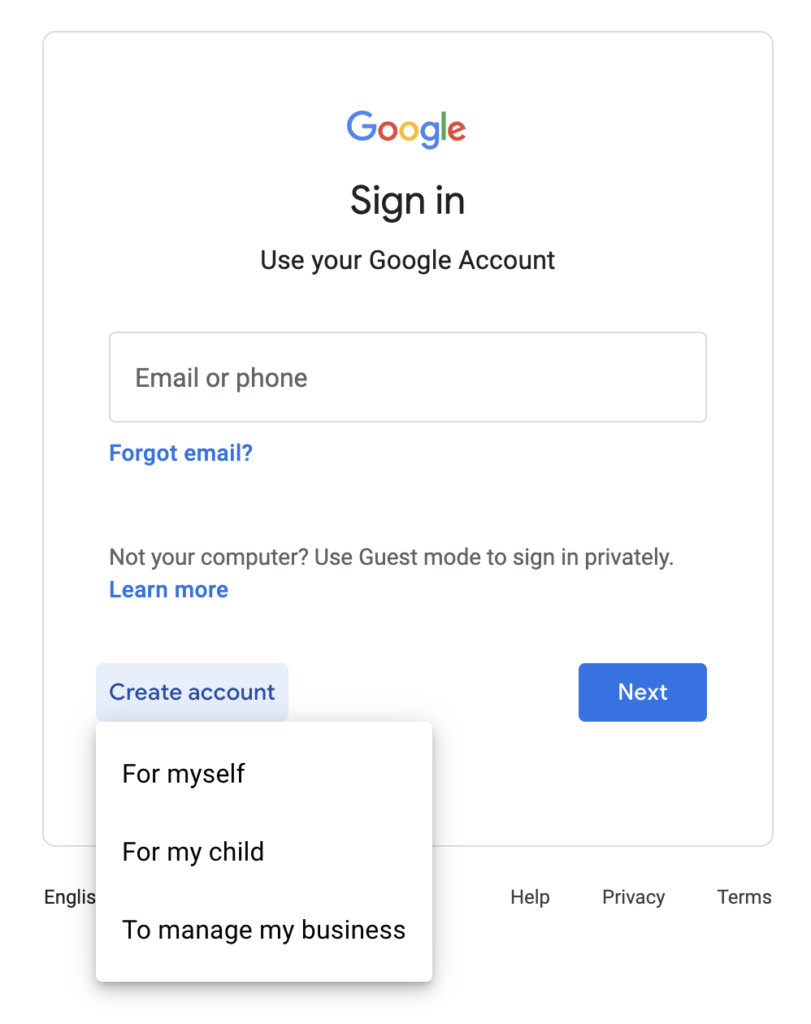
- Entering Google Account Credentials: You will be redirected to a Google sign-in page.
- Enter your Google account’s email address (usually your Gmail address) or the phone number associated with your account in the provided field. Click “Next.”
- On the subsequent screen, enter your password. Click “Next.”
- If you have Two-Factor Authentication (2FA) enabled, you will be prompted to verify your identity using your chosen method (e.g., a code from an authenticator app, a prompt on your phone, or a security key). Complete this step.
- Handling Multiple Accounts: If you have multiple Google accounts, Google may present you with a list of accounts you’ve previously used on that device. You can select the one you wish to use for YouTube. If the desired account isn’t listed, choose “Use another account” and follow the credential entry steps.
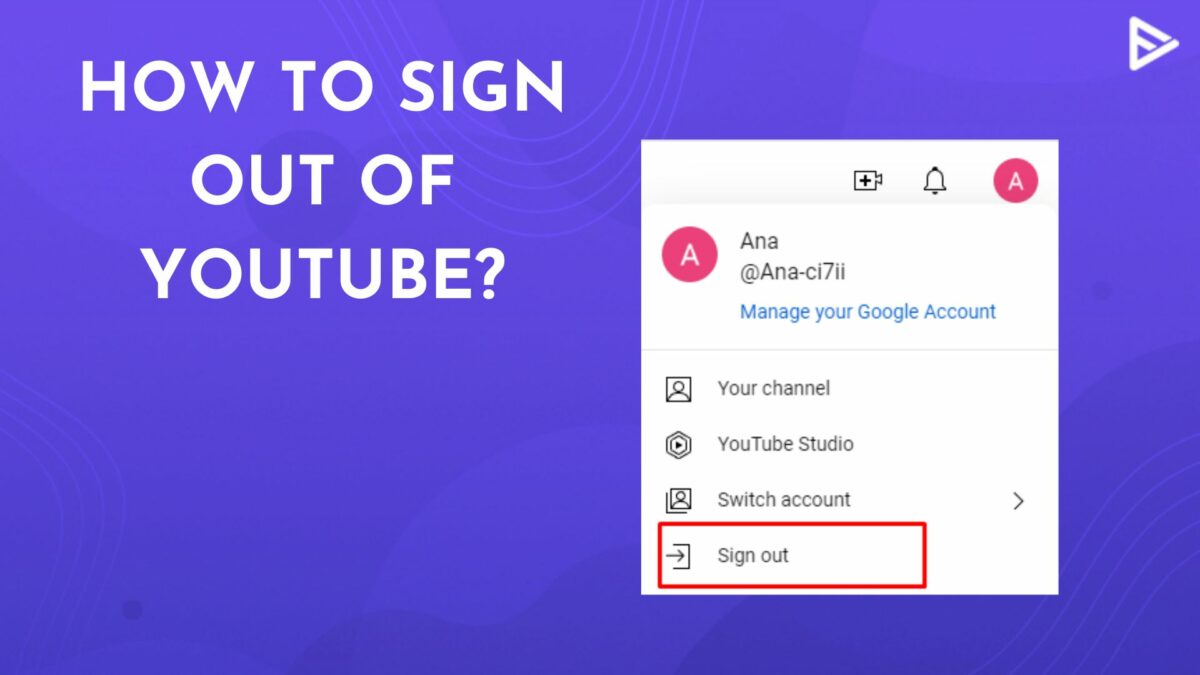
Upon successful login, the “Sign In” button will be replaced by your profile icon (often a circular avatar or your initial), indicating that you are now logged into your YouTube account.
On the YouTube Mobile App
The YouTube app provides an optimized experience for smartphones and tablets, and the login process is equally intuitive.
- Launch the App: Tap on the YouTube app icon on your device’s home screen or app drawer to open it.
- Accessing the Profile/Account Icon: On the app’s home screen, look for your profile icon. This is typically located in the top-right corner of the screen. If you’re not signed in, it might appear as a generic silhouette or a placeholder. Tap this icon.
- Selecting or Adding an Account:
- If you’re already signed into other Google services on your mobile device (like Gmail), a list of your existing Google accounts might appear. Select the account you wish to use for YouTube.
- If your desired account isn’t listed, or if you’re not signed into any Google services, tap “Add account” (or a similar option).
- Entering Credentials: This will take you to a Google sign-in screen within the app. Enter your Google account email/phone number and password, following the same prompts as for desktop login, including any 2FA verification.
- Biometric Login Options: Many modern smartphones support biometric authentication (fingerprint, facial recognition). After initial login, you may be prompted to enable these for quicker future access to your Google account within the app, enhancing convenience and security.
Once logged in, your profile icon will display your chosen avatar, and you’ll gain access to all personalized YouTube features on your mobile device.
Establishing Your Presence: Creating a New YouTube Account
Since YouTube accounts are intrinsically linked to Google accounts, creating a new YouTube presence fundamentally involves creating a new Google account. This process is designed to be user-friendly, guiding you through the necessary steps to establish your digital identity.
The Google Account Creation Process
To begin, you can visit the Google account creation page directly (e.g., accounts.google.com/signup) or initiate the process from YouTube itself by clicking “Sign In” and then selecting “Create account.”
- Starting from Scratch: Name, Birthday, Gender: You’ll be prompted to enter your first and last name. Next, you’ll provide your date of birth and gender. This information helps Google tailor services and verify age appropriateness for certain content.
- Choosing a Gmail Address or Using Existing Email:
- Google will suggest a few Gmail addresses based on your name. You can select one of these, or choose “Create your own Gmail address” to customize it.
- Alternatively, if you prefer to use an existing non-Gmail email address (e.g., from Yahoo, Outlook, or a custom domain) as your Google account username, there’s an option for that. This is less common for new users but offers flexibility.
- Password Creation and Security Best Practices: You’ll need to create a strong password. Google enforces minimum complexity requirements. Best practices include using a combination of uppercase and lowercase letters, numbers, and symbols, and making it at least 8-12 characters long. Avoid easily guessable passwords like birthdays or common phrases. Consider using a password manager to generate and store complex passwords securely.
- Phone Number Verification and Recovery Options: Google typically requires a phone number for verification during account creation. This number is crucial for confirming your identity, especially if you ever need to recover your account (e.g., if you forget your password). You can also add a recovery email address as an additional layer of security. This information is kept private but is vital for account security and access.
Finalizing Your YouTube Identity
Once your Google account is successfully created, the link to YouTube is almost instantaneous and automatic.
- Automatic Linkage Post-Google Account Creation: After completing the Google account setup, you are generally automatically logged into all core Google services, including YouTube, on the device you used for creation. If not, simply navigate to YouTube.com or open the YouTube app, click “Sign In,” and your newly created Google account will likely be available for selection.
- Basic Profile Setup (Optional Profile Picture, Channel Name): While logged in, you can further personalize your YouTube identity.
- Profile Picture: Click on your profile icon (which might initially be your first initial) and select “Your channel” or “YouTube Studio.” You’ll be able to upload a profile picture, which is highly recommended for brand recognition, whether personal or corporate.
- Channel Name: Initially, your channel name might default to your Google account name. You can customize this. Go to YouTube Studio, then “Customization,” and then “Basic info” to change your channel name to something more reflective of your content or brand. This is particularly important if you plan to upload videos.
With these steps complete, you have successfully signed on to YouTube with a brand new identity, ready to explore, interact, and potentially create content.
Enhancing Security and Troubleshooting Common Issues
While signing on to YouTube is generally smooth, understanding how to secure your account and troubleshoot common problems is crucial for a consistent and safe experience. Digital security is paramount, and occasional technical glitches can occur.
Fortifying Your Account with Two-Factor Authentication (2FA)
Two-Factor Authentication (2FA), sometimes called two-step verification, adds a critical layer of security to your Google/YouTube account beyond just a password. It significantly reduces the risk of unauthorized access, even if someone manages to steal your password.
- What is 2FA and Why It’s Crucial: 2FA requires a second piece of information (a “second factor”) in addition to your password to verify your identity. This second factor is usually something you have (like your phone or a security key) or something you are (like a fingerprint). It’s crucial because even if a malicious actor obtains your password, they cannot access your account without this second factor.
- Enabling 2FA on Your Google Account:
- Go to your Google Account security settings (myaccount.google.com/security).
- Under the “How you sign in to Google” section, find “2-Step Verification” and click on it.
- Follow the on-screen prompts. Google will guide you through adding a primary second step, usually your phone.
- Supported 2FA Methods: Google offers several 2FA options:
- Google Prompts: A notification sent to your signed-in smartphone, which you simply tap to approve the login. This is often the easiest and most secure method.
- Authenticator App: Apps like Google Authenticator or Authy generate time-sensitive codes.
- Security Keys: Physical hardware devices that plug into your computer’s USB port or connect wirelessly. These offer the strongest protection.
- Backup Codes: One-time codes you can print and store in a safe place, used as a fallback if your primary 2FA method is unavailable.
- SMS Verification: A code sent via text message to your registered phone number. While convenient, it’s generally considered less secure than other methods due to potential SIM swap attacks.
Recovering Access: When Passwords Go Astray
Forgetting a password is a common occurrence. Google provides a robust account recovery process to help you regain access without compromising security.
- Utilizing Google’s Account Recovery Flow: On the Google sign-in page, after entering your email address, click “Forgot password?” Google will then guide you through a series of verification steps. These might include:
- Entering the last password you remember.
- Getting a verification code sent to your registered phone number or recovery email address.
- Answering security questions you previously set up.
- Receiving a prompt on a signed-in device.
- Importance of Up-to-Date Recovery Information: The success of account recovery heavily relies on the accuracy of your recovery information (phone number, recovery email). Regularly check and update these details in your Google Account settings to ensure you can always regain access if needed.
Addressing Persistent Login Problems
Occasionally, you might encounter issues preventing a smooth login. Here are common problems and their solutions:
- Browser Cache and Cookies: Accumulated browser data can sometimes interfere with websites.
- Solution: Clear your browser’s cache and cookies. Most browsers have this option in their settings under “Privacy and Security” or “History.” Restart your browser afterward.
- Network Connectivity: An unstable or absent internet connection can prevent login.
- Solution: Verify your internet connection by trying to access other websites. If issues persist, restart your router or contact your internet service provider.
- Application Updates: Outdated YouTube apps or web browsers can sometimes cause compatibility issues.
- Solution: Ensure your YouTube mobile app is updated to the latest version via your device’s app store. Similarly, keep your web browser updated to its most recent release.
- System Compatibility: Rarely, very old operating systems or browsers might not fully support YouTube’s latest security protocols.
- Solution: Ensure your operating system and browser meet the minimum system requirements for YouTube. Upgrading your system or browser might be necessary in extreme cases.
By staying vigilant about security and understanding how to troubleshoot, your YouTube login experience can remain consistently secure and efficient.
aViewFromTheCave is a participant in the Amazon Services LLC Associates Program, an affiliate advertising program designed to provide a means for sites to earn advertising fees by advertising and linking to Amazon.com. Amazon, the Amazon logo, AmazonSupply, and the AmazonSupply logo are trademarks of Amazon.com, Inc. or its affiliates. As an Amazon Associate we earn affiliate commissions from qualifying purchases.