
YouTube, a ubiquitous platform for video content, has woven itself into the fabric of daily digital life, offering everything from educational tutorials to entertainment vlogs and global news. While anyone can browse and watch videos on YouTube without an account, signing in unlocks a vastly richer, more personalized experience. This guide will walk you through the nuances of accessing your YouTube account, ensuring a seamless connection to your favorite content and creators across various devices, while also touching upon essential security practices.
Understanding Your YouTube Account: The Gateway to Personalized Content
At its core, a YouTube account is intrinsically linked to a Google account. Google’s expansive ecosystem ensures that once you have a Google account, you automatically possess access to YouTube, Gmail, Google Drive, Google Photos, and many other services. This integration streamlines user experience, making it easier to manage your digital identity across multiple platforms with a single set of credentials.

The Google Account Connection
Every YouTube account is, in essence, a Google account. When you create an email address with Gmail, you are simultaneously establishing a Google account that serves as your universal login for all Google services. This means if you already have a Gmail address, you already have a YouTube account ready for activation. Conversely, if you create a YouTube account, you are also creating a Google account. This unified approach simplifies authentication and profile management, centralizing your data and preferences under one digital roof.
Why Sign In? Benefits of a Personalized Experience
While anonymous browsing allows for casual viewing, signing in transforms YouTube from a generic video repository into a tailored hub for your interests. The benefits extend far beyond mere access, fundamentally changing how you interact with the platform.
Accessing Subscriptions and Notifications
One of the primary advantages of signing in is the ability to subscribe to channels. Subscribing ensures that new videos from your preferred creators appear prominently in your personalized feed. Furthermore, by enabling notifications, you receive real-time alerts when new content is published, keeping you consistently updated with the channels you follow. This feature is indispensable for staying current with news, entertainment, and educational series.
Managing Watch History and Playlists
A signed-in account meticulously tracks your watch history, allowing you to easily revisit previously viewed videos, pick up where you left off, or recall content you enjoyed. Beyond passive tracking, you gain the power to create and manage custom playlists. These curated collections can organize videos by theme, mood, or purpose, making it simple to share content with others or to build a personal library for future reference or entertainment.
Commenting and Engaging with Creators
Signing in enables active participation within the YouTube community. You can leave comments on videos, engage in discussions with other viewers, and directly interact with creators. This two-way communication fosters a sense of community and allows you to provide feedback, ask questions, or simply express your appreciation for content. Without signing in, these interactive features remain inaccessible.
Uploading Your Own Content
For aspiring creators, signing in is a prerequisite for sharing your own videos with the world. Whether you’re publishing a personal vlog, a professional tutorial, or a creative short film, a signed-in account grants you the tools to upload, manage, and monetize your content. This opens up avenues for personal expression, community building, and potential revenue generation.
Step-by-Step Sign-In Process Across Devices
The process of signing into YouTube is largely intuitive, but the exact steps can vary slightly depending on the device you are using. Understanding these variations ensures a smooth sign-in experience whether you’re on a computer, a mobile device, or a smart TV.
Signing In on Desktop (Web Browser)
Accessing YouTube via a web browser on a desktop or laptop is a common method, and the sign-in procedure is straightforward.
Navigating to YouTube
First, open your preferred web browser (e.g., Chrome, Firefox, Safari, Edge) and navigate to www.youtube.com. Look for the “Sign In” button, typically located in the top-right corner of the page. Clicking this button will redirect you to Google’s authentication page.
Entering Credentials
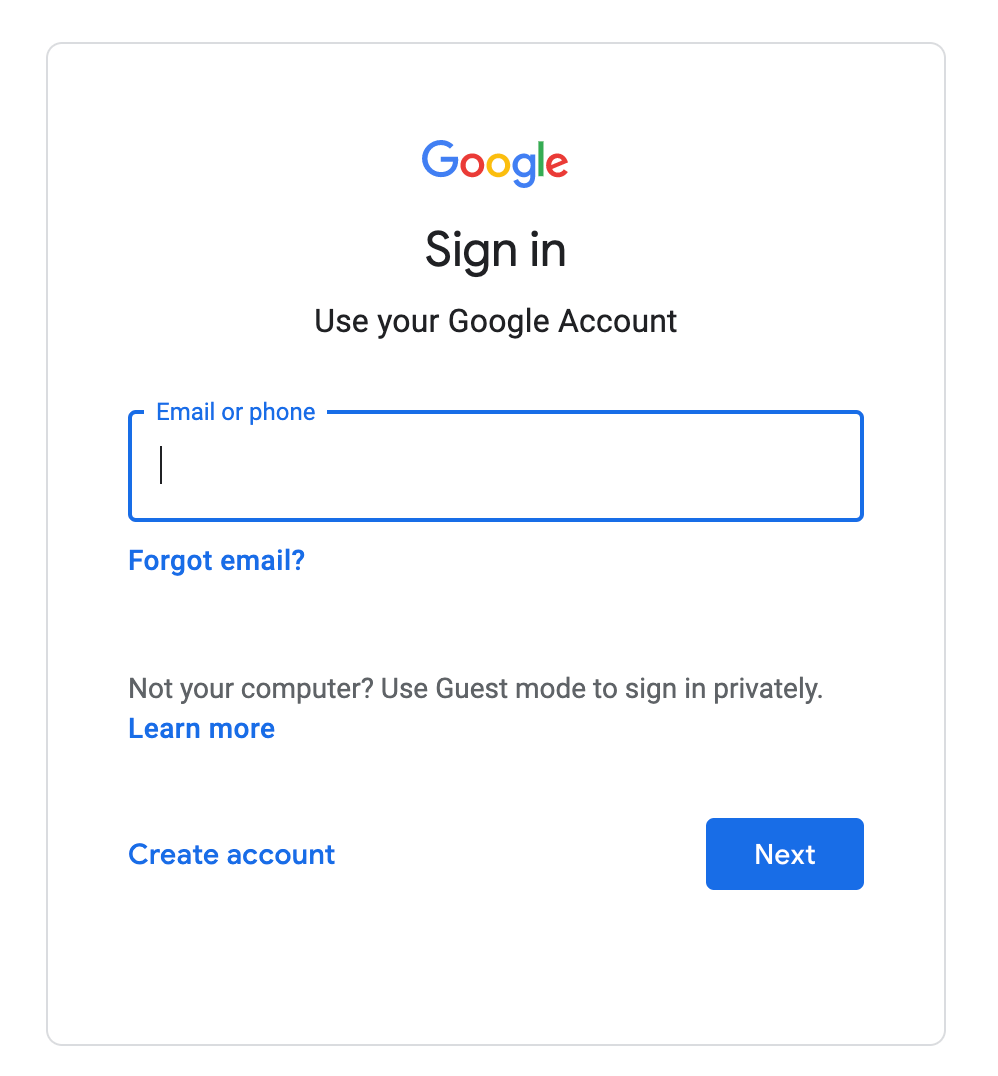
On the Google sign-in page, you will be prompted to enter your Google email address or phone number associated with your account. After entering it, click “Next.” You will then be asked to provide your password. Enter your password carefully and click “Next” again. If your credentials are correct, you will be logged into your YouTube account and redirected back to the YouTube homepage, now displaying your profile icon and personalized content.
Two-Factor Authentication (2FA) Considerations
For enhanced security, many users enable Two-Factor Authentication (2FA) on their Google accounts. If 2FA is active, after entering your password, Google will prompt you for a second verification step. This could involve entering a code sent to your phone via SMS, approving a prompt on a trusted mobile device, or using a security key. Complete this step to finalize your sign-in. This additional layer of security significantly reduces the risk of unauthorized access.
Signing In on Mobile (YouTube App)
The YouTube mobile app, available on iOS and Android, offers a streamlined experience for on-the-go viewing.
Launching the App
Open the YouTube app on your smartphone or tablet. In most cases, if you are already signed into a Google account on your device, the YouTube app will automatically detect and prompt you to use that account for sign-in. This is a convenient feature of the integrated Google ecosystem.
Selecting an Existing Google Account
If your device has multiple Google accounts logged in, the app may present a list of these accounts. Simply tap on the Google account you wish to use for YouTube. The app will then sign you in instantly, displaying your personalized feed and subscription content.
Adding a New Google Account
If the desired Google account is not already linked to your device, or if you wish to sign in with a different account, look for an option like “Add account” or “Use another account” within the sign-in prompt. This will lead you through a process similar to the desktop sign-in: enter your email or phone, then your password, and complete any 2FA steps. Once authenticated, the new account will be added to your device and used to sign into YouTube.
Signing In on Smart TVs and Streaming Devices
Signing into YouTube on a smart TV (like Samsung, LG) or streaming devices (like Roku, Apple TV, Amazon Fire Stick, Chromecast) typically involves a slightly different, often two-step, authentication process designed for devices without full keyboard input.
Using a Paired Mobile Device
This is often the easiest and most recommended method.
- Open the YouTube app on your smart TV or streaming device.
- Select the “Sign In” option. The app will display a unique verification code and instructions to go to
youtube.com/activateon your computer or mobile browser. - On your computer or mobile device, open a web browser, go to
youtube.com/activate, and ensure you are already signed into the Google account you wish to use for YouTube. - Enter the verification code displayed on your TV screen into the browser field and click “Next.”
- Confirm the sign-in by clicking “Allow” when prompted. Your TV will then automatically sign into YouTube with your chosen account.
Manual Code Entry
Some devices might offer an alternative method where you manually enter your Google account credentials directly on the TV using an on-screen keyboard. This can be more cumbersome, but it serves as a viable option if the mobile pairing method isn’t suitable. Follow the on-screen prompts to navigate the keyboard and input your email/phone and password, along with any 2FA requirements.
Troubleshooting Common Sign-In Issues
Encountering problems during the sign-in process can be frustrating, but many common issues have straightforward solutions. Identifying the root cause is the first step toward resolution.
Forgotten Password and Account Recovery
The most frequent sign-in hurdle is a forgotten password. If this happens, don’t panic. On the Google sign-in page, click the “Forgot password?” link. Google will guide you through an account recovery process, which might involve sending a verification code to a recovery email address or phone number, answering security questions, or approving a prompt on a trusted device. Having up-to-date recovery information is crucial for regaining access to your account quickly.
Incorrect Username or Email
Sometimes, the issue isn’t the password but the email address or username itself. Double-check that you are entering the correct Google email address or phone number associated with your YouTube account. People often have multiple Google accounts, and it’s easy to mix them up. If you’re unsure, try to recall any alternative emails you might have used.
Browser-Related Problems (Cookies, Cache, Extensions)
For desktop users, browser issues can interfere with sign-in.
- Cookies: YouTube relies on cookies to manage your session. If cookies are blocked or corrupted, sign-in can fail. Try clearing your browser’s cookies and cache.
- Cache: An overloaded or corrupted browser cache can also cause problems. Clearing it often resolves unexpected glitches.
- Browser Extensions: Some browser extensions (especially ad-blockers or security extensions) can interfere with website scripts, including sign-in forms. Try temporarily disabling your extensions or attempting to sign in using an incognito/private browsing window, which typically runs without extensions.
Network Connectivity Challenges
A stable internet connection is fundamental for signing in. If your internet is slow or intermittent, the sign-in request might time out or fail. Check your network connection, router, and modem. Restarting your network equipment can often resolve temporary connectivity issues.
Device-Specific Glitches
Occasionally, the device itself might be experiencing a temporary software glitch. A simple restart of your computer, smartphone, or streaming device can often resolve underlying problems that are preventing a successful sign-in. Ensure your device’s operating system and the YouTube app (on mobile/TV) are updated to their latest versions.
Account Security and Suspensions
In rare cases, sign-in issues can stem from a compromised account or an account suspension. If Google detects unusual activity on your account, it might temporarily block access to protect your data. Follow any prompts from Google regarding suspicious activity. If your account has been suspended due due to violations of YouTube’s Community Guidelines, you will typically receive a notification explaining the reason and steps for appeal, if applicable.
Enhancing Your Account Security
Beyond simply signing in, proactive security measures are paramount to safeguarding your YouTube and Google account from unauthorized access. A secure account protects your personal data, content, and digital identity.
The Importance of Strong, Unique Passwords
Your password is the first line of defense. It should be long (at least 12-16 characters), complex (a mix of uppercase and lowercase letters, numbers, and symbols), and unique (never reuse passwords across different services). Using a reputable password manager can help you generate and securely store these complex passwords without having to memorize them all.
Implementing Two-Factor Authentication (2FA)
Two-Factor Authentication (also known as 2-Step Verification) adds a critical layer of security. Even if a malicious actor somehow obtains your password, they cannot access your account without the second factor (e.g., a code from your phone, a physical security key, or an approval from a trusted device). Google provides robust 2FA options, and enabling it is one of the most effective ways to prevent unauthorized access.
Regular Security Check-ups for Your Google Account
Google offers a “Security Checkup” tool within your Google Account settings. This tool guides you through reviewing your recent security events, connected devices, third-party app access, and recovery information. Periodically performing this check-up helps you identify and address any potential vulnerabilities or unfamiliar activities.
Recognizing and Avoiding Phishing Attempts
Phishing attempts are deceptive tactics used by attackers to trick you into revealing your login credentials. Be wary of suspicious emails, messages, or websites that claim to be from Google or YouTube and ask for your password or personal information. Always check the sender’s email address and the URL of any links before clicking. Google will never ask for your password via email. If you suspect a phishing attempt, do not interact with it and report it.
Managing Multiple YouTube Accounts
Many users find themselves needing to manage more than one YouTube account, whether for personal and professional use, or to manage channels for different niches. YouTube and Google provide features to streamline this.
Switching Between Accounts
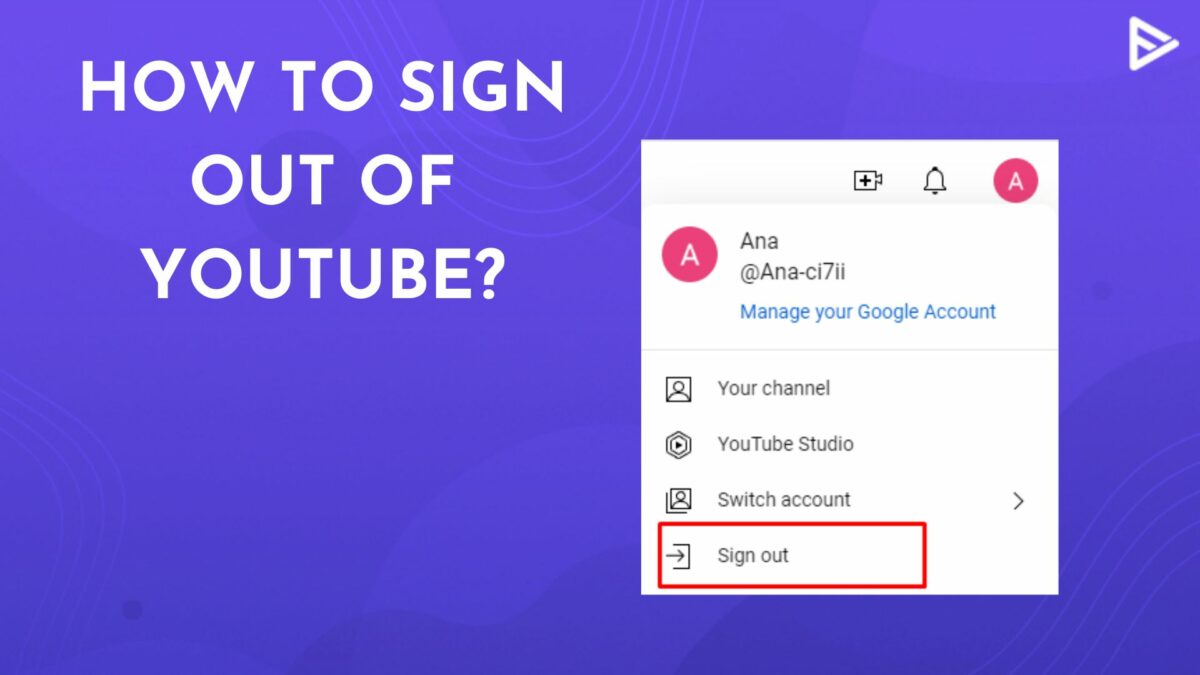
On both desktop and mobile, once you’re signed in to one Google account, you can easily switch to another without logging out completely. On desktop, click your profile icon in the top-right corner, and you’ll see an option to “Switch account.” On mobile, tap your profile icon, then tap the arrow next to your account name to reveal a list of other accounts you’re logged into or the option to “Add account.” This convenience is invaluable for content creators and avid viewers alike.
Understanding Brand Accounts vs. Personal Accounts
When managing multiple YouTube channels, it’s important to understand the distinction between a personal Google account and a Brand Account.
- Personal Google Account: This is your primary Google identity, tied to your name and personal services. While you can host a YouTube channel under this account, it’s typically used for your individual viewing and basic content creation.
- Brand Account: A Brand Account is a special type of Google account specifically designed for businesses, brands, or organizations. It allows multiple people to manage a YouTube channel (or other Google services) without sharing personal login credentials. Channels created under Brand Accounts can have multiple managers, each with different access levels. This is ideal for teams or individuals who wish to separate their personal YouTube presence from their professional or creative endeavors, offering enhanced security and collaboration features. When creating a new channel, you’re often given the choice to link it to your personal account or a Brand Account.
When and Why to Use Multiple Accounts
Multiple accounts are beneficial in several scenarios:
- Content Separation: Maintain a personal account for private viewing and a separate Brand Account for a public-facing channel.
- Team Collaboration: Allow team members to manage a channel without granting them access to your personal Google account.
- Different Personas: Create distinct channels for different types of content (e.g., a gaming channel and a cooking channel), appealing to varied audiences.
- Privacy: Keep your watch history and subscriptions on a private account separate from a public content creation account.
By understanding the sign-in process, troubleshooting common issues, prioritizing security, and effectively managing multiple accounts, users can fully harness the power of YouTube, transforming it into a personalized and secure platform for consumption and creation.
aViewFromTheCave is a participant in the Amazon Services LLC Associates Program, an affiliate advertising program designed to provide a means for sites to earn advertising fees by advertising and linking to Amazon.com. Amazon, the Amazon logo, AmazonSupply, and the AmazonSupply logo are trademarks of Amazon.com, Inc. or its affiliates. As an Amazon Associate we earn affiliate commissions from qualifying purchases.