
In the rapidly evolving landscape of digital entertainment, flexibility is key. Streaming services like YouTube TV offer a compelling alternative to traditional cable, delivering live television and on-demand content through internet-connected devices. However, user needs and preferences change, prompting many to consider adjusting or even terminating their subscriptions. Whether due to content shifts, financial reevaluation, or simply exploring new options, understanding how to manage your YouTube TV subscription, particularly how to cancel it, is a fundamental digital literacy skill. This guide will walk you through the entire process, ensuring a smooth and informed transition.

1. Understanding Your YouTube TV Subscription
Before diving into the cancellation process, it’s crucial to have a clear understanding of what YouTube TV entails and the implications of ending your subscription. This context will help you make an informed decision and prepare for what comes next.
What is YouTube TV?
YouTube TV is a live TV streaming service that offers subscribers access to over 100 channels, including major broadcast networks (ABC, CBS, FOX, NBC, etc.), popular cable channels (ESPN, TNT, CNN, HGTV, etc.), and a robust on-demand library. It stands out with its unlimited cloud DVR storage, allowing users to record shows and movies and keep them for up to nine months. The service is accessible across a wide range of devices, from smart TVs and streaming sticks to computers and mobile phones, providing a flexible viewing experience designed to replace traditional cable.
Key Reasons Subscribers Consider Cancelling
The decision to cancel a streaming service like YouTube TV can stem from various factors. Understanding these common motivations can help users relate to their own circumstances:
- Cost: While often more affordable than traditional cable, the monthly subscription fee for YouTube TV can add up, especially if combined with other streaming services. Price increases, though sometimes unavoidable, can also prompt reevaluation.
- Content Availability: Users might find that their favorite channels or specific sports packages are no longer included, or they might discover alternative services offering more desirable content at a better value.
- Usage Patterns: Some users may realize they aren’t utilizing the service enough to justify the cost, perhaps due to busy schedules, a shift towards on-demand only viewing, or a preference for free over-the-air broadcasts.
- Technical Issues or User Experience: While generally robust, occasional technical glitches, buffering issues, or a UI that doesn’t resonate with the user can contribute to dissatisfaction.
- Exploring Alternatives: The streaming market is highly competitive, with new services and bundles constantly emerging. Users might cancel to try out a competitor like Hulu + Live TV, Sling TV, or FuboTV, seeking different features, channel lineups, or pricing structures.
Impact of Cancelling: What Happens Next?
Cancelling YouTube TV doesn’t mean immediate loss of access. Your subscription remains active until the end of your current billing cycle. During this period, you can continue to enjoy all services, including live TV, on-demand content, and your cloud DVR recordings. Once the billing cycle concludes, your access will cease. Importantly, your cloud DVR recordings will typically be retained for a period (e.g., 21 days for paused accounts, or sometimes longer for cancelled accounts that might rejoin), but you won’t be able to access them until you resubscribe. Your personal profile and watch history may also be retained by Google for a certain duration, making it easier if you decide to rejoin in the future.
2. Step-by-Step Guide to Cancelling YouTube TV
The process for cancelling YouTube TV is straightforward and can primarily be done through a web browser or, in some cases, directly through the app. It’s designed to be user-friendly, giving you control over your subscription.
Preparation: Before You Begin
Before initiating the cancellation, ensure you have:
- Access to the account: Make sure you’re logged into the Google account associated with your YouTube TV subscription. If you have multiple Google accounts, double-check that you’re using the correct one.
- Billing Information: While not strictly necessary for cancellation, having an idea of your last billing date can help confirm when your service will officially end.
- Consider “Pause” vs. “Cancel”: YouTube TV offers the option to “pause” your membership for 4-24 weeks. This is an excellent alternative if you plan to be away, are going through a temporary budget crunch, or simply want a break without losing your DVR recordings (which are retained during a pause). If you’re unsure about permanent cancellation, consider pausing first.
Cancelling via a Web Browser (Recommended Method)
This is generally the most reliable and common method for managing your YouTube TV subscription.
- Open a Web Browser: Go to tv.youtube.com on your computer or mobile device.
- Sign In: Ensure you are logged into the Google account that manages your YouTube TV membership. You can confirm this by checking the profile icon in the top right corner.
- Access Settings: Click on your profile picture in the top right corner of the screen. A dropdown menu will appear.
- Navigate to Membership: From the dropdown menu, select “Settings.”
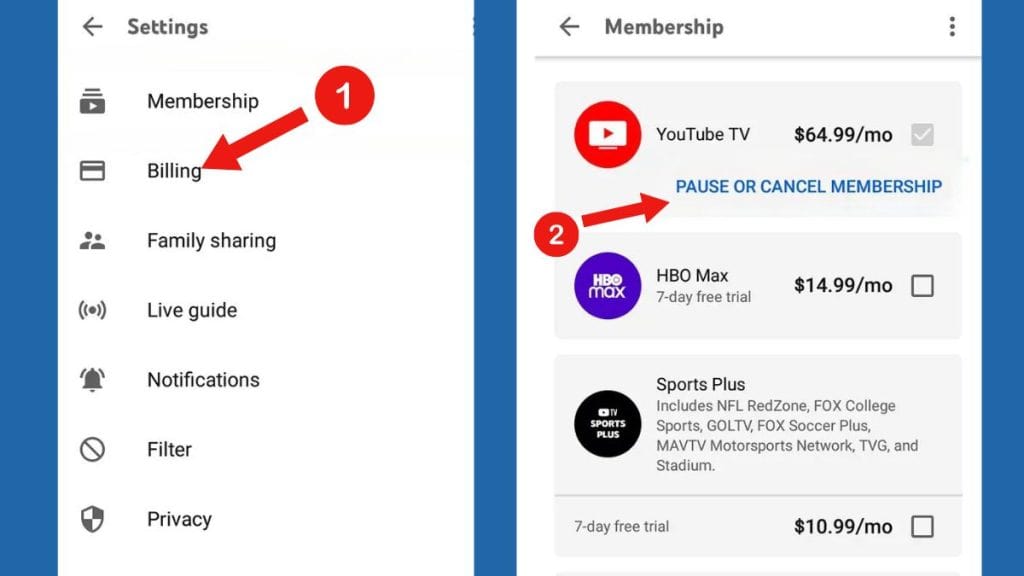
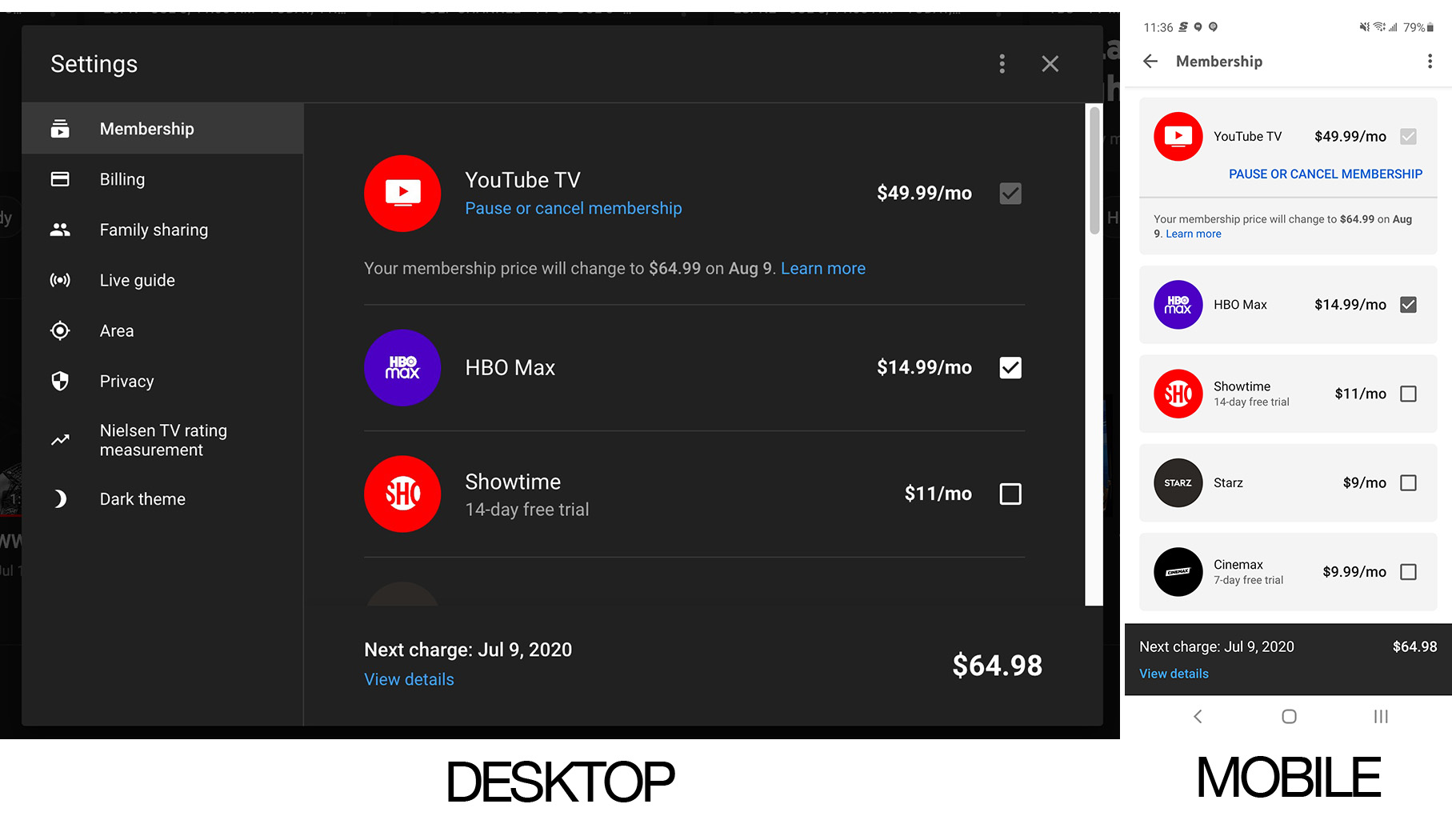
- Manage Membership: On the “Settings” page, you will see a “Membership” section. Underneath it, click on the “Manage” button next to “YouTube TV Membership.”
- Find Cancellation Option: You’ll see details about your current plan, billing date, and options to change or pause your membership. Look for the “Cancel membership” or “Cancel” option. This might be located under a “More” or “Next” button.
- Follow Prompts: YouTube TV will often ask you for the reason for your cancellation (e.g., “cost,” “found alternatives,” “not using it enough”). This feedback helps them improve the service. You may also be presented with an offer to pause your membership instead.
- Confirm Cancellation: After providing feedback, you will typically need to confirm your decision one last time. Make sure you see a confirmation message indicating that your YouTube TV membership has been cancelled and will expire at the end of your current billing cycle. You should also receive an email confirmation.
Cancelling via the YouTube TV App
While the web browser method is preferred for its consistency, some users may attempt to cancel via the YouTube TV mobile app.
- Open the App: Launch the YouTube TV app on your mobile device (iOS or Android).
- Access Profile/Settings: Tap on your profile picture in the top right corner.
- Navigate to Settings: Select “Settings” from the menu.
- Membership: Tap on “Membership” or “Manage Membership.”
- Cancel: Look for the “Cancel membership” option. The exact steps might vary slightly between iOS and Android due to platform differences in subscription management (e.g., iOS might redirect you to your Apple ID subscription settings). Follow any on-screen instructions.
- Confirm: Confirm your cancellation, and verify that you receive an in-app message and email confirmation.
If you subscribed to YouTube TV through a third party (like Apple App Store or Google Play Store), you might need to manage your subscription directly through their respective subscription management settings. However, for most direct subscriptions, the web browser method is universal.
3. Managing Your Account After Cancellation
Cancelling your YouTube TV membership doesn’t mean your relationship with the service ends abruptly. There are specific aspects to consider regarding access, data, and the possibility of rejoining.
Access Duration Post-Cancellation
As mentioned, your YouTube TV service will remain active until the very end of your current billing period. For example, if you are billed on the 15th of each month and you cancel on the 5th, you will still have full access to YouTube TV until the 15th. This allows you to finish watching any recorded shows or catch up on content without feeling rushed. After this date, your access will automatically terminate.
Data Retention and DVR Recordings
Upon cancellation, your cloud DVR recordings become inaccessible. While YouTube TV usually retains these recordings for up to nine months (similar to paused accounts), you won’t be able to view them without an active subscription. If you decide to resubscribe within that timeframe, your recordings should still be there, ready for playback. Your personal watch history, preferences, and customized channel lineup are also typically retained by your Google account, streamlining the process should you choose to return.
Rejoining YouTube TV in the Future
Deciding to cancel doesn’t have to be a permanent goodbye. YouTube TV makes it easy to rejoin at any time.
- Visit the Website: Go to tv.youtube.com.
- Sign In: Log in with the same Google account you used previously.
- Resubscribe: You should see an option to “Rejoin” or “Start Free Trial” (if applicable again) directly on the homepage or within your settings.
- Confirm Details: Confirm your billing information, and your service will be reactivated immediately. Your previous settings and DVR recordings (if within the retention period) should also be restored.
This flexibility is a major advantage of streaming services, allowing users to subscribe and unsubscribe as their needs dictate, often without penalty.
Checking Your Cancellation Status
After cancelling, it’s wise to double-check that the cancellation was processed correctly.
- Check Email: Look for a confirmation email from YouTube TV or Google. This is your primary proof of cancellation.
- Revisit Settings: Go back to tv.youtube.com, log in, go to “Settings,” and then “Membership.” It should clearly state that your membership is cancelled and indicate the date until which you still have access.
- Monitor Billing: Keep an eye on your bank or credit card statements for the next month to ensure no further charges from YouTube TV are processed after your final billing cycle.
4. Exploring YouTube TV Alternatives and Rejoining Options
Cancelling YouTube TV often prompts a search for alternative viewing solutions. The streaming market is rich with choices, each offering a distinct blend of channels, features, and pricing.
Top Live TV Streaming Alternatives
If you’re still looking for a robust live TV experience, several services compete directly with YouTube TV:
- Hulu + Live TV: Offers a combination of live TV channels (similar lineup to YouTube TV) and extensive on-demand content from Hulu’s own library, Disney+, and ESPN+. It often appeals to those who want a strong on-demand component with their live TV.
- Sling TV: Known for its more customizable and budget-friendly approach. Sling allows users to choose between two base packages (“Sling Orange” focusing on sports and family, “Sling Blue” on news and entertainment) and add on various smaller channel bundles. It’s often cheaper but has fewer channels in its base packages.
- FuboTV: Heavily focused on sports, FuboTV offers a vast array of sports channels in addition to news, entertainment, and local channels. It’s a premium option for sports enthusiasts, often featuring 4K streaming for select events.
- DIRECTV Stream: A more traditional cable-like experience delivered over the internet, offering multiple packages with various channel counts. It can be pricier but provides a comprehensive lineup that appeals to those transitioning directly from traditional pay-TV.
When evaluating alternatives, consider the specific channels you watch most, the number of simultaneous streams allowed, cloud DVR capabilities, and device compatibility. Most services offer free trials, allowing you to test them out before committing.
On-Demand Streaming Services
If your primary reason for cancellation was a shift away from live linear programming, or if you plan to supplement a basic antenna for local channels, dedicated on-demand services might be more suitable:
- Netflix: The pioneer in on-demand streaming, offering a vast library of movies, TV shows, and award-winning original content.
- Max (formerly HBO Max): Features premium movies, critically acclaimed series from HBO, and content from Warner Bros., DC, and more.
- Disney+: Home to content from Disney, Pixar, Marvel, Star Wars, and National Geographic.
- Amazon Prime Video: Included with an Amazon Prime membership, offering a diverse selection of movies, TV shows, and original productions.
- Peacock: NBCUniversal’s streaming service, featuring a mix of free and premium content, including current NBC shows, movies, and live sports.
These services focus on curated libraries and original programming, providing flexibility to watch what you want, when you want, without a fixed schedule.
The Benefit of Flexibility: Why Users Switch
The rise of streaming services has given consumers unprecedented control over their entertainment budgets and choices. The ability to switch between services, pause subscriptions, and tailor content lineups offers significant advantages:
- Cost Control: Users can subscribe to services for a few months to catch a specific show or season and then cancel, avoiding year-round charges.
- Content Curation: Build a personalized “channel lineup” by subscribing only to the services that offer the specific content you desire, rather than paying for hundreds of channels you never watch.
- Adaptability: Easily adapt your entertainment plan to life changes, budget fluctuations, or evolving interests.
- Innovation: The competitive market drives innovation in user interfaces, features (like 4K streaming or improved DVR), and original content, constantly pushing the envelope for consumer benefit.
5. Troubleshooting and Important Considerations
While cancelling YouTube TV is generally smooth, occasional issues can arise. Knowing how to troubleshoot and what extra factors to consider can save you time and frustration.
Common Cancellation Issues and Solutions
- Forgotten Password/Wrong Account: If you can’t log in, use Google’s account recovery tools. Ensure you’re trying to cancel the correct Google account associated with the YouTube TV subscription. Many users have multiple Google accounts, leading to confusion.
- No “Cancel” Option: If you don’t see the cancellation option, check if your subscription is managed by a third-party (like your internet provider if bundled, or an app store). If so, you’ll need to go through their respective systems to manage the subscription. Alternatively, clear your browser cache and cookies, or try a different browser/device.
- Billing Disputes After Cancellation: If you are charged after receiving a cancellation confirmation and your service period has ended, immediately contact YouTube TV support with your cancellation confirmation details. Also, consider disputing the charge with your bank or credit card company.
- “Pause” Button Instead of “Cancel”: YouTube TV sometimes highlights the “Pause” option. Look carefully for a smaller link or button specifically for “Cancel membership” or “End membership.”
Verifying Account Ownership
For security reasons, YouTube TV (and Google in general) might require additional verification steps when making significant account changes, including cancellation. This could involve entering a code sent to your phone or email, or answering security questions. Ensure your recovery information (phone number, secondary email) for your Google account is up to date.
Device-Specific Considerations
While cancellation is managed at the account level (web or mobile app), keep in mind how different devices behave:
- Smart TVs/Streaming Sticks: Simply cancelling your account via the web or mobile app will revoke access on all devices. You don’t need to manually uninstall the app from your smart TV or Roku, but logging out on those devices is good practice, especially if you’re selling or giving away a device.
- Mobile Apps: After cancellation, the mobile app will indicate that you no longer have an active subscription. You can uninstall the app if you no longer plan to use the service.
Contacting YouTube TV Support
If you encounter persistent issues, cannot find the cancellation option, or have specific billing questions, contacting YouTube TV’s customer support is the best course of action.
- How to Contact: Go to the YouTube TV Help Center (support.google.com/youtubetv) and look for options like “Contact us,” “Chat,” or “Request a call back.” They typically offer 24/7 support.
- Prepare Information: Have your Google account details, any relevant error messages, and a clear description of your issue ready to expedite the support process.
In conclusion, managing your YouTube TV subscription, including the cancellation process, is designed to be user-friendly. By following these steps and understanding the implications, you can confidently navigate your digital entertainment choices and ensure your streaming services align perfectly with your evolving needs.
aViewFromTheCave is a participant in the Amazon Services LLC Associates Program, an affiliate advertising program designed to provide a means for sites to earn advertising fees by advertising and linking to Amazon.com. Amazon, the Amazon logo, AmazonSupply, and the AmazonSupply logo are trademarks of Amazon.com, Inc. or its affiliates. As an Amazon Associate we earn affiliate commissions from qualifying purchases.