
In the ever-expanding universe of streaming services, navigating trials and subscriptions has become a common digital literacy challenge. YouTube TV, Google’s popular live television streaming platform, offers an enticing free trial period, allowing users to experience its extensive channel lineup and features without immediate commitment. However, like many trial offers across various apps and software, it’s designed to automatically convert into a paid subscription once the trial period concludes. For users who decide it’s not the right fit, or simply wish to explore other options, knowing precisely how to cancel the trial is a crucial piece of technical know-how. This guide provides a detailed, step-by-step walkthrough, designed to empower users with the insights needed to manage their digital subscriptions effectively, ensuring no unwanted charges appear on their statements.
Understanding the YouTube TV Trial Ecosystem
Before diving into the mechanics of cancellation, it’s essential to understand the landscape of YouTube TV and its trial offers. This context helps users appreciate why timely and accurate cancellation is vital in managing their digital services.
What is YouTube TV and Its Trial Offer?
YouTube TV is a premium live TV streaming service that provides access to dozens of popular broadcast and cable networks, local sports, news, and on-demand content, all accessible across a wide range of devices—from smart TVs and streaming sticks to computers and mobile devices. It’s essentially a modern-day cable alternative delivered over the internet, a prime example of software-as-a-service (SaaS) in the entertainment sector.
To entice new subscribers, YouTube TV, like many SaaS providers, offers a free trial period. This trial typically ranges from 7 to 14 days, providing ample time for users to explore the interface, channel availability, cloud DVR features, and overall user experience. The primary purpose of this trial is to give users a hands-on feel for the software before committing financially. A key aspect of these trials, however, is the automatic rollover: unless explicitly canceled before the trial period ends, the subscription automatically converts to a full-priced monthly membership, and the user’s registered payment method is charged. This automatic conversion is a standard practice in the digital subscription economy, making proactive management of trials a necessity.
Why Users Choose to Cancel Their Trials
There are numerous reasons why a user might opt to cancel their YouTube TV trial, reflecting diverse preferences and financial considerations in the digital realm:
- Service Not Meeting Expectations: The channel lineup might not align with their specific viewing habits, the user interface might not be intuitive enough, or the streaming quality could be inconsistent in their specific network environment.
- Cost Concerns After the Trial: While the trial is free, the subsequent monthly fee might be considered too high for their budget, especially when compared to other entertainment expenditures or alternative streaming solutions.
- Exploring Other Streaming Options: The market for live TV streaming is competitive, with services like Hulu + Live TV, Sling TV, FuboTV, and DirecTV Stream offering similar propositions. Users often sign up for multiple trials to compare features, pricing, and channel availability before settling on a preferred platform.
- Temporary Viewing Needs: Some users might sign up for a trial to watch a specific event or series, with no intention of continuing the subscription long-term.
- Simply Forgetting to Cancel: In the busy digital lives many lead, it’s easy to overlook a trial end date, leading to an unintended charge. This highlights the importance of setting reminders and understanding the cancellation process.
Regardless of the reason, the ability to easily and quickly cancel a digital service trial is a fundamental aspect of user control over their technology and personal finance.
Step-by-Step Guide to Canceling Your YouTube TV Trial
Canceling your YouTube TV trial is a straightforward process, typically completed within a few clicks or taps. Following these steps precisely will ensure your subscription does not roll over into a paid membership.
Accessing Your YouTube TV Account
The first and most critical step is to access your YouTube TV account using the correct credentials.
- Use the Associated Google Account: Ensure you are logged into the Google account that you used to sign up for the YouTube TV trial. Many users have multiple Google accounts, and subscribing with the wrong one is a common pitfall that can make cancellation seem impossible.
- Choose Your Access Method:
- Web Browser (Recommended): For the most reliable experience, it’s often best to use a web browser on a desktop or laptop computer. Go to
tv.youtube.com. - YouTube TV App: You can also cancel directly through the YouTube TV app on your smartphone, tablet, or streaming device (like a Roku, Apple TV, or smart TV). The interface might vary slightly between devices, but the general navigation remains consistent.
- Web Browser (Recommended): For the most reliable experience, it’s often best to use a web browser on a desktop or laptop computer. Go to
Navigating to Membership Settings
Once logged in, you need to locate the section dedicated to your account and membership management.
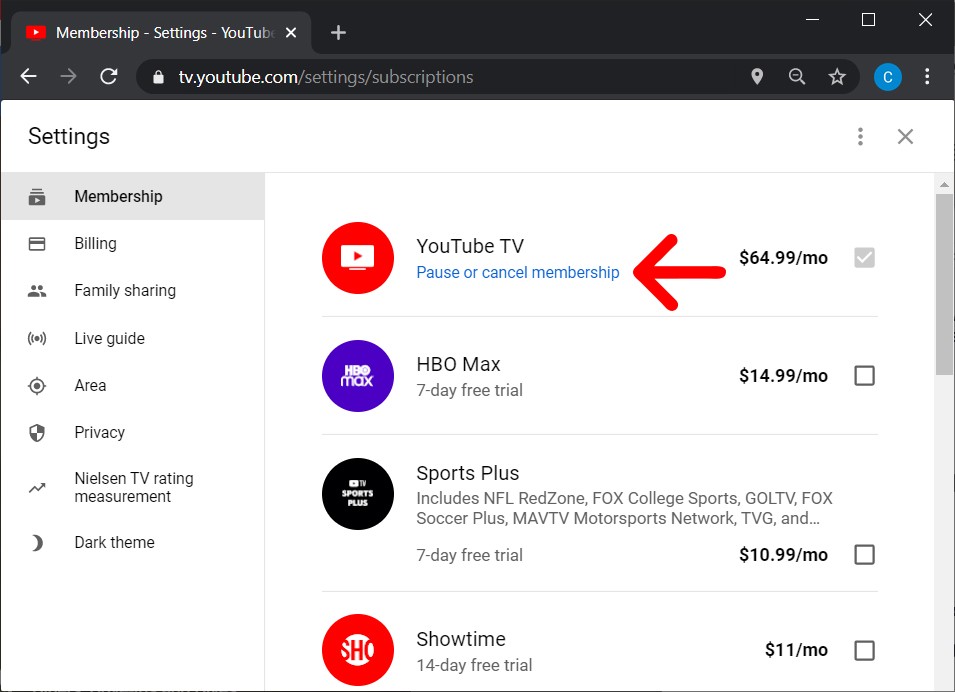
- Locate Your Profile Icon: In a web browser, this is typically in the top right corner of the screen. In most apps, it’s also usually in a similar prominent position. Click or tap on your profile picture/icon.
- Access Settings: From the dropdown menu or side panel that appears, select “Settings.”
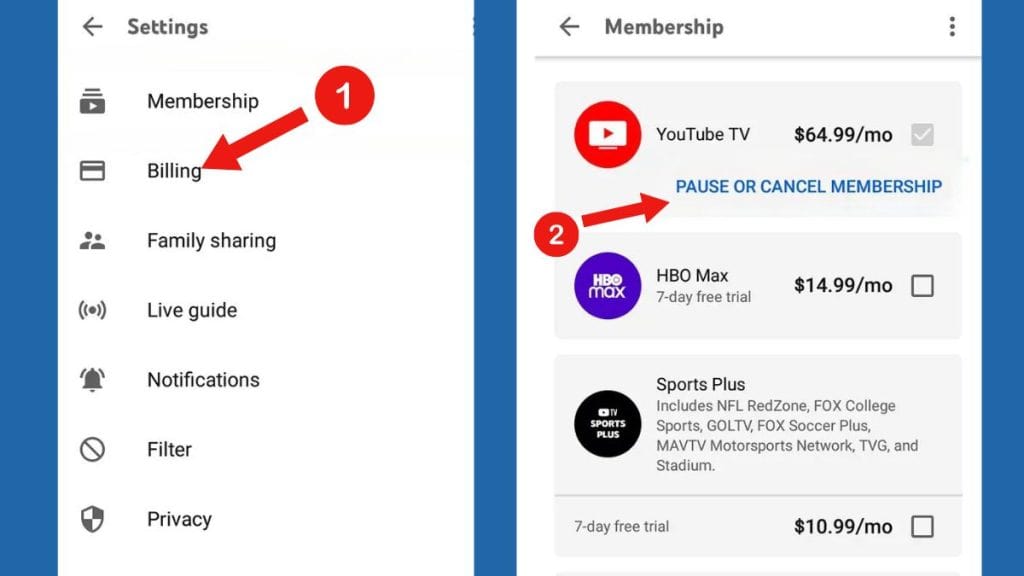
- Find Membership: Within the settings menu, look for an option labeled “Membership,” “Billing,” or “Paid Memberships.” This is where all your subscription details are housed.
Initiating the Cancellation Process
Within the membership section, you will find the options to manage your subscription, including cancellation.
- Locate “Manage Membership” or “Cancel Membership”: Under your YouTube TV plan details, you should see an option to “Manage Membership” or directly “Cancel Membership.” Click or tap on this.
- Choose “Cancel”: YouTube TV might offer an option to “Pause Membership” instead of outright canceling. While pausing can be useful if you plan to return, to ensure you are not charged after the trial, you must select the “Cancel” option.
- Confirm Cancellation: You will likely be prompted with a series of questions asking for your reason for canceling (optional feedback for YouTube TV), and a final confirmation screen. Follow these prompts until you see a clear confirmation that your membership has been canceled.
Verifying Your Cancellation
Confirmation is key to peace of mind. Never assume a cancellation is complete without verification.
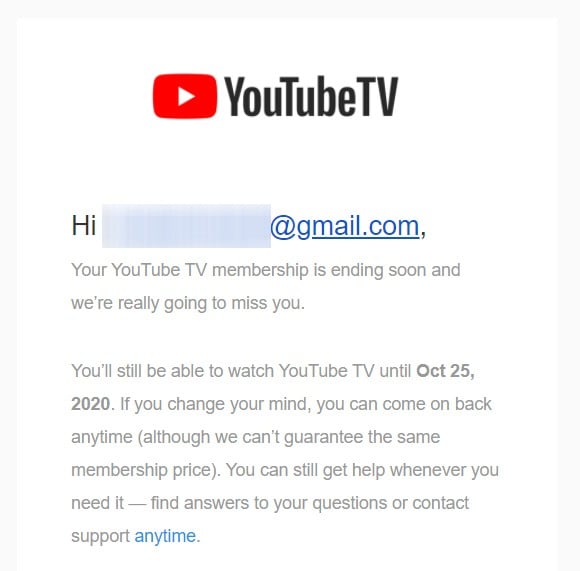
- Check for a Confirmation Email: YouTube TV typically sends an email confirming your cancellation. This email is your official record that the process was successful. Keep it for your records.
- Re-check Membership Status: Go back to the “Membership” section in your YouTube TV settings. It should now state that your membership is canceled, along with the date until which you can continue using the service (which will be the original trial end date).
- Understand Continued Access: Even after canceling, you can typically continue to use YouTube TV until the very last day of your trial period. Your access will simply cease when the trial officially ends, and you will not be charged.
Troubleshooting Common Cancellation Issues
While the cancellation process is designed to be straightforward, users can sometimes encounter technical glitches or specific scenarios that complicate matters. Addressing these proactively can save time and frustration.
Cannot Find the Cancellation Option
This is a common issue, often rooted in simple oversights or specific account configurations.
- Logged into the Wrong Google Account: Double-check that the Google account you’re using is the exact one you used to sign up for the YouTube TV trial. If you have multiple accounts, try logging into each one.
- Subscription Managed by a Third Party: Sometimes, users subscribe to YouTube TV through another platform, such as Google Play (for Android users), Apple App Store (for iOS users), Roku, or even a cellular carrier promotion. In such cases, the cancellation must be performed through that specific platform’s subscription management settings, not directly on the YouTube TV website. For example, for an Apple-billed subscription, you’d go to your iPhone’s Settings > Apple ID > Subscriptions.
- Temporary Technical Glitches: Occasionally, website or app issues can prevent options from loading correctly. Try clearing your browser’s cache and cookies, using an incognito window, or switching to a different device or web browser.
Facing Unexpected Charges After Cancellation
If you’ve followed the steps and still see a charge, it’s crucial to act swiftly.
- Review Cancellation Date: Verify the exact date and time you canceled versus the trial end date. If you canceled even a minute after the trial period concluded, the system might have already processed the charge.
- Contact YouTube TV Support: The first course of action should always be to contact YouTube TV’s official customer support. They can investigate your account status and explain any charges. Have your confirmation email ready.
- Dispute with Your Bank/Payment Provider: As a last resort, if YouTube TV support cannot resolve the issue and you are certain the charge is erroneous, you can dispute the charge with your bank or credit card company. Provide them with all relevant documentation, including your cancellation confirmation.
App-Specific vs. Browser-Based Cancellation
While convenience often leads users to cancel via the app, using a web browser can sometimes be more reliable for complex account management.
- Browser Reliability: Web browsers typically offer a more consistent and feature-rich interface for account management compared to mobile apps, which can sometimes have simplified or less accessible options due to screen size constraints or different app store guidelines.
- Device Independence: Canceling via a browser means you’re not reliant on the specific device where you downloaded the app. This is particularly useful if you no longer have access to that device.
- Consistency: The web interface for YouTube TV tends to be the most consistent across updates, reducing the chance of encountering an unfamiliar layout during the cancellation process.
Post-Cancellation Considerations and Alternatives
Canceling your trial isn’t just about avoiding a charge; it’s about making an informed decision about your digital entertainment ecosystem. Understanding what happens next and exploring alternatives can further optimize your tech consumption.
What Happens After You Cancel?
- Continued Access Until Billing Date: As mentioned, you can typically continue using YouTube TV until the original trial end date. After this date, your access will be revoked.
- Loss of DVR Recordings and Profiles: Upon cancellation, any content you’ve recorded using YouTube TV’s cloud DVR will usually become inaccessible. User profiles created within YouTube TV may also be lost or become inactive.
- No Immediate Account Deletion: Your Google account itself remains active, and your YouTube TV preferences might be retained for a period, making it easy to resubscribe in the future if you change your mind.
Exploring Other Live TV Streaming Services
The digital landscape offers a rich tapestry of live TV streaming services, each with its own strengths and weaknesses. If YouTube TV didn’t meet your needs, consider exploring these alternatives, maintaining your focus on comparative tech reviews and feature sets:
- Hulu + Live TV: Combines Hulu’s extensive on-demand library with live TV channels.
- Sling TV: Known for its customizable channel packages and lower price points.
- FuboTV: Heavily focused on sports, offering a wide array of sports channels.
- DirecTV Stream: Offers a more traditional cable-like experience with various packages.
When evaluating alternatives, compare channel lineups (especially local channels and desired sports/news networks), cloud DVR capabilities, simultaneous stream limits, device compatibility, and of course, pricing.
Leveraging Free Over-the-Air TV and Other Streaming Apps
Beyond paid live TV streaming, consider integrating free options and other subscription video-on-demand (SVOD) services to create a diverse and cost-effective entertainment hub.
- Over-the-Air (OTA) TV: A simple digital antenna can provide access to local broadcast channels (ABC, CBS, NBC, FOX, PBS, etc.) in high definition, completely free. This is a foundational piece of any cord-cutting strategy.
- Subscription Video-on-Demand (SVOD): Services like Netflix, Max, Disney+, Prime Video, and Apple TV+ offer vast libraries of movies and TV shows on demand, complementing live TV by providing depth and choice.
- Free Ad-Supported Streaming TV (FAST): Platforms like Pluto TV, Tubi, Freevee, and The Roku Channel offer thousands of movies and TV shows (including some live channels) for free, supported by advertisements. These are excellent resources for expanding your content options without additional cost.
Mastering Your Digital Subscription Management
Effective management of trials and subscriptions extends beyond a single service; it’s a vital aspect of modern digital literacy and smart consumer behavior in the tech-driven world.
Best Practices for Trial Management
- Set Calendar Reminders Immediately: The moment you sign up for any trial, immediately add a reminder to your digital calendar (e.g., Google Calendar, Apple Calendar) for at least 24-48 hours before the trial ends. This provides a buffer for cancellation.
- Use Virtual Credit Cards (Where Available): Some financial institutions offer virtual credit card numbers that can be set with specific spending limits or expiration dates. This can act as a safeguard against unwanted charges from trials you forget to cancel.
- Keep a Running List of Subscriptions: Maintain a simple spreadsheet or use a dedicated app (like Mint, Truebill, or similar financial tracking tools) to list all your active subscriptions, their monthly costs, and renewal dates. This provides a clear overview of your digital spending.
The Evolving Landscape of Streaming Services
The streaming market is dynamic, with new services emerging, content libraries shifting, and pricing models changing. Regularly reviewing and optimizing your digital subscriptions is paramount to combat “subscription fatigue” and “bill creep.” Understanding how to cancel is not just a one-time skill but a recurring necessity in this fluid environment. Periodically assess which services you genuinely use and derive value from, and be prepared to cancel those that no longer serve your needs.
The Role of User Control in the Digital Age
Empowering users to manage their digital footprints and expenditures effectively is central to a healthy relationship with technology. The ability to easily cancel a trial, understand service terms, and compare alternatives is a fundamental skill in today’s interconnected world. It reflects a shift from passive consumption to active management, ensuring that technology serves your needs and not the other way around.
In conclusion, canceling your YouTube TV trial, while a specific technical task, embodies a broader principle of digital competence. By understanding the platform, following precise steps, troubleshooting potential hurdles, and embracing best practices for subscription management, users can confidently navigate the complexities of the streaming ecosystem. This approach not only prevents unwanted charges but also fosters a more informed and empowered relationship with the digital services that shape our daily lives.
aViewFromTheCave is a participant in the Amazon Services LLC Associates Program, an affiliate advertising program designed to provide a means for sites to earn advertising fees by advertising and linking to Amazon.com. Amazon, the Amazon logo, AmazonSupply, and the AmazonSupply logo are trademarks of Amazon.com, Inc. or its affiliates. As an Amazon Associate we earn affiliate commissions from qualifying purchases.