
YouTube TV has revolutionized the way many households consume live television, offering a robust alternative to traditional cable and satellite services. As a streaming platform, its utility isn’t just about the channels it provides, but also how flexibly and widely it can be accessed across various devices within a home. A common question among current and prospective subscribers pertains to the number of concurrent streams allowed, directly impacting how many “TVs” or devices can simultaneously access the service. Understanding these technical limitations and features is crucial for maximizing your YouTube TV subscription.
Understanding YouTube TV’s Simultaneous Stream Limits
At its core, YouTube TV is designed for multi-device households, but with specific technical constraints to manage bandwidth, licensing agreements, and service integrity. The platform employs a tiered system for simultaneous streaming, meaning the number of devices that can watch content at the same time varies based on your subscription plan.
The Core Device Limit: 3 Streams
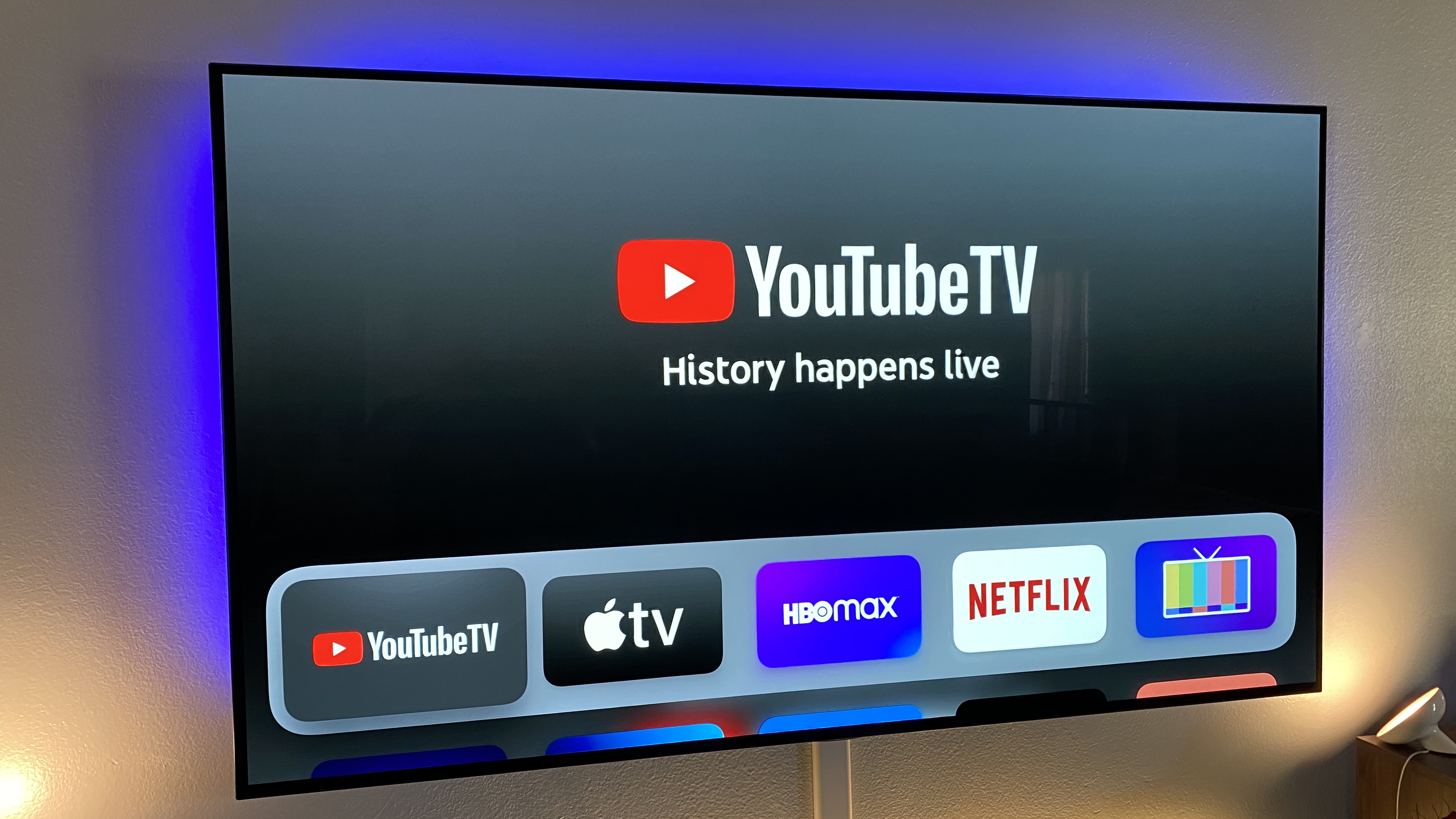
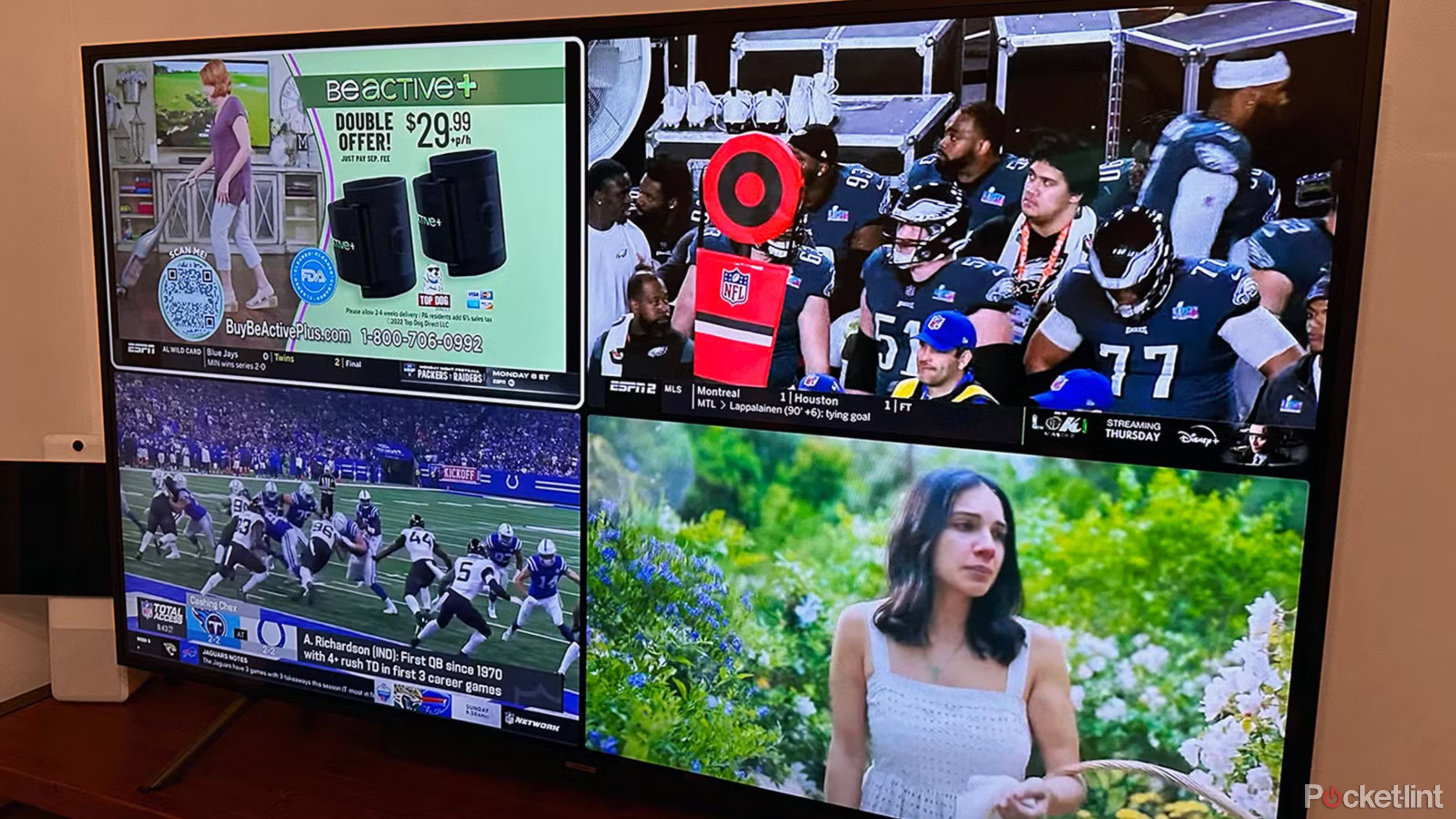
The standard YouTube TV base plan allows for up to three simultaneous streams per household. This means three different devices, whether they are actual smart TVs, streaming sticks, tablets, or computers, can be actively watching distinct content from YouTube TV at any given moment. This foundational limit is generally sufficient for many families, enabling different members to watch their preferred shows in separate rooms or on individual mobile devices without conflict.
For instance, one person might be watching a football game on the living room TV, another could be streaming a documentary on a tablet in the bedroom, and a third could be catching up on a news program on their laptop in the home office. As long as the total active streams do not exceed three, the service operates seamlessly.
The 4K Plus Add-on: Expanding Your Viewing Horizon
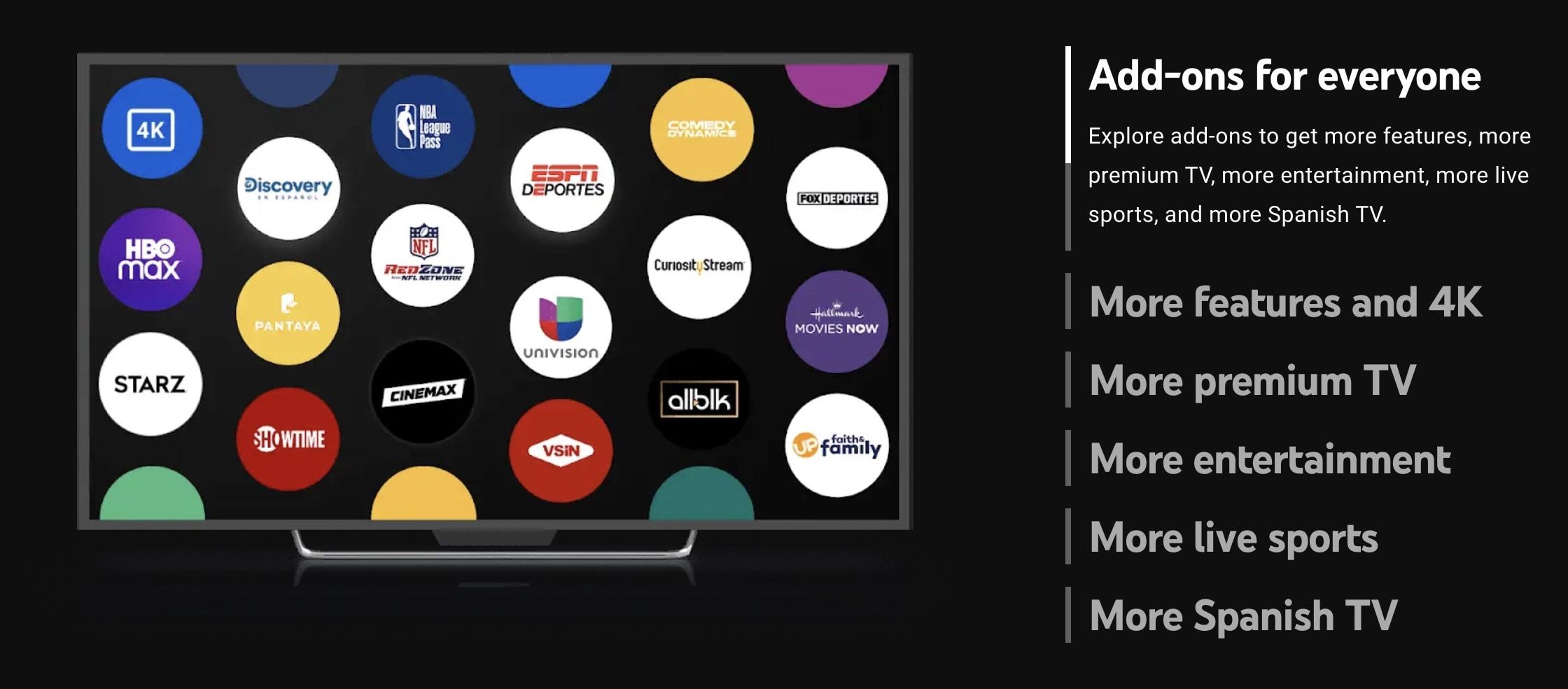
For households with greater demand or a desire for enhanced features, YouTube TV offers a premium add-on called “4K Plus.” Beyond providing access to 4K resolution content where available, this add-on significantly expands the simultaneous streaming capabilities.
With the 4K Plus add-on, subscribers gain two key advantages regarding simultaneous streams:
- Unlimited Streams Within Your Home Network: This is the most significant benefit for multi-TV households. Devices connected to your designated “home” Wi-Fi network can stream YouTube TV content concurrently without hitting the standard three-stream limit. This allows every TV, tablet, and smart display within your home to potentially run YouTube TV simultaneously.
- Expanded Mobile Streams (3 Out-of-Home): While the in-home streaming becomes unlimited, the ability to stream outside your home network remains capped. The 4K Plus add-on maintains the allowance of up to three simultaneous streams when users are away from their home Wi-Fi network, mirroring the base plan’s standard. This means if three family members are using YouTube TV on their mobile devices while at work, school, or traveling, they will occupy those three external streams, regardless of how many devices are streaming unlimitedly at home.
It’s vital to understand the distinction between in-home and out-of-home streaming when considering the 4K Plus add-on. The “unlimited” aspect applies strictly to devices recognized as being on your primary home network.
Why Simultaneous Streams Matter
The number of simultaneous streams directly impacts the flexibility and utility of your YouTube TV subscription across a household.
- Multi-User Households: In homes with multiple occupants, especially those with diverse viewing preferences, concurrent streams prevent conflicts. Without sufficient streams, users might face error messages preventing them from watching, or force them to coordinate viewing times.
- Device Ubiquity: As smart TVs, streaming sticks, tablets, and even smart displays become common in almost every room, the ability to access YouTube TV on any of these devices at any time becomes a key convenience factor.
- Cost-Effectiveness vs. Multiple Subscriptions: For some, having ample simultaneous streams means avoiding the need for multiple separate streaming subscriptions or even maintaining a second, less preferred service to accommodate everyone’s viewing habits.
Managing Your Devices and Streams
YouTube TV employs mechanisms to track active streams and ensure compliance with its terms of service, especially regarding location and device usage. Understanding these technical aspects helps in troubleshooting and optimizing your experience.
Identifying Active Streams
YouTube TV doesn’t typically provide a real-time dashboard showing which specific devices are currently streaming, which can sometimes make troubleshooting tricky. However, if you attempt to exceed your stream limit (3 for base plan, or 3 out-of-home for 4K Plus), you will receive an error message indicating that too many devices are currently streaming.
The platform implicitly manages this by recognizing unique device IDs and IP addresses. When a new stream is initiated and the limit has been reached, the system will prevent the new stream from starting.
Troubleshooting Stream Conflicts
If you encounter a “too many streams” error, here’s a tech-focused approach to resolve it:
- Identify Potential Inactive Streams: Sometimes, a device might have been left playing, or an app might not have properly closed, leaving a “ghost” stream active. Walk through your home and ensure all YouTube TV instances are deliberately closed.
- Force Close Apps: On smart TVs, streaming devices, or mobile devices, ensure you’re not just minimizing the app but actively closing it. For instance, on an Android TV or Fire TV, you might need to go into settings and “Force Stop” the YouTube TV application. On a computer, close the browser tab or application.
- Check Other Household Members: If you’re sharing your account, communicate with other household members to see who is currently streaming and if anyone can pause or stop their viewing temporarily.
- Wait a Few Minutes: Sometimes, it takes a moment for the system to register a stream ending. If you’ve closed an active stream, wait 1-2 minutes before attempting to start a new one.
Home vs. Away Viewing: Location Services Explained
A critical technical aspect of YouTube TV is its reliance on your “home location.” This is how the service determines which local channels you receive and, more importantly for simultaneous streams, whether a device is considered “in-home” or “out-of-home.”
- Designating Your Home Area: When you first subscribe, YouTube TV prompts you to set your home area, typically using your mobile device’s GPS or your computer’s IP address. This location needs to be verified periodically (usually every three months) by signing in from your mobile device within your home area.
- IP Address Verification: For devices like smart TVs or streaming boxes, YouTube TV uses the IP address of your home internet connection to determine if they are “in-home.” If a device on your Wi-Fi network shares the same public IP address as your designated home location, it’s considered an in-home device.
- Mobile Device GPS: For smartphones and tablets, YouTube TV primarily uses GPS location services to verify if you are within your home area or traveling outside of it. This allows for flexible mobile viewing but also enforces the out-of-home stream limits.
- Impact on Streaming: If you attempt to stream extensively from an “out-of-home” location on multiple devices, you will quickly hit the three-stream limit. Attempting to trick the system with VPNs can lead to service interruptions or account suspension, as it violates the terms of service related to location and content licensing. YouTube TV is designed to detect and block VPN usage to enforce geographical content restrictions.
Devices Compatible with YouTube TV
YouTube TV boasts broad compatibility, ensuring you can access your subscription across virtually any modern internet-connected device you might use for media consumption. This extensive device support is a key technical strength of the platform.
Smart TVs and Streaming Devices
This category represents the primary way many users access YouTube TV on their main “TVs.”
- Smart TVs: Most major smart TV brands released in recent years (Samsung, LG, Sony, Vizio, etc.) have a native YouTube TV app available for download from their respective app stores. The app integrates directly into the TV’s operating system, offering a streamlined experience.
- Streaming Sticks and Boxes: Devices like Roku, Amazon Fire TV, Apple TV, Google Chromecast (with Google TV), and NVIDIA Shield TV are fully supported. These devices connect to any TV via an HDMI port, effectively turning a “dumb” TV into a smart one with access to YouTube TV.
- Game Consoles: PlayStation (PS4, PS5) and Xbox (One, Series X/S) consoles also offer YouTube TV apps, allowing gamers to seamlessly switch to live TV viewing.
Mobile Devices and Computers
YouTube TV’s design inherently supports on-the-go viewing and desktop access, leveraging the ubiquity of personal computing devices.
- Smartphones and Tablets: The dedicated YouTube TV app is available for both iOS (iPhones, iPads) and Android devices. These apps are optimized for touch interfaces and mobile data connections, making them ideal for watching while commuting or traveling.
- Web Browsers: On any computer (Windows, macOS, Linux, Chromebooks), YouTube TV is fully accessible through most modern web browsers, including Chrome, Firefox, Safari, Edge, and Opera. This provides a robust desktop viewing experience without needing a dedicated application install.
Optimizing Your YouTube TV Experience
Beyond simply counting streams, several technical considerations can enhance the overall quality and reliability of your YouTube TV viewing across all your devices.
Internet Bandwidth Considerations
High-definition and 4K streaming are bandwidth-intensive. The more simultaneous streams you have, the more bandwidth your home internet connection needs.
- Minimum Requirements: YouTube TV recommends a minimum of 3 Mbps for standard definition, 7 Mbps for a single HD stream, and 13 Mbps for 4K content.
- Multi-Stream Demands: For a household utilizing three concurrent HD streams, you would ideally need at least 20-25 Mbps dedicated to YouTube TV alone, in addition to bandwidth for other internet activities (web browsing, gaming, video calls). If you frequently use the unlimited in-home streams with the 4K Plus add-on, a robust internet connection of 100 Mbps or higher is highly recommended to prevent buffering and maintain high video quality across all devices.
- Wi-Fi Performance: Even with a fast internet plan, poor Wi-Fi coverage or an outdated router can create bottlenecks. Ensure your router is modern, centrally located, and consider mesh Wi-Fi systems for larger homes to ensure consistent speed to all streaming devices.
User Profiles and Personalization
While not directly related to stream limits, YouTube TV’s support for multiple user profiles enhances the experience across different devices. Each profile gets its own personalized library, viewing history, and recommendations. This means that although devices might share streams, the individual viewing experience remains tailored, making the multi-device access much more user-friendly. Setting up profiles is a simple process within the app’s settings.
Leveraging the Library and On-Demand Content
YouTube TV includes an unlimited cloud DVR feature. This means that recorded shows and movies are stored in the cloud, not on your local devices. This technical approach ensures that recordings are accessible from any compatible device, regardless of where you initiated the recording or which device you’re currently using. This significantly enhances the flexibility of the service across multiple “TVs,” as everyone can access a shared library of recordings without affecting simultaneous live streams.
In essence, YouTube TV’s architecture is designed to cater to the modern multi-screen household. While the standard three-stream limit provides a solid foundation, the 4K Plus add-on offers a significant technical upgrade for homes demanding truly pervasive viewing experiences, provided their internet infrastructure can support the demand.
aViewFromTheCave is a participant in the Amazon Services LLC Associates Program, an affiliate advertising program designed to provide a means for sites to earn advertising fees by advertising and linking to Amazon.com. Amazon, the Amazon logo, AmazonSupply, and the AmazonSupply logo are trademarks of Amazon.com, Inc. or its affiliates. As an Amazon Associate we earn affiliate commissions from qualifying purchases.