
Understanding the account structure of streaming services like YouTube TV can sometimes be complex, especially when attempting to maximize value for multiple household members. Unlike traditional cable packages where each set-top box might imply a separate “account” in a user’s mind, modern streaming platforms operate on a different paradigm, often centered around a single subscription that supports multiple user profiles and simultaneous streams. For YouTube TV, the core concept revolves around one primary paid subscription linked to a Google Family Group, which then enables a multi-user experience.
Navigating YouTube TV’s Account Framework
At its foundation, YouTube TV functions on a single, primary paid subscription. This is crucial to grasp because it dictates the billing and core access point for the entire service. There isn’t an option to purchase multiple, separate full subscriptions under one roof to bypass limits; rather, the service is designed for shared usage within a defined household.

The Single Subscription Model
When you subscribe to YouTube TV, you establish a single billing account tied to a specific Google account. This account is the “owner” of the subscription and is responsible for all payments and managing the overall service. This primary account is the gatekeeper, granting access to the YouTube TV service and its features, including the live TV channels, on-demand content, and unlimited Cloud DVR. All other users who wish to access YouTube TV through this subscription must be linked to this primary account holder, typically through a Google Family Group.
The Role of Google Family Group
The Google Family Group is the technological linchpin that allows YouTube TV to support multiple users under one subscription. Each Google Family Group can include up to six members (the family manager and five others). When the primary YouTube TV subscriber sets up a Google Family Group, they can invite other Google accounts to join. Once a member accepts the invitation, they gain access to various shared Google services, including the YouTube TV subscription.
This integration is key for distributing access without creating separate billing entities. Each family member uses their own Google account to sign in, ensuring their personal settings and preferences are maintained. It’s a seamless way to share digital subscriptions and purchases across a household, making the family group an essential component of the YouTube TV multi-user experience. However, there are geographical limitations: all members of the Google Family Group must reside in the same physical household to maintain access to YouTube TV. This is enforced through location checks that periodically verify the primary account holder’s home location.
Defining “Account” vs. “Profile”
A common source of confusion stems from the interchangeable use of “account” and “profile.” In the context of YouTube TV:
- Account (Subscription Account): This refers to the single, primary paid subscription tied to one Google account, responsible for billing and overall service management. There is only one of these per YouTube TV subscription.
- Profile (User Profile): This refers to an individual user’s personalized experience within that single subscription. Each member of the Google Family Group who accesses YouTube TV essentially has their own profile. These profiles maintain separate watch histories, personalized recommendations, and individual Cloud DVR libraries, all while drawing from the same underlying subscription. Up to six user profiles can be created, corresponding to the six members of a Google Family Group.
Therefore, when asking “how many accounts,” the answer for distinct billing accounts is one. But for individual user experiences or profiles, it’s up to six.
User Profiles: Personalization and Privacy
The ability to create distinct user profiles within a single YouTube TV subscription significantly enhances the viewing experience for multi-person households. This feature transforms a shared service into a personalized one for each family member.
Creating and Managing Individual Profiles
Once a Google Family Group is established and members are invited, each member can sign into YouTube TV using their own Google account. This automatically sets up a distinct user profile for them. Management is straightforward: the primary account holder (family manager) can invite or remove members from the Google Family Group, thereby controlling who has access to the YouTube TV subscription. Each user manages their own profile’s settings, although certain administrative functions, such as purchasing add-ons or canceling the subscription, remain exclusive to the primary account holder.
Tailored Content Experience
A key benefit of individual profiles is the personalized content recommendations. YouTube TV leverages viewing data from each profile to suggest relevant live programs, on-demand content, and potential new series or movies. This means that a child’s viewing habits won’t skew the recommendations for an adult, and vice-versa. The algorithm learns individual preferences, leading to a more engaging and less cluttered interface for each user. This personalization extends to the “Live” guide, “Library,” and “Home” tabs, optimizing discovery and access to preferred content.
Watch History and DVR Separation
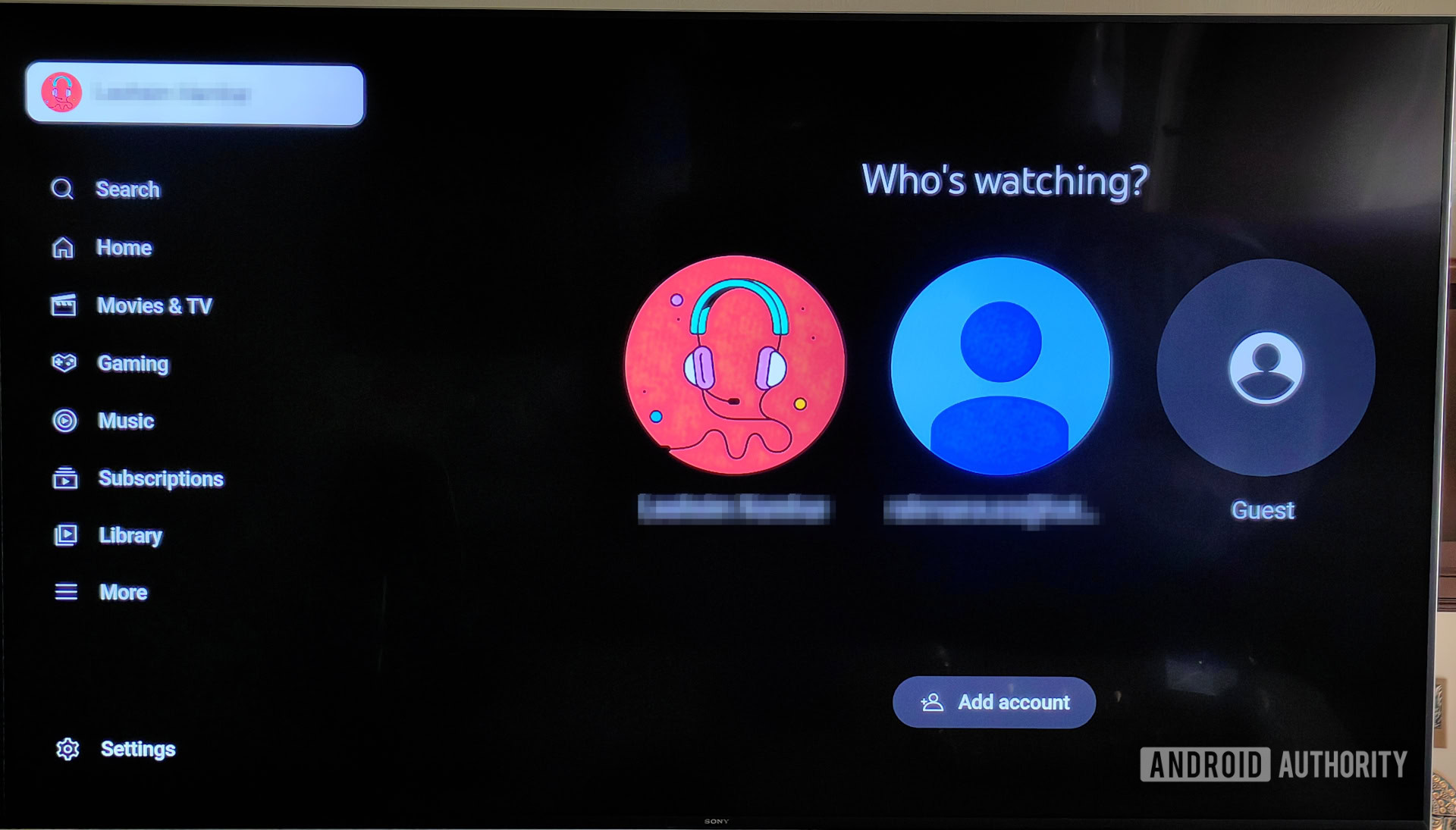
Perhaps one of the most appreciated features of separate profiles is the isolated watch history and Cloud DVR library. Each user’s watch history is kept private within their profile, ensuring that one person’s viewing doesn’t affect another’s “Continue Watching” list or mark content as viewed for someone else. More importantly, the unlimited Cloud DVR storage is shared across the subscription, but each profile maintains its own set of recordings. When a user records a show, it appears in their library, even if another family member also recorded it or didn’t. This prevents the DVR from becoming a chaotic mess of unorganized recordings and allows each family member to manage their own content queue effectively.
Simultaneous Streaming: What You Need to Know
While user profiles provide personalized experiences, the technical limitation on concurrent streams dictates how many individuals can watch YouTube TV at the exact same moment. This is a critical factor for busy households with diverse viewing habits.
Understanding Concurrent Stream Limits
YouTube TV typically allows for up to three simultaneous streams per subscription. This means that at any given time, a maximum of three devices can be actively playing YouTube TV content. These three streams can be from any combination of the six available user profiles within the Google Family Group. For instance, the primary account holder could be watching on a smart TV, a second family member on a tablet, and a third on a smartphone, all concurrently. Exceeding this limit will result in an error message on the fourth device attempting to stream, prompting one of the active streams to be stopped.
There is an option to upgrade to an “Enhanced Plan” or “4K Plus” add-on, which often includes features like offline downloads and unlimited simultaneous streams at home for an additional fee. This premium tier significantly expands the utility for larger households or those with heavy streaming demands, lifting the “three streams” limitation within the primary home network.
In-Home vs. Away-from-Home Streaming
YouTube TV enforces a “home area” policy to ensure that its service is primarily used by a single household, in line with its licensing agreements. The primary account holder must set a home location, and all members of the Google Family Group are expected to primarily use YouTube TV within this designated area. While limited away-from-home streaming is permitted (e.g., watching on a mobile device while traveling), extensive usage outside the home area can trigger verification requests. If a user tries to stream from a location deemed too far or for too long outside the home area, they might be prompted to update their home location, or their access could be temporarily restricted until they are back within the designated zone or the home location is updated (which can only be done a limited number of times per year).
The “4K Plus” add-on, when active, typically allows unlimited streams within the home network. However, the “away-from-home” streaming still adheres to the standard three-stream limit for devices outside the designated home area, regardless of the add-on status.
Device Management and Troubleshooting
YouTube TV allows users to sign in on various compatible devices, including smart TVs, streaming sticks, game consoles, smartphones, and tablets. There’s generally no strict limit on the total number of devices you can sign into with your Google account. However, the three simultaneous stream limit (or unlimited with 4K Plus add-on, within the home) is the operative constraint. If you encounter an error message about too many active streams, the troubleshooting steps are usually straightforward: identify which devices are currently streaming and stop one or more to free up a slot. Account holders can also review and manage active devices through their Google account settings, revoking access for devices they no longer use or recognize.
Optimizing Your YouTube TV Usage for Multiple Users
Leveraging YouTube TV’s features effectively for multiple users requires understanding its design and employing best practices to ensure a smooth, personalized experience for everyone.
Best Practices for Family Sharing
To make the most of YouTube TV within a family:
- Establish a Google Family Group: This is the foundational step. Ensure all intended users are part of the primary subscriber’s Google Family Group.
- Encourage Individual Profiles: Each family member should sign in with their own Google account to create and use a separate profile. This maintains personalization and privacy.
- Communicate Stream Limits: Make all users aware of the simultaneous stream limit (three, or more with 4K Plus at home) to avoid conflicts and error messages.
- Manage Home Location: The primary account holder should ensure their home location is accurately set and periodically verified as needed.
Leveraging Parental Controls
For households with children, YouTube TV integrates parental control features that can be configured on a per-profile basis. Each adult can set content restrictions for a child’s profile based on ratings (e.g., G, PG, PG-13) to prevent access to inappropriate content. This granular control is vital for maintaining a safe viewing environment and is another significant advantage of having individual user profiles. Access to these controls is typically managed through the Google Family Link app or directly within YouTube TV settings for supervised accounts.

Addressing Common Account-Related Queries
Many questions revolve around the “home area” and sharing. Users often wonder if they can share YouTube TV with friends or family outside their household. The definitive answer, according to YouTube TV’s terms of service, is no. The service is licensed for use within a single household. While technical workarounds might exist, they go against the terms and can lead to service interruptions or account suspension. The platform uses IP address monitoring and other methods to detect discrepancies between the primary account holder’s registered home location and where streaming activity occurs. Therefore, for legitimate and uninterrupted access, all users sharing a YouTube TV subscription through a Google Family Group must reside under the same roof.
In conclusion, YouTube TV’s account structure is designed to support a single paying subscriber who can then extend access to up to five other individuals within their household via a Google Family Group. This model provides six distinct user profiles, each with personalized experiences, while adhering to a core limit of three simultaneous streams (expandable with add-ons) and a strict single-household policy. Understanding these nuances is key to optimizing your YouTube TV experience.
aViewFromTheCave is a participant in the Amazon Services LLC Associates Program, an affiliate advertising program designed to provide a means for sites to earn advertising fees by advertising and linking to Amazon.com. Amazon, the Amazon logo, AmazonSupply, and the AmazonSupply logo are trademarks of Amazon.com, Inc. or its affiliates. As an Amazon Associate we earn affiliate commissions from qualifying purchases.