
In an age where digital content reigns supreme, the desire to transition from the small screen of a smartphone or tablet to the immersive experience of a large television display is a common one. YouTube, as the undisputed titan of online video, offers an endless stream of entertainment, educational content, and user-generated media. Connecting YouTube to your TV isn’t just about convenience; it’s about transforming your living room into a shared cinematic space, enhancing sound and visual quality, and making content accessible to everyone. This comprehensive guide will explore the myriad of technological avenues available, from built-in smart TV apps to sophisticated casting mechanisms and dedicated streaming devices, ensuring you can enjoy your favorite YouTube content on the biggest screen in your home.
The Ubiquitous Smart TV: Built-in YouTube Access
Modern smart televisions are, by design, digital hubs ready to connect to a vast array of online services. For many, the simplest and most direct way to enjoy YouTube on the big screen is through the TV’s native operating system.
Navigating the Smart TV Interface
Almost all smart TVs today, whether running Android TV, webOS (LG), Tizen (Samsung), or Roku TV OS, come with the YouTube app pre-installed or readily available for download from their respective app stores.
- Power On and Connect: Ensure your smart TV is connected to the internet, either via Wi-Fi or an Ethernet cable. A stable, fast connection is crucial for seamless streaming.
- Locate the App: Use your TV remote to navigate to the home screen or app launcher. Look for the YouTube icon. If you don’t see it immediately, search for it within the TV’s app store (often labeled “Apps,” “Smart Hub,” “LG Content Store,” or “Google Play Store”).
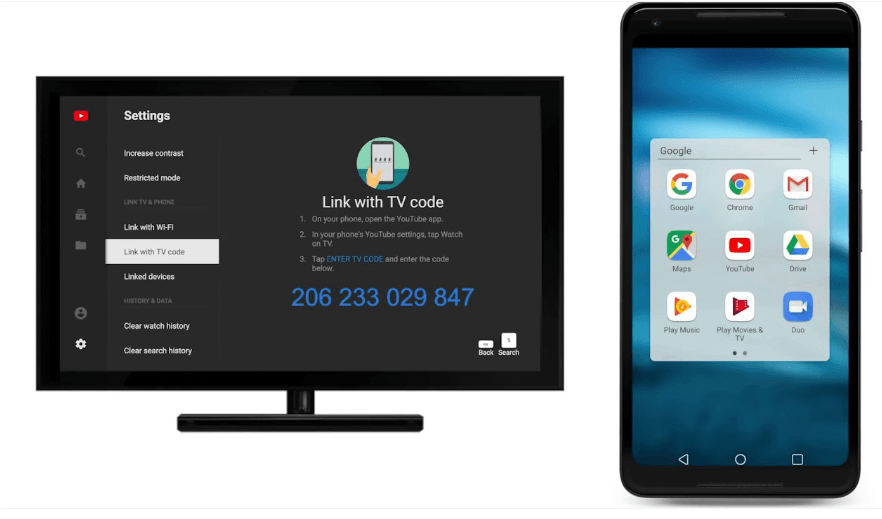
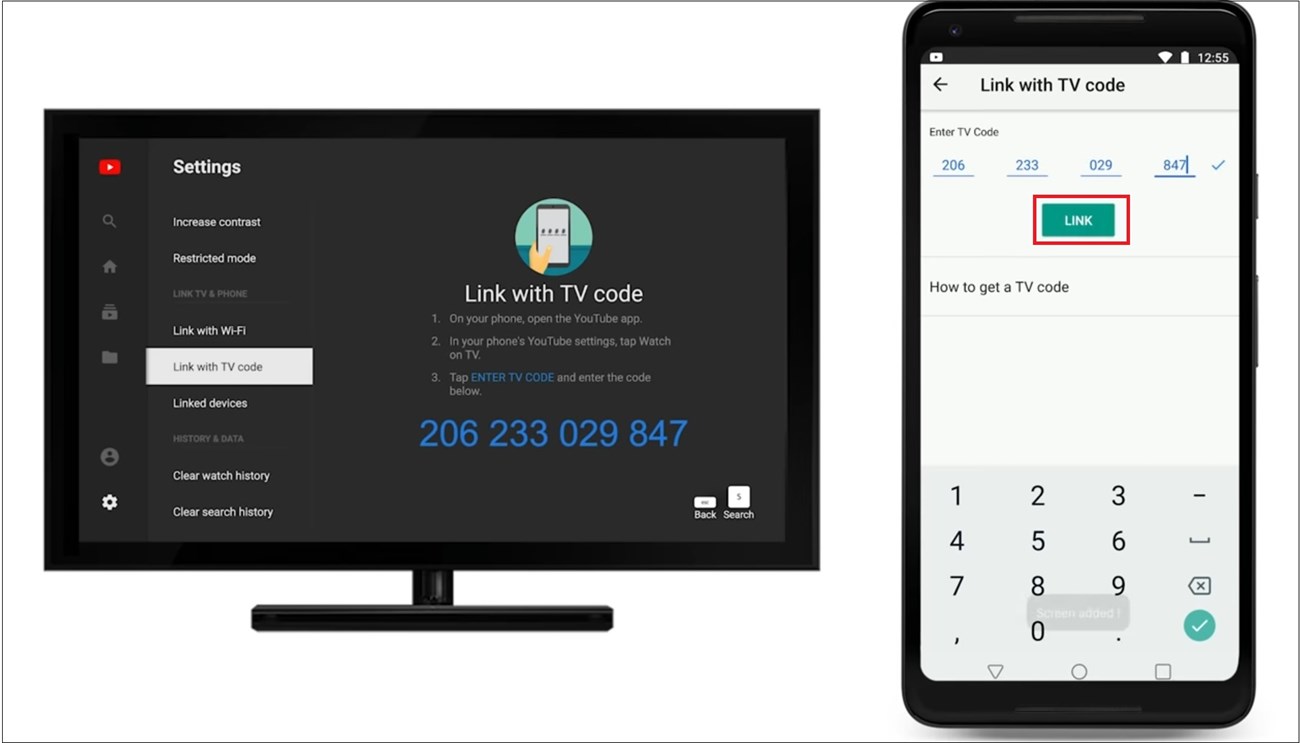
- Launch and Sign In: Open the YouTube app. You’ll typically be prompted to sign in with your Google account. Signing in personalizes your experience, giving you access to your subscriptions, watch history, playlists, and recommendations. Most TVs offer a simple login method, either by entering your credentials directly or by visiting a specific URL on a separate device (like your phone or computer) and entering a code displayed on your TV screen.
- Start Watching: Once signed in, you can browse videos, search for specific channels, or access your library, just as you would on a computer or mobile device.
Enhancing the Smart TV Experience
Smart TVs offer several features that enrich the YouTube viewing experience:
- TV Remote Navigation: Modern TV remotes often include dedicated buttons for apps like YouTube, or smart features like trackpads, scroll wheels, and intuitive directional pads that make browsing easy.
- Voice Commands: Many smart TVs and their remotes integrate voice assistants (like Google Assistant, Amazon Alexa, or LG’s ThinQ AI). You can simply say, “Open YouTube” or “Search for on YouTube” to control the app hands-free.
- Picture and Sound Settings: Leverage your TV’s advanced picture (e.g., contrast, brightness, color mode) and sound settings (e.g., surround sound, equalizer) to optimize the viewing and listening experience for YouTube content.
Troubleshooting Smart TV Connections
While generally reliable, you might encounter issues:
- Network Problems: Ensure your Wi-Fi is strong and stable. Restarting your router and TV can often resolve connectivity glitches.
- App Glitches: If the app is slow or unresponsive, try closing it completely and reopening. If problems persist, clear the app’s cache or reinstall it from the app store.
- Software Updates: Keep your TV’s operating system and the YouTube app updated to the latest versions to ensure optimal performance and security.
Wireless Casting: The Modern Way to Project Content
Casting technology allows you to ‘throw’ video content from your mobile device or computer onto your TV screen, effectively turning your phone into a remote control. This method offers unparalleled flexibility and is often the preferred choice for those who want to quickly share content without fully signing into YouTube on the TV itself.
Google Chromecast: The Gold Standard
Chromecast, a small dongle made by Google, revolutionized how we stream content. It plugs into your TV’s HDMI port and connects to your home Wi-Fi network.
- Setup: Plug the Chromecast into your TV’s HDMI port and connect its power cable. Download the Google Home app on your smartphone or tablet and follow the on-screen instructions to set up your Chromecast on your Wi-Fi network.
- Casting from Mobile (Android/iOS):
- Ensure your phone/tablet and Chromecast are on the same Wi-Fi network.
- Open the YouTube app on your mobile device.
- Tap the “Cast” icon (a rectangle with a Wi-Fi signal in the corner, usually at the top right of the screen).
- Select your Chromecast device from the list.
- Choose a video on YouTube to play. It will automatically start playing on your TV, while your phone acts as a remote for playback controls (play, pause, skip, volume). You can even use your phone for other tasks without interrupting the TV stream.
- Casting from Computer (Chrome Browser):
- Open the Google Chrome browser on your computer.
- Go to youtube.com.
- Click the three vertical dots (menu icon) in the top-right corner of Chrome, then select “Cast…”
- Alternatively, click the Cast icon if it’s already pinned to your toolbar.
- Select your Chromecast device. You can choose to cast the tab, your entire desktop, or specific files. For YouTube, casting the tab is sufficient.
AirPlay for Apple Devices
Apple’s AirPlay technology provides a similar casting experience, primarily for users within the Apple ecosystem.
- Requirements: You’ll need an Apple TV streaming box or an AirPlay 2-compatible smart TV (many recent LG, Samsung, Sony, and Vizio models support this).
- Casting from iPhone/iPad/Mac:
- Ensure your Apple device and Apple TV/AirPlay 2 TV are on the same Wi-Fi network.
- Open the YouTube app on your iPhone or iPad, or visit youtube.com in Safari on your Mac.
- Tap the “AirPlay” icon (a rectangle with an upward-pointing triangle). This might appear within the video player itself or in your device’s Control Center.
- Select your Apple TV or AirPlay 2-enabled TV from the list.
- The YouTube video will now stream to your TV.
Miracast and Other Screen Mirroring Technologies
Miracast is an open-standard technology that allows devices to mirror their screen directly to a compatible display without a router.
- Compatibility: Many Android devices and Windows PCs support Miracast. Some smart TVs also have built-in Miracast receivers, often labeled “Screen Mirroring,” “Smart View,” or “Wireless Display.”
- Setup: On your Android device, go to Settings and look for “Cast,” “Screen Mirroring,” or “Wireless Display.” On Windows, use the “Connect to a wireless display” option in the Action Center.
- Use: Select your TV from the list of available devices. Your entire phone or PC screen, including the YouTube app/website, will be mirrored to the TV.
- Considerations: Miracast can sometimes suffer from higher latency or lower quality compared to Chromecast or AirPlay, as it’s directly mirroring the screen rather than streaming the content independently.
Dedicated Streaming Devices: Elevating Your TV’s Capabilities
For older non-smart TVs, or for those who desire a more robust and unified streaming experience than what their smart TV offers, dedicated streaming devices are an excellent investment. These small boxes or sticks plug into an HDMI port and provide access to a vast ecosystem of apps, including YouTube.
Roku: A Plethora of Channels
Roku devices are renowned for their user-friendly interface and extensive “Channel Store.”
- Setup: Plug the Roku device into your TV’s HDMI port and connect it to power. Follow the on-screen instructions to connect to your Wi-Fi and create/sign into a Roku account.
- Installing YouTube: Navigate to the “Streaming Channels” section, search for “YouTube,” and add the channel.
- Watching YouTube: Launch the YouTube channel, sign in with your Google account (optional, but recommended for personalized content), and enjoy. Roku remotes are straightforward, often featuring dedicated media control buttons.
Amazon Fire TV Stick: Alexa Integration
Amazon’s Fire TV Stick brings the power of Alexa and a robust app store to your TV.
- Setup: Similar to Roku, plug the Fire TV Stick into your TV’s HDMI port, connect power, and follow the setup wizard to connect to Wi-Fi and your Amazon account.
- Finding YouTube: The YouTube app is readily available in the Fire TV’s app store. Search for it, download, and install.
- Alexa Control: Use the voice remote (if included) to say “Alexa, open YouTube” or “Alexa, play on YouTube” for seamless hands-free control.
Apple TV: Premium Ecosystem Integration
For Apple enthusiasts, the Apple TV box offers a high-end streaming experience deeply integrated with the Apple ecosystem.
- Setup: Connect Apple TV to your television via HDMI and to power. Follow the on-screen instructions to set it up, including connecting to Wi-Fi and signing in with your Apple ID.
- YouTube App: The YouTube app is available in the App Store on Apple TV. Download and install it.
- Siri and Remote: Use the Siri Remote for intuitive navigation and voice commands (“Hey Siri, open YouTube”). AirPlay 2 is also fully supported, allowing easy casting from other Apple devices.
Gaming Consoles: More Than Just Games
Modern gaming consoles like PlayStation (PS4/PS5) and Xbox (One/Series X/S) have evolved into comprehensive entertainment systems, fully capable of running streaming apps.
- Finding the YouTube App: On PlayStation, go to the Media or TV & Video section. On Xbox, go to the Store or Apps section. Search for and download the YouTube app.
- Controller Navigation: Use your gaming controller to navigate the app, search for videos, and control playback. While not as intuitive as a dedicated media remote for some, it works perfectly fine.
- Login: As with other devices, sign in with your Google account for a personalized YouTube experience.
Wired Connections: The Reliable Backup
While wireless methods offer convenience, sometimes a direct wired connection is the most reliable, especially if your Wi-Fi is unreliable or if you’re streaming very high-bandwidth content.
HDMI Cables: Direct and Simple
Connecting a laptop or desktop computer to your TV via an HDMI cable is a straightforward and dependable method.
- Connect: Plug one end of an HDMI cable into your computer’s HDMI output port and the other end into an available HDMI input port on your TV. Note which HDMI input you’ve used (e.g., HDMI 1, HDMI 2).
- Select Input: On your TV, use the remote’s “Input” or “Source” button to select the corresponding HDMI input.
- Configure Display (Computer): Your TV should now mirror or extend your computer’s display. On Windows, you can press
Windows Key + Pto cycle through display options (Duplicate, Extend, Second screen only). On macOS, go to System Settings > Displays to configure. - Audio Considerations: Ensure your computer is set to output audio through the HDMI connection. This usually happens automatically, but you might need to select the TV as the playback device in your computer’s sound settings.
- Watch YouTube: Open your web browser on your computer, navigate to youtube.com, and play your desired video. It will appear on your TV.
Adapters for Mobile Devices
For devices without a direct HDMI output, adapters can bridge the gap.
- USB-C to HDMI: Many modern Android phones and tablets with a USB-C port support video output. A USB-C to HDMI adapter allows you to connect these devices directly to your TV.
- Lightning to HDMI: Apple’s Lightning Digital AV Adapter is required to connect iPhones and iPads (with a Lightning port) to an HDMI display.
- Setup and Use: Plug the adapter into your mobile device, connect an HDMI cable from the adapter to your TV, and select the correct HDMI input on your TV. Your device’s screen will be mirrored.
- Quality Implications: While generally effective, the quality can sometimes be limited by the adapter or the device’s processing power.
Optimizing Your YouTube Viewing Experience
Regardless of the connection method you choose, a few best practices can significantly enhance your YouTube viewing pleasure on the big screen.
Ensuring a Stable Internet Connection
High-definition (HD) and 4K YouTube content are bandwidth-intensive.
- Wi-Fi vs. Ethernet: For the most reliable streaming, especially for 4K content, a wired Ethernet connection to your smart TV or streaming device is ideal. If using Wi-Fi, ensure your router is relatively close to the TV and that you’re using a modern router (e.g., Wi-Fi 5 or Wi-Fi 6) on the 5GHz band for faster speeds and less interference.
- Bandwidth: A minimum of 5-8 Mbps is recommended for HD streaming, while 20-25 Mbps or more is needed for consistent 4K streaming.
Customizing Playback Settings
Within the YouTube app on your TV or streaming device, or even when casting:
- Resolution: Manually adjust the video quality (e.g., 1080p, 4K) if your internet connection struggles or if you want to save data.
- Autoplay: Toggle the autoplay feature on or off based on whether you want videos to play consecutively or manually select the next one.
- Subtitles/Closed Captions: Easily enable or disable subtitles for accessibility or foreign language content.
- Parental Controls: Utilize YouTube’s Restricted Mode or specific parental control features on your smart TV or streaming device to filter out mature content.
Security and Privacy Considerations
When signing into YouTube on a shared TV or device:
- Account Login: Be mindful of who has access to your logged-in Google account on the TV, especially in multi-user households.
- Data Usage: While not typically a concern for home internet, be aware that streaming consumes data.
- Smart TV Tracking: Modern smart TVs can collect data on your viewing habits. Review your TV’s privacy settings to understand and manage this.
Connecting YouTube to your TV is a gateway to a richer, more communal viewing experience. Whether you opt for the simplicity of a smart TV app, the flexibility of wireless casting, the robustness of a dedicated streaming device, or the reliability of a wired connection, each method offers a unique pathway to bringing your favorite online videos to life on the big screen. By understanding these technologies and optimizing your setup, you can effortlessly transform your living room into a personal cinema, ready for endless hours of YouTube enjoyment.
aViewFromTheCave is a participant in the Amazon Services LLC Associates Program, an affiliate advertising program designed to provide a means for sites to earn advertising fees by advertising and linking to Amazon.com. Amazon, the Amazon logo, AmazonSupply, and the AmazonSupply logo are trademarks of Amazon.com, Inc. or its affiliates. As an Amazon Associate we earn affiliate commissions from qualifying purchases.