
In an increasingly digital world, traditional cable television is steadily being replaced by a more flexible, personalized, and often more affordable alternative: live TV streaming services. Among the most popular and robust of these is YouTube TV, Google’s answer to the evolving landscape of home entertainment. If you’re looking to cut the cord or simply explore a modern way to watch your favorite channels, understanding how to connect to YouTube TV across various devices is your first essential step. This guide will walk you through the entire process, from initial setup to optimizing your viewing experience, ensuring you harness the full power of this innovative platform.
Understanding YouTube TV: A New Era of Television
Before diving into the specifics of connecting, it’s beneficial to grasp what YouTube TV offers and why it has become a leading contender in the streaming arena. It’s more than just a collection of channels; it’s a sophisticated platform designed for modern consumption habits.
What is YouTube TV?
YouTube TV is a live TV streaming service that provides subscribers with access to over 100 channels, including major broadcast networks (ABC, CBS, FOX, NBC), popular cable channels (ESPN, TNT, CNN, HGTV), and a growing selection of premium add-ons. Unlike traditional cable, YouTube TV is delivered over the internet, freeing you from the confines of set-top boxes and long-term contracts. It offers a live TV experience combined with on-demand content and an unparalleled cloud DVR, making it a versatile entertainment hub.
Why Choose YouTube TV?
The appeal of YouTube TV extends beyond its channel lineup. Technologically, it offers several compelling features:
- Cloud DVR with Unlimited Storage: Record as many shows as you want simultaneously and keep them for nine months. This feature alone is a massive differentiator from most traditional DVRs and even other streaming services, offering unprecedented flexibility for viewers.
- Multi-Device Compatibility: Watch on your smart TV, streaming stick, smartphone, tablet, computer, or gaming console. The service is designed for seamless transitions between screens.
- Six Accounts Per Household: Share your subscription with up to five other family members, each with their own personalized library and recommendations.
- Three Simultaneous Streams: While six accounts are supported, up to three separate streams can be active at any given time, ensuring multiple family members can watch different content concurrently.
- No Contracts: Enjoy the freedom of a month-to-month subscription, allowing you to cancel or restart your service anytime without penalty.
- Intuitive User Interface: Google’s design philosophy shines through in YouTube TV’s user experience, which is clean, easy to navigate, and consistent across devices.
Getting Started: Initial Setup and Account Creation
Connecting to YouTube TV begins with ensuring you have the necessary technological prerequisites and establishing your account. This foundational step is crucial for a smooth onboarding process.
Prerequisites for a Smooth Connection
To ensure an optimal YouTube TV experience, a few technical requirements must be met:
- Reliable Internet Connection: As an internet-based service, a stable broadband connection is paramount. Google recommends at least 3 Mbps for standard definition, 7 Mbps for a single 1080p stream, and 13 Mbps for 4K streaming (where available). For households with multiple simultaneous streams, a faster connection (e.g., 50 Mbps or higher) is advisable.
- Compatible Device: YouTube TV supports a wide array of devices, from smart TVs to smartphones. Ensure your device is on the supported list, which typically includes recent models of popular streaming players and smart TVs.
- Google Account: YouTube TV is a Google product, so a Google account (the same one you might use for Gmail, YouTube, or Google Drive) is required for signing up and logging in. If you don’t have one, it’s free and easy to create.
Signing Up for YouTube TV
Creating your YouTube TV account is a straightforward process, often starting with a free trial to let you experience the service firsthand.
- Visit the YouTube TV Website: Open a web browser on your computer or mobile device and go to
tv.youtube.com. - Start Your Free Trial: Click on the prominent “START FREE TRIAL” button. You’ll typically get 7-14 days to explore the service.
- Sign In with Google: You’ll be prompted to sign in with your Google account. If you have multiple accounts, choose the one you wish to associate with your YouTube TV subscription.
- Confirm Your Home Location: YouTube TV uses your home location to determine the local channels available to you. It’s crucial for regulatory reasons and to provide relevant content. The service will attempt to automatically detect your location; if incorrect, you can manually adjust it.
- Review Your Plan: You’ll see the base plan details, including the monthly cost after the free trial ends, and any available add-ons (premium channels, sports packages). You can choose to add these now or later.
- Enter Payment Information: Even for a free trial, you’ll need to provide payment details. You won’t be charged until the trial period expires. Google ensures your billing information is securely stored.
- Complete Sign-Up: Confirm your subscription, and you’re all set! You’ll gain immediate access to the service. Remember to set a calendar reminder if you wish to cancel before the trial ends to avoid charges.
Connecting YouTube TV to Your Devices
Once your account is active, the real fun begins: connecting YouTube TV to all your preferred viewing platforms. The process is generally intuitive but varies slightly depending on the device.
Smart TVs and Streaming Devices
This is often where most people will experience YouTube TV. The goal is to download the YouTube TV app and log in.
- Roku, Amazon Fire TV, Apple TV, Chromecast with Google TV:
- Turn on your streaming device/smart TV and navigate to its app store (e.g., Roku Channel Store, Amazon Appstore, Apple App Store, Google Play Store).
- Use the search function to find “YouTube TV.”
- Select the app and choose “Install” or “Get.”
- Once installed, open the YouTube TV app.
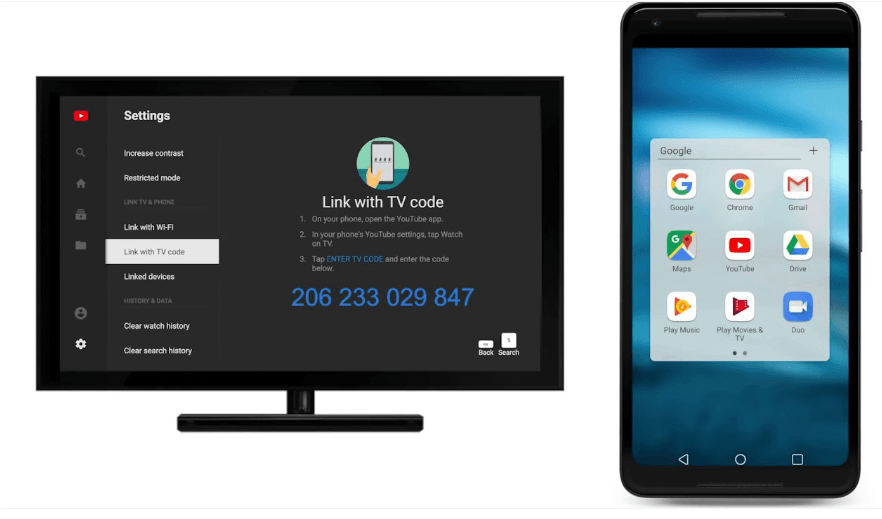
- You’ll typically be presented with an activation code or a prompt to sign in. If it’s a code, open a web browser on your computer or phone, go to
tv.youtube.com/start, and enter the code. Then, sign in with your Google account. If it’s a direct sign-in, enter your Google account credentials using the on-screen keyboard or a connected mobile app (like the Google Home app for Chromecast).
- Samsung, LG, Vizio Smart TVs (and others):
- Access your TV’s app store or “Smart Hub.”
- Search for and install the “YouTube TV” app.
- Open the app and follow the on-screen instructions, usually involving an activation code to be entered on
tv.youtube.com/startor direct Google account sign-in.
Mobile Devices and Tablets
Watching on the go is a core strength of YouTube TV, thanks to its robust mobile applications.
- Download the App: For iOS devices, open the App Store; for Android devices, open the Google Play Store. Search for “YouTube TV.”
- Install and Open: Download and install the app. Once installed, tap to open it.
- Sign In: The app will prompt you to sign in with your Google account. Since you’re likely already signed into your Google account on your phone, it might automatically detect and ask you to confirm which account to use, simplifying the login process.
- Start Watching: Once logged in, you’ll be taken directly to the live guide or home screen, ready to stream.
Web Browser Access
For those who prefer watching on a laptop or desktop computer, no app installation is necessary; simply use a web browser.

- Open Your Browser: Use a modern web browser like Google Chrome, Mozilla Firefox, Microsoft Edge, or Safari.
- Go to YouTube TV Website: Type
tv.youtube.cominto the address bar and press Enter. - Sign In: If you’re not already signed in, click the “Sign In” button (usually in the top right corner) and enter your Google account credentials.
- Enjoy: Your live TV feed, library, and on-demand content will be readily accessible.
Gaming Consoles
YouTube TV is also available on popular gaming consoles, turning them into versatile entertainment hubs.
- PlayStation (PS4/PS5) and Xbox (One/Series X|S):
- Navigate to the PlayStation Store or Microsoft Store on your console.
- Search for “YouTube TV.”
- Download and install the app.
- Open the YouTube TV app and follow the on-screen instructions for activation or direct sign-in using your Google account. This often involves using an activation code on
tv.youtube.com/start.
Optimizing Your YouTube TV Experience
Once connected, taking a few extra steps can significantly enhance your viewing and management of the service. These optimizations focus on personalizing the tech, ensuring smooth operation, and leveraging advanced functionalities.
Personalizing Your Live Guide and Library
YouTube TV offers tools to tailor your interface to your preferences.
- Customize Live Guide: In the YouTube TV app, go to “Live” and look for an option to “Edit.” Here, you can reorder channels, hide channels you don’t watch, and create a more streamlined viewing experience. This is particularly useful given the extensive channel lineup.
- Manage Your Library: Your “Library” is where all your recorded shows and movies reside. You can set shows to record automatically (even future airings), mark favorites, and manage your storage (though it’s unlimited, keeping it organized helps with navigation).
- Recommendations: The “Home” tab uses algorithms to suggest content based on your viewing history and preferences. The more you watch, the smarter these recommendations become.
Troubleshooting Common Connection Issues
Despite its robust design, you might occasionally encounter technical glitches. Here’s how to address common issues:
- Buffering or Poor Video Quality:
- Check Internet Speed: Use an online speed test (e.g., fast.com or speedtest.net) on the device you’re using. If your speed is low, restart your router and modem.
- Reduce Network Congestion: If other devices are heavily using your internet (downloading large files, gaming), temporarily pause those activities.
- Change Wi-Fi Band: If your router supports both 2.4 GHz and 5 GHz, try connecting to the 5 GHz band for potentially faster speeds and less interference, especially for devices closer to the router.
- Wired Connection: For streaming devices or smart TVs, a direct Ethernet cable connection is always more stable and faster than Wi-Fi.
- App Crashes or Freezes:
- Restart the App: Close the YouTube TV app completely and reopen it.
- Restart Device: If the app continues to misbehave, restart your streaming device, smart TV, or mobile device.
- Clear Cache: On some devices (especially Android and Fire TV), you can go into app settings and clear the app’s cache.
- Reinstall App: As a last resort, uninstall the YouTube TV app and then reinstall it.
- Login Problems:
- Verify Credentials: Double-check your Google account email and password.
- Reset Password: If you’re unsure, reset your Google account password.
- Two-Factor Authentication: If you use 2FA, ensure you have your device handy to approve the login.
Exploring Advanced Features
YouTube TV offers several advanced capabilities that leverage modern technology to enhance your viewing.
- Picture-in-Picture (PiP): On compatible mobile devices, you can minimize YouTube TV to a small floating window while you use other apps, allowing for seamless multitasking.
- Offline Downloads (Selected Content): While not universal for all live TV, some on-demand content and recordings might be available for download on mobile devices, allowing for offline viewing. Check the content details for availability.
- Parental Controls: Set content restrictions for individual profiles to ensure children only access age-appropriate programming, leveraging Google’s robust account management systems.
- Multi-User Profiles: As mentioned, each of the six household accounts gets a personalized experience. Ensure everyone in your family sets up and uses their own profile to benefit from tailored recommendations and DVR recordings.
Maximizing Your YouTube TV Investment
Beyond basic connection and usage, leveraging YouTube TV’s inherent technological advantages can truly maximize the value you get from the service.
Leveraging Cloud DVR Capabilities
The unlimited cloud DVR is arguably one of YouTube TV’s most powerful features. Understanding how to use it fully is key.
- Setting Recordings: When viewing a show or movie, simply select the “Add to Library” option. YouTube TV will then automatically record all upcoming airings (and often provide on-demand versions too), accessible instantly from your “Library.”
- Conflict-Free Recording: Unlike traditional DVRs, there are no recording conflicts. You can record dozens of shows simultaneously without worrying about storage limits or missing content.
- Fast Forward/Rewind: With recorded content, you have full control, including the ability to fast forward through commercials, a feature often restricted on live or some on-demand content.
Multi-Device Streaming and Family Sharing
YouTube TV is built for the modern household where everyone has their own screen and viewing preferences.
- Simultaneous Streams: Remember you get three simultaneous streams. Strategically manage this for peak viewing times to avoid interruptions. If you need more, there’s an optional 4K Plus add-on that unlocks unlimited simultaneous streams at home and three on the go, along with 4K content where available.
- Adding Family Members: Easily invite family members to your YouTube TV “Family Group” through your Google account settings. Each person gets their own login, DVR, and recommendations, preserving personal preferences across the household.
Integrating with Smart Home Ecosystems
For those with smart home devices, YouTube TV offers convenient voice control.
- Google Assistant Integration: If you have Google Home, Nest Hub, or other Google Assistant-enabled devices, you can control YouTube TV with voice commands. For example, “Hey Google, open YouTube TV on the living room TV,” or “Hey Google, tune to ESPN on YouTube TV.”
- Alexa Integration (Limited): While not as deeply integrated as with Google Assistant, some Alexa devices can also control basic functions on YouTube TV if linked through your smart TV or streaming device’s skills.

Conclusion
Connecting to YouTube TV is a straightforward process that unlocks a world of flexible, personalized, and robust live television streaming. By following this comprehensive guide, from initial account setup to device connectivity and feature optimization, you can seamlessly transition to this modern entertainment platform. Embrace the technological freedom that YouTube TV offers—an intuitive interface, powerful cloud DVR, multi-device support, and smart home integration—and redefine your television viewing experience. Say goodbye to restrictive contracts and hello to a smarter, more connected way to watch your favorite shows and channels.
aViewFromTheCave is a participant in the Amazon Services LLC Associates Program, an affiliate advertising program designed to provide a means for sites to earn advertising fees by advertising and linking to Amazon.com. Amazon, the Amazon logo, AmazonSupply, and the AmazonSupply logo are trademarks of Amazon.com, Inc. or its affiliates. As an Amazon Associate we earn affiliate commissions from qualifying purchases.