
In the digital age, apps like Venmo have become indispensable for peer-to-peer payments, splitting bills, and managing everyday financial transactions with unparalleled ease. However, when an app that’s meant to simplify your life suddenly stops working, it can be incredibly frustrating. From payments failing to log-in screens freezing, a malfunctioning Venmo app can disrupt your plans and leave you in a lurch. This comprehensive guide dives deep into the most common technical reasons why your Venmo might not be cooperating and provides actionable troubleshooting steps to get you back on track. We’ll explore software glitches, network issues, account security blocks, and transactional hiccups, ensuring you have the tools to diagnose and resolve your Venmo woes.

Addressing Fundamental App & Device Issues
Many Venmo problems stem from basic technical issues related to the app itself, your device, or your network connection. These are often the easiest to resolve and should be your first port of call when troubleshooting.
Outdated Venmo App Version
Running an outdated version of the Venmo app is a common culprit behind performance issues and functional failures. App developers regularly release updates to introduce new features, patch security vulnerabilities, and fix bugs that can cause the app to crash or behave unexpectedly. If your app isn’t updated, it might lack critical fixes or struggle to communicate with Venmo’s latest server protocols.
How to Resolve:
- For iOS Devices: Open the App Store, tap your profile icon in the top right corner, then scroll down to see pending updates. Find Venmo and tap “Update.”
- For Android Devices: Open the Google Play Store, tap your profile icon, then “Manage apps & device.” Look for Venmo under “Updates available” and tap “Update.”
- Enable Automatic Updates: To prevent this issue in the future, configure your device settings to automatically update apps. This ensures you always have the latest version without manual intervention.
Clearing Cache and Data
Over time, apps accumulate cached data to speed up loading times and improve user experience. However, this cached data can sometimes become corrupted, leading to glitches, freezing, or incorrect behavior. Clearing the app’s cache and data essentially gives it a fresh start without uninstalling it entirely.
How to Resolve:
- For iOS Devices: iOS doesn’t offer a direct “clear cache” option for individual apps in the same way Android does. To achieve a similar effect, you’ll generally need to offload or uninstall and reinstall the app (see below). Alternatively, a simple reboot of your device can sometimes clear temporary data.
- For Android Devices: Go to “Settings” > “Apps” (or “Apps & notifications”) > “Venmo” > “Storage & cache.” Here you’ll find options to “Clear Cache” and “Clear Storage” (or “Clear Data”). Start by clearing the cache. If the problem persists, try clearing storage/data, but be aware this will log you out and reset app preferences.
- Reboot Your Device: After clearing cache or data, or if you’re on iOS and prefer not to reinstall immediately, restart your phone. This can often resolve temporary software conflicts.
Network Connectivity & Stability
Venmo, being an online payment platform, is heavily reliant on a stable and robust internet connection. A weak, intermittent, or completely absent connection can prevent the app from loading, processing transactions, or even logging in. This applies whether you’re on Wi-Fi or cellular data.
How to Resolve:
- Check Your Connection: Verify that your Wi-Fi is active and providing internet access by trying to load a webpage or another app. If using cellular data, ensure it’s enabled and you have sufficient data allowance.
- Toggle Wi-Fi/Cellular: Try switching between Wi-Fi and cellular data (or vice-versa) to see if one connection type works better.
- Reset Network Settings: On your device, you can reset network settings (Settings > General > Transfer or Reset iPhone > Reset > Reset Network Settings on iOS; Settings > System > Reset options > Reset Wi-Fi, mobile & Bluetooth on Android). This will reset all network configurations, including Wi-Fi passwords, so be prepared to re-enter them.
- Router/Modem Reboot: If on Wi-Fi, power cycle your router and modem. Unplug them for 30 seconds, then plug them back in.
- VPN Interference: If you’re using a Virtual Private Network (VPN), try temporarily disabling it. Venmo’s security protocols can sometimes flag VPN connections as suspicious, leading to access restrictions.
Device Compatibility and OS Version
Every app has minimum operating system requirements and is designed to function optimally on devices within a certain hardware generation. If your phone is significantly old or running an outdated operating system (iOS or Android), it might struggle to run Venmo efficiently, leading to crashes, slow performance, or outright incompatibility.
How to Resolve:
- Check OS Updates: Ensure your device’s operating system is up to date. Go to your phone’s settings and check for software updates. Installing the latest OS version can resolve underlying compatibility issues.
- Consider Device Age: If your device is several years old and can no longer receive the latest OS updates, it might be reaching the end of its compatible lifespan for demanding apps like Venmo.
- Free Up Storage: A device with critically low storage can also cause apps to malfunction. Delete unnecessary files, photos, or apps to free up space.
Reinstalling the App
If all else fails with app-specific troubleshooting, a clean reinstallation can often resolve deeply rooted software bugs or corrupted installation files. This completely removes the app and its associated data, allowing you to download a fresh copy.
How to Resolve:
- Uninstall Venmo:
- iOS: Lightly press and hold the Venmo app icon until a menu appears, then tap “Remove App” > “Delete App.”
- Android: Press and hold the Venmo app icon, then drag it to the “Uninstall” option that appears, or go to “Settings” > “Apps” > “Venmo” > “Uninstall.”
- Restart Your Device: Before reinstalling, it’s a good practice to restart your phone to clear any lingering temporary files.
- Reinstall from App Store/Google Play: Download Venmo again from your device’s official app store.
Resolving Account & Security-Related Blocks
Beyond general app glitches, Venmo has robust security measures designed to protect your account and transactions. Sometimes, these measures can inadvertently block legitimate activity, requiring specific steps to regain full functionality.
Login and Credential Verification Failures
Simple login issues can be incredibly frustrating. These can range from forgotten passwords to technical glitches preventing the app from verifying your credentials.
How to Resolve:
- Double-Check Credentials: Ensure you’re entering the correct email/phone number and password. Pay attention to caps lock and special characters.
- Password Reset: If you’ve forgotten your password, use the “Forgot Password” link on the Venmo login screen. Follow the prompts to reset it, typically involving a code sent to your linked email or phone.
- Account Lockout: Multiple failed login attempts can temporarily lock your account as a security measure. Wait for the specified lockout period (usually an hour) before trying again.
Account Security Holds or Suspensions
Venmo’s fraud detection systems are constantly monitoring for suspicious activity. If they detect anything unusual—like large or unusual transactions, login attempts from new locations, or rapid changes to account details—your account might be placed on hold or even suspended to prevent unauthorized access or fraudulent activity. This is a technical block implemented by their systems.
How to Resolve:
- Check Email for Notifications: Venmo typically sends an email if your account has been placed on hold or suspended, detailing the reason and necessary steps.
- Contact Venmo Support: This is usually the only way to resolve account holds or suspensions. You’ll need to provide information to verify your identity and explain the activity that triggered the hold. Be prepared for a potentially lengthy process as they investigate.
Identity Verification (KYC) Requirements
To comply with federal regulations (“Know Your Customer” or KYC laws) and prevent financial crime, Venmo requires users to verify their identity, especially if they reach certain transaction thresholds or want to use specific features like direct deposit. If your identity verification is incomplete or pending, certain functionalities may be technically blocked.
How to Resolve:
- Complete Verification Prompt: Look for prompts within the Venmo app or emails from Venmo asking you to complete identity verification.
- Provide Requested Documents: This usually involves uploading a photo of a government-issued ID (driver’s license, passport) and sometimes a selfie. Ensure the images are clear and meet Venmo’s specifications.
- Wait for Review: Identity verification can take some time to process. Your account features will remain restricted until it’s approved.
Linked Payment Method Technical Glitches
Venmo relies on your linked bank accounts and debit/credit cards for funding transactions. Issues with these payment methods—whether they’re expired, incorrectly entered, or experiencing technical problems on the bank’s end—can prevent your Venmo payments from going through.
How to Resolve:
- Check Payment Method Details: Verify that the card number, expiration date, and CVV for your linked cards are correct. For bank accounts, ensure the routing and account numbers are accurate.
- Update Expired Cards: If a card has expired, remove it and add the new one.
- Contact Your Bank/Card Issuer: If you suspect an issue with your bank account or card (e.g., a freeze, daily limits, or a bank-side technical problem), contact your financial institution directly. They might be declining Venmo transactions for security reasons or due to their own system issues.
- Remove and Re-add: Sometimes, simply removing a linked bank account or card from Venmo and re-adding it can resolve connectivity issues.
Troubleshooting Transactional Roadblocks
Even if your app is working fine and your account is active, specific transactions can still fail due to various technical and policy-related reasons. Understanding these can help you pinpoint the exact issue.
Transaction Denial Error Messages
When a payment fails, Venmo often provides a specific error message. These messages are critical technical indicators that can help diagnose the problem. Common messages might include “Payment Declined,” “Transaction Failed,” or “Insufficient Funds.”
How to Resolve:
- Read the Error Carefully: Don’t just dismiss the error. Note down the exact wording or any error codes provided.
- Cross-Reference with Solutions: Many error messages directly point to a solution (e.g., “Insufficient Funds” means you need more money, “Payment Declined by Bank” means your bank is blocking it).
- Search Venmo Help Center: Use the exact error message to search Venmo’s official help center for specific guidance.
Exceeding Transaction Limits
Venmo implements daily and weekly transaction limits for both sending and receiving money. These limits are a security measure and vary depending on whether your identity is verified. Attempting to send or receive more than your allowed limit will result in a transaction failure.
How to Resolve:
- Check Your Limits: Access your Venmo profile or visit the Venmo website’s help section to find information on your specific sending and receiving limits, which can vary based on verification status.
- Verify Your Identity: If you haven’t already, completing identity verification typically raises your transaction limits significantly.
- Break Up Payments: If possible, split a large payment into smaller transactions over several days to stay within daily/weekly limits.
- Wait It Out: If you’ve hit a limit, you’ll need to wait until the rolling 24-hour or 7-day period refreshes.
Recipient Account Technical Issues
The problem might not always be on your end. If the recipient’s Venmo account is inactive, suspended, has pending identity verification, or they’ve exceeded their own receiving limits, your payment to them might fail.
How to Resolve:
- Confirm Recipient Details: Double-check that you’re sending money to the correct Venmo username, phone number, or email address. A simple typo can send money to the wrong person or an inactive account.
- Contact the Recipient: Reach out to the person you’re trying to pay and ask them to check their Venmo account for any issues, holds, or pending verification requests.
- Try Alternative Payment Method: If the issue persists, consider an alternative payment method for that specific transaction.
Geolocation and VPN Conflicts
Venmo uses location services as part of its fraud prevention efforts. If your location services are disabled, or if you’re using a VPN that masks or spoofs your location to an unusual degree, Venmo’s security systems might flag the transaction as suspicious and block it. This is especially true if your account typically transacts from a consistent location.
How to Resolve:
- Enable Location Services: Ensure Venmo has permission to access your device’s location. Go to your phone’s settings > Privacy/Location Services > Venmo and allow location access.
- Disable VPN: Temporarily turn off any VPNs you are using when trying to complete a Venmo transaction.
- Stable Location: Try making the transaction from a known, stable location where you typically use Venmo.
Advanced Steps and Professional Support
When you’ve exhausted the common troubleshooting steps and your Venmo still isn’t working, it’s time to consider broader issues or enlist professional help.
Checking Venmo’s Server Status
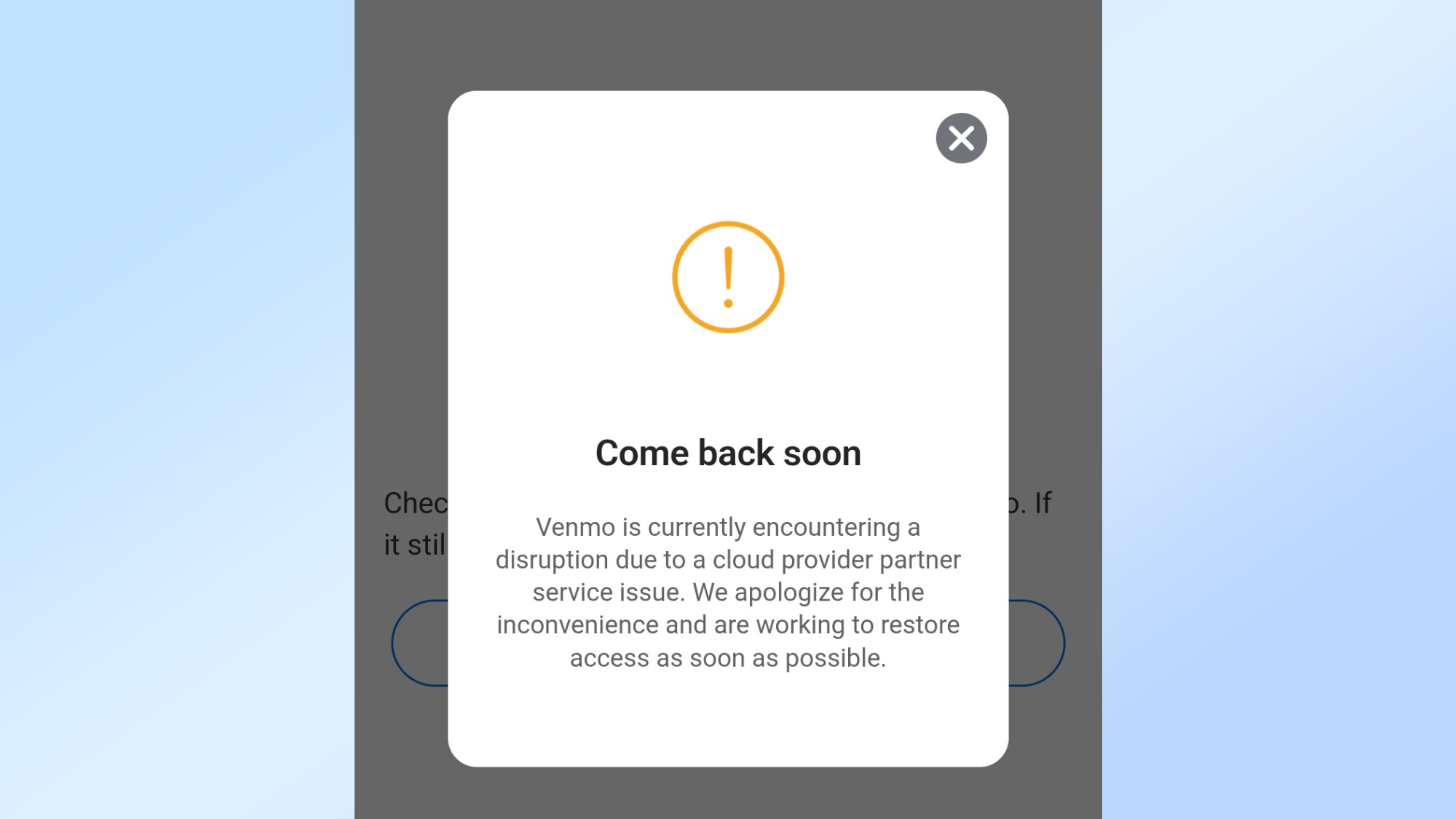
Sometimes, the problem isn’t with your app or device at all, but with Venmo’s own servers. Server outages or widespread technical issues can affect many users simultaneously.
How to Resolve:
- Downdetector.com: Websites like Downdetector allow users to report outages for popular services. Check if Venmo is showing a spike in reported problems.
- Venmo’s Social Media: Check Venmo’s official Twitter or other social media channels. They often post updates on widespread issues.
- News Outlets: Major outages are sometimes reported by technology news sites.
- Wait and Retry: If there’s a confirmed outage, the only solution is to wait for Venmo’s technical team to resolve it and then try again later.
Contacting Venmo Support
If you’ve systematically worked through all the troubleshooting steps and your issue persists, reaching out to Venmo’s customer support is the next crucial step. They have access to your account details and can investigate technical issues specific to your situation.
How to Resolve:
- Utilize In-App Help: The Venmo app often has a “Help” or “Contact Us” section where you can initiate a support request or find a direct phone number.
- Venmo Website Help Center: Visit help.venmo.com for detailed FAQs and contact options, including email and sometimes live chat.
- Gather Information: Before contacting them, have all relevant details ready: your Venmo username, transaction IDs (if applicable), specific error messages, the troubleshooting steps you’ve already taken, and the exact date/time the issue occurred. This will expedite the support process.
- Be Patient: Support response times can vary, especially during peak hours or for complex issues.
Reporting Bugs and Feedback
Even if Venmo support helps resolve your immediate issue, reporting persistent bugs or providing feedback through official channels can help Venmo’s development team identify and fix underlying technical problems for all users.
How to Resolve:
- Use Feedback Options: Look for “Send Feedback” or “Report a Bug” options within the Venmo app’s settings or help section.
- Provide Detailed Information: The more specific you are about the bug—steps to reproduce it, screenshots, your device model and OS version—the more valuable your feedback will be.
Conclusion
A non-functional Venmo app can certainly throw a wrench in your day, but by systematically approaching the problem with a technical mindset, you can often diagnose and resolve the issue yourself. From ensuring your app and device are up-to-date to meticulously checking your network, account settings, and transaction details, most problems have a straightforward technical explanation. Remember to stay patient, pay attention to any error messages, and don’t hesitate to lean on Venmo’s official support channels when the solution remains elusive. Keeping your app and device in good technical health is key to a smooth and reliable Venmo experience.
aViewFromTheCave is a participant in the Amazon Services LLC Associates Program, an affiliate advertising program designed to provide a means for sites to earn advertising fees by advertising and linking to Amazon.com. Amazon, the Amazon logo, AmazonSupply, and the AmazonSupply logo are trademarks of Amazon.com, Inc. or its affiliates. As an Amazon Associate we earn affiliate commissions from qualifying purchases.