
In an increasingly digital financial landscape, apps like Cash App have become indispensable tools for millions, facilitating everything from peer-to-peer payments to investing and banking. When an application so deeply integrated into daily financial routines suddenly stops working, it can cause significant frustration and disruption. The question “Why is Cash App not working?” often arises from a spectrum of issues, ranging from simple connectivity problems to more complex account-specific or server-side glitches. Understanding the underlying causes and knowing the systematic steps to diagnose and resolve them is crucial for restoring service and regaining seamless financial control. This comprehensive guide delves into the common technical culprits behind Cash App malfunctions, offering practical, actionable solutions for users.

Diagnosing Connectivity and Server-Side Problems
Before delving into intricate troubleshooting, it’s essential to rule out the most fundamental causes of app failure: network connectivity and the operational status of Cash App’s own infrastructure. Many issues that appear to be app-specific can often be traced back to these external factors.
Internet Connection Stability: Wi-Fi vs. Mobile Data
Cash App, like any online service, relies heavily on a stable and robust internet connection to function correctly. A weak, intermittent, or non-existent internet connection is frequently the primary culprit behind an unresponsive or error-prone app.
- Troubleshooting:
- Toggle Wi-Fi/Mobile Data: Try turning your device’s Wi-Fi off and then back on, or switching from Wi-Fi to mobile data (and vice-versa) to see if the connection improves. This often resolves minor network hiccups.
- Check Signal Strength: Ensure you have a strong Wi-Fi signal or adequate mobile data reception. Moving to an area with better coverage might help.
- Restart Router/Modem: For persistent Wi-Fi issues, restarting your home router or modem can often clear up network congestion and refresh the connection.
- Test Other Apps: Open another internet-dependent app (e.g., a web browser, social media app) to confirm if the issue is isolated to Cash App or if it’s a broader internet problem affecting your device. If other apps also struggle, the problem lies with your internet service.
Cash App Server Status: Are They Down?
Sometimes, the issue isn’t on your end but with Cash App’s servers. Like any large-scale online service, Cash App can experience outages, maintenance periods, or technical difficulties that affect its availability. During such times, no amount of individual troubleshooting will resolve the problem until the servers are back online.
- Troubleshooting:
- Check Official Channels: The quickest way to ascertain server status is to check Cash App’s official Twitter account (@CashAppSupport) or their status page (if available, often linked from their support site). They typically post updates regarding widespread outages or scheduled maintenance.
- Use Third-Party Downdetector Sites: Websites like Downdetector allow users to report outages for various services. Checking these sites can provide real-time crowdsourced information on whether other users are experiencing similar problems.
- Be Patient: If a server outage is confirmed, the best course of action is patience. Cash App’s technical teams will be working diligently to restore service.
App Version Incompatibility and Updates
While not strictly a server-side issue, an outdated app version can sometimes create compatibility problems that manifest as an app “not working,” especially if Cash App has rolled out server-side changes that require the latest client-side software. Running an old version can lead to bugs, security vulnerabilities, and features failing to load or operate correctly.
- Troubleshooting:
- Check for Updates: Navigate to your device’s app store (Google Play Store for Android, Apple App Store for iOS) and search for “Cash App.” If an update is available, install it immediately. App updates often contain bug fixes, performance enhancements, and crucial security patches that can resolve existing issues.
- Enable Automatic Updates: To prevent future issues related to outdated software, consider enabling automatic app updates on your device.
User-Specific Account and Device Glitches
Beyond network and server-level problems, many Cash App malfunctions stem from issues specific to the user’s device, app installation, or account status. These require a more focused approach to diagnose and rectify.
Outdated App Version and Operating System
As mentioned, an outdated Cash App can cause problems. However, an outdated operating system (OS) on your smartphone can also lead to compatibility issues. App developers often optimize their applications for newer OS versions, and older ones might lack necessary features or security protocols.
- Troubleshooting:
- Update OS: Check your phone’s settings for any pending operating system updates (e.g., iOS updates, Android system updates). Install them to ensure your device is running the latest stable software.
- Minimum Requirements: Ensure your device meets Cash App’s minimum OS requirements. While rare, very old devices might eventually become incompatible.
Cache Corruption and Data Overload
Like all apps, Cash App stores temporary data (cache) on your device to improve performance and speed. Over time, this cache can become corrupted or grow excessively large, leading to glitches, freezing, or slow loading times.
- Troubleshooting:
- Clear App Cache (Android): Go to Settings > Apps (or Apps & Notifications) > Cash App > Storage & cache > Clear cache. Note: Clearing the cache typically doesn’t delete your login data.
- Offload App (iOS): On iOS, you can ‘Offload App’ (Settings > General > iPhone Storage > Cash App > Offload App), which clears the app’s cache and temporary data while preserving its documents and data. Reinstalling the app will restore it. Alternatively, deleting and reinstalling the app (see below) is a more thorough approach for both platforms.
Device Software Conflicts and Background Apps
Other applications running on your device, especially those with aggressive resource usage or security features (like VPNs or certain antivirus apps), can sometimes interfere with Cash App’s functionality.
- Troubleshooting:
- Close Background Apps: Force-close all other background applications on your device to free up resources and eliminate potential conflicts.
- Disable VPN/Proxy: If you’re using a VPN or proxy server, try temporarily disabling it. These services can sometimes block or reroute Cash App’s necessary network traffic, or trigger its security protocols.
- Restart Device: A simple device restart can often resolve temporary software glitches and refresh system resources, providing a clean slate for Cash App to run.
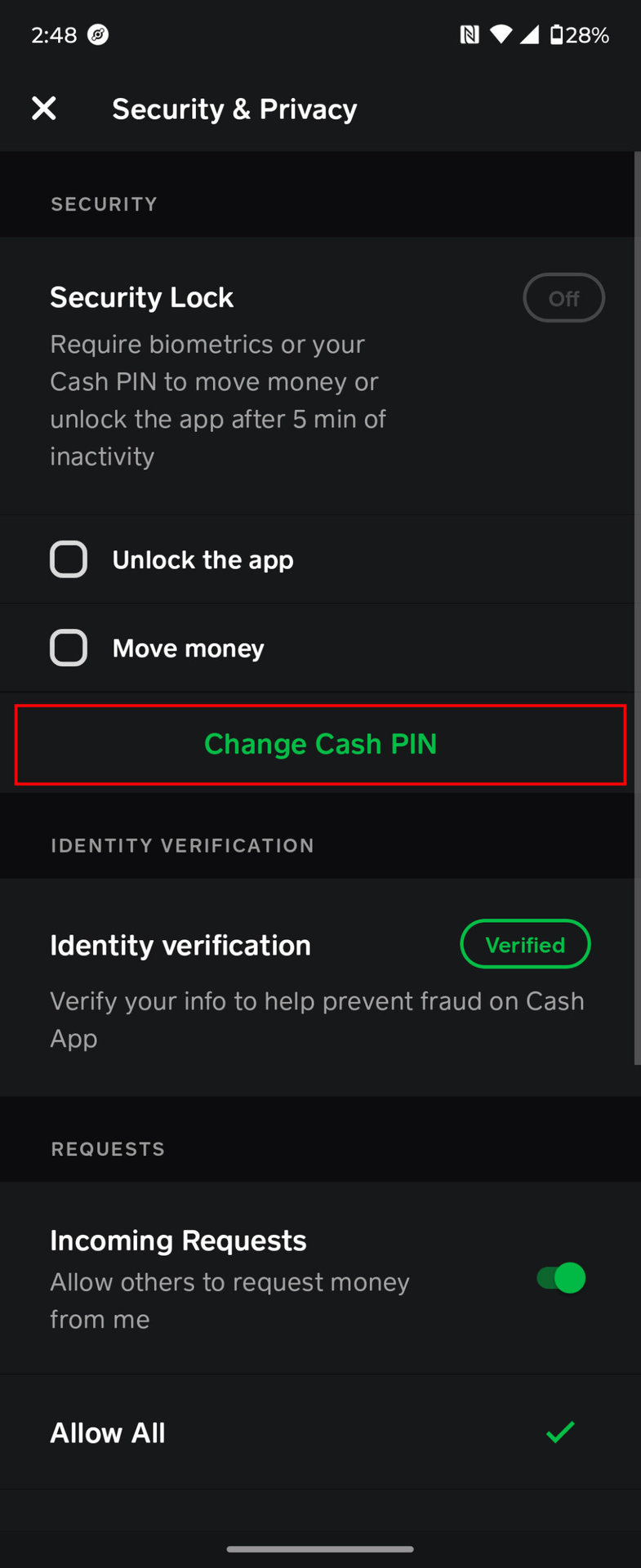
Account Verification and Security Holds
Cash App, like all financial services, employs robust security measures. If your account details are incomplete, verification is pending, or unusual activity is detected, Cash App might temporarily restrict your account’s functionality. This can manifest as the app “not working” for transactions or access.
- Troubleshooting:
- Check Notifications: Open the Cash App and look for any in-app notifications, emails, or SMS from Cash App regarding your account status, pending verifications, or security alerts.
- Complete Verification: If prompted, ensure you complete any required identity verification steps (e.g., linking a bank account, verifying identity with a government ID). Unverified accounts often have transaction limits or restrictions.
- Review Recent Activity: Consider if any recent unusual transactions or login attempts could have triggered a security flag.
Transactional Hiccups and Payment Failures
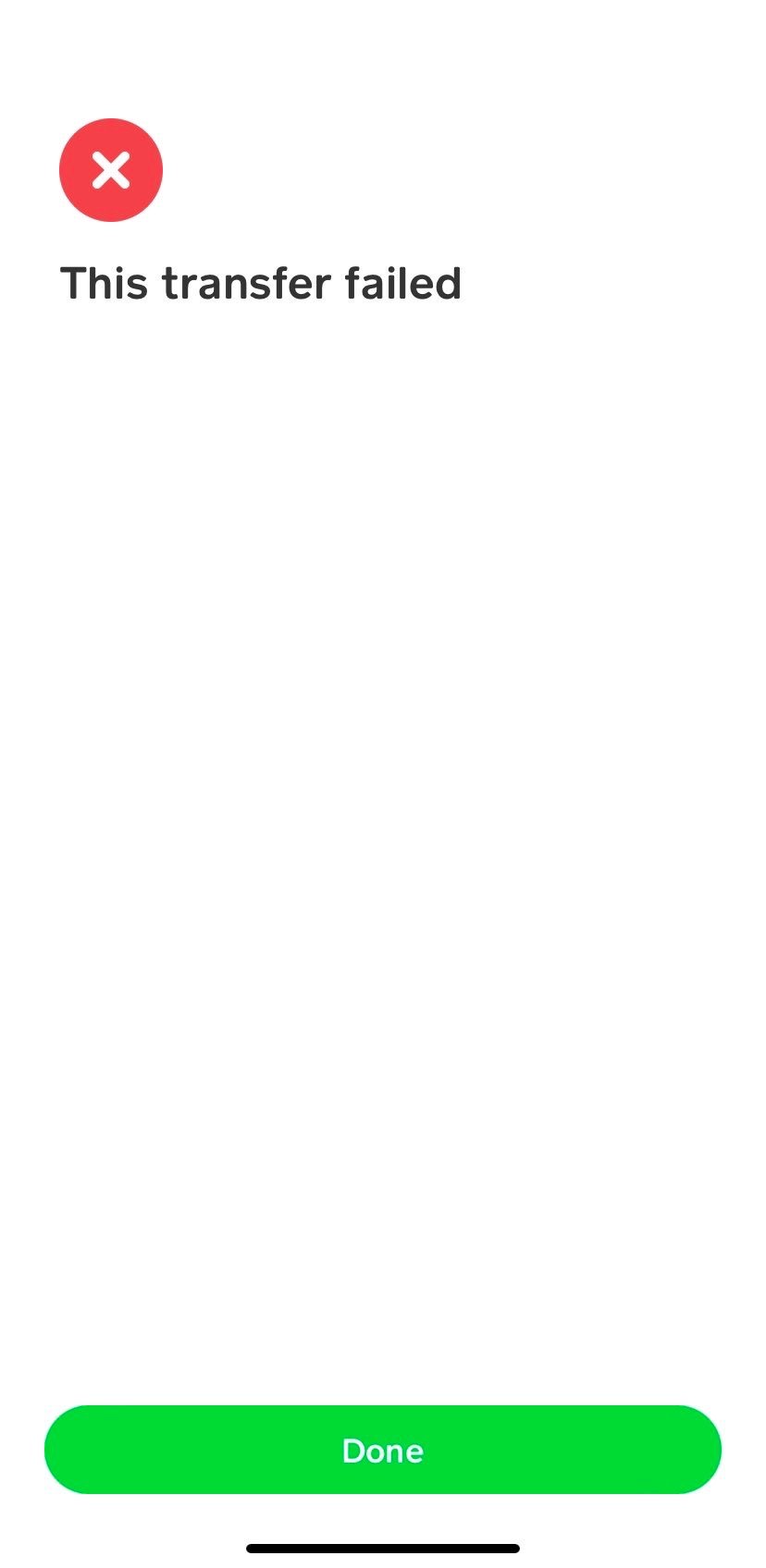
While the app itself might appear to be working, issues often surface when trying to initiate or receive transactions. These failures are typically tied to specific financial parameters, linked accounts, or internal security logic.
Insufficient Funds and Card Expiry
One of the most common reasons a payment fails is simply a lack of available funds in the linked bank account or Cash App balance, or an expired debit/credit card.
- Troubleshooting:
- Check Balances: Verify that you have sufficient funds in your Cash App balance or the linked bank account/debit card you are trying to use for the transaction.
- Update Card Details: Ensure that your linked debit or credit card has not expired. Update any outdated card information in the Cash App settings.
Bank Linking Issues and Restrictions
Problems with your linked bank account or debit card can prevent transactions. This could be due to incorrect details, a bank’s internal security hold, or issues with the connection between Cash App and your financial institution.
- Troubleshooting:
- Re-link Bank Account: Try unlinking and then re-linking your bank account or debit card to refresh the connection.
- Contact Your Bank: If issues persist, contact your bank to ensure there are no restrictions on your account or card that would prevent Cash App transactions. Some banks may flag initial Cash App transactions as suspicious.
- Verify Bank Information: Double-check that all bank account or card details entered into Cash App are accurate.
Daily/Weekly Transaction Limits
Cash App imposes limits on how much money users can send or receive within specific timeframes. Attempting to exceed these limits will result in a failed transaction. These limits often increase once an account is fully verified.
- Troubleshooting:
- Review Limits: Familiarize yourself with Cash App’s current sending and receiving limits. These can typically be found in the app’s support section or by attempting a transaction that triggers a limit notification.
- Verify Your Account: If your account is not fully verified, completing the verification process (providing your full name, date of birth, and the last 4 digits of your SSN) will generally increase your transaction limits significantly.
Fraud Prevention and Security Flags
Cash App’s sophisticated fraud detection systems continuously monitor transactions for suspicious patterns. If a transaction appears unusual, involves a high amount to a new recipient, or is initiated from an unfamiliar location, it might be flagged and temporarily blocked.
- Troubleshooting:
- Confirm Transaction Legitimacy: If you’re initiating a legitimate transaction that was flagged, Cash App might send a notification asking you to confirm it. Follow the instructions to clear the flag.
- Contact Support: If you believe a legitimate transaction has been unfairly blocked, contacting Cash App support is the next step to get it reviewed and potentially released.
Proactive Measures and Advanced Troubleshooting
For persistent issues or to minimize future disruptions, a few advanced steps and best practices can prove invaluable.
Reinstalling the Cash App: A Fresh Start
When an app behaves erratically and standard troubleshooting fails, a complete reinstallation can often resolve deep-seated software glitches or corrupted installation files. This process removes all app data and settings from your device, ensuring a fresh start.
- How-to:
- Backup (if applicable): While Cash App data is primarily cloud-based, ensure you know your login credentials.
- Delete App: Long-press the Cash App icon on your home screen and select “Uninstall” (Android) or “Remove App” > “Delete App” (iOS).
- Restart Device: Perform a quick reboot of your phone after deletion.
- Reinstall: Go to your device’s app store, search for “Cash App,” and download/install the latest version.
- Log In: Log back into your account using your phone number or email and PIN/password.
Contacting Cash App Support: When All Else Fails
If you’ve exhausted all the above troubleshooting steps and Cash App is still not working, it’s time to reach out to their customer support team. They have access to specific account details and diagnostic tools that are unavailable to users.
- How-to:
- In-App Support: The most efficient way to contact support is often through the Cash App itself (Profile icon > Support > Start a Chat). This authenticates you immediately.
- Website Support: Visit Cash App’s official support website (cash.app/help) for FAQs and contact options.
- Be Detailed: When contacting support, provide as much detail as possible about the issue: when it started, what steps you’ve already taken, any error messages you’ve received, and your device and OS version.
Monitoring Official Channels for Updates
Staying informed about Cash App’s operational status and any ongoing issues is a proactive measure. Following their official social media channels, particularly Twitter, can provide real-time updates on server outages, planned maintenance, or emerging bugs. This can save you valuable troubleshooting time by confirming if the problem is widespread rather than localized to your device.
By systematically working through these troubleshooting steps, from checking basic connectivity to addressing account-specific nuances and ultimately engaging with support, most users can successfully diagnose and resolve why Cash App is not working, restoring their access to this vital financial tool.
aViewFromTheCave is a participant in the Amazon Services LLC Associates Program, an affiliate advertising program designed to provide a means for sites to earn advertising fees by advertising and linking to Amazon.com. Amazon, the Amazon logo, AmazonSupply, and the AmazonSupply logo are trademarks of Amazon.com, Inc. or its affiliates. As an Amazon Associate we earn affiliate commissions from qualifying purchases.