
A scientific calculator is far more than a glorified adding machine; it’s a powerful pocket-sized computer designed to tackle complex mathematical, scientific, and engineering problems with precision and speed. For students navigating calculus, physics, chemistry, or engineering, and for professionals in STEM fields, mastering this indispensable gadget is not just an advantage, but a necessity. Unlike a basic calculator, which handles only the four fundamental operations, a scientific calculator unlocks a universe of functions, from trigonometry and logarithms to statistics and complex numbers.
This comprehensive guide aims to demystify the scientific calculator, transforming it from an intimidating array of buttons into a familiar and potent tool. We’ll delve into its core functionalities, explore advanced features, and provide best practices to ensure you can confidently navigate any numerical challenge. By the end, you’ll not only understand what each button does but also how to integrate these functions into your problem-solving workflow, significantly enhancing your productivity and accuracy in technical disciplines.

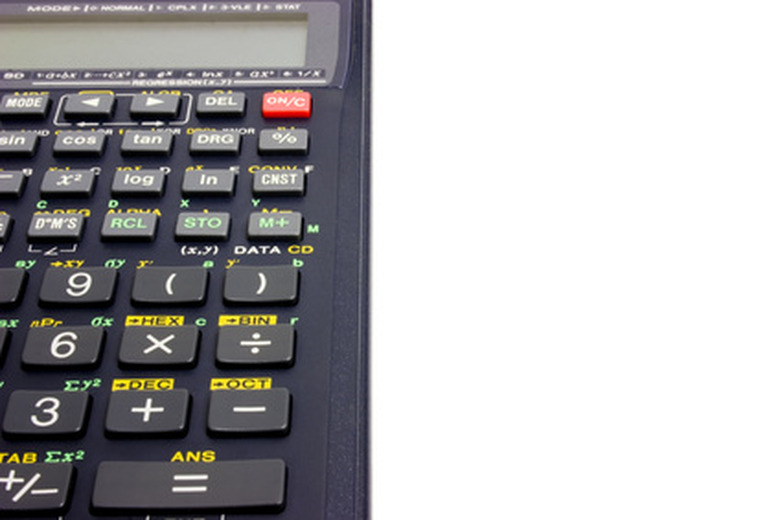
Understanding the Scientific Calculator Layout
Before diving into complex calculations, it’s crucial to familiarize yourself with the physical layout and fundamental operational principles of a scientific calculator. While models vary across brands like Casio, Texas Instruments, and Sharp, many core elements remain consistent.
Basic Arithmetic Functions and Number Entry
At the heart of any calculator are its numerical keypad (0-9, decimal point) and the basic arithmetic operators: addition (+), subtraction (-), multiplication (×), and division (÷). The “=” key executes the calculation. Most scientific calculators adhere to the standard order of operations (PEMDAS/BODMAS), but parentheses are your best friends for ensuring complex expressions are evaluated correctly.
- Number Entry: Simply press the digits. Use the “.” for decimals.
- Operations: Press the operator after entering the first number, then the second number, and finally “=”.
- Negative Numbers: Use the “(-)” or “neg” key, often distinct from the subtraction key, to input negative values.
Essential Function Keys
Beyond the basics, several keys control the calculator’s state and facilitate error correction:
- Power (ON/OFF): Turns the calculator on and off. Some have an auto-off feature.
- Clear/All Clear (AC/C): “AC” (All Clear) typically clears the entire calculation and resets the display. “C” (Clear) might only clear the last entry, allowing you to correct a mistake without starting over.
- Delete (DEL): Allows you to delete the last digit entered, similar to a backspace key.
- Shift / 2nd Function: Many keys perform multiple functions. The primary function is printed directly on the key, while the secondary function (often in a different color) is activated by pressing the “Shift” or “2nd” key first, then the desired function key. This maximizes the calculator’s capabilities without overcrowding the keypad.
Memory Functions
Scientific calculators come equipped with memory functions, invaluable for storing intermediate results or constants to be recalled later, preventing re-entry errors and saving time.
- M+ (Memory Add): Adds the current display value to the memory.
- M- (Memory Subtract): Subtracts the current display value from the memory.
- MR/RCL (Memory Recall): Recalls and displays the value currently stored in memory.
- MC (Memory Clear): Clears the memory, setting its value to zero.
- STO (Store): Stores the current display value into a specific variable (e.g., A, B, C, X, Y).
- RCL (Recall): Recalls the value stored in a specific variable.
Navigating Modes
Scientific calculators often have different operating modes tailored for specific types of calculations. The current mode is usually indicated on the display.
- Angle Modes (DEG/RAD/GRAD): Critical for trigonometric calculations.
- DEG (Degrees): The most common unit for angles in everyday mathematics (e.g., 90 degrees).
- RAD (Radians): Essential for higher-level mathematics, especially calculus (e.g., π/2 radians).
- GRAD (Gradians): Less common, where a right angle is 100 grads.
Always ensure you are in the correct angle mode for your problem, as an incorrect setting will lead to wrong answers.
- COMP (Compute) / Normal Mode: The default mode for general calculations.
- STAT (Statistics Mode): Used for entering data sets and performing statistical analyses.
- EQN (Equation Mode): For solving linear or quadratic equations.
- BASE-N (Number Base Mode): For calculations in different number bases (binary, octal, hexadecimal).
Mastering Core Mathematical Operations
Once you’re comfortable with the layout, it’s time to leverage the powerful mathematical functions that set scientific calculators apart.
Powers and Roots
- Squaring (x²): Raises a number to the power of 2.
- Cubes (x³): Raises a number to the power of 3 (often a Shift function).
- Arbitrary Power (yˣ or x^y): Raises a number (y) to any power (x). Input: base, then yˣ, then exponent.
- Square Root (√): Calculates the square root of a number.
- Cube Root (³√): Calculates the cube root (often a Shift function).
- Arbitrary Root (ˣ√y): Calculates the x-th root of y (often a Shift function). Input: root index (x), then ˣ√y, then number (y).
Logarithms and Exponentials
- Common Logarithm (log): Logarithm to base 10.
- Natural Logarithm (ln): Logarithm to base e (Euler’s number).
- 10 to the Power of x (10ˣ): The inverse of
log. Often a Shift function. - e to the Power of x (eˣ): The inverse of
ln. Often a Shift function. These are crucial for exponential growth/decay models, pH calculations, and many engineering problems.
Trigonometric Functions
Trigonometry is fundamental to physics, engineering, and geometry, and scientific calculators make these calculations straightforward. Remember to always verify your angle mode (DEG/RAD).
- Sine (sin): Calculates the sine of an angle.
- Cosine (cos): Calculates the cosine of an angle.
- Tangent (tan): Calculates the tangent of an angle.
- Inverse Trigonometric Functions (sin⁻¹, cos⁻¹, tan⁻¹ / arcsin, arccos, arctan): Used to find the angle when the ratio is known (often Shift functions).
- Example: To find the angle whose sine is 0.5, you would press
Shift+sin(sin⁻¹) then0.5, then=.
- Example: To find the angle whose sine is 0.5, you would press
Parentheses and Order of Operations
The judicious use of parentheses () is paramount for ensuring correct evaluation of complex expressions. Scientific calculators generally follow the standard order of operations (PEMDAS/BODMAS: Parentheses/Brackets, Exponents/Orders, Multiplication and Division, Addition and Subtraction). However, explicitly grouping terms with parentheses leaves no room for ambiguity, especially when dealing with fractions or multiple operations in the numerator or denominator.
- Example: To calculate
(5 + 3) / 2, you must use parentheses around5 + 3. Entering5 + 3 / 2will result in5 + (3/2) = 6.5, not8/2 = 4.
Advanced Features for Complex Calculations
Beyond the core functions, scientific calculators pack a suite of advanced features designed to streamline more intricate problem-solving.
Fractions and Mixed Numbers
Many scientific calculators allow you to input and display numbers as fractions, which is incredibly useful for maintaining precision and simplifying calculations without converting to decimals.
- Fraction Key (a b/c or S⇔D): This key is used to enter fractions.
- To enter a simple fraction like 1/2:
1a b/c2. - To enter a mixed number like 2 1/3:
2a b/c1a b/c3.
- To enter a simple fraction like 1/2:
- Conversion (S⇔D / F↔D): This key toggles the display between fraction (or mixed number) and decimal representations.
Factorials, Permutations, and Combinations
These functions are vital in probability, statistics, and combinatorics.
- Factorial (n!): Calculates the product of all positive integers less than or equal to ‘n’. (e.g., 5! = 5 × 4 × 3 × 2 × 1 = 120). Often a Shift function.
- Permutations (nPr): Calculates the number of ways to arrange ‘r’ items from a set of ‘n’ items where order matters. Input:
nnPrr. - Combinations (nCr): Calculates the number of ways to choose ‘r’ items from a set of ‘n’ items where order does not matter. Input:
nnCrr.
Constants and Unit Conversions
Many advanced scientific calculators have built-in constants (like π for pi, e for Euler’s number) and even unit conversion functions.
- Pi (π): Usually has its own dedicated key, or is a Shift function.
- Euler’s Number (e): Often found as a Shift function related to the
lnoreˣkey. - Built-in Conversions: Some models offer conversions between units (e.g., cm to inches, °C to °F). Consult your specific calculator’s manual to find these.
Working with Scientific Notation
Scientific notation is essential for handling very large or very small numbers common in science and engineering (e.g., the speed of light, atomic radii).
- EXP / EE Key: This key is used to enter the “× 10^” part of scientific notation.
- To enter
6.022 × 10²³:6.022EXP23. - To enter
1.6 × 10⁻¹⁹:1.6EXP(-)19. - Avoid using the “×” key followed by “10^x” as this can lead to errors in the order of operations if not carefully parenthesized.
- To enter
Leveraging Statistical and Engineering Functions
Modern scientific calculators often go beyond basic math, offering powerful tools for data analysis and engineering computations.
Basic Statistics
In statistical mode (STAT), you can input a series of data points and have the calculator compute various statistical measures.
- Data Entry: Enter STAT mode, then typically press a key like “DATA” or “M+” to input values one by one.
- Mean (x̄): The average of the data set.
- Standard Deviation (σx or sx): Measures the spread of data. σx is for population, sx for sample.
- Sum of Values (Σx): The sum of all data points.
- Sum of Squares (Σx²): The sum of the squares of all data points.
These functions are invaluable for quickly analyzing experimental data, quality control, and hypothesis testing.
Engineering Notation and Unit Prefixes
Similar to scientific notation, engineering notation expresses numbers as a base value multiplied by 10 to a power that is a multiple of 3 (e.g., 10³, 10⁶, 10⁻³). This aligns perfectly with common metric prefixes (kilo, mega, milli, micro).
- ENG Key: Many calculators have an “ENG” key that can cycle the display between normal notation, scientific notation, and engineering notation. This helps in quickly identifying appropriate unit prefixes (e.g., 0.0012 Amps becomes 1.2 mAmps).
Solving Equations (CALC/SOLVE)
Some advanced scientific calculators, particularly those closer to graphing calculators, include functions to solve equations numerically.
- CALC/SOLVE: You might be able to enter an equation, then use a “SOLVE” function (often a Shift or Alpha function) to find the value of an unknown variable. This typically involves inputting an initial guess. This feature is particularly helpful for checking answers to algebraic problems or finding roots of complex functions.
Best Practices and Troubleshooting Tips
Even with a comprehensive understanding of functions, effective use comes with practice and adherence to best practices.
Always Check Your Mode
This is, by far, the most common source of error. Incorrect angle mode (DEG/RAD) for trigonometric functions, or being stuck in STAT mode when you want to compute, will yield incorrect results. Make checking the mode indicators on your display a habit before starting any significant calculation.
Practice Regularly
Like any tool, proficiency with a scientific calculator is built through regular use. Work through examples, re-calculate problems from textbooks, and experiment with different functions. The more you use it, the more intuitive it becomes. Don’t wait for an exam to get acquainted with its capabilities.
Refer to Your Manual
Every scientific calculator model has unique features and key sequences. While this guide covers general principles, your specific calculator’s manual is the definitive resource for its exact functionalities, hidden features, and advanced operations. Keep it handy, especially for less frequently used functions.
Battery Life and Maintenance
Ensure your calculator has sufficient battery life, especially before important tests or long work sessions. Many scientific calculators use watch batteries or solar power. Keep the display and keys clean, and store it in a protective case to prevent damage to the screen or keys. A well-maintained calculator is a reliable one.
Don’t Be Afraid to Experiment
The best way to learn is often by doing. Input numbers, try different functions, and observe the results. Understand what happens when you press Shift and then sin versus just sin. Experimentation builds intuition and confidence.

Conclusion
The scientific calculator is an incredibly powerful and versatile tool, a cornerstone for anyone engaged in technical fields. From simplifying basic arithmetic to tackling complex trigonometric identities, statistical analyses, and exponential equations, its capabilities are vast. By understanding its layout, mastering core functions, exploring advanced features, and adopting best practices, you transform this gadget from a potential source of frustration into an indispensable ally.
Embrace the learning curve, practice diligently, and never hesitate to consult your device’s manual. As you become more adept at working your scientific calculator, you’ll not only solve problems more efficiently and accurately but also deepen your understanding of the underlying mathematical and scientific principles. It’s an investment in your academic and professional success, empowering you to navigate the world of numbers with precision and confidence.
aViewFromTheCave is a participant in the Amazon Services LLC Associates Program, an affiliate advertising program designed to provide a means for sites to earn advertising fees by advertising and linking to Amazon.com. Amazon, the Amazon logo, AmazonSupply, and the AmazonSupply logo are trademarks of Amazon.com, Inc. or its affiliates. As an Amazon Associate we earn affiliate commissions from qualifying purchases.