
In the rapidly evolving landscape of digital commerce, the seamless integration of sales and social platforms is no longer a luxury but a necessity for businesses aiming to thrive. Shopify, as a leading e-commerce platform, and Instagram, a visual powerhouse of social engagement, together offer an unparalleled opportunity to streamline sales processes, amplify brand visibility, and directly engage with a vast audience of potential customers. This guide provides a detailed, step-by-step tutorial on connecting your Shopify store to Instagram, delving into the technical prerequisites, configuration processes, and optimization strategies to unlock the full potential of this powerful integration.
The journey to connecting these two platforms involves navigating specific technical requirements and settings across both Shopify and Facebook’s ecosystem (as Instagram is part of Meta). A successful integration not only facilitates direct product tagging and shoppable posts but also provides a robust framework for consistent brand presence and efficient sales funnels, all managed through interconnected digital tools.
Understanding the Integration Landscape
Before diving into the mechanics, it’s crucial to grasp the foundational concepts and technical architecture that underpin the Shopify-Instagram connection. This isn’t merely about linking two apps; it’s about establishing a robust data flow and leveraging interconnected features that transform casual browsing into direct purchasing opportunities.
The Synergistic Power of Shopify and Instagram
The primary appeal of integrating Shopify with Instagram lies in their complementary strengths. Shopify offers a robust, scalable e-commerce backend, handling everything from product listings and inventory to payment processing and order fulfillment. Instagram, on the other hand, provides an unparalleled visual discovery platform where users actively seek inspiration, connect with brands, and engage with content. By bridging these two, businesses can convert Instagram’s high engagement rates into direct sales, making the customer journey frictionless.
Technically, this synergy manifests through features like Instagram Shopping, which allows businesses to tag products directly in posts, stories, Reels, and even through a dedicated “Shop” tab on their profile. When a user taps a tagged product, they are presented with product details within Instagram and a direct link to purchase on the Shopify store, significantly reducing the steps to conversion. This integration essentially extends your Shopify storefront onto Instagram, turning your social feed into a dynamic catalog. The underlying technology involves product catalog synchronization and API connections that ensure consistency and real-time updates across platforms.
Key Prerequisites for a Successful Connection
Establishing a successful connection between Shopify and Instagram requires meeting several technical and platform-specific prerequisites. Ignoring any of these can lead to integration failures or limitations in functionality.
- A Fully Functional Shopify Store: Your Shopify store must be active, have products listed, and be ready to process orders. Ensure your products comply with Meta’s Commerce Policies.
- An Instagram Business Account: If you’re currently using a personal Instagram profile, you must convert it to a professional (business or creator) account. This unlocks access to business-specific features, including Instagram Shopping, analytics, and advertising tools. The conversion process is straightforward within Instagram’s settings.
- A Connected Facebook Page: Your Instagram Business account must be linked to a Facebook Page that you manage. This Facebook Page serves as the central hub for your business’s presence within the Meta ecosystem, housing your product catalog and managing ad accounts.
- Meta Business Manager (Optional but Recommended): For more robust management, especially if you handle multiple assets (ad accounts, pages, product catalogs), using Meta Business Manager (now part of Meta Business Suite) is highly recommended. It centralizes control over all your business assets and permissions.
- Product Catalog Eligibility: Your products and business must comply with Meta’s Commerce Policies. Certain product categories (e.g., adult products, alcohol, weapons) are restricted or prohibited. Your product catalog will be reviewed by Meta, and non-compliance can prevent Instagram Shopping features from being enabled.
- Physical Product Sales: Instagram Shopping is primarily designed for businesses selling physical goods. Services, digital products, or subscriptions may not be eligible for direct product tagging.
- Sufficient Follower Base (Historical Requirement, now less strict): While historically Instagram had a follower count requirement, this has largely been relaxed. However, maintaining an active, authentic presence is still crucial for approval.
Ensuring all these technical and policy requirements are met creates a solid foundation for a smooth and effective integration process, minimizing potential roadblocks down the line.
Step-by-Step Technical Connection Process
The core of this guide lies in the sequential execution of technical steps to link your Shopify store with your Instagram presence. This multi-platform process involves configurations within Instagram, Facebook, and your Shopify admin.
Setting Up Your Instagram Business Profile and Facebook Page
This initial phase establishes the foundational digital identity required for Meta’s commerce features.
-
Convert to an Instagram Business Account:
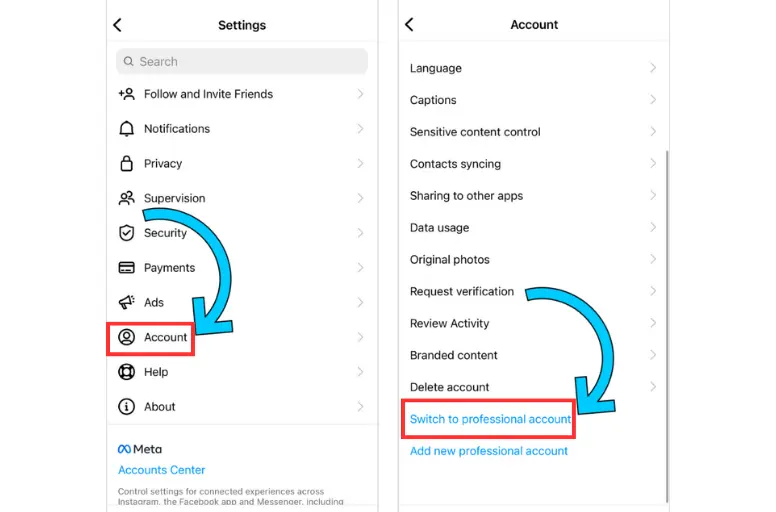
- Open your Instagram app, go to your profile, tap the three lines (hamburger icon) in the top right, and select “Settings and privacy.”
- Scroll down and tap “Account type and tools,” then “Switch to professional account.”
- Choose “Business” as your category and follow the prompts to select your business type (e.g., Retail, Beauty, Clothing).
- Review your contact information and ensure it’s accurate.
-
Connect Your Instagram Business Account to a Facebook Page:
- While still in your Instagram Business Profile settings, navigate to “Connected accounts” (sometimes found under “Accounts Center” or “Sharing to other apps”).
- Select “Facebook” and choose the specific Facebook Page that represents your business. If you don’t have one, you’ll be prompted to create one. This is a critical step as Instagram Shopping requires this link to pull product data from a Facebook Catalog. Ensure you have admin access to the chosen Facebook Page.
This linkage forms the backbone of the integration, allowing Meta’s systems to recognize your business across both platforms and centralize management of your digital assets.
Connecting Your Shopify Store to Facebook
This is the pivotal step where your Shopify product data begins its journey into the Meta ecosystem. Shopify provides a dedicated “Facebook Sales Channel” app to facilitate this.
-
Add the Facebook Sales Channel to Shopify:
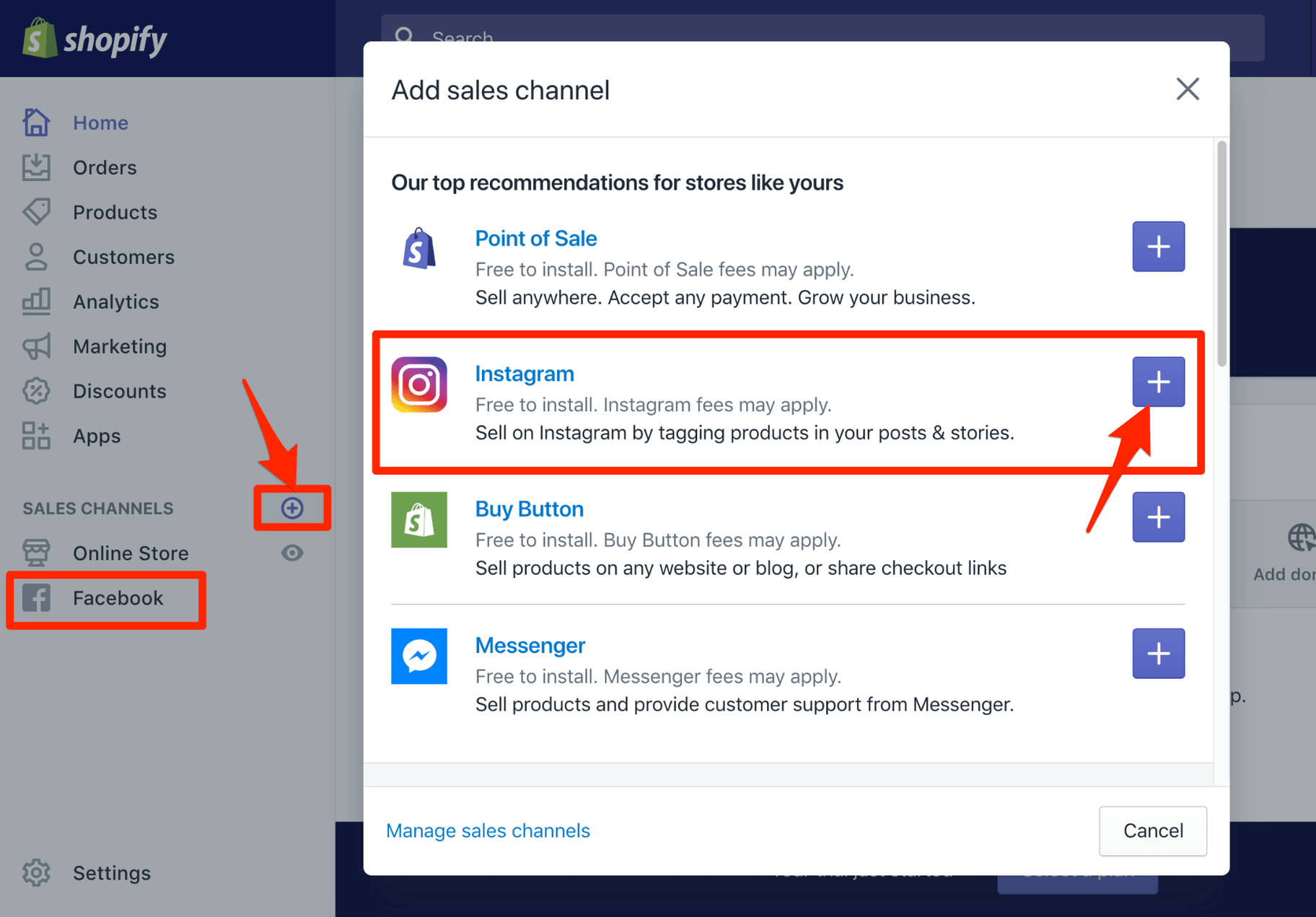
- From your Shopify admin, go to “Sales channels” > “Add sales channel.”
- Search for “Facebook” and click “Add channel.” This app is developed by Shopify and Meta to simplify the integration.
-
Connect Your Facebook Account:
- Once the Facebook Sales Channel is added, click “Start setup.”
- You’ll be prompted to connect your personal Facebook account that has admin access to your business’s Facebook Page. This is for authentication purposes, not to make your personal profile public.
-
Select Your Business Assets:
- Connect Facebook Page: Choose the Facebook Page you connected to your Instagram Business account in the previous step.
- Select Data Sharing Settings: This is crucial for performance tracking. Choose your preferred data sharing level (Standard, Enhanced, or Maximum). “Maximum” is generally recommended as it installs the Facebook Pixel on your Shopify store, allowing for comprehensive tracking of customer behavior, which is vital for retargeting and ad optimization.
- Select or Create Your Facebook Business Manager: If you have an existing Business Manager account, select it. If not, Shopify can help you create one.
- Select or Create Your Ad Account: Choose an existing ad account or create a new one. This is necessary for running Instagram and Facebook ads, though not strictly for enabling Instagram Shopping itself.
- Confirm Product Catalog: Shopify will automatically create a product catalog within your Facebook Business Manager (or link to an existing one). Ensure your Shopify products are selected to be synced to this catalog. This catalog is the source of truth for Instagram Shopping.
-
Review and Submit for Approval:
- After configuring these settings, review everything carefully. Shopify will then begin syncing your product catalog to Facebook. This process can take some time, depending on the number of products.
- Your product catalog will undergo a review by Meta to ensure compliance with their Commerce Policies.
Enabling Instagram Shopping and Product Tagging
With your product catalog now synced to Facebook, the final step is to activate Instagram Shopping features on your Instagram profile.

-
Access Commerce Manager:
- Go to Facebook’s Commerce Manager (business.facebook.com/commerce_manager).
- Select the catalog associated with your Shopify store.
- Navigate to “Shops” or “Channels” in the left-hand menu.
-
Set Up Instagram Shop:
- Follow the prompts to set up your Instagram Shop. This typically involves selecting your product catalog and submitting your shop for review by Instagram.
- Instagram will review your shop and catalog for compliance. This approval process can take a few days, so patience is key. You’ll receive a notification once approved.
-
Enable Shopping on Instagram App:
- Once approved, open your Instagram app, go to your profile, tap the three lines (hamburger icon), and then “Settings and privacy.”
- Scroll down to “Business tools and controls” (or “Creator tools and controls” for Creator accounts).
- You should now see an option for “Shopping” or “Set up Instagram Shopping.” Tap this and follow any final prompts to activate the feature on your profile.
-
Start Product Tagging:
- Now you can start tagging products in your new posts, stories, and Reels.
- When creating a new post, tap “Tag products.”
- Select the product from your synced catalog that you want to tag. You can tag up to 5 products per image or 20 per carousel post.
- For Stories, use the “Product” sticker to tag items.
- Once posts are published with product tags, a shopping bag icon will appear on them, indicating shoppable content.
Optimizing Your Connected Experience for E-commerce
Connecting the platforms is just the beginning. To truly leverage this integration for e-commerce success, ongoing optimization and management are essential. This involves strategic use of features, diligent product synchronization, and proactive performance monitoring.
Leveraging Instagram Shopping Features (Shop, Product Tags, Stickers)
Beyond basic product tagging, Instagram offers a suite of features designed to enhance the shopping experience and drive conversions.
- Instagram Shop Tab: Your approved Instagram Shop will appear as a dedicated tab on your profile, essentially creating a mini-storefront within Instagram. Populate this with compelling collections and ensure all relevant products are visible.
- Product Tags in Feeds & Reels: Consistently tag products in your organic feed posts and Reels. High-quality visuals are paramount. Utilize visually engaging content to showcase products in use, inspiring purchases.
- Shopping Stickers in Stories: Stories are highly engaging and perfect for ephemeral promotions, behind-the-scenes content, and quick product highlights. Use product stickers to link directly to items, making it easy for viewers to swipe up or tap to shop.
- Live Shopping: Instagram Live Shopping allows you to tag products that appear at the bottom of the screen during a live broadcast. This is excellent for product launches, Q&A sessions, and real-time demonstrations, offering an interactive shopping experience.
- Product Details Pages: When a customer taps a product tag, they see a product details page within Instagram. Ensure your Shopify product descriptions are concise, persuasive, and include all necessary information, as this directly influences the content on these pages.
Streamlining Product Synchronization and Management
The efficiency of your integrated storefront heavily relies on seamless product data flow between Shopify and Instagram/Facebook.
- Automatic Synchronization: Shopify’s Facebook Sales Channel automatically syncs product updates (e.g., inventory changes, price adjustments, new products, deletions) to your Facebook Product Catalog. This is crucial for preventing discrepancies and ensuring customers see accurate information.
- Managing Product Visibility: Within your Shopify admin, you can control which products are published to the Facebook Sales Channel. This allows you to selectively choose which items appear in your Instagram Shop or are available for tagging, perhaps excluding items that don’t fit the visual aesthetic of Instagram or are out of stock.
- Catalog Rules and Filters: In Commerce Manager, you can set up rules and filters for your product catalog. This is useful for creating specific product sets for different campaigns or for dynamically hiding out-of-stock items across all Meta platforms.
- Collections: Organize your products into appealing collections within Commerce Manager. These collections are then reflected in your Instagram Shop tab, making it easier for customers to browse categories.
Monitoring Performance and Troubleshooting Common Issues
Maintaining a healthy integration requires vigilance. Regular monitoring and proactive troubleshooting are essential to ensure the seamless operation of your shoppable Instagram presence.
- Performance Monitoring:
- Shopify Analytics: Track sales originating from the “Social” channel, specifically Instagram referrals.
- Instagram Insights: Monitor engagement on shoppable posts, taps on product tags, and visits to your Instagram Shop.
- Facebook Commerce Manager Insights: This dashboard provides comprehensive data on product views, catalog performance, and sales attributed to your Instagram Shop and other Meta surfaces.
- Facebook Pixel Data: If installed, the Facebook Pixel provides deep insights into customer journeys from Instagram to your Shopify store, allowing for detailed conversion tracking and audience segmentation for advertising.
- Common Troubleshooting Issues:
- Product Rejection: Products might be rejected if they violate Meta’s Commerce Policies. Review the specific rejection reason in Commerce Manager, edit the product details in Shopify, and resubmit.
- Products Not Showing: Ensure products are “published” to the Facebook Sales Channel in Shopify. Check if the product catalog in Commerce Manager is active and correctly linked. Sometimes, a full resync of the catalog might be necessary.
- Instagram Shopping Not Approved: Double-check all prerequisites: business account, linked Facebook Page, valid product catalog, and compliance with Commerce Policies. Contact Instagram/Facebook Business Support if issues persist after verifying all steps.
- Tagging Issues: If you can’t tag products, ensure Instagram Shopping is fully enabled on your app and that the product is present and approved in your connected catalog.
- Slow Syncing: Large catalogs can take time to sync initially. For ongoing updates, ensure your internet connection is stable, and periodically check the sync status in your Shopify Facebook Sales Channel settings.
Advanced Integration Strategies and Future-Proofing
Once the core integration is stable, businesses can explore advanced tactics to further enhance their e-commerce capabilities and prepare for future platform changes.
Exploring Third-Party Apps for Enhanced Automation
While the native Shopify-Instagram integration offers robust functionality, the Shopify App Store provides a wealth of third-party applications that can extend capabilities, automate processes, and provide deeper insights.
- Feed Management Apps: Apps like “Data Feed Watch” or “Feedonomics” offer advanced control over your product feed, allowing for highly customized product titles, descriptions, and attributes specifically tailored for Instagram’s requirements or for different marketing campaigns. This can improve product discoverability and click-through rates.
- UGC (User-Generated Content) Apps: Tools such as “Loox” or “Foursixty” can help collect and display customer photos and videos, which can then be directly linked to products and used as shoppable content on Instagram, building social proof and trust.
- Dynamic Retargeting Apps: While the Facebook Pixel enables basic retargeting, specialized apps can offer more granular control over retargeting campaigns based on specific product views or cart abandonment events, driving customers back to your Shopify store.
- Influencer Marketing Platforms: Integrating platforms that connect you with influencers can automate the process of sending products, tracking affiliate links, and measuring the ROI of influencer campaigns, turning influencer content into shoppable experiences.
These apps leverage APIs to create a more sophisticated and automated ecosystem around your core Shopify-Instagram integration, allowing for greater customization and efficiency.
Keeping Up with Platform Updates and API Changes
The digital landscape, especially within social media and e-commerce, is constantly evolving. Both Shopify and Meta regularly release updates, new features, and sometimes alter their API structures.
- Stay Informed: Regularly check Shopify’s blog, Meta’s developer documentation, and official announcements from both platforms. Subscribing to their newsletters can keep you abreast of changes that might impact your integration.
- Test New Features: When new shopping features or integration options are rolled out, test them in a controlled environment if possible. Understand how they might benefit your business or require adjustments to your current setup.
- Adapt to Policy Changes: Meta’s Commerce Policies and advertising guidelines can change. Stay informed to ensure your products and marketing efforts remain compliant to avoid service interruptions or account suspensions.
- Review App Compatibility: If you’re using third-party apps, ensure they remain compatible with updates from Shopify and Meta. App developers typically update their tools, but it’s good practice to verify.
Proactive engagement with platform updates ensures your integrated e-commerce strategy remains agile, optimized, and prepared for future innovations, maintaining a competitive edge in the fast-paced digital market.
Conclusion
Connecting your Shopify store to Instagram is a strategic technical endeavor that unlocks significant e-commerce potential. By meticulously following the setup steps, understanding the underlying technological synergy, and diligently optimizing your integrated presence, you transform your social media engagement into a direct sales channel. From setting up your Instagram Business Profile and linking your Facebook Page to leveraging Shopify’s Facebook Sales Channel for seamless product synchronization and enabling Instagram Shopping features, each step builds towards a more robust and efficient online sales ecosystem.
The true power of this integration lies not just in its initial setup but in its continuous management and optimization. By actively utilizing Instagram’s shoppable features, ensuring accurate product data, monitoring performance metrics, and staying abreast of platform updates, businesses can create a dynamic, frictionless shopping experience for their customers. This technical integration serves as a powerful bridge, connecting product discovery with purchase completion, ultimately driving growth and enhancing your brand’s digital footprint in the competitive world of online retail.
aViewFromTheCave is a participant in the Amazon Services LLC Associates Program, an affiliate advertising program designed to provide a means for sites to earn advertising fees by advertising and linking to Amazon.com. Amazon, the Amazon logo, AmazonSupply, and the AmazonSupply logo are trademarks of Amazon.com, Inc. or its affiliates. As an Amazon Associate we earn affiliate commissions from qualifying purchases.