
The proliferation of streaming services has ushered in an era of unprecedented content choice, but it has also introduced a new layer of digital subscription management. For many users, Roku devices serve as a central hub for accessing these diverse platforms, from Netflix and Hulu to specialized services like Paramount+. While the ease of subscribing is often lauded, understanding how to gracefully exit a subscription, especially one billed through a third-party platform like Roku, can sometimes prove challenging. This guide provides a detailed, step-by-step tutorial on how to cancel your Paramount+ subscription specifically when it’s managed through your Roku account, ensuring a smooth and hassle-free process. We’ll delve into the nuances of the Roku ecosystem, clarify common misconceptions, and equip you with the knowledge to manage your digital subscriptions effectively.
Understanding Your Paramount+ Subscription on Roku
Before diving into the cancellation process, it’s crucial to understand how your Paramount+ subscription is configured within the Roku ecosystem. This initial assessment will dictate the correct method for cancellation and prevent potential frustration.
The Roku Ecosystem and Third-Party Subscriptions
Roku, as a leading streaming platform, acts as an aggregator for countless applications, often referred to as “channels.” Users can subscribe to many of these services directly through the Roku Channel Store, allowing Roku to manage the billing on behalf of the content provider. This integration offers convenience, consolidating various subscriptions under a single Roku bill, but it also means that cancellation must occur through Roku’s interface, not directly through Paramount+’s website. If you used your Roku device to initiate the Paramount+ free trial or subscription, chances are Roku is your billing intermediary. Roku’s role here is a technical one, simplifying transaction management for users but also centralizing the point of control for subscription lifecycle events like cancellation.
Identifying Your Subscription Origin (Roku Channel Store vs. Paramount+ Direct)
The single most critical step in cancelling Paramount+ is determining how you originally subscribed. Misidentifying your subscription origin is the leading cause of failed cancellation attempts.
- Subscribed via Roku (Roku Channel Store): If you added Paramount+ through the Roku Channel Store on your Roku device or via the Roku website, and your billing statements show “Roku” as the payee for Paramount+, then your subscription is managed by Roku. This guide is specifically for you. Roku provides a unified billing system for these subscriptions, streamlining the financial aspect for consumers but requiring their platform for management.
- Subscribed Directly via Paramount+ Website or App: If you signed up on the Paramount+ website, through their standalone mobile app (e.g., via the iOS App Store or Google Play Store), or through another platform like Amazon Prime Video Channels, then Roku is merely the viewer of the content, not the billing manager. In this scenario, you would need to cancel directly through the platform you used to subscribe (e.g., paramountplus.com, Apple App Store settings, Google Play subscriptions, Amazon account). Attempting to cancel via Roku in this instance will be fruitless as Roku has no record of your payment details for that specific subscription. A quick check of your bank statement or email receipts will confirm who is billing you, offering the definitive answer.
Why You Might Be Considering Cancellation (Cost, Content, Usage)
Users decide to cancel streaming subscriptions for a myriad of reasons, often a blend of practical and experiential factors specific to the technology service itself:
- Cost Management: In an age of “subscription fatigue,” managing monthly expenditures is paramount. Even seemingly small monthly fees can accumulate, making periodic reviews and cancellations a necessary part of optimizing digital service spending. From a tech perspective, this is about efficiently allocating resources across various digital platforms.
- Content Rotation: Streaming services frequently rotate their content libraries. You might have subscribed for a specific show or movie that has concluded or moved to another platform, diminishing the value proposition for you. This reflects the dynamic nature of digital content licensing and availability.
- Infrequent Usage: Perhaps you initially signed up with good intentions but find yourself rarely accessing Paramount+. Keeping an active subscription for a service you don’t use is a common reason for cancellation, representing an inefficiency in your digital consumption habits.
- Exploring Alternatives: The streaming landscape is constantly evolving, with new services and bundles emerging. You might be shifting your entertainment budget to explore a different platform that better suits your current interests. This is a common pattern in technology adoption, where users migrate to newer or more feature-rich alternatives.
Step-by-Step Guide: Cancelling via Your Roku Device
For those whose Paramount+ subscription is billed directly through Roku, the most intuitive way to cancel is often right from your Roku device itself. This method is straightforward and doesn’t require access to a computer.
Accessing the Roku Home Screen and Channel List
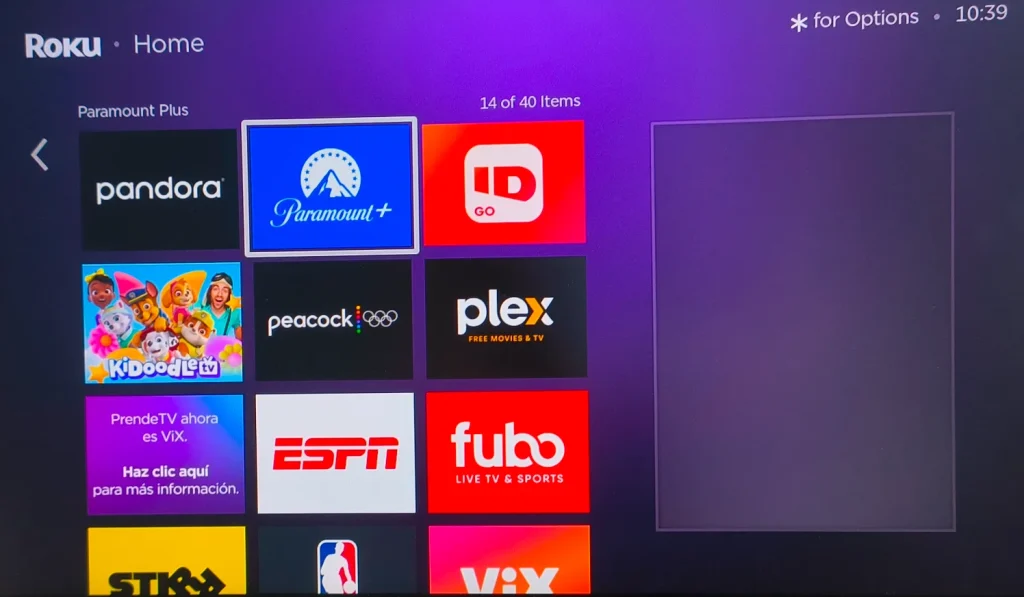
First, ensure your Roku device is powered on and connected to your TV. Navigate to the Roku home screen. This is typically the screen you see when you first turn on your TV and select the Roku input, displaying all your installed channels in a grid format. Familiarity with the Roku UI is key here.
Locating the Paramount+ Channel and Options Menu
Scroll through your list of channels to find the Paramount+ channel icon. Once you’ve highlighted the Paramount+ channel icon, do not press OK/Select. Instead, press the asterisk (*) button on your Roku remote. This action is crucial, as it opens a small, context-sensitive options menu specific to that channel, a fundamental aspect of Roku’s channel management interface.
Initiating the Cancellation Process on Roku
Within the options menu that appears after pressing the asterisk button, you will see several choices. Look for an option titled “Manage subscription” or “Manage channel” (the exact wording can vary slightly depending on your Roku model and software version). Select this option. This feature is part of Roku’s integrated subscription management system.
On the next screen, you should see details about your Paramount+ subscription, including the renewal date and pricing. Crucially, there will be an option to “Cancel subscription.” Select this option.
Roku will typically ask you to confirm your decision, often presenting a brief survey about why you are cancelling. While optional, providing feedback can sometimes help service providers improve their offerings based on user experience data. Follow the on-screen prompts to confirm your cancellation. You may be required to enter your Roku PIN if you have one set up for purchases and subscriptions, an important digital security measure.
Confirmation and What to Expect After Cancellation
Once you’ve confirmed, Roku will provide a confirmation message indicating that your Paramount+ subscription has been cancelled. You will also usually receive an email confirmation from Roku to the email address associated with your Roku account. It’s vital to keep this confirmation email as digital proof of cancellation, serving as your record.
After cancellation, your access to Paramount+ content will typically continue until the end of your current billing period. For example, if your subscription renews on the 15th of the month and you cancel on the 5th, you will still have access until the 14th. Roku does not usually provide pro-rated refunds for the remaining days of a billing cycle. Once the current billing period ends, your access will cease, and you will no longer be charged. This is standard practice across many digital subscription platforms.
Step-by-Step Guide: Cancelling via the Roku Website
If you prefer to manage your subscriptions from a computer or mobile browser, or if you don’t have immediate access to your Roku device, cancelling via the Roku website is an equally effective method. This leverages Roku’s online account management portal.
Logging into Your Roku Account Online
Open a web browser on your computer or mobile device and navigate to the official Roku website (www.roku.com). In the top right corner, locate and click on the “Sign In” or “My Account” link. Enter the email address and password associated with your Roku account. It’s imperative that you log into the correct Roku account that manages your Paramount+ subscription. If you have multiple Roku accounts, ensure you’re using the one linked to the device on which you subscribed. This is a common troubleshooting step for digital account management.
Navigating to “Manage Your Subscriptions”
Once logged in, you’ll be taken to your Roku account dashboard. On the left-hand navigation panel or somewhere prominent on the page, look for a section or link titled “Manage your subscriptions” or “Subscriptions.” Click on this link. This dedicated section provides a centralized overview of all third-party channels you’ve subscribed to directly through Roku, showcasing the platform’s comprehensive billing integration.
Finding Paramount+ and Executing Cancellation
Within the “Manage your subscriptions” page, you will see a list of all active subscriptions billed through Roku. Locate Paramount+ in this list. Next to the Paramount+ entry, there should be an option to “Cancel subscription” or a similar button. Click this button.
Similar to the device-based cancellation, Roku will likely prompt you for confirmation and potentially ask for feedback. Complete these steps, entering your Roku PIN if prompted, to finalize the cancellation. This multi-step confirmation process is a common design pattern in digital interfaces to prevent accidental cancellations.
Verifying Cancellation Status Online
After completing the cancellation process, the status of your Paramount+ subscription on the “Manage your subscriptions” page should update to reflect that it is “Pending cancellation” or “Will cancel on [date].” You should also receive an email confirmation from Roku. Periodically checking this page or your email for confirmation is a good practice to ensure the cancellation was successful, providing a digital paper trail for your records and peace of mind.
Common Pitfalls and Troubleshooting During Cancellation
Even with clear instructions, users can sometimes encounter issues. Being aware of these common pitfalls can help you troubleshoot effectively, leveraging your understanding of digital systems.
Incorrect Account Login or Forgotten Credentials
One of the most frequent problems is attempting to cancel from the wrong Roku account or being unable to log in due to forgotten passwords. This highlights the importance of robust digital identity management.
- Solution: Double-check the email address associated with your Roku account that is actively billing you for Paramount+. If you’ve forgotten your password, use the “Forgot password?” link on the Roku login page to reset it. Ensure you’re logging into the account tied to the device where the subscription was initiated, as multiple accounts can complicate digital service management.
Subscription Not Appearing in Roku Management
If you’ve followed the steps but Paramount+ doesn’t appear in your “Manage subscriptions” list (either on the device or online), it’s a strong indicator that Roku is not your billing provider. This is a common technical misunderstanding regarding billing intermediaries.
- Solution: Refer back to “Identifying Your Subscription Origin.” Check your bank statements or email receipts to see who is billing you for Paramount+. You will need to cancel directly through that platform (e.g., paramountplus.com, Apple App Store, Google Play, Amazon). Roku only manages subscriptions initiated through its own channel store.
“Cancel Subscription” Option Missing or Grayed Out
In rare cases, the “Cancel subscription” option might be unavailable. This could happen if the subscription has already been cancelled, if it’s a free trial that will simply expire, or if there’s a temporary system glitch within Roku’s platform.
- Solution: First, confirm the subscription status. Check your email for past cancellation confirmations or your bank statement to see if you’re still being charged. If you are, and the option is still missing, contact Roku Customer Support directly. Provide them with your Roku account details and the issue you are facing, as this might require back-end support.
Dealing with Billing Cycles and Refunds
Understanding Roku’s billing policies is crucial, as they align with general practices for digital subscriptions. Roku typically bills for subscriptions at the beginning of a cycle (monthly or annually) and does not offer pro-rated refunds for cancellations mid-cycle.
- Solution: Plan your cancellation strategically. If you want to maximize your value, cancel a day or two before your next billing date. Your access will continue until the end of the current paid period. Refunds are generally only provided in specific circumstances, such as unauthorized charges or verifiable technical errors attributable to Roku. If you believe you are entitled to a refund, you will need to contact Roku Customer Support with a detailed explanation and any supporting evidence.
Alternatives and What Comes Next
Cancelling a subscription doesn’t always have to be a permanent farewell. There are often other options to consider, and the world of streaming remains vast and inviting, showcasing the dynamic nature of digital entertainment.
Pausing vs. Cancelling Your Subscription
Some streaming services, though not all, offer a “pause” option. This allows you to temporarily suspend your subscription without fully cancelling, retaining your preferences and making it easier to resume later. This feature is about user convenience in managing their digital subscriptions.
- Consideration: While Paramount+ doesn’t explicitly offer a “pause” feature through Roku’s billing interface, if you’re only taking a short break (e.g., vacation, temporary content drought), you might weigh the cost of cancelling and then re-subscribing versus just letting it run for another month. Re-subscribing is usually straightforward, so a full cancellation is often the cleanest break and provides complete disengagement from the service’s billing cycle.
Exploring Other Streaming Options on Roku
Roku’s strength lies in its expansive channel library. Cancelling Paramount+ opens up budget and time for exploring other content, reflecting the platform’s role as a gateway to diverse digital media.
- Action: Browse the Roku Channel Store. Discover new free ad-supported streaming television (FAST) channels, explore other premium services, or even delve into niche content providers. Roku offers everything from news and sports to international content and specialized documentaries. Consider services with free trials to test them out before committing, a smart strategy for digital service exploration.
Re-subscribing to Paramount+ in the Future
If you cancel Paramount+ and later find that new content has arrived, or your viewing habits change, re-subscribing is usually a seamless process, demonstrating the flexibility of digital subscriptions.
- Process: Simply re-add the Paramount+ channel from the Roku Channel Store, or log in via the Paramount+ app/website and reactivate your subscription. Roku often remembers your payment information, making the process quick. Your previous viewing history and profiles might even be retained, depending on how Paramount+ manages user data post-cancellation, showcasing varying approaches to user data retention within streaming services.
Conclusion
Managing your digital subscriptions, especially those integrated into platforms like Roku, is a core aspect of modern tech literacy. By understanding whether your Paramount+ subscription is billed via Roku or directly, and by following the clear steps outlined above, you can confidently navigate the cancellation process. Whether you choose to cancel from your Roku device or through the Roku website, the procedure is designed to be user-friendly and transparent. Armed with this knowledge, you are empowered to make informed decisions about your streaming portfolio, ensuring that your entertainment budget aligns with your viewing preferences and usage habits. This level of technical understanding and control is fundamental to maximizing the value of your digital ecosystem. Happy streaming, and confident cancelling!
aViewFromTheCave is a participant in the Amazon Services LLC Associates Program, an affiliate advertising program designed to provide a means for sites to earn advertising fees by advertising and linking to Amazon.com. Amazon, the Amazon logo, AmazonSupply, and the AmazonSupply logo are trademarks of Amazon.com, Inc. or its affiliates. As an Amazon Associate we earn affiliate commissions from qualifying purchases.