
In today’s crowded streaming landscape, managing your digital subscriptions has become an essential aspect of personal tech management. Services like Paramount Plus offer a vast library of entertainment, from exclusive originals to live sports and news. However, user needs and preferences evolve, leading many to consider canceling subscriptions for various reasons – perhaps to save money, declutter their streaming lineup, or simply because they’ve exhausted the available content. Understanding the process of canceling a streaming service subscription is a fundamental digital literacy skill, ensuring you retain control over your digital consumption and spending.
This guide provides a comprehensive, step-by-step tutorial on how to cancel your Paramount Plus subscription, regardless of where you initially signed up. We’ll delve into the nuances of different cancellation pathways, what to expect post-cancellation, and how to troubleshoot common issues, all within the context of managing your digital entertainment ecosystem efficiently.
Navigating Your Paramount Plus Subscription Landscape
Before diving into the cancellation steps, it’s crucial to understand the foundational aspects of your Paramount Plus subscription. This knowledge will streamline the cancellation process and help you anticipate what happens next. The digital nature of streaming services means that how and where you manage your subscription is often tied to the initial point of purchase.
Understanding Billing Cycles and Auto-Renewal
Paramount Plus, like most subscription services, operates on an auto-renewal model. This means that once you sign up, your subscription will automatically renew at the end of each billing cycle (typically monthly or annually) unless you explicitly cancel it. When you cancel, you’re usually stopping the next auto-renewal, meaning you’ll still have access to the service until the current billing period expires. For instance, if your subscription renews on the 15th of the month and you cancel on the 5th, you’ll still be able to watch Paramount Plus until the 14th. There are generally no refunds for partial months or years already paid. Being aware of your next billing date is key to planning your cancellation, especially if you wish to use the service right up to the last moment.
The Importance of Where You Subscribed
The single most critical factor determining your cancellation path is where you originally subscribed to Paramount Plus. While the service itself is Paramount Plus, the billing and subscription management can be handled by various third-party platforms. Common subscription points include:
- Paramount Plus Website: Direct subscriptions made through paramountplus.com.
- Apple App Store: Subscriptions initiated via an iOS device (iPhone, iPad) and billed through your Apple ID.
- Google Play Store: Subscriptions initiated via an Android device and billed through your Google account.
- Amazon Appstore / Prime Video Channels: Subscriptions made through Amazon devices (Fire TV, Fire Tablet) or as an add-on channel within Amazon Prime Video.
- Roku: Subscriptions made directly through a Roku device or Roku Channel Store.
- Other Third-Party Providers: This includes cable/internet providers (e.g., Xfinity, Verizon, Cox), telecom companies, or other digital storefronts that bundle streaming services.
Each of these platforms has its own distinct subscription management portal, which is where you’ll need to go to initiate the cancellation. Attempting to cancel through the Paramount Plus website if you subscribed via Apple, for instance, will likely lead to frustration and a redirection message.
Comprehensive Guides for Canceling Your Paramount Plus Subscription
With an understanding of your subscription’s origin, you can now follow the specific instructions relevant to your situation. These step-by-step guides cover the most common platforms.
Canceling Directly via the Paramount Plus Website
This is the most straightforward method if you subscribed directly through paramountplus.com using a web browser.
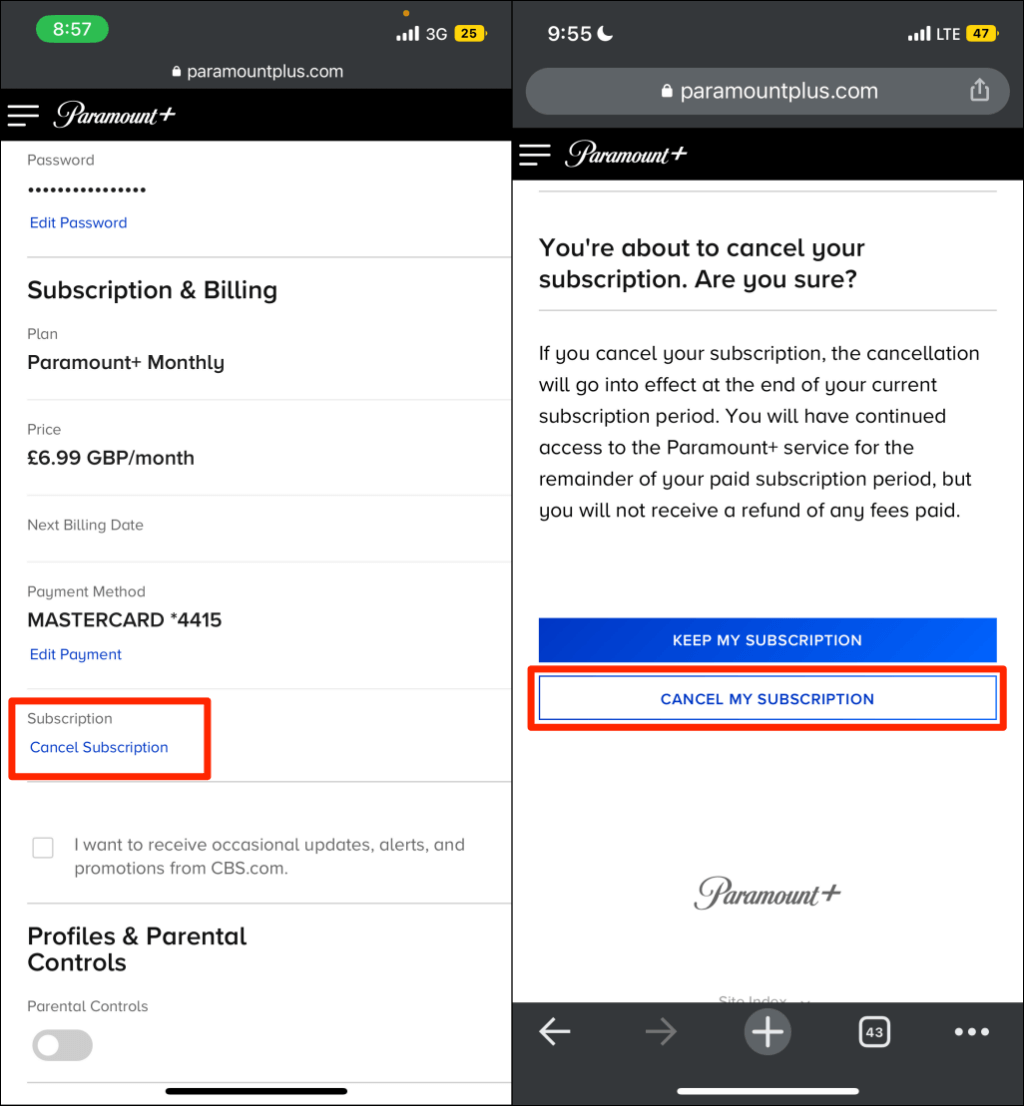
- Access the Paramount Plus Website: Open your preferred web browser and navigate to paramountplus.com.
- Log In to Your Account: Enter your email address and password associated with your Paramount Plus subscription. If you’ve forgotten your password, use the “Forgot Password” link to reset it.
- Navigate to Your Account Settings: Once logged in, click on your profile icon (usually in the top-right corner). From the dropdown menu, select “Account.”
- Locate Subscription & Billing: On your Account page, look for a section labeled “Subscription & Billing” or similar. This is where your plan details and billing information are displayed.
- Initiate Cancellation: Within the “Subscription & Billing” section, you should see an option to “Cancel Subscription.” Click on this link.
- Follow On-Screen Prompts: Paramount Plus may ask you to confirm your decision or provide a reason for canceling. Complete these steps as prompted.
- Confirm Cancellation: You will receive a confirmation message on the screen and likely an email confirming that your subscription has been canceled. Keep this email for your records.
Canceling via Apple App Store (iOS Devices)
If you subscribed using an iPhone, iPad, or Apple TV, your subscription is managed through your Apple ID.
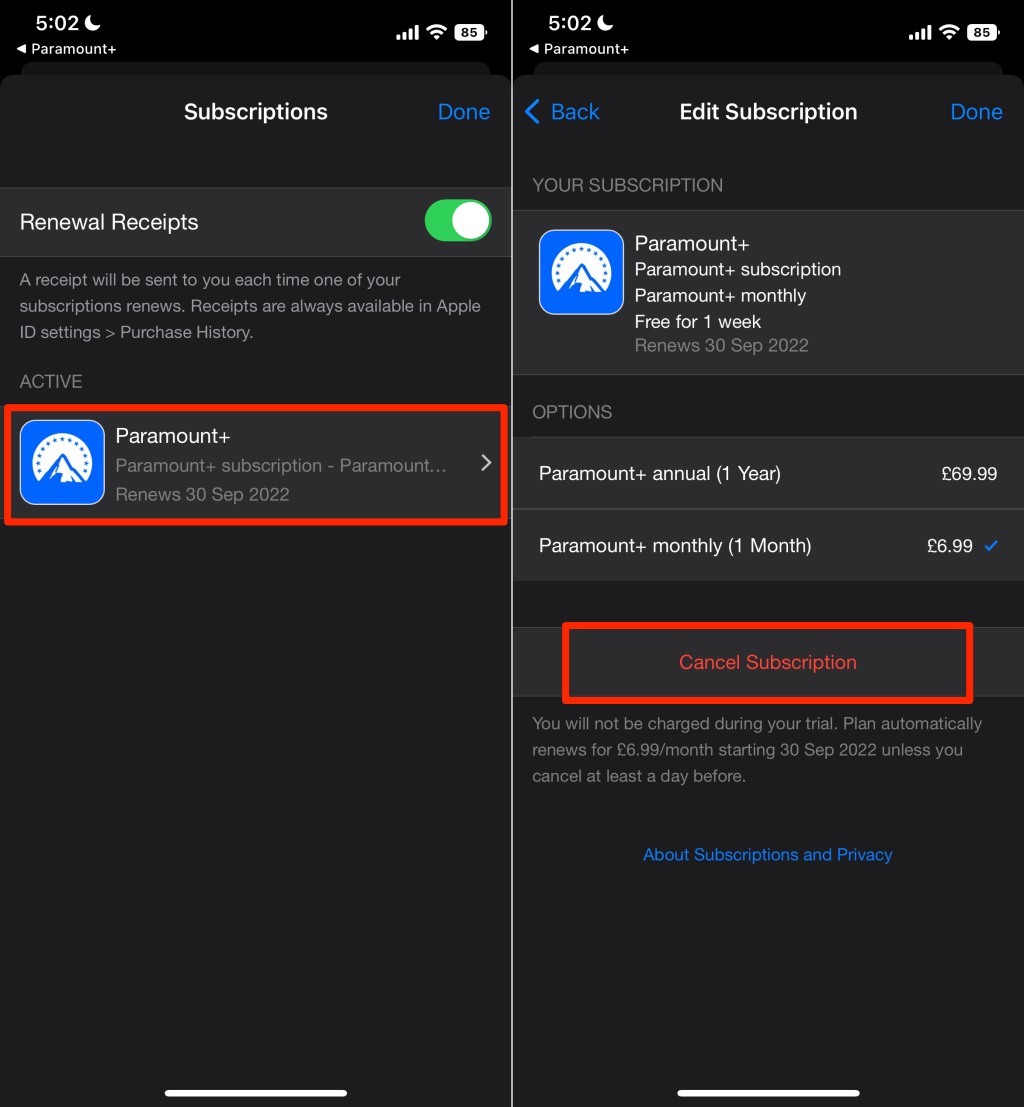
- Open Settings: On your iOS device, tap the “Settings” app.
- Access Apple ID: Tap on your name at the very top of the Settings menu.
- Go to Subscriptions: Tap “Subscriptions.” You may need to authenticate with Face ID, Touch ID, or your Apple ID password.
- Find Paramount Plus: From the list of active subscriptions, locate and tap on “Paramount Plus.”
- Cancel Subscription: Tap “Cancel Subscription.”
- Confirm: Confirm your cancellation when prompted. You will see an expiration date, indicating when your access will end.
Canceling via Google Play Store (Android Devices)
For subscriptions initiated on an Android phone, tablet, or Android TV, Google Play Store manages your billing.
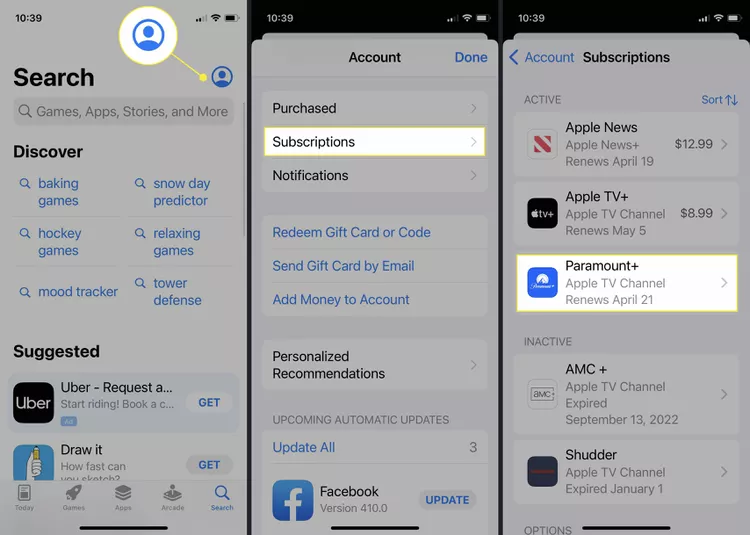
- Open Google Play Store App: Launch the “Google Play Store” app on your Android device.
- Access Menu: Tap on your profile icon (usually in the top-right corner).
- Navigate to Payments & Subscriptions: From the menu, tap “Payments & subscriptions,” then “Subscriptions.”
- Find Paramount Plus: Locate “Paramount Plus” in your list of active subscriptions.
- Cancel Subscription: Tap on Paramount Plus, then tap “Cancel subscription.”
- Follow Prompts and Confirm: You may be asked to provide a reason for cancellation. Complete the prompts and confirm your decision.
Canceling via Amazon Appstore / Prime Video Channels
If you subscribed through an Amazon device (Fire TV, Fire Tablet) or added Paramount Plus as a channel via Amazon Prime Video.
- Go to Amazon Website: Open a web browser and go to amazon.com.
- Log In: Log in to your Amazon account associated with the subscription.
- Access Memberships & Subscriptions: Hover over “Accounts & Lists” in the top-right corner, then click on “Memberships & Subscriptions.”
- Find Paramount Plus: Scroll through your list of digital subscriptions and locate “Paramount Plus.”
- Manage Subscription: Click on the “Manage subscription” button next to Paramount Plus.
- Cancel Channel / Subscription: Look for an option to “Cancel Channel” or “Cancel Subscription.”
- Confirm: Follow any final prompts to confirm your cancellation.
Canceling via Roku Devices
If your subscription was made directly through a Roku device or the Roku Channel Store.
- Go to Roku Home Screen: On your Roku device, press the “Home” button on your remote control.
- Highlight Paramount Plus Channel: Navigate to the Paramount Plus channel tile on your home screen. Do not open the channel.
- Open Options Menu: Press the “Star” button (*) on your Roku remote.
- Manage Subscription: From the options menu that appears, select “Manage subscription.”
- Cancel Subscription: Select “Cancel subscription.”
- Follow Prompts and Confirm: Follow the on-screen instructions to complete and confirm your cancellation.
Canceling via Other Third-Party Platforms
For subscriptions bundled with other services (e.g., Xfinity, Verizon, T-Mobile), the cancellation process will depend on that specific provider.
- Identify Your Provider: Determine which company is billing you for Paramount Plus.
- Visit Provider’s Website or App: Go to the official website or app of your third-party provider.
- Log In to Your Account: Access your account management portal.
- Navigate to Subscriptions/Add-ons: Look for sections related to “Services,” “Subscriptions,” “Add-ons,” or “Bundles.”
- Manage Paramount Plus: Find Paramount Plus within your list of services and follow their specific instructions to cancel. This may involve a phone call to customer service for some providers.
What to Expect After Cancellation
Once you’ve successfully navigated the cancellation process, it’s helpful to know what happens next and how your access to Paramount Plus will be affected.
Continued Access Until Your Billing Cycle Ends
A key aspect of most streaming service cancellations is that you typically retain access to the content until the end of your current paid billing period. If your monthly subscription renewed on June 1st and you cancel on June 10th, you can still watch Paramount Plus until June 30th. This ensures you get the full value for the period you’ve already paid for, and it allows for a smooth transition without immediate loss of access.
No Immediate Refunds for Partial Periods
It’s important to note that Paramount Plus, like most subscription services, generally does not offer refunds for any unused portion of a billing cycle once payment has been processed. The cancellation primarily stops future charges. Therefore, canceling mid-month or mid-year will not result in a prorated refund; instead, your access simply continues until the current period expires. If you believe you have a unique circumstance warranting a refund (e.g., technical issues prevented use, unauthorized charges), you would need to contact Paramount Plus customer support directly, or the third-party platform that billed you (Apple, Google, Amazon, etc.).
Rejoining Paramount Plus in the Future
Should you decide to subscribe to Paramount Plus again in the future, the process is usually seamless. Your account details, profiles, and watch history are often saved for a certain period, allowing you to pick up where you left off. Paramount Plus frequently offers promotional deals for returning subscribers, so keep an eye out for those if you plan to resubscribe. The flexibility to easily cancel and resubscribe empowers users to manage their entertainment budget more dynamically, opting in and out of services as their content needs and financial situations change.
Troubleshooting Common Cancellation Issues
Even with clear instructions, users can sometimes encounter unexpected hurdles. Here’s how to address some common problems when trying to cancel your Paramount Plus subscription.
“I Can’t Find the Cancellation Option!”
This is by far the most frequent issue and almost always boils down to one thing: you’re trying to cancel on the wrong platform. If you’re on the Paramount Plus website but can’t see a “Cancel Subscription” button, it’s highly likely you subscribed through a third-party like Apple, Google, Amazon, or Roku.
Solution: Double-check your billing statements (bank statement, credit card statement, PayPal history) to see where the Paramount Plus charge originates. The charge will usually specify “Apple,” “Google,” “Amazon,” “Roku,” or “Paramount Plus” directly. Once you identify the billing entity, follow the corresponding cancellation steps provided earlier in this guide.
Billing Discrepancies After Cancellation
If you’ve canceled but still see charges appearing for Paramount Plus, there are a few potential reasons:
- You Canceled After the Auto-Renewal Date: The charge you see might be for the current billing cycle, which had already renewed before your cancellation took effect. Access will continue until the end of this period.
- Multiple Accounts: You might have inadvertently created a second Paramount Plus account with a different email address or through a different platform.
- Cancellation Not Fully Processed: Ensure you received a confirmation email or saw a confirmation message on the screen. If not, the cancellation might not have been fully submitted.
Solution: Review your confirmation emails and account settings. If discrepancies persist, gather all relevant information (account details, cancellation confirmation, billing statements) and contact Paramount Plus customer support directly, or the support for the third-party platform that is billing you.
Forgetting Where You Subscribed From
It’s easy to forget the exact platform used for the initial sign-up, especially if you have multiple devices or accounts.
Solution:
- Check your email archives: Search your email accounts for “Paramount Plus subscription,” “receipt,” or “confirmation.” The sender or the body of the email will usually indicate the billing platform (e.g., “Your subscription via Apple,” “Google Play receipt”).
- Review bank/credit card statements: Look for the specific wording of the charge.
- Check common app stores: Log into your Apple App Store, Google Play Store, and Amazon account subscriptions sections to see if Paramount Plus is listed there.
Contacting Paramount Plus Support
If you’ve exhausted the self-service options and are still facing issues, contacting Paramount Plus customer support is the next step.
How to contact: Visit the official Paramount Plus Help Center on their website. They typically offer FAQs, a community forum, and direct contact options such as live chat or email support. Be prepared with your account details, billing information, and a clear description of your problem to ensure an efficient resolution.
Conclusion: Mastering Your Digital Subscriptions
Canceling a Paramount Plus subscription, while seemingly a minor task, represents a broader trend in how we manage our digital lives. As the ecosystem of apps, streaming services, and online tools grows, the ability to effortlessly subscribe, manage, and cancel these services becomes a crucial aspect of digital literacy. Staying on top of your subscriptions not only helps you control your entertainment budget but also gives you agency over your digital footprint.
This detailed guide has hopefully demystified the process, empowering you to confidently manage your Paramount Plus subscription, or any other digital service for that matter. Remember, the key is to identify your original point of purchase and follow the corresponding steps. By understanding the underlying tech infrastructure of these services, you can ensure a smooth, hassle-free experience, allowing you to customize your digital entertainment to perfectly fit your evolving preferences and needs. You are in control of your digital world.
aViewFromTheCave is a participant in the Amazon Services LLC Associates Program, an affiliate advertising program designed to provide a means for sites to earn advertising fees by advertising and linking to Amazon.com. Amazon, the Amazon logo, AmazonSupply, and the AmazonSupply logo are trademarks of Amazon.com, Inc. or its affiliates. As an Amazon Associate we earn affiliate commissions from qualifying purchases.