
In the ever-evolving landscape of technology, staying current with software updates is often touted as a crucial step for security and performance. However, for some users, particularly those who rely on a stable, predictable computing environment for critical tasks, the automatic installation of macOS updates can be a source of frustration and even disruption. Whether you’re a creative professional meticulously managing your workflow, a developer testing specific software versions, or simply someone who prefers to be in complete control of when and how your system changes, the prospect of your MacBook spontaneously rebooting to install a major update can be daunting. This article delves into the practical steps you can take to prevent your MacBook from automatically installing software updates, offering you the reins of control over your digital workspace.
The primary motivations behind wanting to disable automatic updates typically stem from a desire for control and stability. Unexpected updates can introduce bugs, break compatibility with essential software, or change user interface elements that you’ve grown accustomed to, leading to a steep learning curve or workflow interruptions. For businesses and individuals alike, predictable system behavior is paramount. This guide will navigate you through the settings and strategies to ensure your MacBook updates on your terms, not on Apple’s schedule.
Understanding macOS Update Mechanisms
Before we dive into disabling automatic updates, it’s essential to understand how macOS handles them. Apple designs its update system with security and user experience in mind, aiming to keep the vast majority of users on the latest, most secure versions of the operating system. This is achieved through a multi-faceted approach involving System Preferences (now System Settings) and background processes.
Automatic Download and Installation
macOS typically operates on a default setting where it will not only notify you of available updates but also download them in the background. For minor updates (like security patches), it might even proceed to install them automatically during periods of inactivity, often prompting for a restart. Major macOS version upgrades, while generally requiring explicit user initiation, can also be set to download and present themselves for installation. The system tries to be smart about this, often choosing times when your Mac is idle and connected to a power source. However, “smart” doesn’t always equate to “convenient” for every user.
The Role of System Settings
The central hub for managing update preferences lies within System Settings (or System Preferences on older macOS versions). Here, you’ll find toggles that control whether your Mac downloads updates automatically, installs them, and even downloads macOS installers. Understanding these specific settings is the first step in gaining control.
Security Updates vs. Feature Updates
It’s also worth noting that Apple categorizes updates. Security updates are critical for patching vulnerabilities and are often pushed more aggressively. Feature updates, which introduce new functionalities and significant UI changes, are typically larger and may require more deliberate installation. While this guide focuses on preventing all automatic installations, it’s important to be aware of this distinction, as some users might wish to allow automatic security patches while disabling major upgrades.
Controlling Automatic Updates Through System Settings
The most direct and effective way to prevent automatic installations is by adjusting the settings within your macOS System Settings. This provides granular control over what gets downloaded and installed without your direct intervention.
Navigating to Software Update Settings
The exact location of these settings has shifted slightly between macOS versions.
- On macOS Ventura and later: Open System Settings from the Apple menu. Scroll down and click on General in the sidebar. Then, click on Software Update.
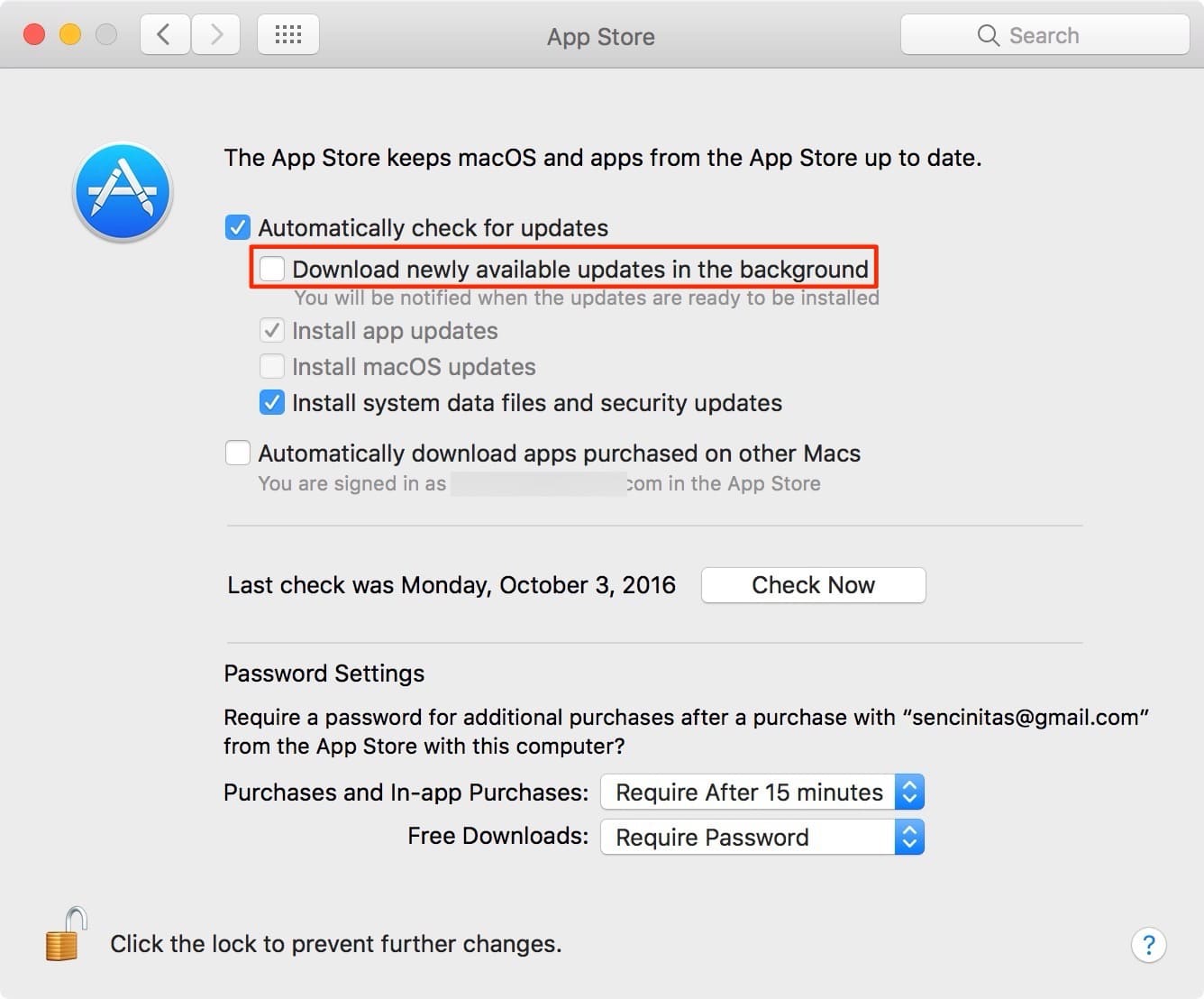
- On macOS Monterey and earlier: Open System Preferences from the Apple menu. Click on Software Update.
Once you’ve located the Software Update pane, you’ll find a section dedicated to automatic updates.
Disabling Automatic Download and Installation
Within the Software Update settings, you will see options related to automatic updates. The key is to disable the toggles that allow for automatic downloads and installations.
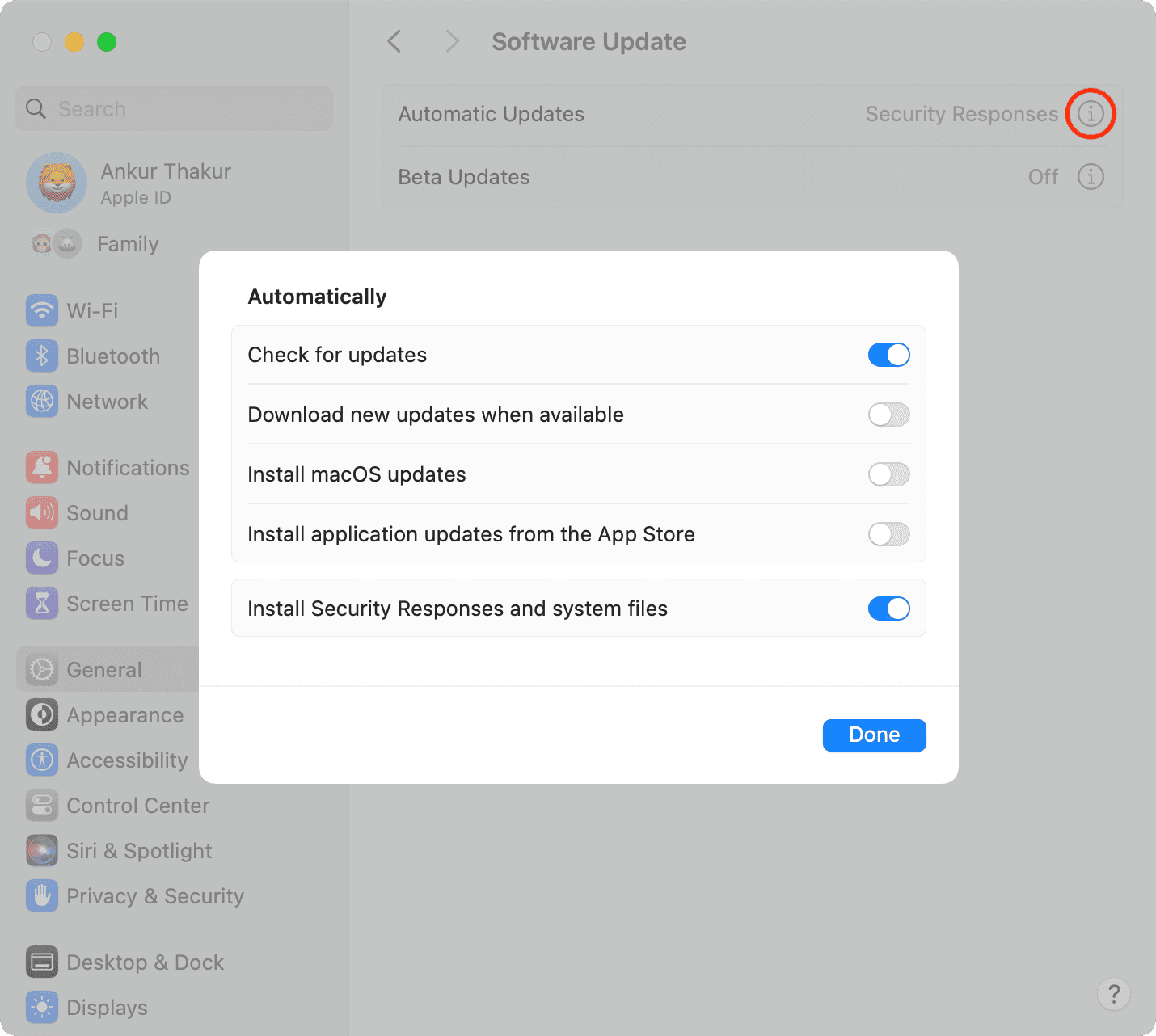
- “Download new updates when available”: This option controls whether your Mac downloads update files in the background. Disabling this will prevent your Mac from automatically downloading any new software or macOS updates.
- “Install macOS updates”: This is the most crucial toggle for preventing automatic installations. If enabled, your Mac might automatically install downloaded macOS updates, often requiring a restart. You should disable this toggle to prevent automatic installations of macOS updates.
- “Install application updates from the App Store”: While this pertains to App Store applications rather than the operating system itself, many users also prefer to control these installations manually. You can disable this if you want to approve app updates individually.
- “Install Security Responses and system files”: This option is often enabled by default and is designed to quickly deploy critical security patches. While disabling it offers maximum control, it also means you might miss out on immediate security fixes. For most users seeking to prevent all automatic updates, disabling this is also an option, but it comes with a trade-off in immediate security. If your primary concern is preventing major OS disruptions, you might consider leaving this enabled for critical security patches, provided they don’t cause issues for your specific workflow.
By carefully unchecking or toggling off these options, you ensure that your Mac will no longer download or install updates without your explicit command. Instead, you will receive notifications when updates are available, allowing you to review them at your convenience.
The “Advanced” Options
In some macOS versions, you might find an “Advanced” button or similar section within the Software Update preferences. Clicking this will reveal more granular controls. Here, you can typically find the same options mentioned above, allowing you to fine-tune your update preferences. It’s always a good idea to explore these advanced settings to ensure you’ve configured everything to your liking.
Advanced Strategies and Considerations
While System Settings provide the primary method for controlling automatic updates, there are other strategies and important considerations to keep in mind to maintain a stable and secure macOS environment without succumbing to unwanted installations.
The Importance of Manual Updates
Disabling automatic updates doesn’t mean abandoning updates altogether. On the contrary, it shifts the responsibility to you to perform them manually. It’s crucial to establish a routine for checking and installing updates yourself.
- Regular Checks: Schedule a time, perhaps weekly or bi-weekly, to open System Settings and check for available updates.
- Read Release Notes: Before installing any update, take a moment to read the release notes. These documents provide valuable information about what the update includes, such as new features, bug fixes, and security patches. This allows you to anticipate potential changes or issues.
- Backup Your Mac: Before any significant update, especially major macOS version upgrades, it is always recommended to back up your Mac. This can be done using Time Machine or other backup solutions. A backup ensures that if an update causes unforeseen problems, you can restore your system to a previous, stable state.
- Test in a Controlled Environment (for critical users): For users whose livelihoods depend on absolute system stability, consider a staged rollout. If possible, test new updates on a secondary Mac or in a virtual machine before deploying them on your primary workstation. This allows you to identify any compatibility issues with your critical software.
Managing App Store Updates Separately
As mentioned earlier, the “Install application updates from the App Store” setting is distinct from macOS updates. If you’ve disabled automatic macOS updates but want to keep App Store updates automated, you can do so. Conversely, if you prefer manual control over all software, ensure this option is also deselected. Many users choose to manage App Store updates manually to ensure that an app update doesn’t break their workflow or introduce unwanted changes.
Potential Downsides of Disabling Automatic Updates
While the control offered by disabling automatic updates is highly desirable for some, it’s not without its potential drawbacks:
- Security Vulnerabilities: The most significant risk is that you might miss critical security patches. If a vulnerability is discovered and exploited, systems that haven’t been updated are prime targets. This is why many users choose to leave “Install Security Responses and system files” enabled, even if they disable major OS updates.
- Missed Features and Performance Improvements: Updates often bring new features, performance enhancements, and bug fixes that can improve your overall user experience and productivity. By delaying updates, you might be missing out on these benefits.
- Compatibility Issues with Future Software: As time goes on, newer versions of applications may begin to require newer versions of macOS. If you delay updating your OS for too long, you might find yourself unable to install or use the latest versions of your essential software.
When to Re-enable Automatic Updates
There might be times when re-enabling automatic updates makes sense. For example, if you’re going on an extended break and want to ensure your Mac is as secure as possible upon your return, you might temporarily enable the automatic update feature. Or, if you’re not actively using your Mac for critical work and want to ensure it receives the latest security patches, enabling automatic updates can be a good option. Remember to revert the settings back to your preferred state afterward.

Conclusion: Mastering Your MacBook’s Update Schedule
Preventing your MacBook from automatically installing updates is a proactive approach to maintaining control over your computing environment. By understanding how macOS manages updates and by carefully configuring the settings within System Settings, you can ensure that software installations happen only when you deem them appropriate. This empowers you to safeguard your workflow, avoid unexpected disruptions, and maintain a stable platform for your critical tasks.
Remember that disabling automatic updates places the responsibility of staying current squarely on your shoulders. By establishing a consistent manual update routine, reading release notes, and always backing up your data, you can enjoy the benefits of a controlled update schedule while mitigating the risks associated with outdated software. It’s a balance between convenience and control, and by following the steps outlined in this guide, you can strike that balance effectively, ensuring your MacBook serves your needs precisely on your terms.
aViewFromTheCave is a participant in the Amazon Services LLC Associates Program, an affiliate advertising program designed to provide a means for sites to earn advertising fees by advertising and linking to Amazon.com. Amazon, the Amazon logo, AmazonSupply, and the AmazonSupply logo are trademarks of Amazon.com, Inc. or its affiliates. As an Amazon Associate we earn affiliate commissions from qualifying purchases.