
In an increasingly digital world, managing our online financial footprint has become as crucial as balancing a physical checkbook once was. Platforms like PayPal, offering unparalleled convenience for online payments, money transfers, and shopping, often serve as a central hub for our financial connections. However, circumstances change, and the need to adjust these connections, such as deleting a linked bank account, arises for various reasons – be it security concerns, switching banks, or simply consolidating your digital presence.
This comprehensive guide delves into the precise steps required to remove a bank account from your PayPal profile, emphasizing the digital security implications and best practices for maintaining a healthy and secure online financial ecosystem. We’ll navigate both the web interface and the mobile app, ensuring you have the knowledge to confidently manage your financial data.
Understanding PayPal’s Bank Account Management and Digital Hygiene
Before diving into the “how-to,” it’s vital to grasp the underlying reasons and implications of managing your linked bank accounts within PayPal. This isn’t merely about clicking a few buttons; it’s a fundamental aspect of digital financial hygiene.
The Importance of Digital Financial Hygiene
In the digital realm, our financial data is constantly flowing through various applications and services. Every linked account, every stored card number, represents a potential vulnerability if not managed correctly. Practicing digital financial hygiene means regularly reviewing and updating your financial connections across all platforms. Removing outdated or unnecessary bank accounts from services like PayPal minimizes the attack surface for potential fraudsters and simplifies your financial oversight. It’s about being proactive in safeguarding your sensitive information.
When to Consider Removing a Bank Account
There are several compelling reasons why you might decide to unlink a bank account from PayPal:
- Changing Banks: If you’ve opened a new bank account and closed an old one, it’s paramount to remove the defunct account from all linked services, including PayPal, to prevent failed transactions or security issues.
- Security Concerns: In the event of a data breach at a linked institution (even if not PayPal directly), or if you suspect your PayPal account credentials might be compromised, removing direct bank links can be a critical temporary measure.
- Consolidating Digital Footprint: For users who prefer to use only credit cards or another primary funding source for PayPal transactions, removing a bank account can simplify their digital wallet and reduce the number of financial connections they need to monitor.
- Closing Your PayPal Account: While not strictly necessary to remove bank accounts before closing a PayPal account (PayPal often handles this as part of the closure process), doing so beforehand can provide peace of mind and ensure all personal financial data is decoupled.
- Simplifying Funding Sources: Some users prefer to rely solely on linked debit/credit cards or their PayPal balance, making an external bank account link redundant for their use case.
Potential Implications of Unlinking
While removing a bank account is generally a straightforward process, it’s important to understand what changes and what doesn’t:
- Funding Source: If you remove your only linked bank account, you will still be able to send money using a linked debit/credit card or your PayPal balance. However, if you rely on direct bank transfers for certain transactions or funding your PayPal balance, you’ll need another bank account linked.
- Receiving Payments: You can still receive payments into your PayPal balance even without a linked bank account. To withdraw funds from your PayPal balance to an external bank, you will need at least one active bank account linked.
- Primary Account Status: If the bank account you’re attempting to remove is currently set as your “primary” funding source, you might need to designate another card or bank account as primary before you can remove it.
Step-by-Step Guide: Deleting Your Bank Account via Web Browser
The most common method for managing your PayPal account settings is through their official website on a desktop or laptop. This method often provides the most comprehensive view and control over your account.
Logging In and Navigating to Wallet/Bank & Cards
- Open Your Web Browser: Launch your preferred web browser (Chrome, Firefox, Edge, Safari, etc.) and navigate to the official PayPal website:
www.paypal.com. - Log In to Your Account: Enter your registered email address or mobile number and password in the designated fields. If you have two-factor authentication (2FA) enabled, you will be prompted to enter a verification code sent to your phone or generated by an authenticator app. This is an essential security layer.
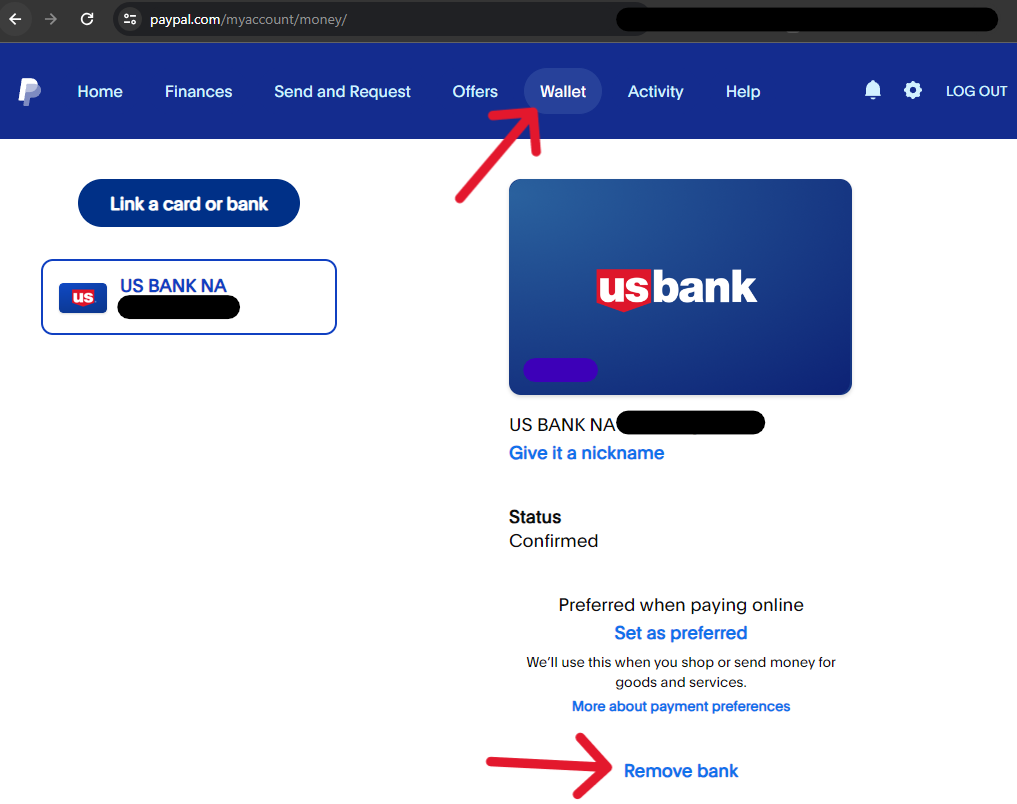
- Access Your Wallet: Once logged in, look for the “Wallet” tab or section in the top navigation bar. It might also be labeled “Money” or “Bank accounts and cards,” depending on recent UI updates. Click on it. This section is where all your linked financial instruments are displayed.
Selecting and Confirming Removal
- Locate Your Bank Accounts: In the Wallet section, you’ll see separate listings for “Bank accounts” and “Cards.” Find the “Bank accounts” section.
- Select the Account to Remove: Click on the specific bank account you wish to delete. This will typically open a detailed view of that particular bank account.
- Initiate Removal: On the bank account details page, look for an option like “Remove bank,” “Remove bank account,” “Unlink,” or a trash can icon. This option is usually located towards the bottom or side of the details pane. Click on it.
- Confirmation Prompt: PayPal will present a confirmation prompt, asking if you are sure you want to remove the bank account. This is a crucial security step to prevent accidental deletions. Read the prompt carefully, especially if there are any specific warnings (e.g., if it’s your primary funding source).
- Confirm Removal: Click “Remove” or “Done” to finalize the process.
Verification and Finalization
After confirming, you should receive an on-screen notification confirming that your bank account has been successfully removed. It will also disappear from your list of linked bank accounts in the Wallet section. Occasionally, PayPal might require re-entering your password for an additional layer of security before completing the removal. This is a normal security measure.
Step-by-Step Guide: Deleting Your Bank Account via PayPal Mobile App
For users who primarily manage their finances on the go, the PayPal mobile app offers a convenient way to remove linked bank accounts. The interface might differ slightly between iOS and Android, but the core steps remain consistent.
Accessing the App and Wallet Section
- Launch the PayPal App: Open the PayPal application on your smartphone or tablet.
- Log In: Enter your credentials (email/mobile and password). If you have biometric login (fingerprint/Face ID) enabled, you can use that for quick access. Complete any 2FA prompts if necessary.
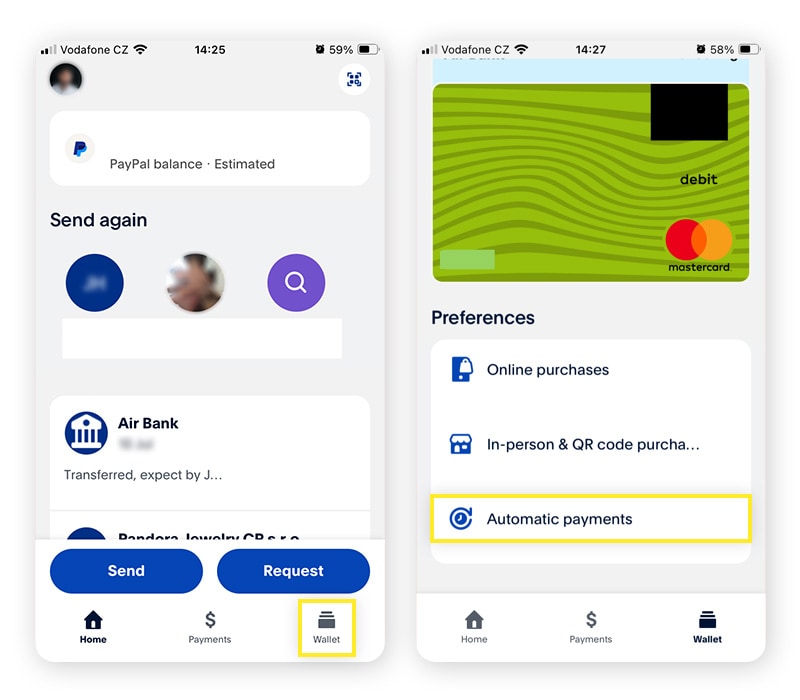
- Navigate to Wallet/Financials: Look for the “Wallet” or “Money” icon at the bottom of the app screen (often represented by a credit card or dollar sign icon). Tap on it. This section will display all your linked bank accounts and cards.
Locating and Unlinking the Bank Account
- Find Your Bank Accounts: Within the Wallet section, you’ll typically see distinct categories for “Bank accounts” and “Cards.” Tap on “Bank accounts” or scroll to that section.
- Select the Account: Tap on the specific bank account you wish to remove from your PayPal profile. This will open a detailed view for that account.
- Remove the Account: On the bank account details screen, look for an option such as “Remove bank,” “Delete bank,” or a trash can icon. This is usually located near the bottom of the screen or in a settings menu associated with that specific account (e.g., three dots in the corner). Tap on it.
- Confirm Deletion: The app will prompt you to confirm your decision. Review any information or warnings presented, then tap “Remove” or “Yes, remove” to proceed.
What to Expect Post-Removal
Similar to the web version, a confirmation message will usually appear, and the bank account will immediately disappear from your list of linked accounts within the app. You should now be unable to use this specific bank account for funding PayPal transactions or withdrawals.
Digital Security Best Practices After Unlinking
Removing a bank account from PayPal is an excellent step towards enhanced digital security, but it’s part of a broader strategy. To maximize the security of your online financial activities, consider these additional best practices.
Reviewing Remaining Linked Accounts
Take this opportunity to audit all other financial instruments linked to your PayPal account. Do you still need that old credit card linked? Are there any secondary bank accounts you no longer use? Periodically reviewing and paring down unnecessary connections minimizes potential risks. If an account or card is compromised elsewhere, reducing its presence across platforms helps contain the damage.
Updating Financial Information Elsewhere
If you removed a bank account because it was closed or you switched banks, remember to update this information across all other financial apps, subscription services, utilities, and e-commerce sites where it might be stored. A consistent approach to updating financial data prevents failed payments and potential late fees, while also ensuring outdated information isn’t floating around various databases.
Strengthening PayPal Account Security
Beyond just managing linked accounts, fortify your PayPal account itself:
- Enable Two-Factor Authentication (2FA): If you haven’t already, enable 2FA for your PayPal account. This adds an extra layer of security, requiring a code from your phone in addition to your password for login, making it significantly harder for unauthorized users to access your account.
- Use Strong, Unique Passwords: Never reuse passwords across different services. Create a strong, complex password for PayPal that includes a mix of uppercase and lowercase letters, numbers, and symbols. Consider using a password manager.
- Regular Security Checks: Periodically review your PayPal activity history and connected apps. Report any suspicious transactions or unauthorized activity immediately.
Monitoring for Unauthorized Activity
Even after unlinking, it’s prudent to monitor your remaining bank accounts and credit cards for a period. This is a general best practice for digital financial management, helping you quickly identify and address any unusual activity, especially if the unlinking was prompted by security concerns. Most banks offer transaction alerts via SMS or email, which can be invaluable tools for real-time monitoring.
Troubleshooting Common Issues and FAQs
While the process is generally smooth, you might encounter specific scenarios or have questions.
“Why Can’t I Remove My Bank Account?”
Several reasons might prevent you from immediately removing a bank account:
- Pending Transactions: If there are any pending transactions, automatic payments, or withdrawals linked to that bank account, PayPal might prevent its removal until those clear.
- Primary Account Status: If the bank account is currently designated as your primary funding source, you might need to select another linked card or bank account as primary first before you can remove the original one.
- Account Limitations/Security Flags: In rare cases, if your account has any limitations or security flags (e.g., due to suspicious activity, incomplete verification), certain actions like removing a bank account might be temporarily restricted. Contact PayPal customer support if you suspect this is the case.
- Balance Transfer Issues: If you have an outstanding balance or pending transfer to that specific bank account, its removal might be blocked until the transfer is complete.
What if I Only Have One Bank Account Linked?
You can still remove your only linked bank account. However, remember that without a linked bank account, you won’t be able to initiate direct bank transfers for withdrawals from your PayPal balance. You can still fund payments using linked debit/credit cards or your existing PayPal balance. To withdraw funds to an external bank, you would need to link another bank account.
Re-linking a Bank Account Later
Should your circumstances change, and you need to re-link a bank account (perhaps the same one or a new one), the process is straightforward. You would navigate to the “Wallet” section on the web or mobile app, select “Link a bank account,” and follow the prompts to add and verify the account. Verification typically involves PayPal making small deposits into your account, which you then confirm on the PayPal site.
Conclusion
Managing your financial connections on platforms like PayPal is an essential component of modern digital security. Knowing how to delete a bank account from PayPal, whether via the web or mobile app, empowers you to maintain control over your sensitive financial data. By actively practicing digital financial hygiene – regularly reviewing linked accounts, strengthening security settings, and staying vigilant – you contribute significantly to safeguarding your online finances and ensuring a more secure digital experience. Take the time to implement these practices; your digital peace of mind is worth it.
aViewFromTheCave is a participant in the Amazon Services LLC Associates Program, an affiliate advertising program designed to provide a means for sites to earn advertising fees by advertising and linking to Amazon.com. Amazon, the Amazon logo, AmazonSupply, and the AmazonSupply logo are trademarks of Amazon.com, Inc. or its affiliates. As an Amazon Associate we earn affiliate commissions from qualifying purchases.