
The Amazon FireStick has revolutionized home entertainment, transforming any television into a smart hub for streaming your favorite movies, TV shows, and more. However, as you delve deeper into the world of digital content, you might encounter limitations related to geo-restrictions, privacy concerns, or even slow connection speeds. This is where a Virtual Private Network (VPN) becomes an indispensable tool. Installing a VPN on your FireStick can unlock a world of content, bolster your online security, and ensure a more private streaming experience.
This comprehensive guide will walk you through the entire process, from understanding why you need a VPN on your FireStick to the practical steps of installation and optimization. We’ll cover the essential aspects of VPN technology as it pertains to your FireStick, ensuring you can navigate the digital landscape with confidence and freedom.
Why You Need a VPN on Your FireStick
Before we dive into the “how,” it’s crucial to understand the “why.” Your FireStick, like any internet-connected device, is susceptible to various online threats and limitations. A VPN acts as a protective shield and a key to unlock restricted content.
Enhancing Your Digital Security and Privacy
In an era where data breaches are increasingly common and online tracking is pervasive, safeguarding your digital footprint is paramount. When you use your FireStick to stream content, your Internet Service Provider (ISP) can see every website you visit and every service you use. This information can be logged, potentially sold to advertisers, or even handed over to authorities.
A VPN encrypts your internet traffic, making it unreadable to your ISP and anyone else trying to snoop on your online activities. This encryption creates a secure tunnel between your FireStick and the VPN server, masking your real IP address and location. This means your browsing history, streaming habits, and any personal data you transmit are kept private. This enhanced digital security is especially important when using public Wi-Fi networks, which are often unsecured and vulnerable to cyberattacks.
Bypassing Geo-Restrictions and Accessing Global Content
One of the most popular reasons for using a VPN on a FireStick is to overcome geo-restrictions. Many streaming services, like Netflix, Hulu, BBC iPlayer, and others, offer different content libraries in different countries. This is due to licensing agreements that restrict where certain shows and movies can be broadcast.
By connecting your FireStick to a VPN server located in a different country, you can virtually “relocate” yourself. For instance, if you’re in the UK and want to watch a show only available on the US Netflix library, you can connect to a US VPN server. Your FireStick will then appear to be in the US, granting you access to the American content catalog. This significantly expands your entertainment options, allowing you to enjoy a truly global streaming experience.
Improving Streaming Speeds and Preventing Throttling
While not its primary function, a VPN can sometimes improve your streaming experience by preventing ISP throttling. Some ISPs deliberately slow down your internet connection when they detect high-bandwidth activities like streaming. This practice, known as throttling, can lead to buffering and a frustrating viewing experience.
By encrypting your traffic, a VPN makes it difficult for your ISP to identify that you are streaming. Consequently, they may be unable to throttle your connection, potentially leading to smoother playback and faster download speeds. However, it’s important to note that VPNs do add an extra hop for your data, so while they can prevent throttling, they can also introduce a slight reduction in speed depending on the VPN server’s quality and your proximity to it. Choosing a reputable VPN service with a large server network is key to minimizing any potential speed impact.
Installing a VPN on Your FireStick: The Step-by-Step Process
The beauty of the Amazon FireStick is its user-friendly interface, and installing a VPN is no exception. While some VPN providers offer direct apps for the FireStick, others might require a slightly more involved process. We’ll focus on the most common and straightforward method, which involves using the Amazon Appstore.
Finding and Installing a VPN App from the Amazon Appstore
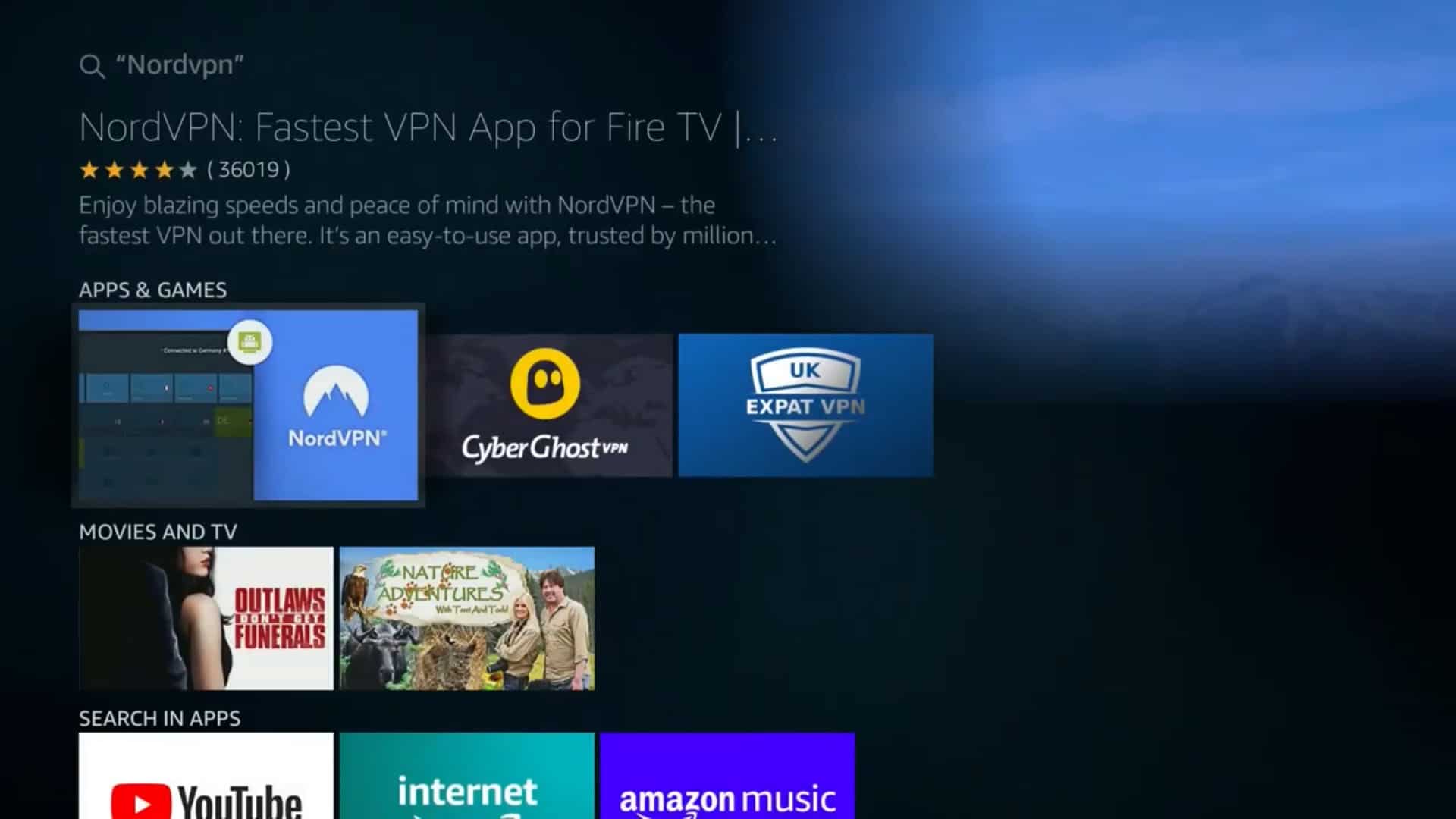
The easiest and most recommended way to install a VPN on your FireStick is through the Amazon Appstore. Most reputable VPN providers have developed dedicated apps that are compatible with the FireStick’s operating system.
- Navigate to the FireStick Home Screen: Power on your FireStick and ensure you are on the main home screen.
- Access the Search Function: Look for the magnifying glass icon, usually located in the top-left corner of the screen. Select it to open the search bar.
- Search for Your VPN Provider: Type in the name of your chosen VPN service. For example, if you’re using ExpressVPN, type “ExpressVPN.” As you type, FireStick will suggest relevant apps.
- Select the Official App: Once the search results appear, locate the official app for your VPN provider. Ensure it’s the correct one by checking the developer and user reviews.
- Download and Install: Select the app and then click on the “Get” or “Download” button. The FireStick will automatically download and install the VPN application. This process usually takes a minute or two.
- Launch the VPN App: After installation, you’ll see an option to “Open” or “Launch” the app. Select it to start the VPN application.
Logging In and Connecting to a Server
Once the VPN app is installed and launched, you’ll need to log in and establish a connection.
- Log In with Your Credentials: You will be prompted to log in with your VPN account username and password. If you don’t have a VPN subscription yet, you’ll need to sign up on the VPN provider’s website first.
- Grant Permissions: The VPN app will likely request certain permissions to function correctly, such as the ability to create a VPN connection. Grant these permissions to proceed.
- Choose a Server Location: Most VPN apps will present you with a list of available server locations. You can either select a recommended server for optimal speed or choose a specific country to bypass geo-restrictions.
- Connect to the VPN: Once you’ve selected your desired server, click the “Connect” button. The app will indicate when you are successfully connected, usually by changing the button color or displaying a “Connected” status.
Verifying Your VPN Connection
It’s always a good practice to verify that your VPN is working correctly and that your IP address has been masked.
- Use a VPN Connection Test: Many VPN apps have a built-in feature to test your connection. Alternatively, you can open a web browser app on your FireStick (if you have one installed, like Silk Browser) and visit a website that shows your IP address (e.g., “what is my IP”). Compare the IP address shown to your real IP address to confirm it has changed.
- Check for Leakage: You can also use online tools to test for DNS leaks or WebRTC leaks, which can expose your real IP address even when using a VPN. Reputable VPNs have measures in place to prevent these leaks.
Choosing the Right VPN for Your FireStick
Not all VPNs are created equal, and selecting the right one is crucial for a smooth and secure FireStick experience. Consider the following factors when making your decision.
Key Features to Look For
When evaluating VPN providers for your FireStick, prioritize services that offer:
- Dedicated FireStick App: This is the most important feature, as it simplifies installation and usage. Look for VPNs that are readily available on the Amazon Appstore.
- Strong Encryption and Security Protocols: Ensure the VPN uses robust encryption standards (like AES-256) and supports secure VPN protocols (like OpenVPN or WireGuard).
- Large Server Network: A wide selection of servers in various countries gives you more options for bypassing geo-restrictions and finding fast connections.
- High-Speed Performance: Since you’ll be streaming, speed is paramount. Look for VPNs known for their fast speeds and minimal impact on bandwidth. Reading reviews and speed tests can be very helpful here.
- No-Log Policy: A strict no-log policy ensures that the VPN provider does not track or store your online activity. This is vital for privacy.
- Simultaneous Connections: If you use other devices besides your FireStick, consider a VPN that allows multiple simultaneous connections under one subscription.
- Customer Support: Reliable customer support can be invaluable if you encounter any issues.
Top VPN Recommendations for FireStick
Based on the above criteria, several VPN providers consistently rank high for FireStick compatibility and performance. While specific recommendations can change as services evolve, popular choices often include:
- ExpressVPN: Known for its user-friendly FireStick app, excellent speeds, robust security, and extensive server network.
- CyberGhost: Offers a dedicated FireStick app and boasts a large server fleet, making it ideal for unblocking streaming content.
- NordVPN: Features a highly intuitive FireStick app, strong security features, and a vast network of servers.
- Surfshark: A budget-friendly option that still offers a good FireStick app and unlimited simultaneous connections.
Disclaimer: The VPN landscape is dynamic. It’s always advisable to conduct your own research and check the latest reviews before subscribing to a service.
Troubleshooting Common VPN Issues on FireStick
Even with the best VPN, you might occasionally run into problems. Here are some common issues and their solutions.
Connection Problems and Slow Speeds
If you’re experiencing difficulties connecting to the VPN or notice significantly slower streaming speeds, try the following:
- Restart Your FireStick and Router: A simple reboot can often resolve temporary glitches.
- Try a Different Server: The server you’re connected to might be overcrowded or experiencing technical issues. Switch to a different server in the same or a different location.
- Clear VPN App Cache and Data: In your FireStick settings, go to “Applications” > “Manage Installed Applications,” find your VPN app, and select “Clear Cache” and then “Clear Data.” You’ll need to log in again.
- Update the VPN App: Ensure you have the latest version of the VPN app installed.
- Check Your Internet Connection: Rule out issues with your home internet service.
App Not Available in the Amazon Appstore
If your preferred VPN provider doesn’t have a dedicated app on the Amazon Appstore, you might need to sideload the VPN app. This involves downloading the APK file from the VPN provider’s website onto a separate device and then transferring it to your FireStick. This process is more technical and generally not recommended for beginners. It’s usually easier to choose a VPN that offers direct FireStick app integration.
VPN Not Unblocking Specific Content
If you’re trying to access a specific streaming service and it’s still not working, consider these steps:
- Clear Streaming App Cache: Similar to clearing the VPN app cache, clear the cache for the streaming app you’re using.
- Try Different Servers: Some streaming services actively block VPN IP addresses. Experiment with multiple servers in the target country.
- Contact VPN Support: Your VPN provider’s support team might have specific server recommendations or solutions for the streaming service you’re trying to access.
By understanding the benefits, following the straightforward installation process, and knowing how to troubleshoot potential issues, you can significantly enhance your FireStick experience with a VPN. Enjoy a more secure, private, and borderless world of entertainment.
aViewFromTheCave is a participant in the Amazon Services LLC Associates Program, an affiliate advertising program designed to provide a means for sites to earn advertising fees by advertising and linking to Amazon.com. Amazon, the Amazon logo, AmazonSupply, and the AmazonSupply logo are trademarks of Amazon.com, Inc. or its affiliates. As an Amazon Associate we earn affiliate commissions from qualifying purchases.