
Keeping your computer’s drivers up-to-date is a fundamental aspect of maintaining a healthy, efficient, and secure system. Drivers are essential software components that allow your operating system to communicate effectively with your hardware devices, from your graphics card to your mouse and keyboard. Neglecting driver updates can lead to a host of issues, ranging from performance degradation and system instability to security vulnerabilities and lack of access to the latest features.
Why Keeping Your Drivers Updated Matters
Understanding the critical role drivers play in your computer’s ecosystem is the first step toward appreciating the necessity of regular updates. It’s not just about fixing problems; it’s about optimizing your entire computing experience.

Enhanced Performance and Stability
Outdated drivers are a common culprit behind sluggish performance, crashes, and various system errors. When a driver is not optimized for your operating system or the latest hardware revisions, it can lead to inefficiencies in communication, causing bottlenecks and instability. Updating drivers often includes performance optimizations that can significantly boost frame rates in games, speed up rendering times in creative applications, and generally make your system feel more responsive. Stability improvements are also key, reducing the frequency of blue screens of death (BSODs) and application freezes.
Improved Security
Security vulnerabilities aren’t limited to operating systems and applications; drivers can also have exploitable flaws. Hardware manufacturers and software developers regularly release driver updates that patch these security holes, protecting your system from potential attacks. An outdated network driver, for instance, could expose your computer to network-based exploits, while a graphics driver vulnerability might allow malicious code to gain elevated privileges. Staying current helps fortify your digital defenses.
Access to New Features and Bug Fixes
Hardware manufacturers continually innovate, and these innovations often come with new features that require updated drivers to function correctly. For example, a new graphics driver might introduce support for a cutting-edge display technology, a new game optimization profile, or advanced video encoding capabilities. Similarly, bug fixes are a continuous process. If you encounter a specific issue with a piece of hardware, a driver update is often the first and most effective solution, addressing known compatibility problems or operational glitches.
Compatibility with New Hardware and Software
As technology evolves, new hardware devices and software applications emerge. Updated drivers ensure that your existing components can interact seamlessly with these newer technologies. This is particularly important for peripheral devices or when upgrading specific internal components. Without the right drivers, your system might not recognize new hardware, or new software applications might fail to leverage your hardware’s full capabilities, leading to sub-optimal performance or complete incompatibility.
Understanding Different Types of Drivers
While the term “driver” is broad, various types of drivers are responsible for specific hardware components. Knowing which drivers are most critical to update can help prioritize your maintenance efforts.
Graphics Drivers (GPU)
Perhaps the most frequently updated and impactful drivers, graphics drivers are crucial for anyone using their computer for gaming, video editing, 3D rendering, or even just high-resolution display. Companies like NVIDIA, AMD, and Intel regularly release updates that offer significant performance boosts, stability improvements, and new feature support for their respective GPUs. These are often the first drivers to check when experiencing visual glitches, performance drops in games, or display issues.
Chipset Drivers
The chipset is the “glue” that connects your computer’s main components, including the CPU, memory, and peripheral buses. Chipset drivers facilitate communication between these components and the operating system. Updating them can improve overall system stability, enhance data transfer rates, and ensure proper functionality of USB ports, SATA drives, and other integrated motherboard features. These are typically provided by Intel or AMD, depending on your CPU and motherboard.
Audio Drivers
Audio drivers enable your operating system to communicate with your sound card or integrated audio chip. Updates can resolve sound distortion, static, playback issues, microphone problems, and improve audio quality. They can also introduce support for new audio formats or advanced sound processing features. Realtek is a common provider for integrated audio solutions.
Network Drivers (Wi-Fi, Ethernet)
Network drivers manage your computer’s connection to local networks and the internet via Wi-Fi adapters or Ethernet ports. Updates can fix connectivity drops, improve network speed, enhance security protocols, and resolve issues related to specific router or access point compatibility. These are vital for maintaining a stable and fast internet connection.
Peripheral Drivers (Printers, Webcams, etc.)
External devices like printers, scanners, webcams, keyboards, and mice often come with their own dedicated drivers. While many basic peripherals are “plug-and-play” with generic drivers provided by the operating system, installing specific drivers from the manufacturer can unlock advanced features, improve functionality, and resolve compatibility issues.
Storage Drivers
Storage drivers (e.g., SATA, NVMe) manage how your operating system interacts with your hard drives and solid-state drives. Updates can improve data transfer speeds, enhance drive compatibility, and resolve issues related to drive recognition or stability, especially for newer storage technologies like NVMe SSDs.
Methods for Updating Drivers
There are several reliable methods to update your drivers, each with its own advantages. It’s often best to combine these approaches for comprehensive system maintenance.
Method 1: Using Windows Device Manager (Manual Check)
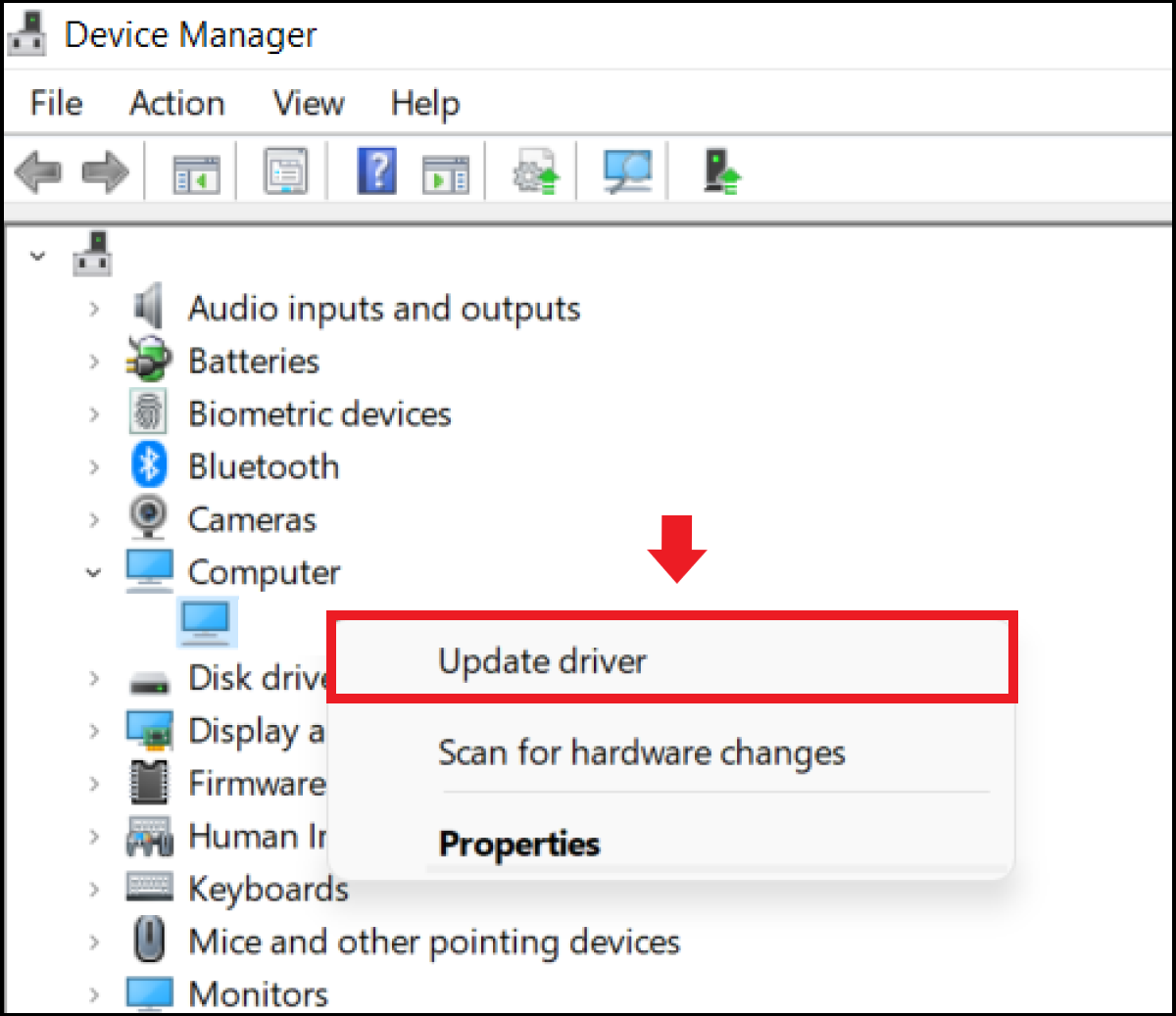
The Device Manager is a built-in Windows tool that allows you to view and manage all hardware devices connected to your computer. It provides a straightforward way to check for and install driver updates.
- Open Device Manager: Right-click the Start button and select “Device Manager.”
- Locate the Device: Expand the categories to find the specific device you want to update (e.g., “Display adapters” for your graphics card, “Sound, video and game controllers” for audio).
- Right-Click and Update: Right-click on the device and select “Update driver.”
- Choose Search Method:
- “Search automatically for updated driver software”: This option instructs Windows to search your computer and the internet for the best available driver. Windows will often find a suitable driver, especially for less critical components or older hardware.
- “Browse my computer for driver software”: This option is used when you have manually downloaded a driver file (usually a
.inf,.sys, or.dllfile) from a manufacturer’s website. You’ll need to specify the folder where the driver files are located. Windows will then attempt to install it.
- Restart: After a successful update, it’s often a good practice to restart your computer for the changes to take take full effect.
Method 2: Manufacturer’s Website (Direct Download)
This is often the most reliable method, especially for critical components like graphics cards, chipsets, and network adapters. Manufacturers typically provide the latest, most optimized drivers directly on their support websites.
- Identify Your Hardware: Accurately identify the manufacturer and exact model number of your hardware. For graphics cards, this means knowing if it’s an NVIDIA GeForce RTX 3070 or an AMD Radeon RX 6700 XT. For a laptop, know your exact model (e.g., Dell XPS 15 9500).
- Visit Manufacturer’s Support Page: Navigate to the official support or download section of the hardware manufacturer’s website (e.g.,
nvidia.com/drivers,amd.com/drivers,intel.com/support,dell.com/support,hp.com/support). - Select Your Device: Use the website’s search or navigation tools to find the specific driver for your hardware model and operating system version (e.g., Windows 10 64-bit).
- Download and Install: Download the installer file. Many drivers come as executable files (.exe) that guide you through the installation process. Follow the on-screen instructions carefully. Some installations may require restarting your computer.
Method 3: Using Vendor-Specific Software Utilities
Many hardware manufacturers offer dedicated software utilities that automate the driver update process for their products. These tools are highly recommended for ease of use and often include additional features.
- NVIDIA GeForce Experience: For NVIDIA GPUs, this software not only updates graphics drivers but also optimizes game settings, records gameplay, and provides access to various NVIDIA features.
- AMD Radeon Software Adrenalin Edition: Similar to NVIDIA’s offering, AMD’s software manages graphics drivers, provides gaming optimizations, and offers an array of display and performance settings.
- Intel Driver & Support Assistant: This utility automatically detects Intel hardware (processors, graphics, wireless, chipsets) in your system and recommends appropriate drivers from Intel’s official website.
- OEM Support Utilities: Laptop and pre-built desktop manufacturers like Dell (Dell SupportAssist), HP (HP Support Assistant), Lenovo (Lenovo Vantage), and ASUS often provide their own software that detects and updates drivers specific to their systems, including BIOS updates.
These tools simplify the process by identifying your hardware and fetching the correct drivers automatically.
Method 4: Windows Update (Automatic Updates)
Windows Update is primarily designed to deliver operating system updates, but it also often includes driver updates deemed stable and critical by Microsoft.
- Open Windows Update Settings: Go to “Settings” > “Update & Security” > “Windows Update.”
- Check for Updates: Click “Check for updates.”
- View Optional Updates: After checking for updates, you might see a link for “View optional updates.” Clicking this often reveals driver updates that Windows has identified but not automatically installed. You can select which ones to install.
While convenient, Windows Update might not always provide the absolute latest drivers, especially for graphics cards, where manufacturers release updates more frequently than Microsoft validates and pushes them through Windows Update. For crucial performance drivers, a direct download from the manufacturer is often preferred.
Best Practices and Troubleshooting Tips
Updating drivers can sometimes introduce unforeseen issues. Following best practices and knowing how to troubleshoot can save you a lot of frustration.
Always Create a Restore Point
Before installing any significant driver update, especially for critical components like graphics cards or chipsets, always create a system restore point. This allows you to revert your system to a previous working state if the new driver causes problems. Navigate to “Create a restore point” in the Windows search bar, then click “Create.”
Identify Your Hardware Accurately
The most common mistake when updating drivers is downloading the wrong one. Double-check your hardware model and operating system version (32-bit vs. 64-bit). Use tools like dxdiag (type in Windows search) or third-party system information utilities if you’re unsure.
Download from Official Sources Only
Always download drivers directly from the hardware manufacturer’s official website or through their approved software utilities. Avoid third-party driver download sites, as they can often bundle malware or provide outdated/incorrect drivers.
Driver Rollback Option
If a new driver causes instability or functionality issues, Windows provides a “rollback driver” option.
- Go to Device Manager.
- Right-click the problematic device and select “Properties.”
- Go to the “Driver” tab.
- If available, click “Roll Back Driver.” This will uninstall the current driver and revert to the previous version.
Clean Installation vs. Standard Update (especially for graphics drivers)
For graphics drivers, performing a “clean installation” is often recommended. This process completely removes previous driver files before installing the new ones, preventing potential conflicts. NVIDIA GeForce Experience and AMD Radeon Software Adrenalin Edition usually offer this option during their installation process. If performing a manual update, you might use a tool like Display Driver Uninstaller (DDU) in Safe Mode to thoroughly remove old drivers before installing new ones.
Dealing with Corrupted or Missing Drivers
If you suspect a driver is corrupted or missing, you can try uninstalling it first via Device Manager (check the “Delete the driver software for this device” box if prompted), then restarting your computer. Windows will often try to reinstall a generic driver upon reboot, or you can then proceed with a clean installation from the manufacturer.

When Not to Update
While regular updates are generally beneficial, there are rare cases where an update isn’t necessary. If your system is perfectly stable, all hardware is functioning flawlessly, and you don’t need new features or game optimizations, sometimes “if it ain’t broke, don’t fix it” applies. This is particularly true for older, niche hardware where new drivers are infrequent and primarily address security or critical bug fixes rather than performance. Always weigh the benefits of an update against the potential (albeit rare) risk of introducing new issues.
aViewFromTheCave is a participant in the Amazon Services LLC Associates Program, an affiliate advertising program designed to provide a means for sites to earn advertising fees by advertising and linking to Amazon.com. Amazon, the Amazon logo, AmazonSupply, and the AmazonSupply logo are trademarks of Amazon.com, Inc. or its affiliates. As an Amazon Associate we earn affiliate commissions from qualifying purchases.