
Maintaining your computer’s hardware drivers in an up-to-date state is a fundamental aspect of effective system management. Drivers are specialized software components that enable your operating system to communicate with your hardware, from your graphics card and sound chip to your motherboard’s chipset and network adapter. Far from a mere technical chore, regular driver updates are critical for ensuring optimal performance, system stability, robust security, and access to the latest features your hardware has to offer. Ignoring these updates can lead to a cascade of issues, from minor glitches to significant system slowdowns or even outright hardware malfunctions.

Why Keeping Drivers Updated Matters
The notion that “if it ain’t broke, don’t fix it” often leads users to neglect driver updates. However, in the complex ecosystem of modern computing, this philosophy can be detrimental. The benefits of keeping your drivers current are manifold and directly impact your daily computing experience.
Enhanced Performance and Stability
One of the most immediate and tangible benefits of updating drivers is the improvement in performance and stability. Outdated drivers are a frequent culprit behind system crashes, freezes, and unexplained errors. As operating systems evolve and new applications are released, older drivers may struggle to keep up, leading to inefficiencies. For instance, an outdated graphics driver can cause stuttering in games, slow down video rendering, or even prevent certain software from launching correctly. Updated drivers often contain optimizations that allow hardware to run more efficiently, reducing latency, improving frame rates, and ensuring smoother operation across all applications. They address known bugs and compatibility issues, leading to a more reliable and less frustrating user experience.
Access to New Features and Functionality
Hardware manufacturers frequently release driver updates not just to fix problems but also to introduce new features or unlock previously unavailable functionalities. A new graphics driver might add support for a cutting-edge display technology, improve performance in the latest game titles through specific optimizations, or enable new video encoding capabilities. Similarly, updates for a Wi-Fi adapter might improve signal strength, enhance connectivity options, or add support for newer wireless standards. By neglecting updates, you could be missing out on valuable enhancements that improve your hardware’s capabilities and extend its useful lifespan, effectively leaving potential on the table.
Critical Security Patches
In an increasingly security-conscious digital landscape, drivers are not immune to vulnerabilities. Like any other piece of software, they can contain flaws that malicious actors could exploit to gain unauthorized access to your system, compromise data, or introduce malware. Hardware manufacturers actively work to identify and patch these security holes through driver updates. Keeping your drivers current ensures that your system is protected against the latest known exploits, bolstering your overall digital security posture. Overlooking these updates is akin to leaving a back door open in your system’s defenses, potentially exposing sensitive information or leading to system compromise.
Identifying Your Current Drivers and Hardware
Before you can update drivers, you need to know what hardware you have and what driver versions are currently installed. This information is crucial for downloading the correct updates. While the specifics can vary slightly across operating systems, the general principle involves accessing system information or device management tools.
Using Device Manager (Windows)
For Windows users, the Device Manager is the primary tool for this purpose. To access it:
- Right-click on the Start button (or press
Windows Key + X) and select “Device Manager” from the power user menu. - In the Device Manager window, you’ll see a categorized list of all hardware components connected to your system. Expand a category (e.g., “Display adapters,” “Sound, video and game controllers,” “Network adapters”).
- Right-click on a specific device and select “Properties.”
- Navigate to the “Driver” tab. Here, you’ll find information such as the Driver Provider, Driver Date, and Driver Version. This data is essential for cross-referencing with manufacturer websites to determine if a newer version is available.
- If you’re unsure about the exact model of a component, checking the “Details” tab in the properties window and selecting “Hardware Ids” from the Property dropdown can provide manufacturer and device IDs which can be looked up online.
Third-Party System Information Software
For a more comprehensive overview of your system’s hardware and software, third-party utilities can be invaluable. Tools like Speccy, HWiNFO, or CPU-Z provide detailed reports on every component, often including specific model numbers and current driver versions. These tools can simplify the identification process, especially for components that are not easily identifiable through Device Manager alone. They can be particularly useful when assembling information for troubleshooting or when preparing for significant driver updates across multiple components.
Methods for Updating Hardware Drivers
Once you’ve identified your hardware and current driver versions, you can proceed with the update process. There are several reliable methods, each with its own advantages, ranging from fully automated to highly manual.
The Automatic (and Often Safest) Approach: Windows Update
For many standard hardware components, Windows Update provides a convenient and generally reliable method for driver updates. Microsoft often works with hardware manufacturers to distribute certified drivers through Windows Update.
- Go to
Settings > Update & Security > Windows Update. - Click “Check for updates.”
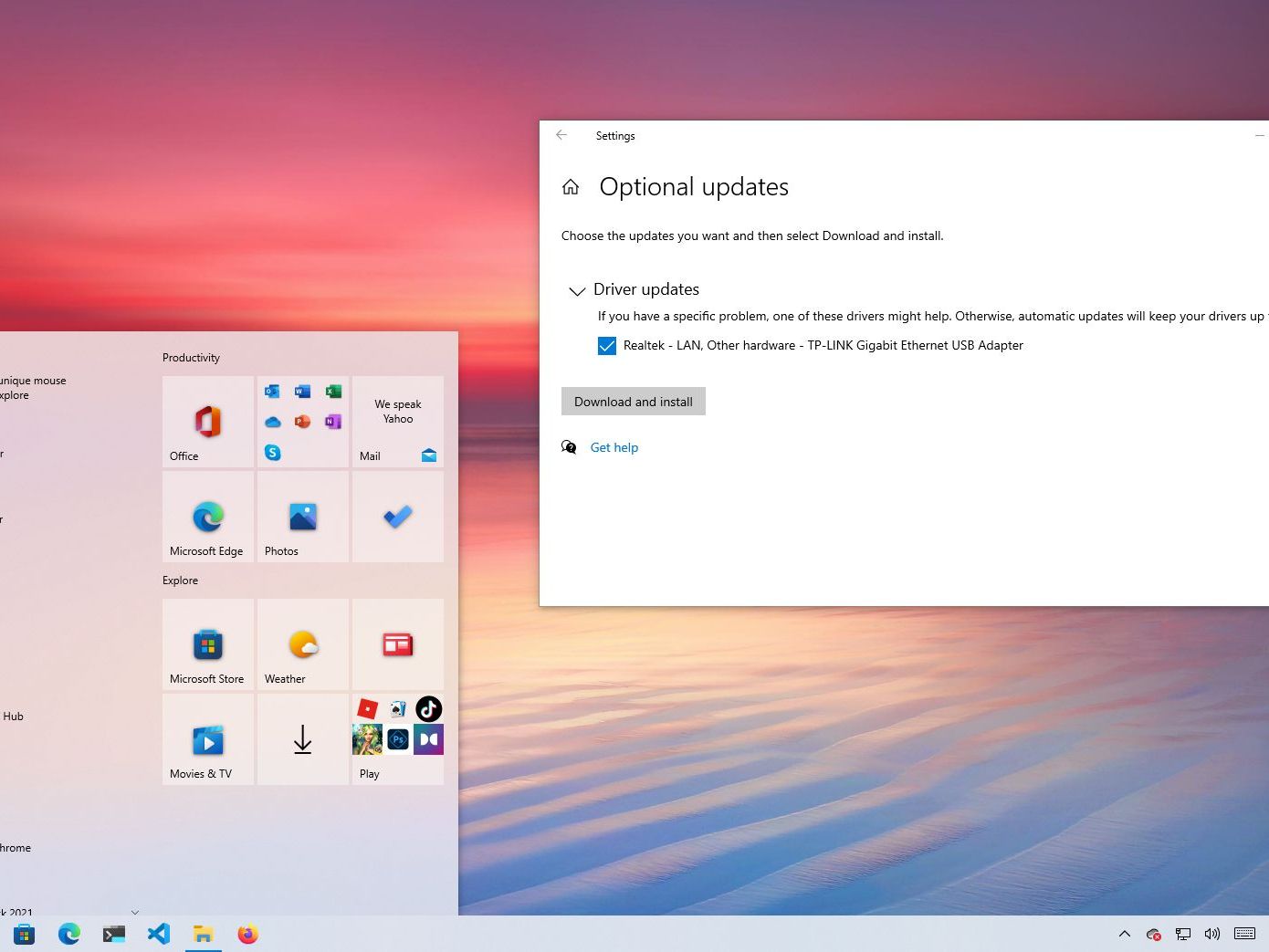
- Windows will download and install any available updates, including many drivers. You may also find optional driver updates under “View optional updates.”
While Windows Update is excellent for convenience and baseline stability, it may not always provide the absolute latest drivers, especially for high-performance components like graphics cards, where manufacturers frequently release performance-enhancing updates outside of Microsoft’s regular cycle.
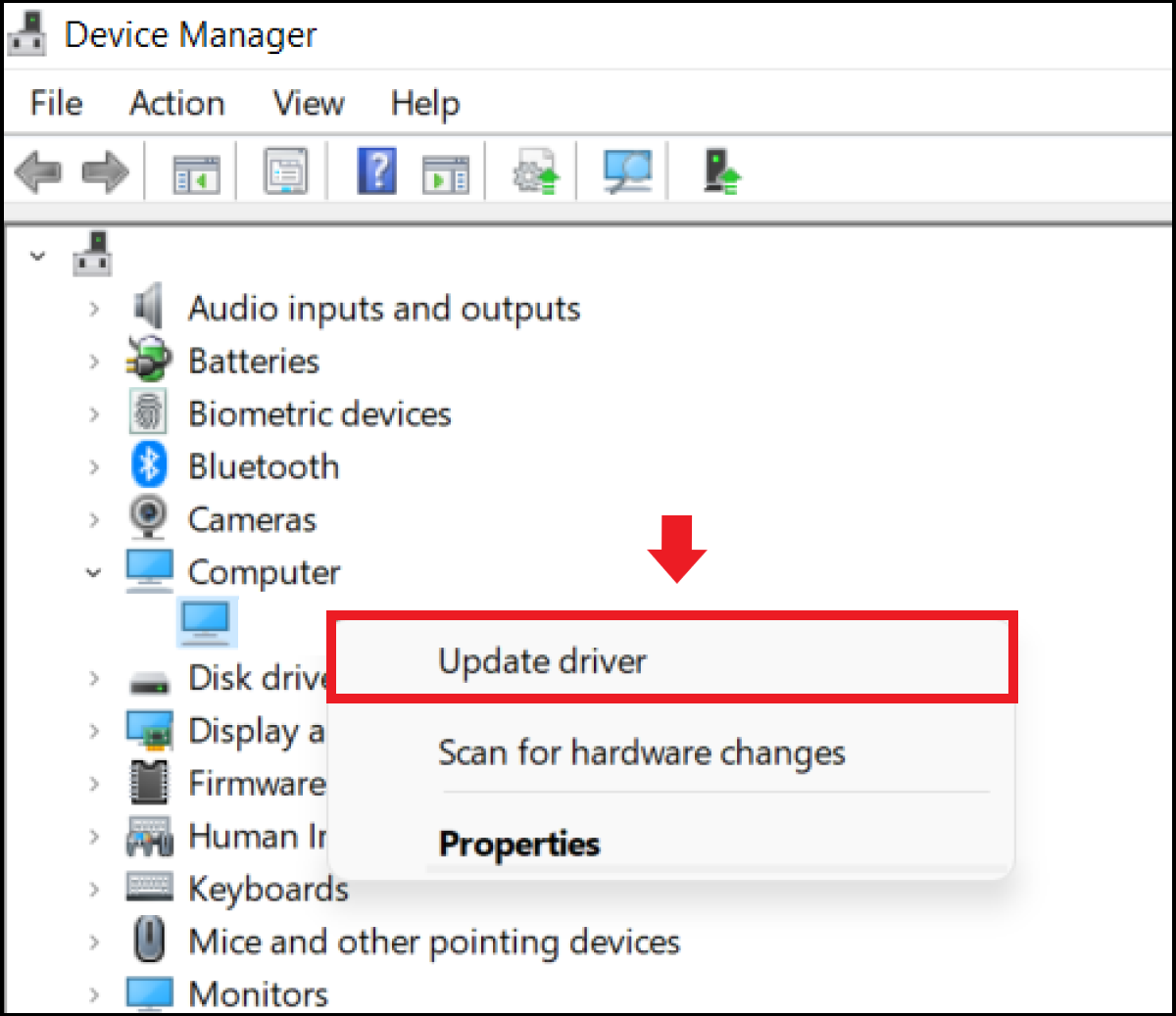
Manual Update via Device Manager
You can also initiate driver updates directly from Device Manager:
- Open Device Manager (as described above).
- Locate the device you wish to update.
- Right-click on the device and select “Update driver.”
- You’ll be presented with two options:
- “Search automatically for updated driver software”: Windows will attempt to find a driver on your computer and online. This is often successful for common devices but might not find the very latest version if it’s not in Microsoft’s repository.
- “Browse my computer for driver software”: This option is used when you have manually downloaded a driver file (usually a
.inffile or a folder containing one) from the manufacturer’s website. You’ll specify the path to the downloaded driver. This is crucial for installing drivers that Windows Update or the automatic search cannot find.
Downloading Directly from Manufacturer’s Website
This is often the most recommended method for critical components like graphics cards, chipsets, and complex peripherals, as it ensures you get the latest, manufacturer-specific version.
- Identify the exact manufacturer and model number of your hardware component (e.g., NVIDIA GeForce RTX 3080, Intel Core i7-12700K, Realtek ALC1220 audio chip, Dell XPS 15).
- Visit the official support or driver download section of the manufacturer’s website (e.g., NVIDIA.com, AMD.com, Intel.com, HP.com, Dell.com, Asus.com). Be wary of third-party driver sites, which can host outdated or malicious software.
- Navigate their support portal to find your specific product model.
- Select your operating system (e.g., Windows 11 64-bit). Ensure you pick the correct version and architecture (32-bit or 64-bit).
- Download the latest driver package. These are typically executable files (.exe) that include an installer.
- Run the downloaded installer and follow the on-screen prompts. Most installers will guide you through the process, often including options for a “clean installation” (which is recommended, especially for graphics drivers, to remove old driver files).
Using Manufacturer-Specific Utility Software
Many major hardware manufacturers provide their own dedicated software to manage and update drivers.
- NVIDIA GeForce Experience: For NVIDIA graphics cards, this utility not only optimizes game settings but also notifies you of new driver releases and allows for direct installation.
- AMD Radeon Software: Similar to NVIDIA, AMD provides its software suite for Radeon graphics cards, offering driver updates, performance tuning, and other features.
- Intel Driver & Support Assistant: This utility scans your Intel hardware (processors, graphics, Wi-Fi, Ethernet, chipsets) and recommends specific Intel driver and software updates, downloading and installing them directly.
- OEM Utilities: Laptop and desktop manufacturers like Dell, HP, Lenovo, and Asus often provide their own update software (e.g., Dell SupportAssist, HP Support Assistant). These tools are excellent for keeping all system drivers (chipset, audio, touchpad, BIOS) up-to-date for their specific models.
These utilities streamline the update process significantly, ensuring compatibility and ease of use.
Driver Updater Software (with caution)
While numerous third-party driver updater programs exist, they should be approached with extreme caution. Many can be aggressive in pushing unnecessary updates, install incorrect drivers, or even bundle unwanted software. While some reputable ones exist, the safest and most reliable methods remain using Windows Update, Device Manager, or direct downloads from manufacturer websites or their official utilities. Avoid any software that claims to fix thousands of driver issues with a single click without significant research and verification.
Best Practices and Troubleshooting Tips
Updating drivers, while generally straightforward, can occasionally lead to unexpected issues. Following best practices can minimize risks, and knowing how to troubleshoot can quickly resolve any problems.
Create a System Restore Point
Before performing any significant driver update, especially for critical system components like graphics or chipset drivers, it is highly recommended to create a System Restore Point. This acts as a snapshot of your system’s working state. If a new driver causes instability or problems, you can easily revert your system to the restore point, undoing the changes and restoring functionality. To create one in Windows, search for “Create a restore point” in the Start menu, then click the “Create…” button.
Uninstall Old Drivers First (Clean Installation)
For graphics drivers in particular, performing a “clean installation” is a best practice. This involves completely removing the old driver software before installing the new one. This prevents potential conflicts or leftover files from causing issues. Tools like Display Driver Uninstaller (DDU) can thoroughly remove graphics drivers from AMD, NVIDIA, and Intel cards. Many official driver installers also offer a “clean installation” or “custom installation” option that includes driver uninstallation.
Always Verify Compatibility
Before downloading any driver, meticulously verify that it is compatible with your specific hardware model and your operating system version and architecture (e.g., Windows 11 64-bit, not Windows 10 or 32-bit). Installing an incorrect driver can lead to non-functional hardware or even system instability. Double-check model numbers and OS details on the manufacturer’s website.
Restart After Installation
While some driver installations might not explicitly prompt for a restart, it’s generally a good practice to reboot your system after installing new drivers. This ensures that the new drivers are fully integrated into the operating system and any pending changes take effect.
What to Do if Something Goes Wrong
If a driver update causes problems (e.g., blue screen, no display, audio issues):
- Boot into Safe Mode: If your system becomes unstable or won’t boot normally, try booting into Safe Mode. This loads Windows with only essential drivers, allowing you to troubleshoot.
- Roll Back Drivers: In Device Manager, if you recently updated a driver, go to its “Properties” -> “Driver” tab, and you might find a “Roll Back Driver” button. This will revert to the previously installed driver.
- Use System Restore Point: If rolling back isn’t an option or doesn’t resolve the issue, use the System Restore Point you created earlier to revert your system to its previous state.
- Re-download and Reinstall: Sometimes, a download might be corrupted. Delete the downloaded file, clear your browser cache, and try downloading the driver again from the official source.
By understanding why and how to update hardware drivers, and by adhering to these best practices, you can ensure your computer remains a reliable, high-performing, and secure tool for all your digital endeavors.
aViewFromTheCave is a participant in the Amazon Services LLC Associates Program, an affiliate advertising program designed to provide a means for sites to earn advertising fees by advertising and linking to Amazon.com. Amazon, the Amazon logo, AmazonSupply, and the AmazonSupply logo are trademarks of Amazon.com, Inc. or its affiliates. As an Amazon Associate we earn affiliate commissions from qualifying purchases.