
In the dynamic world of web development, efficiency and collaboration are paramount. Developers constantly seek tools and methodologies that streamline their workflow, enable rapid iteration, and ensure the reliability of their projects. At the heart of this ecosystem lies Node.js, a powerful JavaScript runtime environment that has revolutionized server-side development. And hand-in-hand with Node.js comes npm, the Node Package Manager. For anyone venturing into modern web development, understanding npm install is not just beneficial – it’s fundamental.
This article will delve into the core of npm install, exploring its purpose, how it functions, and why it’s an indispensable command for any developer working with Node.js. We’ll unpack the magic behind this seemingly simple command, connecting it to the broader landscape of technology trends, efficient software development practices, and even the financial implications of leveraging robust tooling.

The Genesis of npm: A Solution to Dependency Chaos
Before we dive into the intricacies of npm install, it’s crucial to understand the problem it solves. In the early days of software development, managing dependencies – external libraries or modules that your project relies on – was a manual and often chaotic process. Developers would have to:
- Manually download libraries: Finding the correct version of a library could be a scavenger hunt.
- Resolve version conflicts: Different parts of your project might require different versions of the same library, leading to intractable issues.
- Track dependencies: Keeping a record of which libraries your project needed and their specific versions was a painstaking task.
- Share projects: Distributing a project meant also distributing all its required libraries, making collaboration cumbersome and error-prone.
The advent of Node.js, with its modular architecture and vast ecosystem of reusable code, exacerbated these challenges. The Node.js community quickly recognized the need for a standardized and automated solution. This need gave birth to npm.
npm: The De Facto Standard Package Manager for Node.js
npm (Node Package Manager) is the default package manager for the JavaScript runtime environment Node.js. It’s not just a tool; it’s a vast online repository (npm registry) containing millions of reusable code packages, meticulously organized and made accessible to developers worldwide. Think of it as a massive digital library of building blocks for your web applications.
The primary functions of npm include:
- Package Distribution: It provides a platform for developers to publish and share their own reusable code packages with the community.
- Package Discovery: Developers can easily search for and discover existing packages that can fulfill specific needs within their projects.
- Dependency Management: This is where
npm installshines. It automates the process of downloading, installing, and managing all the external libraries your project requires.
Essentially, npm allows developers to leverage the collective innovation of the JavaScript community, avoiding the need to reinvent the wheel for common functionalities. This not only accelerates development but also promotes best practices and ensures that projects benefit from well-tested and maintained code.
Decoding npm install: The Engine of Dependency Management
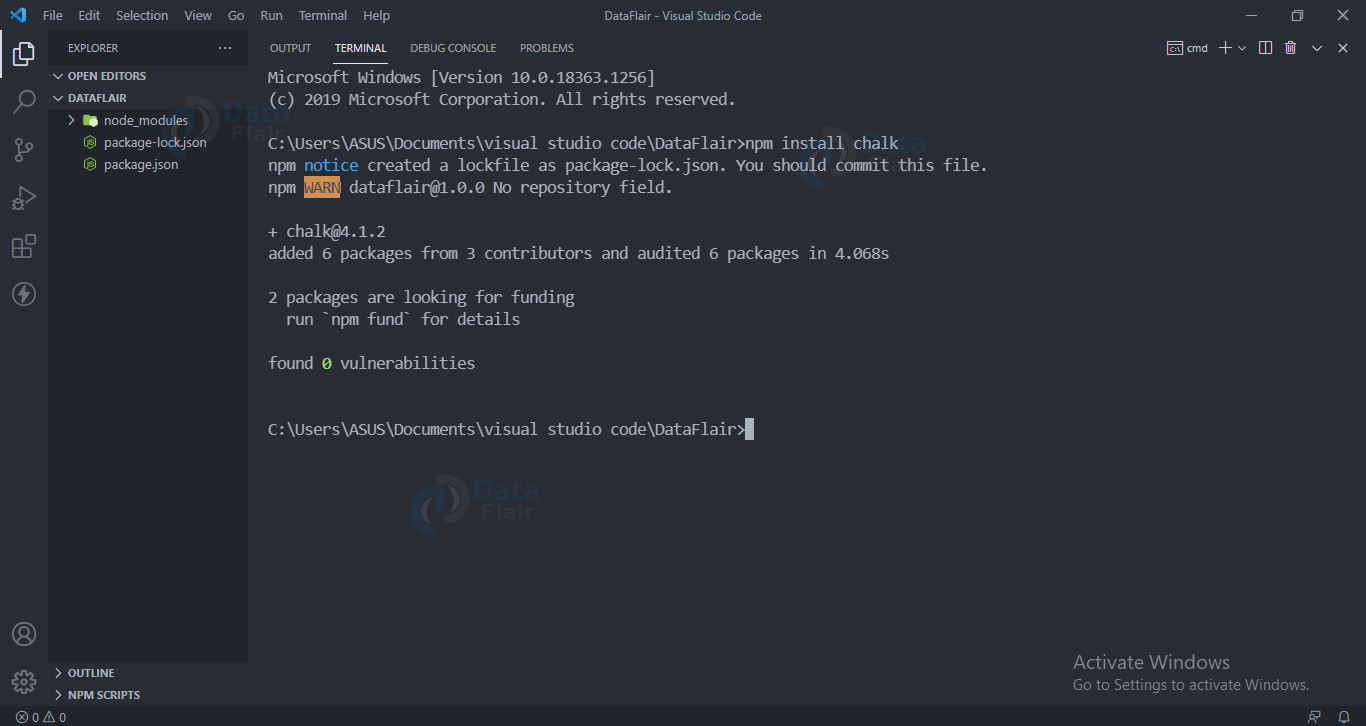
At its core, npm install is a command that tells npm to download and install packages. However, its functionality extends far beyond a simple download. When you execute npm install in your project directory, a sophisticated process unfolds, orchestrated by npm to ensure your project has everything it needs to run.
The package.json File: The Project’s Blueprint
The central piece of configuration for any npm-powered project is the package.json file. This file, typically located at the root of your project, acts as a manifest, describing your project and its dependencies. It contains crucial information such as:
name: The name of your project.version: The current version of your project.description: A brief overview of what your project does.scripts: Custom commands you can run (e.g.,npm start,npm test).dependencies: A list of packages your project requires to run in production.devDependencies: A list of packages needed for development and testing (e.g., testing frameworks, linters, build tools).
When you install a package using npm install <package-name>, npm adds that package to the dependencies or devDependencies section of your package.json file (depending on how you install it, see below). This ensures that the dependency is tracked and can be easily reinstalled by anyone else working on the project.
How npm install Works: A Step-by-Step Breakdown
Let’s break down what happens when you run npm install:
-
Reading
package.jsonandpackage-lock.json:- If you have a
package-lock.jsonfile in your project, npm will meticulously follow the exact versions and dependency tree specified within it. This guarantees deterministic builds – meaning that every time you runnpm install, you get the exact same set of packages, preventing “it works on my machine” scenarios. - If
package-lock.jsonis absent, npm will read thedependenciesanddevDependenciesfrompackage.json. It will then try to resolve the latest compatible versions of these packages based on the version ranges specified.
- If you have a
-
Resolving the Dependency Tree:
- A project’s dependencies can have their own dependencies, which in turn have their own dependencies, creating a complex tree structure. npm’s algorithm intelligently traverses this tree, identifying all the necessary packages.
- It handles version conflicts by attempting to find a single version of a dependency that satisfies all the requirements from different parts of the tree. If an absolute conflict arises that cannot be resolved, npm might throw an error.
-
Downloading Packages:
- Once the dependency tree is resolved, npm fetches the required package files from the npm registry. These packages are compressed archives containing the code and metadata for each module.
-
Installing Packages:
- The downloaded packages are then unpacked and placed into a
node_modulesdirectory within your project’s root. Thisnode_modulesfolder becomes the central hub for all your project’s dependencies. Each package is installed in its own sub-folder. - npm also installs sub-dependencies within the
node_modulesfolder. For example, if packageAdepends on packageB, andBdepends onC, thenBandCwill be installed withinnode_modules.
- The downloaded packages are then unpacked and placed into a
-
Generating/Updating
package-lock.json:- If
package-lock.jsonwas not present, npm will create it after resolving and installing the dependencies. This file captures the exact versions of every package that was installed, including all their transitive dependencies. This is crucial for reproducible builds. - If
package-lock.jsonwas present, npm will update it to reflect any changes made during the installation process.
- If
Common npm install Commands and Their Nuances
Understanding the basic npm install command is essential, but knowing its variations can significantly enhance your workflow:
-
npm install(ornpm i):- When run without any package names in a project with a
package.jsonfile, this command installs all the dependencies listed inpackage.jsonandpackage-lock.json(if present). This is the command you’ll use when cloning a project from a repository or when you need to reinstall all project dependencies.
- When run without any package names in a project with a
-
npm install <package-name>(ornpm i <package-name>):- This command installs a specific package from the npm registry. By default, it installs the package as a production dependency, meaning it adds it to the
dependenciessection of yourpackage.jsonfile.
- This command installs a specific package from the npm registry. By default, it installs the package as a production dependency, meaning it adds it to the
-
npm install <package-name> --save-dev(ornpm i <package-name> -D):- This command installs a specific package and adds it to the
devDependenciessection of yourpackage.json. These are packages that are only needed for development purposes, such as testing frameworks, build tools, or linters. They are not included when your application is deployed to production.
- This command installs a specific package and adds it to the
-
npm install --global <package-name>(ornpm i -g <package-name>):- This command installs a package globally on your system. Global packages are typically command-line tools that you want to access from anywhere on your machine, regardless of the current project. Examples include build tools like Webpack or testing frameworks like Jest (though often it’s better to install these locally for project-specific versions).
-
npm install --production:- When run in a project, this command installs only the packages listed under
dependenciesinpackage.json. It excludes alldevDependencies. This is typically used in production environments to minimize the size of yournode_modulesfolder.
- When run in a project, this command installs only the packages listed under
Beyond Installation: The Ecosystem and Its Impact
The impact of npm install and the npm ecosystem extends far beyond simply downloading code. It has profound implications for various aspects of technology and even business:
Accelerating Technological Innovation
The ease with which developers can access and integrate pre-built components through npm install has dramatically accelerated the pace of technological innovation. Instead of spending time building fundamental functionalities like routing, data fetching, or UI components, developers can leverage well-maintained packages. This allows them to focus on the unique aspects of their projects, pushing the boundaries of what’s possible with web applications. This rapid iteration and adoption of new tools and libraries are hallmarks of modern tech trends.
Enhancing Productivity and Collaboration
npm install is a cornerstone of developer productivity. It standardizes the dependency management process, making it seamless for teams to collaborate. When a new developer joins a project, they can simply clone the repository, run npm install, and have all the necessary tools and libraries at their disposal. This eliminates the “it works on my machine” frustration and fosters a more efficient and collaborative development environment.
Financial Implications: Saving Time and Resources
From a financial perspective, the efficiency brought by npm install translates directly into cost savings.
- Reduced Development Time: By not having to build common functionalities from scratch, development cycles are shorter, leading to faster time-to-market for products and services.
- Lower Maintenance Overhead: Relying on community-maintained packages means that bug fixes and updates are often handled by the wider community, reducing the burden on individual teams.
- Access to Premium Tools: While many npm packages are free and open-source, the npm ecosystem also facilitates the discovery and integration of commercial libraries and tools, allowing businesses to adopt powerful solutions without extensive custom development.
The ability to quickly prototype and iterate with npm install also plays a crucial role in validating business ideas and exploring new revenue streams. For online income and side hustles, leveraging existing libraries can significantly lower the barrier to entry for creating functional applications and services.
Digital Security Considerations
While npm offers immense benefits, it’s also important to acknowledge the security implications. As projects become reliant on a vast network of third-party packages, the security of those packages becomes critical. A vulnerability in a single dependency can potentially compromise an entire project.
This is why developers must be diligent about:
- Keeping dependencies updated: Regularly running
npm auditcan help identify known vulnerabilities in installed packages. - Vetting packages: Before installing new packages, it’s wise to check their popularity, maintenance history, and any reported security issues.
- Using
package-lock.json: This file ensures that you are always installing the exact same versions of dependencies, preventing the introduction of new, potentially vulnerable versions without explicit consent.
The Future of npm install
As the JavaScript ecosystem continues to evolve, so too will npm and its command-line interface. We see ongoing efforts to improve performance, enhance security features, and provide even more sophisticated dependency resolution capabilities. Tools and concepts like yarn, pnpm, and even newer package managers are constantly pushing the envelope, often building upon the foundational principles established by npm.
Conclusion: The Indispensable Command
In the realm of modern web development, npm install is far more than just a command; it’s a gateway to a vast and vibrant ecosystem of reusable code. It empowers developers to build complex applications faster, more efficiently, and with greater collaboration. By abstracting away the complexities of dependency management, npm install allows developers to focus on innovation and deliver exceptional digital experiences.
Whether you are building a personal website, a complex enterprise application, or exploring new online income opportunities, mastering npm install is an essential step. It’s the foundation upon which countless successful projects are built, a testament to the power of shared innovation and efficient tooling in the ever-evolving world of technology. The next time you encounter a Node.js project, remember the silent power of npm install working behind the scenes, assembling the building blocks that bring your digital vision to life.