
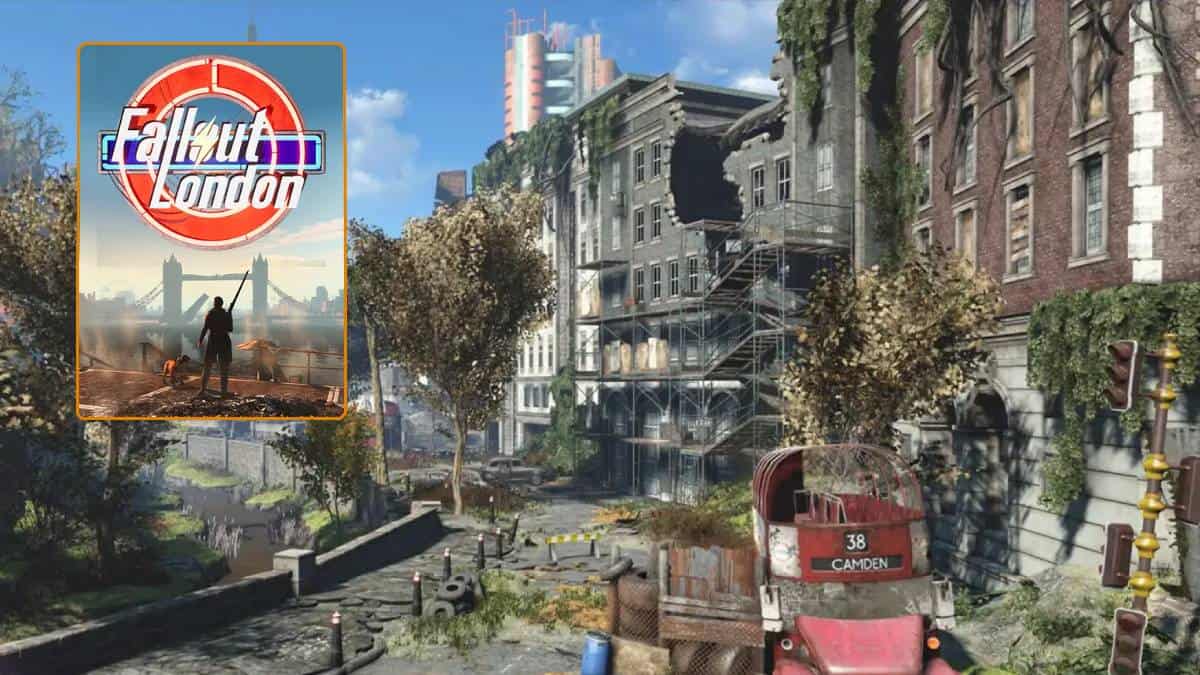
The world of PC gaming is a vibrant ecosystem, constantly evolving with new titles and transformative mods. Among the most anticipated expansions for Bethesda’s iconic Fallout series is Fallout London, a massive, unofficial total conversion mod that promises to transport players to a post-apocalyptic Great Britain. While many mods can be installed with the click of a button through mod managers, some, particularly large-scale projects like Fallout London, may require a more hands-on approach – a manual installation. This guide will walk you through the process, ensuring you can dive into the smog-filled streets of London without a hitch.
This article falls squarely within the Tech category of our website, specifically focusing on Tutorials for software and gaming. We’ll be delving into the practical steps involved in modifying game files, a common practice within the PC gaming community, and providing a step-by-step approach akin to troubleshooting a complex software installation. While not directly related to Brand or Money, understanding these technical processes can be crucial for gamers who invest time and money into their gaming experiences.
Understanding the Need for Manual Installation
Before we dive into the mechanics, it’s important to understand why a mod like Fallout London might necessitate a manual installation. Mod managers, such as Vortex or Mod Organizer 2, are fantastic tools for automating the download, installation, and management of mods. They create a virtual file system, separating mod files from the core game files, which greatly simplifies updates, conflict resolution, and uninstallation.
However, the sheer scale and complexity of Fallout London can sometimes present challenges for automated installers. This can be due to a multitude of reasons:
- File Structure: The mod might have a unique or extensive file structure that a mod manager might not parse correctly by default. This is especially true for mods that extensively alter game assets, scripts, and even the game’s core executables.
- Interdependencies: Large mods often have intricate dependencies on other mods or specific game versions. Manually placing files can sometimes offer more control over ensuring these dependencies are met.
- Troubleshooting: In instances where automated installation fails or leads to game instability, a manual installation allows for precise placement of files. This can be invaluable for identifying exactly where a problem might lie, making it easier to isolate and fix conflicts.
- Specific Instructions: Mod developers often provide detailed manual installation instructions when they anticipate issues with automated tools or when they want to ensure users follow a precise procedure to avoid errors. Fallout London, being a project of immense ambition, has had its installation process refined, and for certain stages or components, manual intervention might be recommended or even required for optimal performance.
While manual installation might seem daunting, it essentially involves understanding how game mods interact with your game’s directory and carefully placing the mod’s files in the correct locations. Think of it as a more involved form of software installation, where you’re directly manipulating the program’s files.
Prerequisites and Initial Preparations
Before you begin the actual installation, a few crucial steps will ensure a smooth and successful process. Skipping these can lead to frustration and potential game corruption.
System Requirements and Game Version
- Fallout 4 Base Game: Fallout London is a total conversion mod for Fallout 4. You must own and have Fallout 4 (and all its official DLCs) installed on your PC. Ensure your Fallout 4 installation is up-to-date with the latest official patches.
- PC Specifications: While Fallout London aims to be accessible, it’s a demanding mod. Ensure your PC meets or exceeds the recommended system requirements for Fallout 4 itself, and ideally, has a bit of headroom. A powerful CPU, a good amount of RAM (16GB or more is highly recommended), and a capable graphics card will provide the best experience.
- Mod Manager (Optional but Recommended): Even if you’re performing a manual installation for the main Fallout London files, having a mod manager like Vortex or Mod Organizer 2 installed and configured can still be beneficial for managing other, smaller mods you might want to use alongside Fallout London, or for managing the initial installation of essential support mods.
Essential Support Mods
- Fallout 4 Script Extender (F4SE): This is a critical piece of software for many advanced Fallout 4 mods, and Fallout London is no exception. F4SE expands the scripting capabilities of the game, allowing for more complex and dynamic mod features.
- Installation:
- Download the latest version of F4SE from its official website. Ensure you download the correct version for your Fallout 4 installation (Steam, GOG, etc.).
- Extract the contents of the downloaded F4SE archive.
- Locate your Fallout 4 installation directory (typically
C:Program Files (x86)SteamsteamappscommonFallout 4). - Copy the
f4se_loader.exe,f4se_1_10_130.dll, andf4se_options.inifiles (the version number might differ) into the main Fallout 4 directory. - Crucially: You must launch Fallout 4 through
f4se_loader.exefor the mod to function. Create a desktop shortcut for this executable for easy access.
- Installation:
- Buffout 4: This mod is a performance and stability enhancement that helps to prevent crashes and improve frame rates. It’s highly recommended for any large-scale modding project.
- Installation: The exact installation method for Buffout 4 might involve manual placement or using a mod manager. Always refer to the specific installation instructions provided on the Buffout 4 mod page (usually on Nexus Mods).
- Other Essential Mods: The Fallout London team may recommend other foundational mods for stability and compatibility. Always check the official Fallout London documentation or mod page for a comprehensive list of required or highly recommended support mods.
Backups
Before making any changes to your game files, it’s paramount to back up your existing Fallout 4 installation. This ensures that if anything goes wrong, you can revert to a working state without losing your progress or having to reinstall the entire game.
- Method: The simplest way is to copy your entire Fallout 4 game folder to a different drive or a dedicated backup location. Alternatively, if you’re using a mod manager, it usually has a feature to create and manage profiles, which can act as a form of backup for your mod load order and configuration.
The Manual Installation Process for Fallout London
The manual installation of Fallout London primarily involves extracting and placing its files into the correct directories within your Fallout 4 installation. The mod itself will be a large download, so ensure you have ample free space.
Downloading Fallout London
- Official Sources: Always download Fallout London from its official or most trusted sources. This is typically Nexus Mods or the official Fallout London website. Be wary of unofficial downloads from other sites, as they may be outdated, incomplete, or contain malicious software.
- Extract the Archive: Once downloaded, you’ll likely have a large archive file (e.g.,
.zip,.7z,.rar). Use a compatible extraction tool like 7-Zip or WinRAR to extract its contents. You will be presented with several folders and files.
Locating Your Fallout 4 Game Directory
This is a critical step. You need to know where your Fallout 4 game files are located on your computer.
- Steam:
- Open your Steam library.
- Right-click on Fallout 4.
- Select “Properties.”
- Go to the “Local Files” tab.
- Click “Browse local files…”
- GOG:
- Open your GOG Galaxy client.
- Navigate to your Fallout 4 installation.
- Click the “Manage Installation” button (or similar).
- Select “Browse installation.”
The path will look something like D:GamesFallout 4 or C:Program Files (x86)SteamsteamappscommonFallout 4.
Placing the Fallout London Files
The Fallout London mod typically consists of multiple parts, often categorized into Data files and potentially executable or script files. The exact structure might vary slightly depending on the version, so always refer to the specific installation instructions provided by the Fallout London developers. However, the general principle is to copy and paste files into your Fallout 4 directory.

Here’s a common breakdown of where files usually go:
1. The “Data” Folder
This is the most common location for mod files that add new assets, textures, sounds, and scripts.
- Locate the
Datafolder within your extracted Fallout London download. This folder will contain subfolders likeMeshes,Textures,Sound,Scripts,Materials, etc. - Locate the
Datafolder within your Fallout 4 game directory. - Copy and Paste: You will need to merge the contents of the Fallout London
Datafolder into your Fallout 4Datafolder. This means copying all the subfolders and files from the mod’sDatafolder into the game’sDatafolder. Your extraction tool might ask if you want to merge folders with the same name; select “Yes” or “Merge.”
Example:
If your Fallout 4 Data folder is at D:GamesFallout 4Data, and your extracted Fallout London files have a Data folder at E:DownloadsFalloutLondonData, you would copy the contents of E:DownloadsFalloutLondonData into D:GamesFallout 4Data.
2. Plugin Files (.esp or .esm)
These are the files that tell the game to load the mod’s content.
- Locate the
.espor.esmfiles within your Fallout London download. These are often found directly in the root of the extracted mod folder or within aFallout Londonsubfolder. - Copy these
.esp/.esmfiles directly into your Fallout 4 game directory. This is the same directory where you foundFallout4.exeandf4se_loader.exe.
Important Note on Plugin Management:
While placing .esp files directly into the game folder is part of manual installation, it’s generally recommended to then use a mod manager (like Vortex or Mod Organizer 2) to manage these plugins. A mod manager will help you:
* Enable/Disable Plugins: Easily turn Fallout London on or off.
* Load Order: Ensure the plugin is loaded in the correct order relative to other mods to prevent conflicts. Fallout London will likely have specific load order recommendations.
3. Other Files (Executables, INI files, etc.)
Some mods might include additional files that need to be placed in specific locations.
- Read the Fallout London installation instructions carefully. If they specify placing files in the root game directory (where
Fallout4.exeis), do so. - INI Files: If the mod provides
.iniconfiguration files, these might need to be placed in yourDocumentsMy GamesFallout4folder. Again, follow the mod author’s instructions precisely.
Enabling Fallout London
After placing all the files, you need to ensure the game recognizes and loads Fallout London.
- Using a Mod Manager: If you’ve used a mod manager to help manage your
.espfiles, ensure that the Fallout London plugin is enabled in the mod manager’s plugin list. - Manual Plugin Management (Less Recommended): If you are not using a mod manager for plugins, you might need to manually edit the
Fallout4.iniandFallout4Prefs.inifiles in yourDocumentsMy GamesFallout4folder. Look for a section like[Archive]and ensure thatbInvalidateOlderFiles=1is present and that thesResourceDataDirsFinalline includes theDatafolder. You might also need to editplugins.txtin the root of your Fallout 4 directory to add the mod’s.espfile name. However, this manual approach is prone to errors and is best avoided if possible.
Launching Fallout London and Troubleshooting
Once the files are in place and enabled, it’s time to launch the game and see if it works.
Launching the Game
- Always launch Fallout 4 through
f4se_loader.exe. This is non-negotiable for mods that rely on F4SE, including Fallout London. - If you have a mod manager, ensure you are launching the game through the manager’s executable to properly load all your mods.
First Steps in-Game
- New Game: It’s highly recommended to start a new game when installing a total conversion mod like Fallout London. Using an existing save file can lead to unexpected bugs, script errors, or crashes because the game world and its states are not prepared for the new content.
- Test Stability: Once in-game, take a few moments to walk around your starting area, interact with objects, and check for any immediate visual glitches or performance issues.
Troubleshooting Common Issues
Despite careful installation, you might encounter problems. Here are some common issues and how to approach them:
- Game Crashes on Startup:
- F4SE Issue: Ensure you are launching through
f4se_loader.exeand that F4SE is installed correctly. - Missing Core Files: Double-check that all necessary files (especially the
.esp/.esmfiles and the contents of theDatafolder) have been copied to the correct locations. - Conflicting Mods: If you have other mods installed, they might be conflicting with Fallout London. Try disabling all other mods and launching with only Fallout London installed to see if the issue persists. If it resolves, re-enable your other mods one by one to identify the culprit.
- F4SE Issue: Ensure you are launching through
- Missing Textures or Models (Pink/Purple Squares):
- Data Folder Mishap: This almost always indicates that the textures, meshes, or other asset files within the
Datafolder were not copied correctly or were placed in the wrong subdirectory. Revisit theDatafolder merging process.
- Data Folder Mishap: This almost always indicates that the textures, meshes, or other asset files within the
- Game Freezes or Stutters Significantly:
- Performance Issues: Ensure your PC meets the recommended requirements. Consider installing performance-enhancing mods like Buffout 4 if you haven’t already.
- Load Order: An incorrect load order for plugins can cause instability. Consult Fallout London‘s official documentation for load order recommendations.
- Quests Not Starting or Bugs in Gameplay:
- Script Errors: This can be caused by a variety of factors, including corrupted script files, conflicts with other mods, or an incomplete installation.
- Save File Corruption: If you tried to load an old save, try a fresh game.
- Error Messages Related to Missing Masters:
- DLCs Not Installed: Fallout London requires all official Fallout 4 DLCs. Ensure they are installed and active.
- Missing Core Mod Files: Some mods are dependent on other mods being installed. Verify you have installed all prerequisite mods as per Fallout London‘s requirements.
Key to Troubleshooting:
- Patience: Troubleshooting mods takes time and effort.
- Documentation: Always refer to the official Fallout London mod page and community forums for known issues and solutions.
- Systematic Approach: Make one change at a time and test. This helps isolate the problem.
- Clean Installation: If all else fails, consider performing a clean installation of Fallout 4 and then installing Fallout London first, before adding any other mods.

Conclusion
Manually installing a mod as extensive as Fallout London might seem like a technical hurdle, but by following these steps, understanding the file structure, and paying close attention to the official instructions, you can successfully bring the streets of post-apocalyptic London to life. Remember to always back up your files, install prerequisite mods, and launch the game correctly. The world of modding Fallout 4 is rich and rewarding, and with a little effort, you’ll be exploring a brand-new vision of the Commonwealth. Enjoy your journey across the pond!
aViewFromTheCave is a participant in the Amazon Services LLC Associates Program, an affiliate advertising program designed to provide a means for sites to earn advertising fees by advertising and linking to Amazon.com. Amazon, the Amazon logo, AmazonSupply, and the AmazonSupply logo are trademarks of Amazon.com, Inc. or its affiliates. As an Amazon Associate we earn affiliate commissions from qualifying purchases.