
In today’s interconnected digital landscape, an Amazon account serves as a gateway to an expansive ecosystem of services, products, and digital content. Far more than just an online storefront, Amazon provides a suite of technological tools and platforms that streamline everything from daily shopping to entertainment and cloud services. Understanding how to set up and securely manage this account is a fundamental skill for navigating the modern digital economy. This guide breaks down the technical steps and security considerations for establishing your Amazon presence, ensuring you can leverage its vast offerings effectively and safely.
Understanding the Amazon Ecosystem
Before diving into the mechanics of account creation, it’s crucial to grasp the breadth of the Amazon ecosystem. An Amazon account isn’t merely a login for purchasing physical goods; it’s a unified digital identity that unlocks a spectrum of technology-driven services, each designed to enhance convenience and integrate into a modern lifestyle.
Why an Amazon Account is Essential
An Amazon account acts as your digital passport across numerous Amazon-owned platforms and services. Without one, access to the majority of Amazon’s offerings is restricted. This includes the ability to shop on Amazon.com, stream content via Prime Video, listen to music on Amazon Music, read ebooks on Kindle devices, manage smart home devices through Alexa, and even utilize cloud storage via Amazon Photos. Each of these services, while distinct, is seamlessly linked by a single user account, providing a cohesive user experience across devices and applications. For many, an Amazon account becomes a central hub for digital consumption and management, making its setup a foundational step in digital literacy.
Key Benefits and Services
The technological benefits stemming from an Amazon account are multifaceted. Beyond the obvious e-commerce capabilities, users gain access to:
- Personalized Shopping Experience: Amazon’s advanced algorithms utilize your purchase history and browsing patterns to offer highly personalized product recommendations, streamlining discovery and improving the overall shopping journey.
- Digital Content Access: An account is mandatory for accessing Amazon’s vast libraries of digital content, including movies and TV shows on Prime Video, millions of songs on Amazon Music, and a plethora of ebooks and audiobooks on Kindle and Audible. This digital media consumption is a cornerstone of modern entertainment, powered by Amazon’s robust streaming and distribution infrastructure.
- Cloud Services: Features like Amazon Photos provide secure cloud storage for your images, accessible across multiple devices. This integration showcases Amazon’s strength in cloud computing, extending its utility beyond retail.
- Smart Home Integration: For users of Amazon Echo devices and Alexa-enabled products, an account is indispensable for setting up, managing, and interacting with smart home technology, turning voice commands into actions that control your connected environment.
- Subscription Management: An Amazon account centralizes the management of various subscriptions, most notably Amazon Prime, which bundles expedited shipping, streaming services, and other perks, all managed through a single dashboard.
These integrated services highlight the technological depth and utility that an Amazon account provides, positioning it as more than just a transactional platform but rather a comprehensive digital utility.
Step-by-Step Guide to Account Creation
Creating an Amazon account is a straightforward process, designed to be user-friendly across both desktop and mobile platforms. Adhering to these steps ensures a smooth setup, allowing you to quickly unlock the full potential of Amazon’s digital ecosystem.
Prerequisites for Getting Started
Before you begin the registration process, ensure you have the following ready:
- A Valid Email Address: This will be your primary login credential and how Amazon communicates with you regarding orders, account changes, and security alerts. Choose an email address you check regularly and plan to keep long-term.
- A Strong Password: While you’ll create this during registration, it’s wise to consider a strong, unique password beforehand. This should be a combination of uppercase and lowercase letters, numbers, and symbols, and ideally, not used for any other online accounts.
- A Mobile Phone Number (Optional but Recommended): Providing a phone number can enhance account security through two-factor authentication and can be used for password recovery.
- Internet Access: A stable internet connection is necessary whether you’re using a web browser or the Amazon mobile app.
The Registration Process on Desktop
- Navigate to Amazon.com: Open your preferred web browser and type
www.amazon.cominto the address bar. - Hover over “Account & Lists”: In the top right corner of the homepage, you’ll see “Hello, Sign in” and “Account & Lists.” Hover your mouse over “Account & Lists” (do not click yet).
- Click “Start here”: A dropdown menu will appear. Below the “Sign in” button, click on the “Start here” link next to “New customer?”.
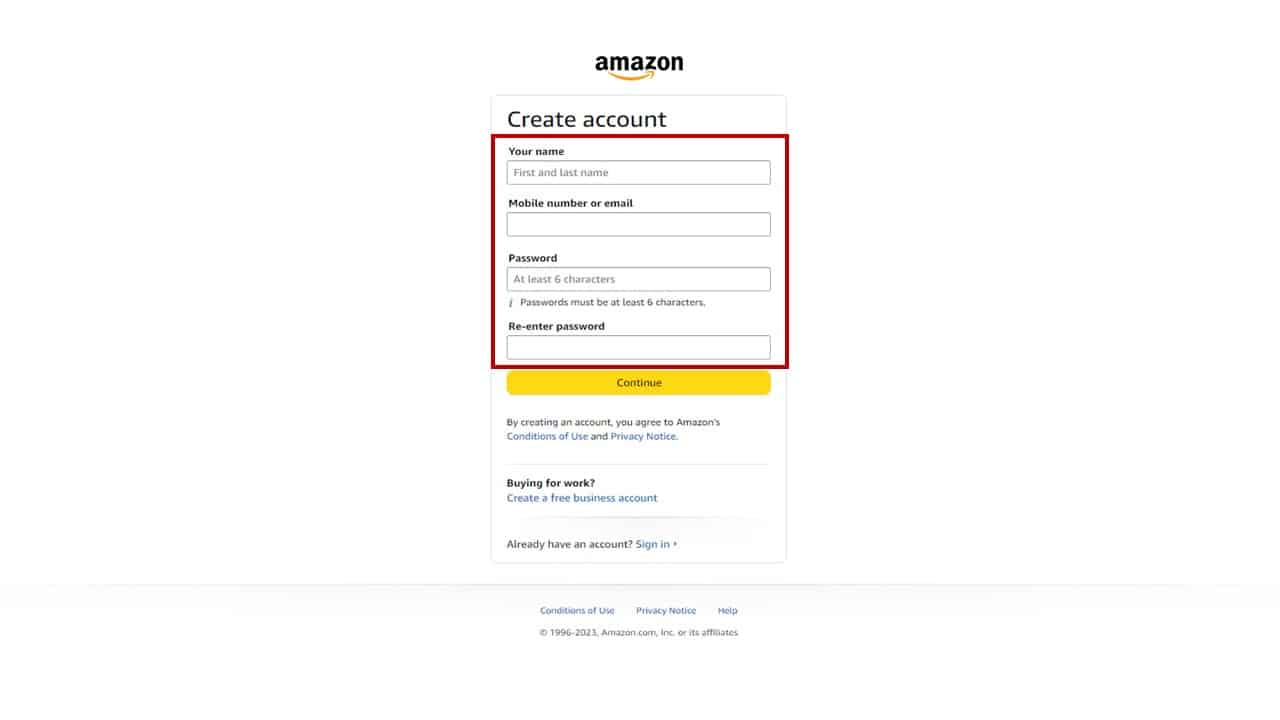
- Enter Your Details: You will be redirected to the “Create account” page. Here, you’ll need to provide:
- Your Name: Enter your full name.
- Mobile number or Email: Enter the valid email address you prepared.
- Password: Create a strong password (minimum 6 characters).
- Re-enter password: Confirm your password by typing it again.
- Verify Your Email/Phone: Amazon will send a One-Time Password (OTP) to the email address or phone number you provided. Check your inbox or SMS for this code.
- Enter OTP and Create Account: Input the OTP into the designated field on the Amazon registration page and click “Create your Amazon account.”
- Account Created: Your Amazon account is now active. You’ll be redirected to the Amazon homepage, where you can begin exploring its features.
Registering via the Amazon Mobile App
- Download the Amazon App: If you haven’t already, download the official Amazon Shopping app from your device’s app store (Google Play Store for Android or Apple App Store for iOS).
- Open the App: Launch the Amazon Shopping app on your smartphone or tablet.
- Tap “Create account”: On the initial welcome screen, you’ll see options to “Sign in” or “Create account.” Tap “Create account.”
- Enter Your Details: Similar to the desktop process, you’ll be prompted to enter:
- Your Name
- Mobile number or Email
- Password
- Verify Your Email/Phone: An OTP will be sent to your provided email or phone number.
- Enter OTP and Continue: Input the OTP into the app and proceed.
- Account Created: Your mobile Amazon account is now set up, and you can begin using the app.
Securing Your Amazon Account
Digital security is paramount, especially for accounts linked to personal information and financial details. Taking proactive steps to secure your Amazon account protects your data, prevents unauthorized access, and maintains your digital privacy. Amazon provides several technological features to help users bolster their account security.

Strong Password Practices
The first line of defense for any online account is a robust password.
- Uniqueness: Never reuse passwords across different online services. If one service is compromised, all accounts sharing that password become vulnerable.
- Complexity: A strong password should be a combination of at least 12-16 characters, incorporating uppercase and lowercase letters, numbers, and symbols. Avoid easily guessable information like birthdays, names, or common phrases.
- Password Managers: Consider using a reputable password manager. These tools generate and securely store complex, unique passwords for all your online accounts, requiring you to remember only one master password. This significantly reduces the burden of managing multiple strong credentials.
Enabling Two-Factor Authentication (2FA)
Two-Factor Authentication (2FA), also known as Two-Step Verification, adds an essential layer of security beyond just a password. When 2FA is enabled, even if someone obtains your password, they cannot access your account without the second factor.
- Access Security Settings: Log into your Amazon account on a desktop browser. Go to “Account & Lists,” then “Your Account,” and select “Login & security.”
- Set Up 2FA: Find the “Two-Step Verification” section and click “Turn On.”
- Choose Verification Method: Amazon typically offers two primary methods for the second factor:
- Authenticator App: This is generally the most secure and recommended method. Use an app like Google Authenticator, Authy, or Microsoft Authenticator. Scan the QR code provided by Amazon with your chosen app, which will then generate time-sensitive codes.
- Text Message (SMS): Amazon sends a code via SMS to your registered mobile number. While convenient, SMS-based 2FA can be vulnerable to SIM swap attacks.
- Backup Method: Amazon will usually prompt you to set up a backup verification method (e.g., a secondary phone number or an authenticator app if your primary is SMS). This is crucial in case you lose access to your primary device.
- Generate Backup Codes: Store any provided backup codes in a safe, offline location. These can be used to log in if you lose access to both your primary and backup 2FA methods.
Enabling 2FA is one of the most impactful security measures you can take for your Amazon account.
Managing Payment Methods and Addresses
While not directly a security feature, carefully managing your stored payment methods and shipping addresses is vital for data integrity and preventing accidental or unauthorized purchases.
- Review Regularly: Periodically check the “Your Payments” and “Your Addresses” sections in “Your Account” to ensure all stored information is current and accurate. Remove any old or unused credit cards or addresses.
- Card Security: Amazon employs encryption and security protocols for storing payment information. However, always ensure your device is secure when entering sensitive details.
- Purchase Protection: Be aware of Amazon’s A-to-z Guarantee, which provides purchase protection in case of issues with third-party sellers, adding another layer of confidence to your transactions.
Navigating Your New Amazon Account
Once your Amazon account is established and secured, understanding how to navigate its various features and settings will enhance your user experience and allow you to fully leverage the platform’s technological capabilities.
Personalizing Your Shopping Experience
Amazon’s strength lies in its ability to tailor the experience to individual users.
- Browsing History and Recommendations: Your browsing and purchase history directly influence the product recommendations you see. You can manage or clear your browsing history from “Your Account” settings if you wish to adjust these suggestions.
- Wish Lists and Registries: Create multiple Wish Lists for different occasions or gift recipients. These digital lists streamline shopping and sharing product interests.
- Notification Settings: Customize email and app notifications to receive alerts only for what truly interests you, such as shipment updates, deal alerts, or recommendations for specific product categories. This allows you to control the flow of information and avoid digital clutter.
Exploring Amazon Prime and Other Subscriptions
An Amazon account is the control center for any subscriptions you might opt into.
- Amazon Prime: This premium subscription service offers a suite of technological benefits. Key features include expedited shipping, access to Prime Video for streaming movies and TV shows, Prime Music for ad-free listening, Prime Reading for digital books, and Amazon Photos for unlimited photo storage. All these services are managed under your single Amazon account, providing a unified access point to digital entertainment and convenience.
- Other Digital Subscriptions: Through your account, you can subscribe to other services like Kindle Unlimited, Audible, or various channel add-ons for Prime Video. The “Memberships & Subscriptions” section in “Your Account” provides a central dashboard for managing renewals, payment methods, and cancellations for all your digital content subscriptions.

Device Management and Digital Content
Your Amazon account also serves as the hub for managing your Amazon-branded devices and digital content libraries.
- Manage Your Content and Devices: Under “Your Account,” the “Content & Devices” section is where you oversee your Kindle books, Audible audiobooks, digital videos, and apps. More importantly, it allows you to manage all devices registered to your account, including Kindle e-readers, Fire tablets, Fire TV sticks, and Echo smart speakers.
- Deregistering Devices: If you sell or lose a device, you can remotely deregister it from your account here, preventing unauthorized access to your digital content and protecting your personal data.
- Smart Home Control: For users with Alexa-enabled devices, your Amazon account connects these gadgets, allowing for voice control over smart home devices, setting routines, and managing your digital assistant’s preferences. This integration showcases Amazon’s role as a central platform for the Internet of Things (IoT) in the home.
By understanding and utilizing these management features, users can maintain control over their digital footprint within the Amazon ecosystem, ensuring a personalized, secure, and efficient experience across all their devices and services.
aViewFromTheCave is a participant in the Amazon Services LLC Associates Program, an affiliate advertising program designed to provide a means for sites to earn advertising fees by advertising and linking to Amazon.com. Amazon, the Amazon logo, AmazonSupply, and the AmazonSupply logo are trademarks of Amazon.com, Inc. or its affiliates. As an Amazon Associate we earn affiliate commissions from qualifying purchases.