
In an increasingly mobile and interconnected world, the ability to access entertainment anytime, anywhere, is no longer a luxury but an expectation. Amazon Prime Video, a titan in the streaming industry, understands this paradigm shift, offering its subscribers a robust feature: the ability to download movies and TV shows for offline viewing. This functionality is a game-changer for commuters, travelers, and anyone who frequently finds themselves in areas with limited or no internet access. But for many, the process of leveraging this powerful feature remains a mystery. This comprehensive guide will demystify the steps, reveal the nuances, and empower you to build your personal, portable entertainment library.
The Imperative of Offline Viewing: Why Downloading Matters
The decision to download content isn’t merely about convenience; it’s about reclaiming control over your entertainment experience. In an era where digital content is often tethered to a constant internet connection, offline viewing liberates you from the whims of Wi-Fi availability and cellular data caps.
Convenience on the Go
Imagine embarking on a long flight, a cross-country train journey, or even a daily commute on public transport. These are often dead zones for reliable internet, or at best, provide patchy, expensive connectivity. Downloading your favorite Amazon Prime movies and TV shows beforehand transforms these potentially tedious periods into enjoyable viewing sessions. Your entertainment is ready and waiting, regardless of your location or network signal strength.
Battling Unreliable Internet
Not everyone enjoys the luxury of high-speed, always-on internet. Rural areas, crowded urban environments, or even just old building infrastructure can lead to frustrating buffering and dropped connections. Offline downloads circumvent these issues entirely. Once downloaded, your content plays back smoothly, without interruption, offering a pristine viewing experience that unreliable internet simply cannot provide.
Saving Mobile Data
For those on limited mobile data plans, streaming high-definition video on the go can quickly deplete your allowance, leading to costly overage charges or throttled speeds. By downloading content over a stable Wi-Fi connection at home or work, you can enjoy unlimited viewing without touching your valuable mobile data. This financial benefit alone makes the downloading feature invaluable for many users.
Travel and Entertainment Beyond Borders
International travel often comes with exorbitant roaming charges for data, and even local Wi-Fi can be unpredictable. Downloading your content before you leave ensures you have a ready supply of entertainment for your journey and during your stay, regardless of local network conditions. Furthermore, it helps avoid potential regional content restrictions that might apply when streaming in a foreign country.
Getting Started: Prerequisites for Downloading Prime Video
Before you can dive into the world of offline entertainment, there are a few essential prerequisites you need to meet. These foundational elements ensure a smooth and successful downloading experience.
An Active Amazon Prime Membership
The most crucial requirement is an active Amazon Prime membership. Downloading content is a benefit exclusive to Prime subscribers. If you’re currently on a free trial or your membership has lapsed, you won’t be able to utilize this feature. Ensure your subscription is up-to-date and in good standing.
Compatible Devices and Apps
Amazon Prime Video downloads are not universally available across all platforms. They are primarily supported on:
- Mobile Devices: iOS (iPhones, iPads) and Android smartphones and tablets.
- Amazon Fire Tablets: All models of Amazon’s proprietary tablets.
- Windows and macOS Computers: Through the dedicated Amazon Prime Video application, not via a web browser.
You must have the official Amazon Prime Video app installed on your device. Downloads are managed and played back exclusively within this application. Attempting to download via a web browser is not supported.
Sufficient Storage Space
Video files, especially in high definition, can consume a significant amount of storage space. Before you begin downloading, check your device’s available storage. A full-length movie in HD can easily be several gigabytes. Insufficient storage is one of the most common reasons downloads fail. Most Prime Video apps allow you to choose download quality, which directly impacts file size, offering a way to manage storage consumption.
A Stable Internet Connection (for downloading)
While the goal is offline viewing, the initial download process requires a stable and reasonably fast internet connection. Wi-Fi is generally recommended due to its speed and cost-effectiveness compared to cellular data for large files. A slow or intermittent connection can lead to failed downloads, corrupted files, or excessively long download times.
Step-by-Step Guide: Downloading Movies and TV Shows
With your prerequisites in order, let’s walk through the exact steps to download your favorite content on various compatible devices. The process is largely intuitive but has slight variations depending on your platform.
On Mobile Devices (iOS/Android)
The experience on iOS and Android is remarkably similar, designed for ease of use.
Locating the Download Icon
- Open the Prime Video App: Launch the Amazon Prime Video application on your smartphone or tablet.
- Browse or Search: Navigate through the vast library to find the movie or TV show you wish to download. You can use the search bar or browse categories.
- Access Detail Page: Tap on the title to open its detail page.
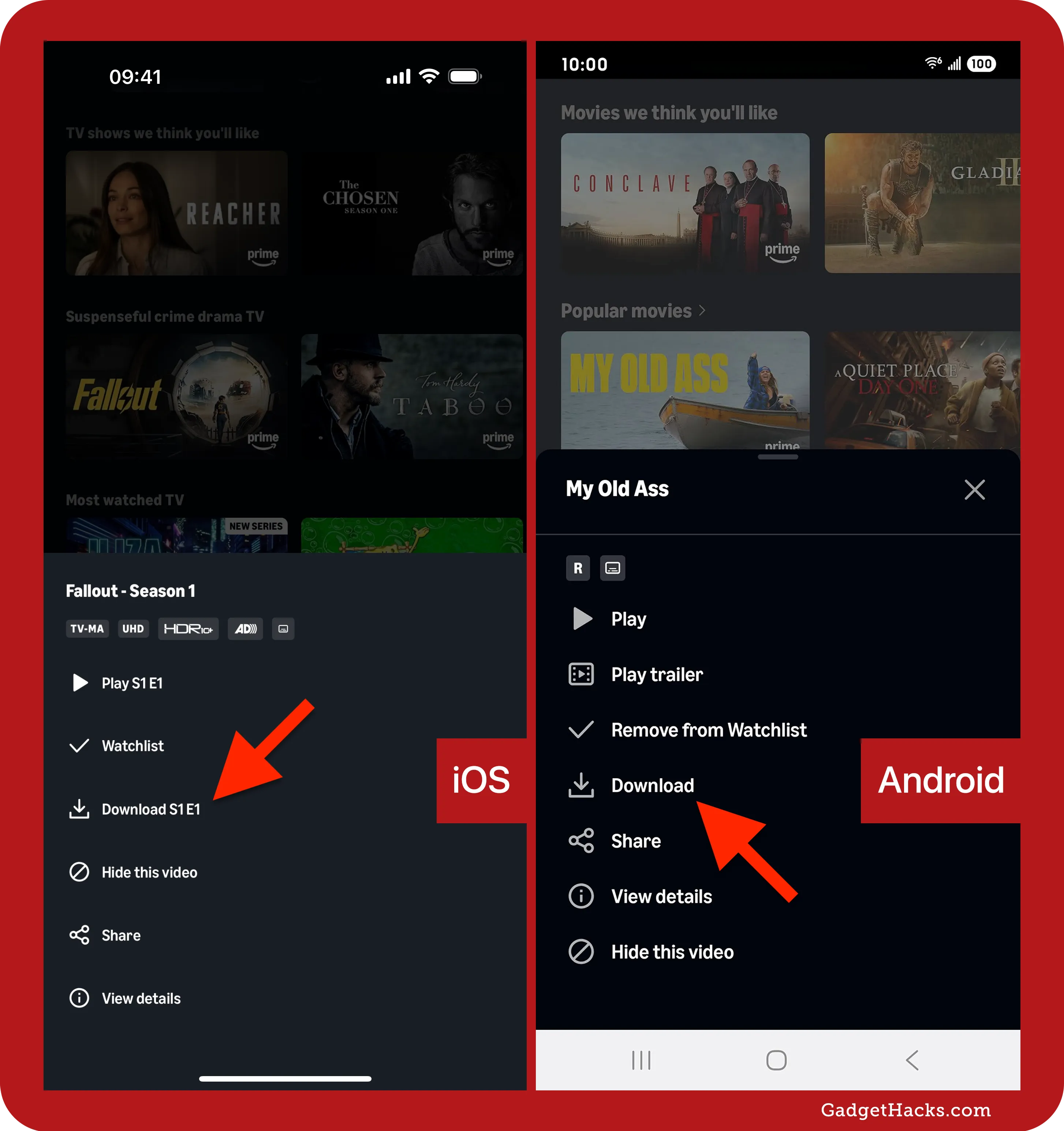
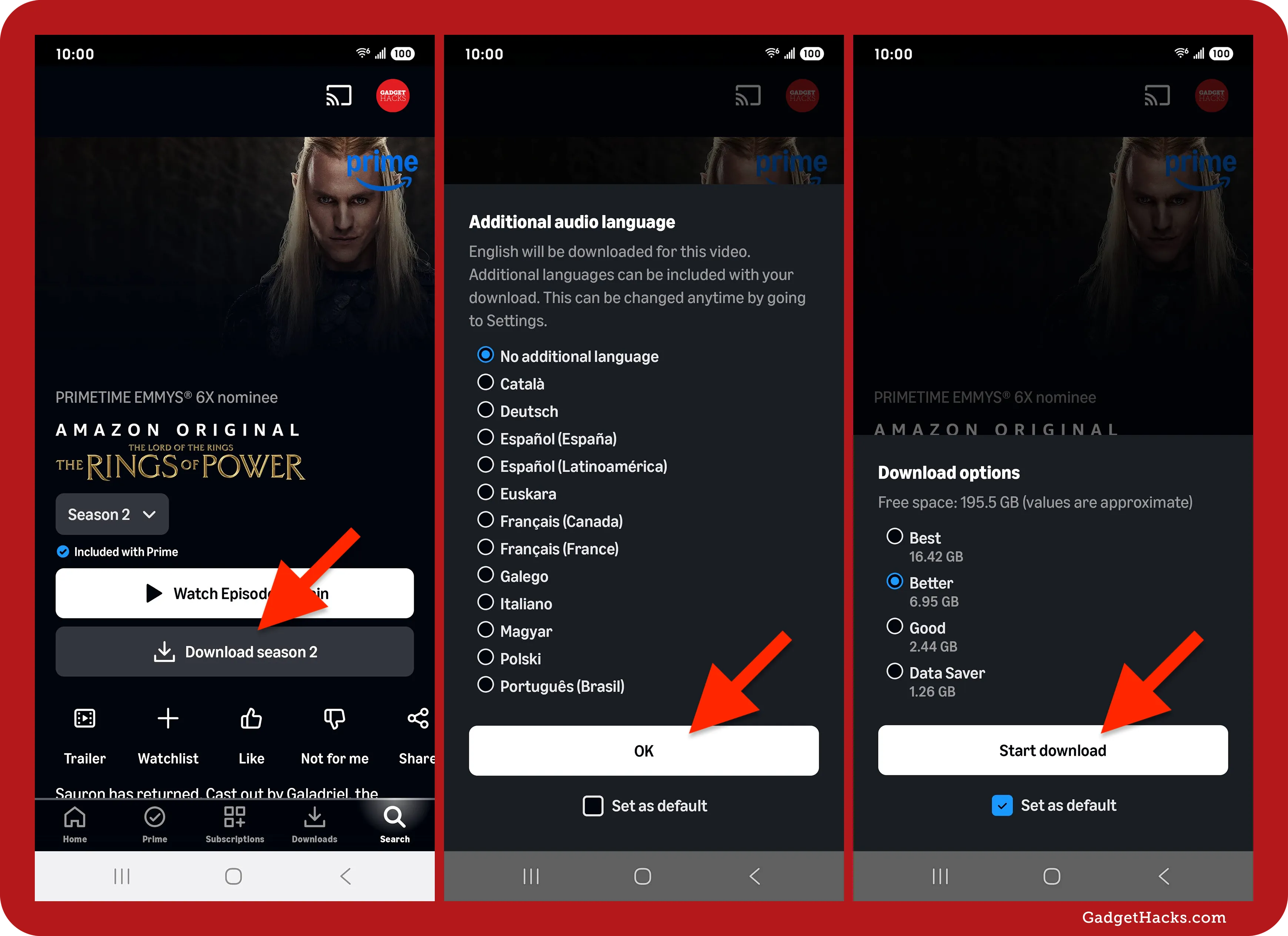
- Find the Download Button: For movies, you’ll typically see a “Download” button directly below the “Watch Now” or “Resume” button. For TV shows, you’ll need to scroll down to the “Episodes” list. Each episode will have a small down-arrow icon next to it. Tap this icon to download individual episodes. In some cases, you might see an option to “Download Season” for an entire season at once.
Selecting Download Quality
Before the download begins, the app will usually prompt you to select the download quality. Options typically include:
- Best: Highest quality, largest file size.
- Better: Good quality, moderate file size.
- Good: Standard quality, smallest file size.

Choose the quality that balances your storage capacity and desired viewing experience. The app will also show you the approximate file size for each quality setting.
Managing Downloads
Once a download starts, you can monitor its progress by navigating to the “Downloads” section of the app (usually accessible via the bottom navigation bar or a side menu). Here, you can pause, resume, or cancel downloads. After a download is complete, it will appear in this section, ready for offline playback.
On Fire Tablets
Amazon Fire Tablets are designed with Prime Video integration in mind, making the download process very straightforward.
- Open Prime Video: Launch the Prime Video app on your Fire Tablet.
- Find Content: Browse or search for your desired movie or TV show.
- Download Icon: On the title’s detail page (or next to an episode), tap the “Download” button or the down-arrow icon.
- Choose Quality: Select your preferred download quality if prompted.
- Access Downloads: Your downloaded content will be available in the “Downloads” section of the app. Fire Tablets often have a dedicated “Downloads” library accessible from the main screen or app menu.
On Windows and macOS (via Prime Video App)
Downloading on desktop and laptop computers is only possible through the dedicated Prime Video application, which you need to install from the Microsoft Store (for Windows) or the Mac App Store (for macOS).
App Installation
- Search and Install: Go to the Microsoft Store or Mac App Store, search for “Amazon Prime Video,” and install the official application.
- Sign In: Launch the app and sign in with your Amazon Prime account credentials.
The Download Process
- Browse and Select: Within the Prime Video app, browse or search for the content you want.
- Detail Page: Click on the movie or TV show to go to its detail page.
- Download Button: Locate and click the “Download” button (for movies) or the down-arrow icon next to individual episodes (for TV shows).
- Quality Selection: If prompted, choose your desired download quality.
- Monitor and Play: You can monitor the download progress and access your downloaded content from the “Downloads” section within the app, typically found in the left-hand navigation pane.
Understanding Download Limitations and Management
While the download feature is incredibly convenient, it comes with certain limitations and requires some management from the user. Being aware of these aspects will help you optimize your offline viewing experience.
Download Limits and Expiry
Amazon Prime Video imposes certain restrictions to comply with licensing agreements:
- Number of Titles: There’s usually a maximum number of titles you can download across all your devices at any given time (e.g., 15 or 25 titles). This limit can vary by region and content.
- Viewing Window: Once you start watching a downloaded title, you typically have a limited window (e.g., 48 hours) to finish it before it expires and needs to be downloaded again or streamed online.
- Expiry without Watching: If you download a title but don’t watch it, it will eventually expire (usually after 30 days) and be automatically removed from your device, or require re-downloading.
- Device Limit: There might be a limit on the number of devices you can have active downloads on simultaneously.
These expiry rules are common across most streaming services for downloaded content and are dictated by content licensing agreements.
Storage Management and Deleting Downloads
As mentioned, downloaded videos consume significant storage. It’s good practice to regularly manage your downloads.
- Deleting: To free up space, navigate to the “Downloads” section in your Prime Video app. You’ll typically find an “Edit” or “Manage” option that allows you to select and delete individual titles or entire seasons.
- Download Location (on some devices): On Android devices, you might have the option to choose between internal storage and an SD card for downloads, offering flexibility if your device supports expandable storage. Windows and macOS apps typically default to your main drive but might offer settings to change the download folder.
Content Availability and Regional Restrictions
Not all content on Amazon Prime Video is available for download. Licensing agreements vary, and some titles may only be available for streaming. Additionally, regional content restrictions apply. While downloads allow you to view content when traveling after you’ve downloaded it, the initial download must occur within the licensed region for that specific title. Attempting to download content that’s not licensed in your current region will result in an error.
DRM and Playback Restrictions
Downloaded content is protected by Digital Rights Management (DRM). This means the downloaded files are encrypted and can only be played back within the Amazon Prime Video app on a licensed device. You cannot transfer these files to other devices, play them with third-party media players, or share them. This is standard industry practice to prevent piracy.
Troubleshooting Common Download Issues
Even with a robust system, users occasionally encounter hiccups. Here are some common issues and their solutions when downloading Amazon Prime movies and TV shows.
“Download Failed” Errors
This is perhaps the most common error.
- Check Internet Connection: Ensure your Wi-Fi or cellular data is stable and active.
- Insufficient Storage: Verify your device has enough free space. Delete unnecessary files or previous downloads.
- App Restart: Close and restart the Prime Video app. Sometimes a quick refresh is all it needs.
- Device Restart: If the app restart doesn’t work, try restarting your entire device.
- App Update: Ensure your Prime Video app is updated to the latest version from your device’s app store. Outdated apps can lead to compatibility issues.
Insufficient Storage Warnings
If you receive a warning about low storage:
- Delete Old Downloads: Go to the “Downloads” section in the app and delete titles you’ve already watched or no longer need.
- Adjust Download Quality: In the app settings (or during the download prompt), choose a lower download quality (e.g., “Good” instead of “Best”) to reduce file size.
- Clear Cache: On Android devices, clearing the app’s cache (via device settings > Apps > Prime Video > Storage) can sometimes free up a small amount of space, though it won’t impact downloaded video files directly.
Geographic Restrictions and VPNs
If a title fails to download and you suspect a regional restriction:
- Verify Region: Confirm you are in the region where the content is licensed for download.
- Disable VPN/Proxy: If you’re using a VPN or proxy service, it might interfere with Amazon’s ability to verify your true location, leading to download failures. Disable it and try again. Remember, the primary purpose of VPNs is to circumvent geo-restrictions, but this can often conflict with how streaming services license and deliver content.
App Updates and Compatibility
Sometimes, issues arise after an operating system update or if your Prime Video app is significantly out of date.
- Update Prime Video App: Regularly check for and install updates for the Prime Video app from your device’s app store. Developers frequently release updates to fix bugs, improve performance, and maintain compatibility.
- Check OS Compatibility: Ensure your device’s operating system (iOS, Android, Windows, macOS) is still supported by the latest version of the Prime Video app. Very old OS versions might lose compatibility over time.
Conclusion: Your Portable Entertainment Library
The ability to download Amazon Prime movies and TV shows is a cornerstone feature that significantly enhances the value of a Prime membership. It transforms your device into a portable, on-demand entertainment hub, capable of delivering uninterrupted viewing even in the most connectivity-challenged environments. By understanding the simple steps involved, being mindful of the minor limitations, and knowing how to troubleshoot common issues, you can unlock the full potential of this feature. Embrace the freedom of offline viewing and ensure your next journey, commute, or quiet evening at home is always accompanied by your favorite stories, ready to play at your command. Happy downloading!
aViewFromTheCave is a participant in the Amazon Services LLC Associates Program, an affiliate advertising program designed to provide a means for sites to earn advertising fees by advertising and linking to Amazon.com. Amazon, the Amazon logo, AmazonSupply, and the AmazonSupply logo are trademarks of Amazon.com, Inc. or its affiliates. As an Amazon Associate we earn affiliate commissions from qualifying purchases.