
In an era defined by digital convenience, our televisions have evolved from simple broadcast receivers into sophisticated entertainment hubs. At the heart of this transformation lies the ability to stream a vast universe of content directly to our living rooms. Among the most popular and comprehensive streaming services is Amazon Prime Video, a cornerstone of the broader Amazon Prime membership. For many, the question isn’t whether to watch Prime Video, but how to bring its extensive library of movies, TV shows, and exclusive originals to the biggest screen in the house.
This guide delves into the technical pathways and practical steps required to seamlessly integrate Amazon Prime Video into your home entertainment setup. Whether you own a cutting-edge smart TV, a dedicated streaming device, or even a gaming console, we’ll navigate the process, ensuring you can unlock a world of entertainment with clarity and ease. From understanding the fundamental requirements to troubleshooting common issues and optimizing your viewing experience, prepare to transform your TV into a personal cinema, powered by Amazon Prime.
The Gateway to Entertainment: Understanding Amazon Prime Video on Your TV
Before diving into the specifics of device connectivity, it’s crucial to grasp what Amazon Prime Video entails and the foundational elements necessary for an uninterrupted streaming experience on your television. Understanding these basics will lay the groundwork for a smooth setup and an enjoyable viewing journey.
What is Amazon Prime Video?
Amazon Prime Video is a prominent video streaming service offered as a core benefit of an Amazon Prime membership. It provides subscribers with on-demand access to a colossal library of content, including popular Hollywood movies, acclaimed TV series, and a rapidly expanding collection of critically lauded Amazon Originals like “The Marvelous Mrs. Maisel,” “The Boys,” and “Lord of the Rings: The Rings of Power.” Beyond the included Prime content, the platform also allows users to rent or purchase a wide array of new release films and additional TV seasons, as well as subscribe to various third-party streaming channels (e.g., HBO, Showtime) directly through the Prime Video interface. Essentially, it’s a comprehensive digital entertainment ecosystem designed to cater to diverse tastes and preferences.
Why Watch on Your TV?
While Amazon Prime Video is accessible across a multitude of devices—from smartphones and tablets to computers—there’s an undeniable allure to watching on a television. The larger screen size significantly enhances immersion, bringing cinematic experiences to life with greater visual impact. Coupled with a home theater sound system, it transforms a casual viewing into a truly engaging event. Watching on a TV also facilitates a communal experience, allowing families and friends to gather and enjoy content together, a far cry from the solitary viewing often associated with smaller screens. Furthermore, the comfort of a living room setting, often equipped with ergonomic seating, makes for a more relaxed and extended viewing session.
Essential Prerequisites
To ensure a successful and satisfying Amazon Prime Video experience on your television, a few fundamental prerequisites must be met:
- Active Amazon Prime Membership: This is non-negotiable. Prime Video content is exclusively available to active Prime subscribers. If you don’t have one, you’ll need to sign up for a Prime membership or a standalone Prime Video subscription.
- Reliable Internet Connection: Streaming high-quality video, especially in HD or 4K UHD, demands a stable and sufficiently fast internet connection. Amazon recommends a minimum of 1 Mbps for standard definition, 3.5 Mbps for HD, and 15 Mbps for 4K UHD. A wired Ethernet connection is often preferred for stability, but a strong Wi-Fi signal can also suffice.
- Compatible TV or Device: Your television itself must be “smart” or connected to a device that provides smart capabilities. This includes smart TVs with built-in apps, dedicated streaming sticks/boxes, gaming consoles, and some Blu-ray players.
A Quick Look at Compatibility
Amazon Prime Video boasts extensive compatibility, ensuring most modern home entertainment setups can access its content. This includes:
- Smart TVs: A vast majority of smart TVs from major manufacturers like Samsung, LG, Sony, Vizio, and Panasonic come with the Prime Video app pre-installed or available for download.
- Streaming Sticks & Boxes: Devices like Amazon’s own Fire TV Stick/Cube, Roku players, Apple TV, and Google Chromecast with Google TV are designed specifically for streaming and offer robust Prime Video integration.
- Gaming Consoles: PlayStation (PS4, PS5) and Xbox (Xbox One, Series X/S) consoles serve as powerful media centers, supporting the Prime Video app.
- Blu-ray Players: Certain smart Blu-ray players also include app support, though this is becoming less common.
Direct Access: Utilizing Smart TVs and Integrated Platforms
For many users, the most straightforward path to enjoying Amazon Prime Video is directly through their smart television. Modern smart TVs are designed with built-in operating systems and app stores, making the integration of streaming services almost seamless. This section details how to get Prime Video running on various smart TV platforms.
The Native App Advantage
The primary benefit of using a smart TV’s native Amazon Prime Video app is convenience. These apps are often pre-installed or easily downloadable from the TV’s app store, eliminating the need for additional hardware. They are optimized for the TV’s specific operating system, offering a fluid user experience, direct remote control integration, and often supporting the TV’s advanced display technologies like 4K UHD, HDR, and Dolby Vision without extra configuration.
Step-by-Step on Major Smart TV Platforms
While specific menu navigation may vary slightly, the general process for installing and accessing the Prime Video app on different smart TV brands follows a similar pattern.
For Amazon Fire TV Edition Smart TVs
These TVs are designed with Amazon’s Fire TV operating system built-in, offering the most integrated experience.
- Locate App: The Prime Video app is typically pre-installed and often features a dedicated button on the remote control.
- Navigate: From the home screen, you’ll see Prime Video content prominently displayed. Select the Prime Video app from your app list or sidebar.
- Launch & Login: The app will launch directly. If not already logged in, you’ll be prompted to enter your Amazon account credentials or activate via an on-screen code at amazon.com/mytv.
For Samsung Smart TVs (Tizen OS)
Samsung TVs use the Tizen operating system.
- Home Button: Press the “Home” button on your Samsung remote to access the Smart Hub.
- Apps Section: Navigate to the “Apps” section.
- Search/Find: Use the search function (magnifying glass icon) or browse the app categories to find “Amazon Prime Video.” It’s usually a featured app.
- Install: Select the app and then choose “Install.”
- Launch & Login: Once installed, open the app. You’ll need to sign in with your Amazon account.
For LG Smart TVs (webOS)
LG TVs feature the webOS platform.
- Home Button: Press the “Home” button on your LG Magic Remote to bring up the launcher bar.
- LG Content Store: Scroll through the apps to find the “LG Content Store” icon.
- Search/Find: Use the search bar or navigate through the “Apps” category to locate “Amazon Prime Video.”
- Install: Select the app and click “Install.”
- Launch & Login: After installation, open the app and follow the on-screen instructions to sign in.
For Sony Smart TVs (Android TV OS)
Many Sony TVs run on Google’s Android TV (or Google TV) platform.
- Home Button: Press the “Home” button on your Sony remote.
- Google Play Store: Navigate to the “Apps” section and find the “Google Play Store.”
- Search/Find: In the Play Store, use the search function to look for “Amazon Prime Video.”
- Install: Select the app and choose “Install.”
- Launch & Login: Open the app and log in with your Amazon account.
Other Android TV Devices (e.g., Hisense, TCL)
These devices use a similar process to Sony Android TVs, leveraging the Google Play Store for app downloads.
Logging In and Activation
Once the Prime Video app is installed and launched on your smart TV, the login process typically involves one of two methods:
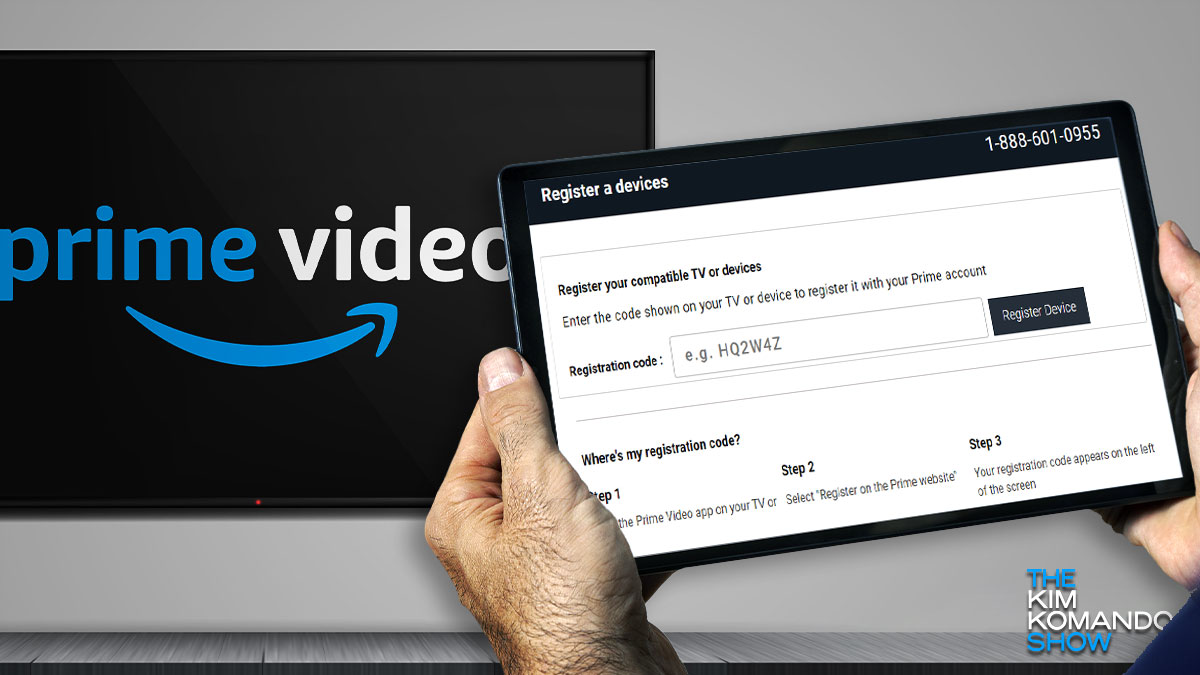
- On-Screen Code Activation: The most common method. The app will display a unique alphanumeric code. You’ll then go to a web browser on a separate device (computer, phone, tablet), visit
amazon.com/mytv(orprimevideo.com/mytv), enter the code, and log into your Amazon account. This links your TV to your Prime Video account. - Direct Login: Less common but sometimes available, especially if you’ve previously logged into other Amazon services on the TV. You would directly enter your Amazon email and password using the TV’s on-screen keyboard.
Upon successful activation or login, your Prime Video app will populate with content, ready for streaming.
Expanding Your Options: Streaming Devices and Game Consoles
If your television isn’t a smart TV, or if you prefer a different streaming interface, dedicated streaming devices and even gaming consoles offer robust and often feature-rich alternatives for accessing Amazon Prime Video. These devices typically provide a more consistent user experience, regular software updates, and sometimes a wider array of supported apps.
Amazon’s Own Ecosystem: Fire TV Devices
Unsurprisingly, Amazon’s Fire TV line offers the most integrated and user-friendly experience for Prime Video.
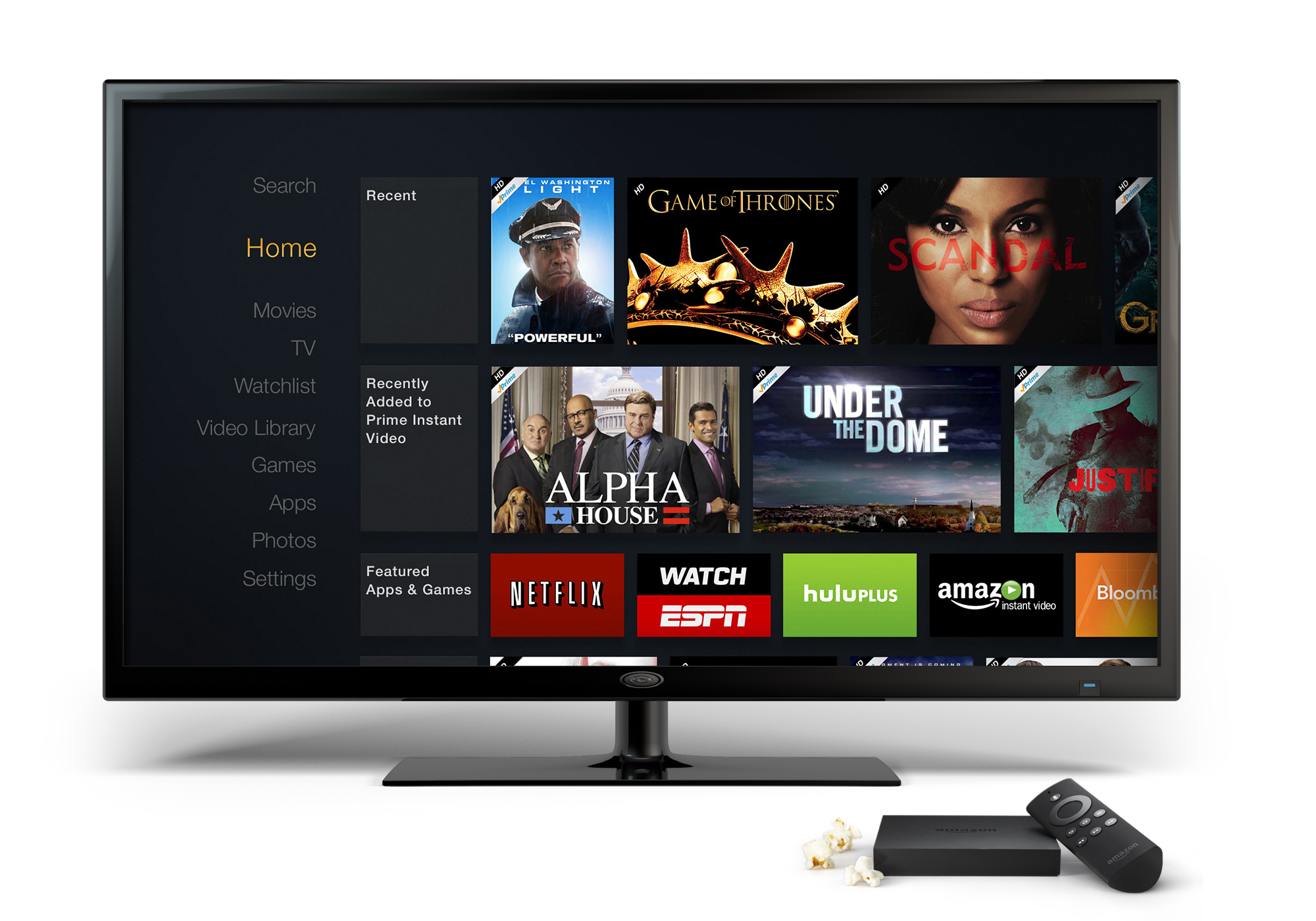
- Fire TV Stick (Lite, 4K, 4K Max): These popular HDMI dongles plug directly into your TV. Setup involves connecting to Wi-Fi, and the Prime Video app is front and center on the Fire TV interface, often with a dedicated button on the remote. Logging in is usually pre-configured if you purchased the device through your Amazon account.
- Fire TV Cube: A more powerful streaming media player with built-in Alexa, offering hands-free control and superior performance. Prime Video is seamlessly integrated.
- Fire TV Blaster: While not a streaming device itself, it enhances Fire TV devices by adding universal IR control for your TV and soundbar, improving the overall home theater experience for all content, including Prime Video.
Roku Streaming Players
Roku devices are renowned for their simplicity and broad app support.
- Connect Device: Plug your Roku stick or box into your TV and power it on.
- Initial Setup: Follow the on-screen instructions to connect to your Wi-Fi and link your Roku device to a Roku account.
- Add Channel: From the Roku Home Screen, navigate to “Streaming Channels” (or “Channel Store”).
- Search: Use the search function to find “Amazon Prime Video” or locate it in the “Movies & TV” category.
- Add Channel: Select the Prime Video channel and click “Add channel.”
- Launch & Login: Open the newly added channel and activate it by visiting
amazon.com/mytvwith the provided code.
Apple TV
Apple TV streaming boxes provide a premium user experience within the Apple ecosystem.
- Connect Device: Connect your Apple TV to your television and power.
- Initial Setup: Complete the initial setup, including connecting to Wi-Fi and logging in with an Apple ID.
- App Store: From the Apple TV home screen, open the “App Store.”
- Search: Search for “Amazon Prime Video.”
- Get/Install: Select the app and click “Get” to download and install it.
- Launch & Login: Open Prime Video and activate your device using the on-screen code at
amazon.com/mytv.
Google Chromecast (with Google TV)
This device offers a Google TV interface and remote, combining traditional streaming with Chromecast’s casting capabilities.
- Connect Device: Plug in your Chromecast with Google TV and complete the setup.
- Apps Section: From the Google TV home screen, navigate to the “Apps” tab.
- Search/Install: Search for “Amazon Prime Video” in the Google Play Store and install it.
- Launch & Login: Open the app and activate using the on-screen code.
- Note: Even older, screen-mirroring-only Chromecasts can display Prime Video by “casting” from a smartphone or computer running the Prime Video app. However, a dedicated app provides a superior native experience.
Gaming Consoles as Media Hubs
Modern gaming consoles are powerful machines capable of much more than just playing games. They serve as excellent media centers.
PlayStation Consoles (PS4, PS5)
- Power On: Turn on your PlayStation console.
- Media Section: Navigate to the “Media” section (on PS4) or “Media Gallery” (on PS5).
- PlayStation Store: Find and open the “PlayStation Store.”
- Search/Apps: Go to the “Apps” section and search for “Amazon Prime Video.”
- Download: Download and install the app.
- Launch & Login: Open Prime Video and log in using the activation code method.
Xbox Consoles (Xbox One, Series X/S)
- Power On: Turn on your Xbox console.
- Microsoft Store: From the home screen, navigate to the “Store” or “Microsoft Store.”
- Search/Apps: Go to the “Apps” section and search for “Amazon Prime Video.”
- Get/Install: Select and install the app.
- Launch & Login: Open Prime Video and activate your device using the on-screen code.
Other Compatible Devices
Some legacy Blu-ray players from brands like Sony, Samsung, and LG, as well as certain cable or satellite set-top boxes, might still offer the Amazon Prime Video app. The process would typically involve accessing the device’s app store or smart portal and searching for the app. However, these devices may receive fewer updates and offer a less fluid experience compared to dedicated streaming hardware.
Optimizing Your Viewing: Setup, Troubleshooting, and Best Practices
Once Amazon Prime Video is up and running on your television, a few additional steps and considerations can ensure a consistently high-quality and trouble-free streaming experience. This involves understanding initial setup nuances, optimizing your network, and knowing how to tackle common technical hiccups.
Initial Setup and Account Linking
The most critical part of the initial setup is linking your TV or streaming device to your Amazon Prime account. As discussed, this is usually done via an activation code displayed on your TV screen, which you then input on amazon.com/mytv using a computer or smartphone.
- Confirm Membership: Before starting, ensure your Prime membership is active and your payment method is up to date.
- Accurate Code Entry: Double-check the activation code for accuracy, as a single錯字 can lead to failed attempts.
- Account Verification: After entering the code on the web, confirm that the device name (e.g., “Living Room TV”) appears correctly linked to your account.
Essential Network Considerations
Your internet connection is the backbone of your streaming experience. A robust network setup is paramount for uninterrupted, high-definition content.
- Wi-Fi vs. Ethernet: While Wi-Fi is convenient, an Ethernet cable provides a more stable and generally faster connection, especially for devices near your router. If using Wi-Fi, ensure your router is centrally located, free from obstructions, and consider using a modern Wi-Fi standard (Wi-Fi 5 or Wi-Fi 6) for optimal performance.
- Bandwidth Requirements: As mentioned, 15 Mbps is recommended for 4K UHD. If multiple devices are streaming or heavy internet usage is occurring simultaneously in your home, you might need a higher overall bandwidth from your ISP.
- Router Quality: An older or low-quality router can bottleneck your internet speed, even if your ISP provides ample bandwidth. Upgrading your router can significantly improve streaming performance.
Common Troubleshooting Scenarios
Even with careful setup, you might encounter occasional issues. Here are solutions for frequent problems:
App Not Loading/Crashing
- Restart the App: Exit the Prime Video app completely and relaunch it.
- Restart the Device: Power cycle your smart TV or streaming device (unplug it from the power outlet for 30 seconds, then plug it back in).
- Reinstall App: If the problem persists, uninstall the Prime Video app and then reinstall it from your device’s app store.
Buffering/Poor Quality
- Check Internet Speed: Perform an internet speed test on a device connected to the same network. If speeds are low, contact your ISP.
- Restart Router/Modem: Power cycle your internet router and modem.
- Reduce Network Congestion: Disconnect other devices from your network that might be consuming bandwidth (e.g., large downloads, other streaming sessions).
- Change Wi-Fi Channel: If on Wi-Fi, interference from neighbors might be an issue. Access your router settings and try changing the Wi-Fi channel.
- Clear App Cache: Some devices allow you to clear an app’s cache, which can resolve performance issues.
Login Issues
- Verify Amazon Prime Membership: Ensure your Prime membership is still active and in good standing.
- Password Reset: If you suspect a password issue, reset your Amazon account password via the Amazon website or app.
- Check
amazon.com/mytv: If using the activation code, ensure you’re entering it correctly on the right webpage and that your device is linked.
Audio/Video Sync Problems
- Device Settings: Check your TV or streaming device’s audio output settings.
- TV Settings: Some TVs have audio delay settings that can be adjusted.
- Sound System: If using an external soundbar or receiver, check its settings for any delays.
- Restart: A simple restart of all components (TV, streaming device, sound system) can often resolve minor sync issues.
Ensuring Software Updates
Regular software updates for your smart TV, streaming device, and the Prime Video app itself are crucial. Updates often include bug fixes, performance improvements, security patches, and new features.
- Enable Automatic Updates: Most devices allow you to enable automatic software and app updates. It’s highly recommended to do so.
- Manual Check: Periodically check for updates manually within your device’s settings or the Prime Video app’s settings to ensure you’re running the latest versions.
Elevating Your Amazon Prime Video Experience
Beyond merely getting Prime Video onto your television, there are numerous ways to enhance and personalize your viewing experience. From optimizing visual and audio settings to leveraging unique features, these tips will help you get the most out of your Amazon Prime membership.
Navigating the Prime Video Interface
The Prime Video app, whether on a smart TV or streaming device, is designed for intuitive browsing.
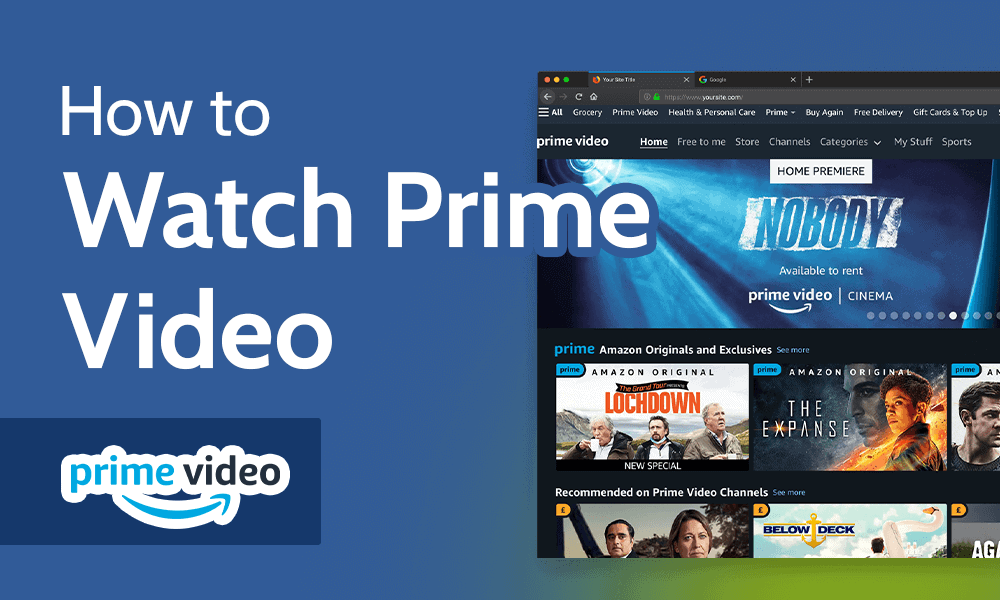
- Home Screen: This is your central hub, showcasing trending titles, personalized recommendations, and easy access to recently watched content.
- Categories and Genres: Utilize the navigation menu to explore specific categories like Movies, TV Shows, Kids, or genres such as Action, Comedy, Drama.
- Search Function: For specific titles, actors, or directors, the search bar is your best friend. Many remotes also offer voice search, making discovery even easier.
- Watchlists: Add titles you want to watch later to your Watchlist (often called ‘My Stuff’ or ‘Watch Next’) for quick access.
Maximizing Video Quality
Amazon Prime Video offers content in various resolutions, including stunning 4K Ultra HD (UHD), High Dynamic Range (HDR), and Dolby Vision.
- 4K UHD: Requires a 4K compatible TV and streaming device, along with an internet connection of at least 15 Mbps. Look for the ‘UHD’ or ‘4K’ badges on content listings.
- HDR/Dolby Vision: These technologies provide enhanced contrast, brightness, and a wider color gamut. They require a compatible TV (often labeled HDR10, HDR10+, or Dolby Vision) and content encoded with these formats. Ensure your TV’s settings are configured to receive HDR signals (sometimes called ‘Enhanced HDMI’ mode).
- Device Settings: Within your streaming device’s display settings, confirm that it’s set to output the highest possible resolution and HDR format compatible with your TV.
Audio Immersion
While visuals are paramount, audio quality significantly contributes to an immersive experience.
- Dolby Atmos: If you have a compatible sound system (soundbar or AV receiver) and speakers, Dolby Atmos can deliver three-dimensional, overhead sound. Ensure your streaming device and TV are set to pass through Dolby Atmos audio to your sound system.
- Surround Sound Systems: For traditional 5.1 or 7.1 surround sound, check your device and TV settings to confirm they are outputting multi-channel audio rather than stereo.
- Audio Modes: Experiment with your TV’s or sound system’s audio modes (e.g., Movie, Standard, Clear Voice) to find what sounds best for different types of content.
User Profiles and Parental Controls
For households with multiple viewers or children, Prime Video offers features to manage individual experiences.
- User Profiles: Create separate profiles for family members. This allows each person to have their own watchlist, watch history, and personalized recommendations without interfering with others’ viewing habits.
- Parental Controls: Set up PINs to restrict access to certain content ratings (e.g., PG, R) for specific profiles. You can also block purchases/rentals to prevent accidental charges. This ensures younger viewers only access age-appropriate content.
Diving Deeper: X-Ray Feature
One of Prime Video’s standout exclusive features is X-Ray, powered by IMDb.
- Contextual Information: While watching a movie or show, simply press up on your remote (or activate the X-Ray feature) to see real-time information about the actors on screen, the music playing, trivia, and even behind-the-scenes facts without interrupting your viewing.
- Seamless Integration: This feature adds an insightful layer to your entertainment, making you feel more connected to the content and its creators.
Exploring Channels and Rentals/Purchases
Your Amazon Prime Video app is not just for Prime-included content.
- Prime Video Channels: Expand your content library by subscribing to various premium channels directly through Prime Video (e.g., Paramount+, Starz, AMC+). These subscriptions are managed within your Amazon account and keep all your billing in one place.
- Rentals & Purchases: Access a vast catalog of new release movies and TV seasons that are not included with Prime. You can rent for a limited time or purchase to own digitally, adding them to your Prime Video library.
By understanding the technical pathways, optimizing your setup, and leveraging the diverse features of Amazon Prime Video, you can transform your TV into a powerful entertainment portal. The days of limited viewing options are long past; your television, empowered by Prime Video, is now a gateway to an endless stream of stories, documentaries, and cinematic adventures, all available at your fingertips.
aViewFromTheCave is a participant in the Amazon Services LLC Associates Program, an affiliate advertising program designed to provide a means for sites to earn advertising fees by advertising and linking to Amazon.com. Amazon, the Amazon logo, AmazonSupply, and the AmazonSupply logo are trademarks of Amazon.com, Inc. or its affiliates. As an Amazon Associate we earn affiliate commissions from qualifying purchases.