
In the vast digital landscape of today, where our online experiences are constantly shaped by various elements, the presence of advertisements has become almost ubiquitous. While many ads are harmless, others can be intrusive, slow down browsing, compromise privacy, and even pose security risks. For users seeking to reclaim control over their web experience, enhance privacy, and significantly improve browsing speed and security, an effective content blocker is indispensable. Among the myriad of options available, uBlock Origin stands out as a powerful, open-source, and highly efficient solution. This article will serve as a comprehensive guide, walking you through the straightforward process of installing uBlock Origin on your Google Chrome browser, followed by essential setup and configuration tips to maximize its benefits.
Google Chrome, being the most widely used web browser globally, offers a robust ecosystem of extensions that can transform and personalize your online interactions. Integrating uBlock Origin into Chrome is a simple yet profoundly impactful step towards a cleaner, faster, and more secure internet. Whether you’re a casual browser tired of pop-ups or a power user concerned about data tracking and malware, uBlock Origin provides a lightweight yet potent shield. By the end of this tutorial, you’ll not only have uBlock Origin successfully installed but also a deeper understanding of how to leverage its capabilities to safeguard your digital footprint and boost your productivity.
Understanding uBlock Origin and Its Transformative Benefits
Before diving into the installation process, it’s crucial to grasp what uBlock Origin is and why it has garnered such widespread acclaim within the tech community. Far from being just another ad blocker, uBlock Origin is a robust, open-source, general-purpose content blocker that is meticulously designed for efficiency and user control. Its philosophy is rooted in minimizing CPU and memory usage while providing superior filtering capabilities, making it a preferred choice for millions worldwide.
What Exactly is uBlock Origin?
At its core, uBlock Origin is a browser extension that blocks unwanted content from loading on web pages. While often categorized as an “ad blocker,” it’s more accurately described as a “wide-spectrum content blocker.” This distinction is important because it goes beyond simply hiding advertisements. uBlock Origin operates by consulting various filter lists – extensive databases of known ad servers, tracking scripts, malware domains, and other undesirable content – and preventing your browser from connecting to them. This proactive approach means that the blocked content is never even downloaded, resulting in faster page loads and reduced data consumption.
Unlike some other ad blockers that accept “acceptable ads” or are part of commercial ventures, uBlock Origin is entirely free, open-source, and community-driven. It prioritizes user privacy and performance above all else, offering a transparent and customizable filtering mechanism. Its lightweight nature is a significant advantage, particularly for users with older hardware or those who prioritize system resource efficiency, ensuring a smooth browsing experience without bogging down your computer.
Why You Need uBlock Origin: A Multitude of Advantages
The benefits of integrating uBlock Origin into your daily browsing routine extend far beyond simply removing annoying ads. Its impact touches upon several critical aspects of your digital life, aligning perfectly with concerns around digital security, productivity, and an overall enhanced online experience.
Firstly, Enhanced Browsing Experience. Imagine surfing the web without banner ads, autoplaying video ads, or disruptive pop-ups. uBlock Origin delivers this serene browsing environment, allowing you to focus on the content you want to consume, not the distractions surrounding it. This directly translates to less frustration and a more enjoyable time online, whether you’re reading news, researching for work, or simply browsing social media.
Secondly, Robust Privacy Protection. Modern websites often employ numerous tracking scripts, designed to monitor your online behavior, gather data, and build comprehensive profiles for targeted advertising. uBlock Origin blocks these trackers, significantly reducing the amount of data collected about you. This is a critical component of digital security and personal privacy, giving you greater control over your information and mitigating the risk of your browsing habits being exploited.
Thirdly, Improved Performance and Efficiency. By preventing ads, scripts, and other heavy content from loading, uBlock Origin drastically speeds up page load times. This is especially noticeable on content-heavy websites or with slower internet connections. Faster loading pages mean less waiting, more efficient information gathering, and ultimately, a boost in your online productivity. For professionals whose work heavily relies on web research, this can be a game-changer. Furthermore, by blocking unwanted downloads, it also reduces bandwidth usage, which can be beneficial for those with metered internet plans.
Finally, Enhanced Security Against Malicious Content. Many online threats, such as malvertising (malicious advertising) and drive-by downloads, exploit vulnerabilities through ad networks. By blocking these potentially harmful elements, uBlock Origin acts as an important layer of digital security, reducing your exposure to phishing attempts, malware, and other cyber threats. It’s not a replacement for comprehensive antivirus software, but it significantly reduces the attack surface, making your browser a safer environment. In essence, uBlock Origin empowers you to navigate the internet with greater peace of mind, confidence, and efficiency.
Step-by-Step Guide: Installing uBlock Origin on Chrome
Installing uBlock Origin on Google Chrome is a straightforward process that takes only a few minutes. Following these simple steps will quickly transform your browsing experience into a cleaner, faster, and more secure one.
Navigating to the Chrome Web Store
The Chrome Web Store is the official marketplace for all Chrome extensions, themes, and apps. It’s the safest and most reliable place to download uBlock Origin.
There are two primary ways to access the Chrome Web Store:
- Direct Link: The easiest method is to simply open your Chrome browser and type
chrome.google.com/webstoreinto the address bar, then press Enter. This will take you directly to the store’s homepage. - Through Chrome Menu: Alternatively, you can click on the three vertical dots (kebab menu) in the top-right corner of your Chrome browser window. From the dropdown menu, hover over “More tools,” then select “Extensions.” On the Extensions page, you’ll see a menu icon (three horizontal lines) in the top-left corner. Click on this, and then select “Open Chrome Web Store” from the sidebar that appears.
Once you are on the Chrome Web Store page, you’ll see a search bar on the left side.
Locating and Adding the Extension
With the Chrome Web Store open, your next step is to find uBlock Origin and initiate the installation.
- Search for uBlock Origin: In the search bar on the left side of the Chrome Web Store, type “uBlock Origin” and press Enter. It’s crucial to spell it correctly and include “Origin” to ensure you find the official, well-maintained version, as there might be similarly named but less reputable extensions.
- Identify the Official Extension: After searching, you’ll see a list of results. Look for the extension titled “uBlock Origin” with the distinctive red shield icon. Critically, verify that the developer is listed as “Raymond Hill” or ensure it has a very high number of users (tens of millions) and a strong average rating (typically 4.5+ stars). This confirmation is vital for digital security, as installing unofficial versions could compromise your privacy or introduce unwanted issues.
- Initiate Installation: Once you’ve identified the correct uBlock Origin extension, click on its listing. This will take you to its dedicated page, providing details, reviews, and screenshots. On this page, you’ll see a prominent blue button that says “Add to Chrome.” Click this button.
- Confirm Permissions: Chrome will then display a pop-up window asking for your confirmation to “Add ‘uBlock Origin’?” and listing the permissions the extension requires (e.g., “Read and change all your data on the websites you visit”). This is standard for content blockers, as they need these permissions to effectively filter content. Review the permissions, and if you’re comfortable, click “Add extension.”
Confirming Installation and Initial Presence
Once you click “Add extension,” the installation process typically completes within a few seconds.
- Installation Notification: Chrome will display a small notification in the top-right corner of your browser, confirming that “uBlock Origin has been added to Chrome.” It might also provide a brief welcome message or a link to its dashboard.
- Extension Icon: You’ll immediately notice a new red shield icon (the uBlock Origin logo) appearing in your Chrome toolbar, typically to the right of your address bar. This icon indicates that uBlock Origin is active and running.
- First-Run Page (Optional): Depending on the version, uBlock Origin might open a new tab with a welcome page or a brief overview of its features. This is a good opportunity to familiarize yourself with its basic functionality.
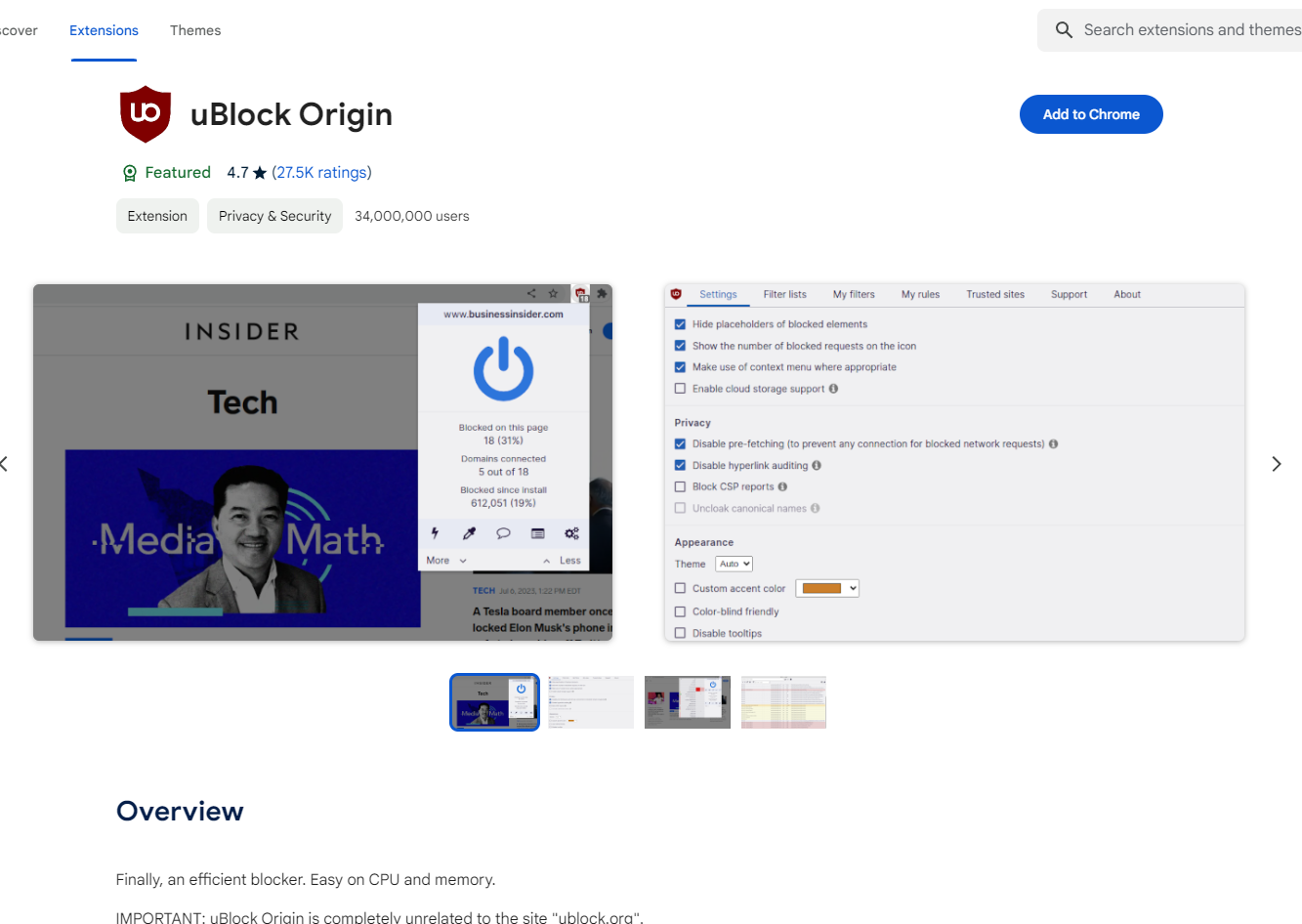
Congratulations! You have successfully installed uBlock Origin on your Google Chrome browser. From this moment forward, uBlock Origin will start working in the background, blocking ads and trackers on most websites you visit.
Initial Setup and Configuration for Optimal Performance
While uBlock Origin works effectively out-of-the-box, taking a few extra steps to configure its settings can significantly enhance its performance, customize your browsing experience, and ensure you’re leveraging its full potential. This section will guide you through crucial initial setups.
Pinning the Extension for Easy Access
After installation, the uBlock Origin icon might be visible in your Chrome toolbar, or it might be hidden within the “Extensions” puzzle piece icon. For frequent interaction and quick control, it’s best to pin it to your toolbar.
- Access Extensions Menu: Click on the puzzle piece icon (Extensions) in your Chrome toolbar (usually to the right of the address bar). This will open a dropdown menu listing all your installed extensions.
- Pin uBlock Origin: Next to “uBlock Origin,” you’ll see a small pin icon. Click this pin icon. It will turn blue, indicating that the extension is now pinned and its red shield icon will appear permanently in your toolbar.
Pinning the icon allows you to quickly see its status (e.g., how many items are blocked on the current page) and easily click it to access its dashboard or temporarily disable it on a specific site.
Exploring uBlock Origin’s Dashboard and Settings
To unlock uBlock Origin’s advanced features and customization options, you’ll need to access its dashboard.
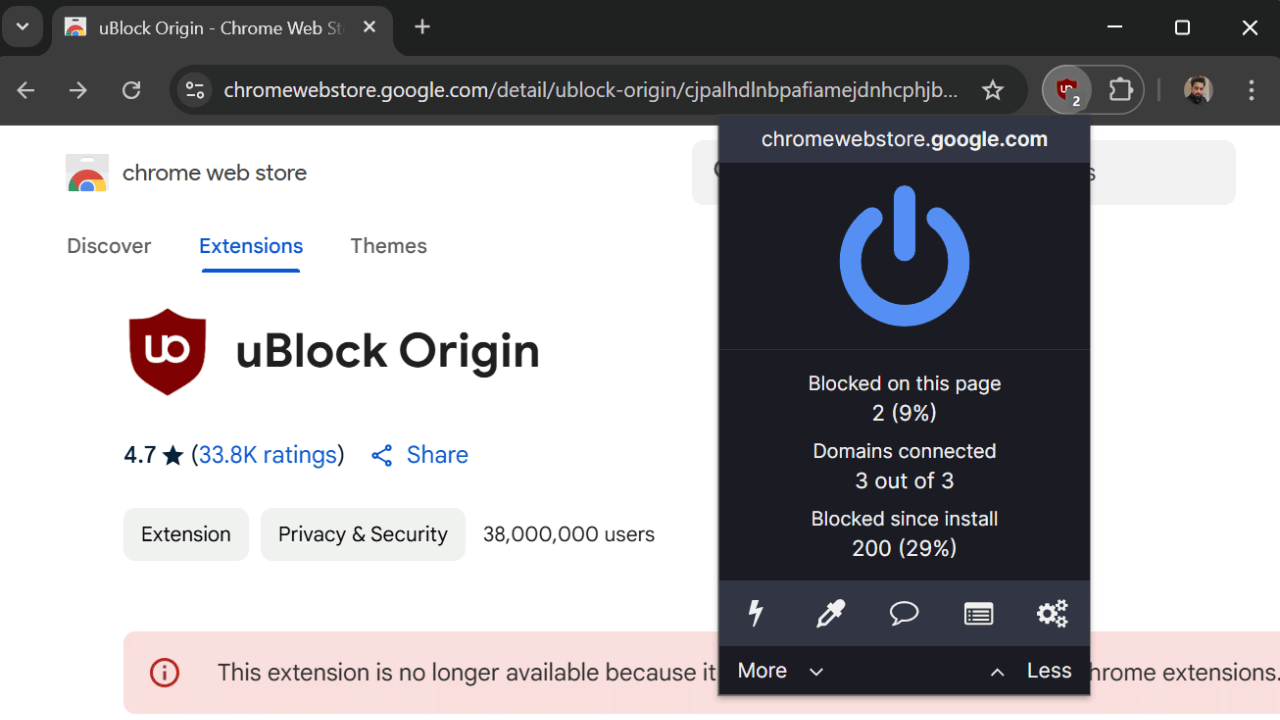
- Open Dashboard: Click on the uBlock Origin red shield icon in your toolbar. A small pop-up panel will appear. Click on the large cogwheel icon (settings) in the bottom-right corner of this panel. This will open the uBlock Origin dashboard in a new tab.
- Overview of Dashboard Sections: The dashboard is divided into several tabs:
- Dashboard: Provides general statistics, filter update status, and links to global settings.
- Filter lists: This is where you manage the core of uBlock Origin’s blocking capabilities.
- My filters: Allows you to add custom filtering rules.
- My rules: For advanced dynamic filtering rules (e.g., blocking scripts from specific domains).
- Whitelist: Where you manage sites you want to exclude from filtering.
- Settings: General behavior and appearance settings.
- About: Information about the extension version and authors.
Customizing Filter Lists for Targeted Blocking
Filter lists are the backbone of uBlock Origin. By default, several essential lists are enabled. However, you can tailor these to your specific needs.
- Update Filter Lists: On the “Filter lists” tab, it’s a good practice to ensure all lists are up to date. Click the “Purge all caches” button, then “Update now.” This ensures you have the latest blocking rules.
- Explore and Enable Additional Lists:
- Privacy: Under “Privacy,” consider enabling lists like “EasyPrivacy” or “Fanboy’s Annoyance List” to block even more trackers and common annoyances (like cookie notices, social media widgets).
- Regional: If you browse websites in specific languages or regions, enable the relevant regional lists (e.g., “Fanboy’s Swedish List” if you’re in Sweden) to block region-specific ads.
- Social: If you want to block social media widgets (like Facebook “Like” buttons) that can track you, enable lists under “Social.”
- Annoyances: These lists target specific types of annoyances beyond standard ads, such as pop-ups asking you to disable your ad blocker or cookie consent banners.
- Be Cautious with Too Many Lists: While enabling more lists provides stricter blocking, it can occasionally lead to legitimate website elements being blocked or even break certain website functionalities. Start with a balanced set and add more as needed. If a website breaks, you can always disable a recently enabled list to diagnose the issue.
Advanced Settings and Troubleshooting
For users who want even greater control, uBlock Origin offers advanced features.
- Logger: Accessible from the extension’s pop-up panel (the stopwatch icon), the Logger is an invaluable tool for troubleshooting. It shows you in real-time what uBlock Origin is blocking on a page. If a site isn’t loading correctly, the Logger can help you identify which filter rule is causing the problem.
- Element Picker: This tool (eyedropper icon in the pop-up) allows you to manually select and block specific elements on a page that uBlock Origin might have missed. It’s great for removing persistent annoyances or elements that aren’t covered by default filter lists.
- Backup/Restore: Under the “Settings” tab, you can export your settings and custom filters, which is useful for migrating your configuration to another browser or computer, or for creating a backup.
- Whitelisting Sites: If a trusted website relies on ads for its revenue and you wish to support it, or if uBlock Origin is mistakenly breaking a site’s functionality, you can easily “whitelist” it. Click the uBlock Origin icon while on the site, then click the large blue power button icon. This will disable blocking for that specific site, and the icon will turn gray. You can re-enable it by clicking the power button again.
By meticulously configuring uBlock Origin, you’re not just installing an ad blocker; you’re personalizing a powerful tool that significantly enhances your digital security, privacy, and productivity.
Maximizing Your Browsing Experience with uBlock Origin
Having successfully installed and configured uBlock Origin, the journey doesn’t end there. To truly maximize the benefits and ensure a consistently smooth and secure browsing experience, it’s essential to understand ongoing maintenance, best practices, and the broader impact of using such a powerful tool.
Addressing Common Issues and Best Practices
Even with a robust tool like uBlock Origin, occasional issues can arise. Knowing how to handle them is key to a seamless experience.
- Whitelisting Trusted Sites: As mentioned, if a website breaks or displays an “ad blocker detected” message, your first course of action should be to temporarily disable uBlock Origin for that specific site. This is done by clicking the uBlock Origin icon in your toolbar and then clicking the large blue power button to turn it gray. For content creators and publishers, ads are often their primary source of income. If you value a particular site’s content, consider whitelisting it to support their work, especially if they provide a non-intrusive ad experience. This balances your desire for a clean browsing environment with supporting the creators you appreciate.
- Avoiding Conflicts with Other Extensions: While uBlock Origin is highly compatible, having multiple ad-blocking or privacy-focused extensions simultaneously can sometimes lead to conflicts or unexpected behavior. This might result in certain content not loading correctly, or even a decrease in performance. It’s generally recommended to stick with one primary content blocker. If you use other privacy tools (like VPNs or script blockers), ensure they complement rather than duplicate uBlock Origin’s functionality.
- Periodic Updates of Filter Lists: uBlock Origin automatically updates its filter lists, but it’s a good practice to occasionally manually purge caches and update lists from the dashboard. Ad servers and trackers constantly evolve, and regular updates ensure your blocker stays effective against new threats and unwanted content. This proactive measure keeps your digital security posture strong.
- Understanding “Acceptable Ads”: uBlock Origin does not participate in “acceptable ads” programs, unlike some other popular ad blockers. This means it aims to block all ads by default. If you see an ad while uBlock Origin is active, it’s likely either a very new ad that hasn’t made it into the filter lists yet, or it’s served from the same domain as the content you’re trying to view, making it harder to block without breaking the site. In such cases, the Element Picker tool can be very useful for manually blocking specific elements.
- Respecting Website Functionality: While uBlock Origin is excellent for blocking unwanted content, be mindful that aggressive blocking (e.g., enabling too many filter lists or blocking scripts globally) can sometimes break essential website functionalities, such as login forms, navigation menus, or interactive elements. If a site isn’t working as expected, temporary disabling or inspecting the logger can help identify the culprit.
The Impact on Digital Security and Productivity
The consistent use of uBlock Origin has profound positive implications for both your digital security and personal productivity, extending beyond the immediate benefit of ad removal.
From a Digital Security perspective, uBlock Origin acts as a formidable first line of defense. By proactively blocking malicious advertisements (malvertising) and scripts that could potentially deliver malware or lead to phishing sites, it significantly reduces your attack surface. Many ransomware, spyware, and virus infections originate from seemingly innocuous ads or compromised ad networks. uBlock Origin shields you from these vectors, making your online activities much safer. It’s a crucial component of a layered security strategy, working alongside antivirus software and vigilant browsing habits. This added layer of protection fosters a greater sense of peace of mind while navigating the complexities of the internet.
Regarding Productivity, the impact is equally significant. Imagine a work environment free from constant interruptions. That’s what uBlock Origin delivers online. Eliminating intrusive ads, pop-ups, and distracting animations allows you to concentrate fully on your tasks. Faster page load times mean less waiting and more doing, especially when conducting research, processing information, or managing online projects. The reduction in visual clutter and cognitive load translates directly into improved focus and efficiency. For professionals, students, and anyone who relies on the internet for information or work, this boost in productivity can translate into more effective use of time and better quality output. Furthermore, by minimizing data tracking, uBlock Origin helps protect your privacy, reducing the psychological burden of being constantly monitored and allowing you to browse more freely and creatively without the concern of your every click being logged and analyzed for commercial gain.
In conclusion, installing and effectively managing uBlock Origin on Chrome is one of the simplest yet most impactful steps you can take to enhance your online experience. It’s a testament to how open-source technology can empower users, offering a free, efficient, and robust solution for privacy, security, and productivity in the modern digital age. Embrace this tool, and reclaim your internet.
aViewFromTheCave is a participant in the Amazon Services LLC Associates Program, an affiliate advertising program designed to provide a means for sites to earn advertising fees by advertising and linking to Amazon.com. Amazon, the Amazon logo, AmazonSupply, and the AmazonSupply logo are trademarks of Amazon.com, Inc. or its affiliates. As an Amazon Associate we earn affiliate commissions from qualifying purchases.