
In today’s digitally driven world, storage is king. From capturing precious memories to storing vital project files, the need for expanded digital space is ever-present. One of the most versatile and widely adopted solutions for this is the Secure Digital (SD) card. Whether you’re looking to boost the storage capacity of your smartphone, digital camera, tablet, or even some laptops, understanding how to install an SD card is a fundamental skill. This guide will walk you through the process, covering everything from selecting the right card to troubleshooting common issues, all while touching upon its relevance within the broader tech and productivity landscapes.

Understanding SD Cards and Their Applications
Before diving into the installation process, it’s essential to grasp what an SD card is and why you might need one. SD cards are small, portable flash memory storage devices that have become ubiquitous across a vast range of electronic gadgets. Their primary function is to provide expandable storage, allowing users to store more photos, videos, music, applications, and documents than the internal memory of their device might offer.
The applications of SD cards are incredibly diverse, bleeding into various aspects of our tech-centric lives:
- Photography and Videography: Digital cameras and camcorders rely heavily on SD cards to store high-resolution images and video footage. The capacity and speed of the SD card directly impact how much you can shoot and the quality of recordings you can achieve.
- Mobile Devices: Many smartphones and tablets come with built-in SD card slots, offering a cost-effective way to increase storage for apps, games, media, and offline content. This is particularly useful for users who download a lot of content or prefer to keep their cloud storage usage minimal.
- Gaming Consoles: Portable gaming devices often utilize SD cards to store game downloads, save files, and additional content. This expands the gaming library available to users without needing to carry multiple physical game cartridges.
- Computers and Laptops: While less common as primary storage, some laptops and mini-PCs feature SD card readers, which can be used for transferring files from cameras, expanding storage for specific projects, or even as bootable media for operating systems.
- Other Gadgets: From dashcams and drones to smart home devices and portable music players, SD cards provide a convenient and expandable storage solution for a wide array of technology.
The relevance of SD cards also extends to productivity. For professionals and students, having ample storage means being able to carry and access large project files, presentations, and documents on the go without relying solely on cloud services, which can be subject to connectivity issues or data caps. Furthermore, in the realm of digital security, some devices use SD cards for local data storage of security footage or backups, offering a layer of redundancy and control over sensitive information.
Choosing the Right SD Card: More Than Just Capacity
The term “SD card” is a broad category, and selecting the correct type for your device is crucial for optimal performance and compatibility. You’ll encounter various types and specifications, each with its own implications:
SD Card Types and Capacities
- SD (Standard Capacity): These are the oldest and typically have a maximum capacity of 2GB. They are less common in modern devices.
- SDHC (High Capacity): These cards can store between 4GB and 32GB of data. They are widely compatible with devices that support SDHC or SDXC.
- SDXC (eXtended Capacity): These are the most common and advanced type, offering storage from 32GB up to an astonishing 2TB (though 1TB and 2TB cards are still relatively expensive and rare). Most modern devices support SDXC.
- SDUC (Ultra Capacity): The latest standard, capable of storing up to 128TB. These are still in their early stages of adoption.
Speed Classes and Performance
Beyond capacity, the speed class of an SD card dictates how quickly data can be read from and written to it. This is especially important for applications like recording high-resolution video (4K, 8K) or rapidly capturing burst photos.
- Speed Class (C): Indicated by a number inside a “C” (e.g., C10 means minimum write speed of 10 MB/s).
- UHS Speed Class (U): For cards supporting Ultra High Speed bus, indicated by a number inside a “U” (e.g., U1 means minimum sequential write speed of 10 MB/s, U3 means 30 MB/s).
- Video Speed Class (V): Designed for video recording, indicated by a “V” followed by a number (e.g., V30, V60, V90), specifying minimum write speeds in MB/s suitable for demanding video formats.
- Application Performance Class (A): For app performance on Android devices, indicated by an “A” followed by a number (e.g., A1, A2).
For most users, an SDHC or SDXC card with a C10 or U1 rating is sufficient for general use. If you plan on shooting 4K video or doing rapid-fire photography, opt for a U3 or V30 rated card or higher. Always check your device’s specifications to ensure it supports the type and speed of the SD card you intend to purchase.
Inserting the SD Card: A Step-by-Step Process
Installing an SD card is generally a straightforward process, but the exact method can vary slightly depending on the device. Here’s a breakdown of the common approaches:
Locating the SD Card Slot
The first step is to find the SD card slot on your device. This can be in various locations:
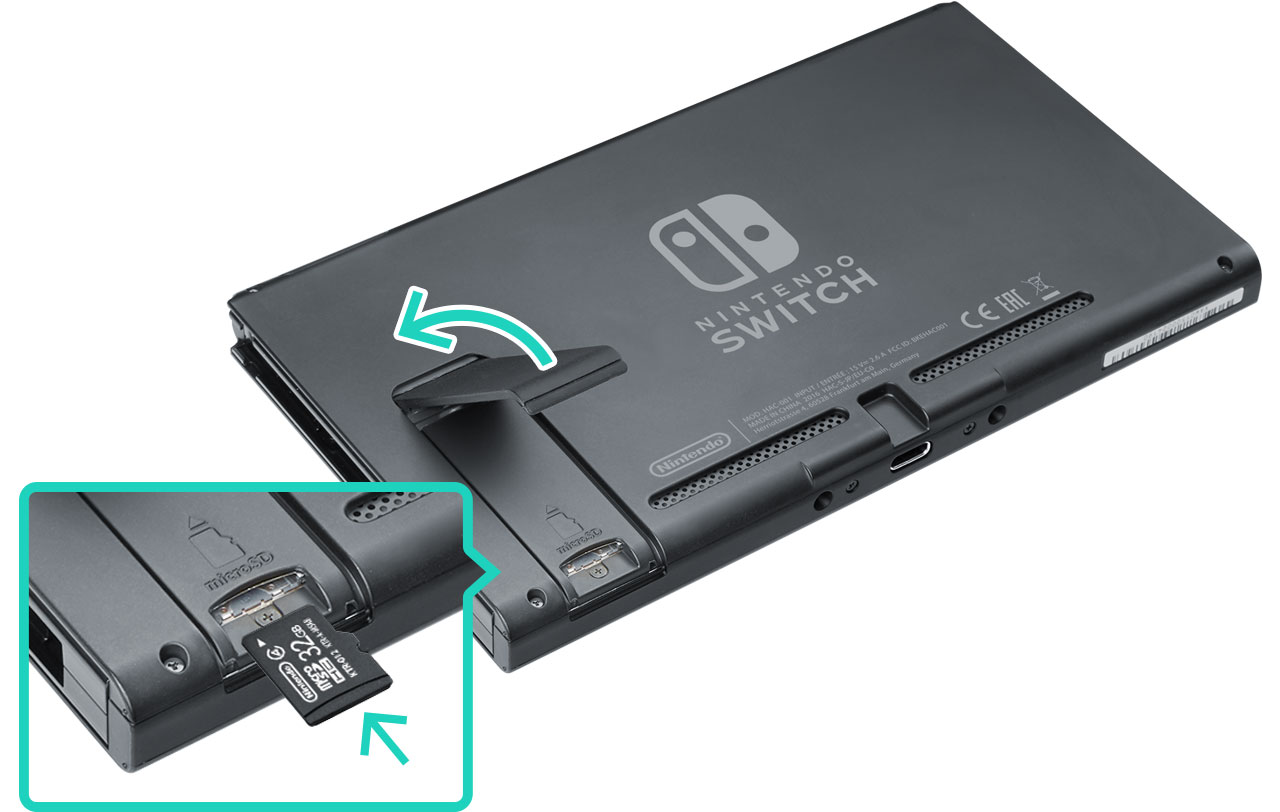
- Smartphones and Tablets: Often found on the side edge, sometimes under a small flap alongside the SIM card tray. Some older models might have it under the battery.
- Digital Cameras: Typically located on the side or bottom of the camera body, often behind a small hinged door.
- Laptops: Usually found on the side edge, resembling a small slot. Some laptops have full-sized SD card slots, while others have smaller microSD slots (which require an adapter).
- Other Gadgets: Consult your device’s user manual for the exact location.
Inserting the Card
Once you’ve located the slot, observe its orientation. SD cards have a specific way they fit.
- Identify the Correct Orientation: Look closely at the SD card and the slot. You’ll notice one edge of the card has a notched corner, and the slot will have corresponding guides or a shape that matches. The metal contacts on the SD card should generally face downwards or towards the device’s internal components.
- Gently Insert: Align the SD card with the slot and gently push it in. You should feel a slight resistance, and then the card should slide in smoothly.
- Secure the Card: In most devices, the SD card will click into place or remain flush with the device’s exterior. Some cameras or devices might have a spring-loaded mechanism where you push the card in until it clicks, and then push it again to eject it. Do not force the card if it doesn’t seem to be going in easily; double-check the orientation.
- Close the Slot Cover: Once the card is inserted, close any protective doors or flaps to prevent dust and debris from entering the slot.
Confirming Installation
After inserting the SD card, the device will usually recognize it automatically.
- Smartphones/Tablets: You’ll typically receive a notification or see an indicator in the status bar. You can also go to “Settings” > “Storage” to verify that the SD card is detected and its available space.
- Cameras: The camera’s display will usually show an icon indicating that a memory card is inserted and ready for use.
- Computers: The SD card should appear as a removable drive in “File Explorer” (Windows) or on the Desktop/Finder (macOS).
If the device doesn’t recognize the card, don’t panic. There are troubleshooting steps you can take, which we’ll cover later.
Using Your SD Card: Formatting and Best Practices
Once your SD card is installed, you’re ready to start using it. However, for optimal performance and to avoid potential issues, it’s often recommended to format the card within the device you intend to use it with.
Formatting the SD Card
Formatting erases all data on the card and prepares it for use with your specific device. This is a crucial step, especially for new cards or cards that have been used in different devices.
Why Format?
- Compatibility: Ensures the card is formatted with a file system that your device natively supports.
- Clean Slate: Removes any pre-existing data or partitions that might cause conflicts.
- Optimal Performance: Can help to optimize the card’s structure for better read/write speeds.
How to Format
The formatting process is usually done through your device’s settings:
-
Navigate to Storage Settings:
- Smartphones/Tablets: Go to “Settings” > “Storage.”
- Digital Cameras: Look for “Setup” or “Settings” menus, and then find an option like “Format Memory Card” or “Format SD Card.”
- Computers: Right-click on the SD card drive in File Explorer/Finder and select “Format.”
-
Select Formatting Options:
- File System: For most devices, the default file system (FAT32 for smaller cards, exFAT for larger cards) is usually the best choice. Consult your device’s manual if unsure.
- Quick Format vs. Full Format: A quick format is faster and usually sufficient. A full format checks for bad sectors but takes much longer.
-
Initiate Formatting: Click “Start” or “Format.” Remember, this will erase all data on the card, so back up anything important beforehand.
Best Practices for SD Card Usage
To ensure the longevity and reliable performance of your SD card, consider these best practices:
- Avoid Removing During Operation: Never remove an SD card while the device is writing data to it, taking photos, or actively accessing the card. This can lead to data corruption or card damage. Wait for the device to confirm that operations are complete.
- Safe Ejection: If your device supports it (especially computers), use the “Safely Remove Hardware” or “Eject” option before physically removing the card.
- Keep Cards Clean: Ensure the metal contacts on the SD card remain clean and free from smudges or debris. If they get dirty, gently clean them with a soft, dry, lint-free cloth.
- Avoid Extreme Temperatures: SD cards can be sensitive to extreme heat or cold. Store them in a moderate environment when not in use.
- Regular Backups: Treat your SD card as a portable storage medium, not as a permanent backup. Regularly transfer important data to your computer or cloud storage.
- Don’t Overfill: While you want to utilize the storage, filling an SD card to its absolute maximum capacity can sometimes lead to slower performance. Leaving a small buffer can be beneficial.
- Use Reputable Brands: Purchase SD cards from well-known and reputable brands to ensure quality, reliability, and genuine capacity. Counterfeit or low-quality cards can lead to data loss and performance issues.
Troubleshooting Common SD Card Issues
Despite the straightforward nature of installation, you might encounter a few hiccups. Here are some common problems and their solutions:
SD Card Not Recognized
- Check Orientation: Ensure the card is inserted correctly.
- Try Another Slot: If your device has multiple card slots, try a different one.
- Format the Card: If the card was previously used in another device, it might need reformatting in the current device. Remember to back up data first!
- Clean Contacts: Gently clean the metal contacts on the SD card.
- Try on Another Device: Test the SD card in a different compatible device to see if it’s recognized. This helps determine if the issue is with the card or the original device.
- Update Device Firmware: Ensure your device’s firmware is up to date, as this can sometimes resolve compatibility issues.
- Check Device Compatibility: Verify that your device supports the SD card’s type and capacity. An older device might not support SDXC cards, for example.
“SD Card is Corrupted” or “SD Card is Damaged” Error
- Un-corrupt (if possible): Sometimes, reformatting the card on a computer using disk management tools might help. However, if the corruption is severe, data recovery might be necessary.
- Backup Immediately: If you can still access any data, back it up immediately.
- Consider Replacement: If the card consistently shows errors or cannot be reliably formatted, it’s likely damaged and should be replaced.
Slow Performance
- Check Speed Class: Ensure your SD card’s speed class is sufficient for your intended use (e.g., 4K video recording requires a higher speed class than simply storing photos).
- Format the Card: A reformat can sometimes improve performance.
- Clear Space: If the card is nearly full, performance might degrade.
- Use a Card Reader: When transferring large files to/from a computer, use a high-quality USB 3.0 (or higher) card reader for faster transfer speeds.

Card “Write Protected”
- Some SD cards have a small physical lock switch on their side. If this switch is in the “lock” position, you won’t be able to write to or delete files on the card. Slide the switch to the other position to unlock it.
By understanding the nuances of SD cards and following these simple installation and usage guidelines, you can effectively expand your device’s storage capabilities, ensuring you have the space you need for all your digital endeavors. Whether you’re a photographer capturing life’s moments, a gamer expanding your library, or a professional managing important files, a properly installed and maintained SD card is an invaluable asset in your technological toolkit.
aViewFromTheCave is a participant in the Amazon Services LLC Associates Program, an affiliate advertising program designed to provide a means for sites to earn advertising fees by advertising and linking to Amazon.com. Amazon, the Amazon logo, AmazonSupply, and the AmazonSupply logo are trademarks of Amazon.com, Inc. or its affiliates. As an Amazon Associate we earn affiliate commissions from qualifying purchases.