
In the dynamic world of PC gaming, where visual fidelity often dictates immersion and enjoyment, players are constantly seeking ways to push the boundaries of their gaming experience. While game developers strive for stunning graphics, there’s often room for personalized enhancement. This is where ReShade comes in—a powerful, open-source post-processing injector that allows you to apply a vast array of visual filters and effects to almost any game. From subtle color correction and enhanced clarity to dramatic cinematic effects, ReShade offers unparalleled customization.
This comprehensive guide will walk you through every step of installing ReShade, configuring it for your favorite games, and troubleshooting common issues. Whether you’re a seasoned gamer looking to revitalize older titles or a content creator aiming for a unique visual brand, mastering ReShade is a valuable skill in your tech arsenal. We’ll delve into the process, ensuring you’re equipped to transform your virtual worlds into stunning masterpieces, all while keeping performance and compatibility in mind.
Understanding ReShade: Elevating Your Gaming Experience
Before diving into the technicalities of installation, it’s crucial to understand what ReShade is, what it does, and what benefits it brings to your gaming setup. As a staple in the gaming community, ReShade has become synonymous with visual customization, but like any powerful tool, it comes with its own set of considerations.
What is ReShade?
ReShade is a generic post-processing injector for games and video software. Imagine it as a sophisticated filter system that sits between your game and your display. Instead of modifying the game’s core files or rendering engine, ReShade hooks into the graphics pipeline (DirectX, OpenGL, or Vulkan) and applies real-time visual effects after the game has rendered its frame but before it’s displayed on your screen. This non-invasive approach makes it highly compatible with a vast number of games.
At its core, ReShade is a framework that allows for the implementation of custom shader programs. These shaders are small programs that manipulate individual pixels or vertices, enabling effects like ambient occlusion, depth of field, chromatic aberration, film grain, sharpening, color correction, and much more. The beauty of ReShade lies in its flexibility; you can combine multiple effects, adjust their intensity, and create unique visual styles tailored to your preferences. It’s an essential tool for those deeply invested in the aesthetic aspects of their games, falling squarely under the ‘Tech’ domain for software and tutorials.
Benefits of Using ReShade
The primary allure of ReShade is its ability to significantly enhance the visual fidelity and artistic presentation of games. Here are some key benefits:
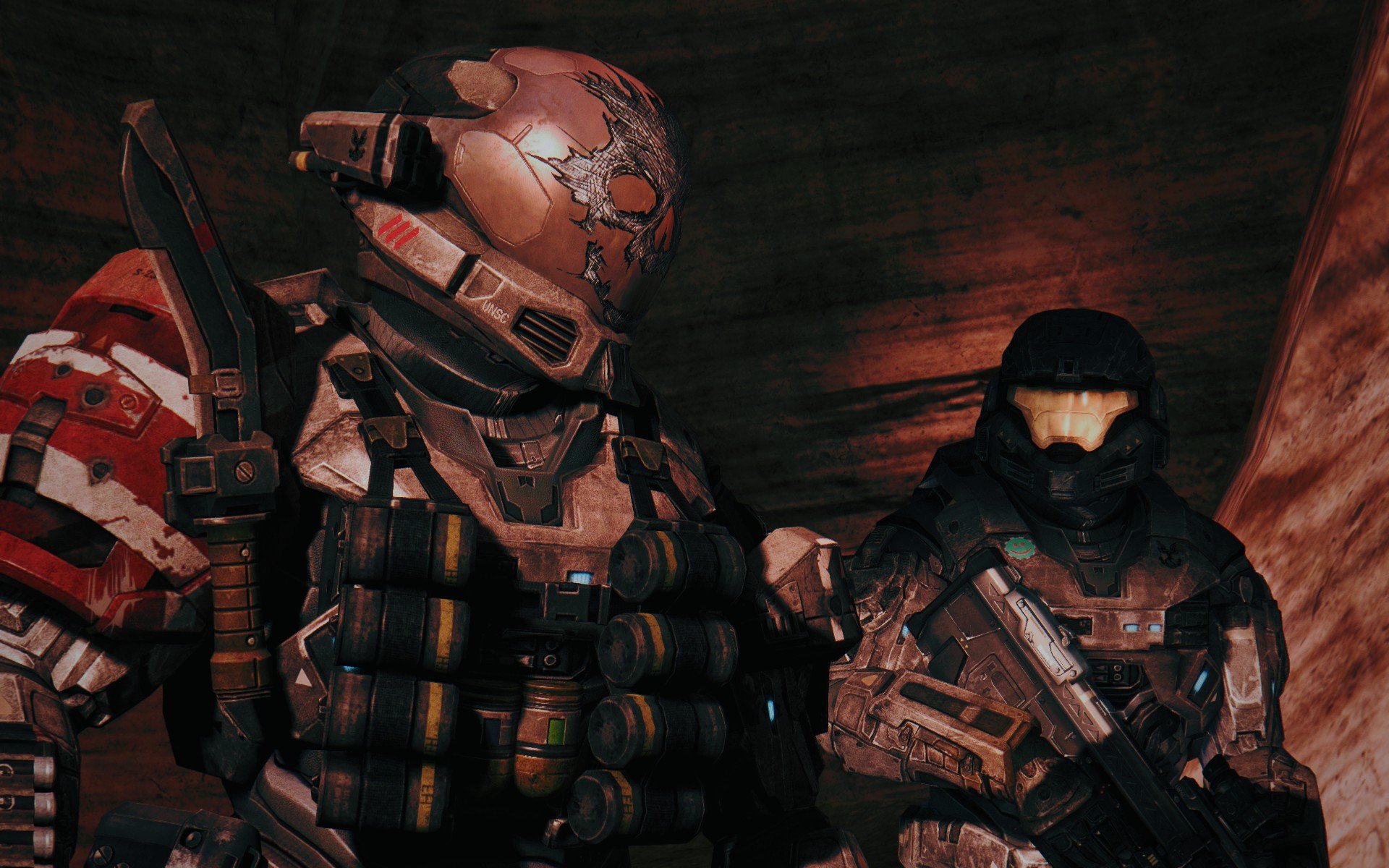
- Improved Graphics and Visual Fidelity: You can sharpen textures, enhance colors, deepen shadows, and add subtle lighting effects that breathe new life into older titles or refine the look of modern games. This can make games appear more realistic, vibrant, or stylized according to your taste.
- Customization and Personalization: ReShade offers an unparalleled level of customization. You’re not limited to predefined settings; you can tweak every parameter of an effect, combine shaders in countless ways, and save your own unique presets. This allows for a deeply personal gaming experience.
- Artistic Expression and Photography: For virtual photographers and content creators, ReShade is an indispensable tool. It allows them to craft stunning in-game screenshots and videos with cinematic flair, depth, and unique atmospheric effects. This directly ties into ‘Brand’ strategy, where visual appeal can significantly impact a creator’s identity and audience engagement. Streamers, for instance, can differentiate their broadcasts with a distinct visual style provided by ReShade.
- Community Presets: A vast and active community constantly shares custom ReShade presets. This means you don’t always have to build effects from scratch; you can download and experiment with presets created by others, offering quick visual overhauls.
Important Considerations and Potential Drawbacks
While ReShade offers incredible advantages, it’s not without its considerations:
- Performance Impact: Applying multiple complex shaders will inevitably consume GPU resources and can lead to a decrease in frame rate. The impact varies depending on your hardware, the game, and the number/complexity of effects used. It’s a balance between visual splendor and smooth gameplay.
- Anti-Cheat Compatibility: This is perhaps the most critical concern. Because ReShade injects code into a game’s rendering pipeline, some overly aggressive anti-cheat systems might mistakenly flag it as a cheat program. In competitive online games, using ReShade could potentially lead to a ban. Always research specific game compatibility and developer policies before using ReShade in online multiplayer titles. For single-player games, this is rarely an issue.
- Learning Curve: While basic installation is straightforward, mastering ReShade’s extensive options and creating custom presets can require some experimentation and understanding of graphics concepts.
- Troubleshooting: Like any software, ReShade can occasionally cause conflicts or issues. Knowing how to troubleshoot and revert changes is essential.
Pre-Installation Checklist: Getting Ready for ReShade
Before you embark on the installation process, it’s wise to perform a few preparatory steps. These ensure a smoother installation, minimize potential conflicts, and help you get the most out of ReShade without unnecessary headaches. Think of this as laying a solid foundation for your enhanced visual experience.
System Requirements
ReShade itself is lightweight, but the effects it applies rely heavily on your graphics card’s capabilities.
- Operating System: Windows 7 SP1, 8.1, 10, or 11.
- Graphics Card: Any DirectX 9, 10, 11, 12, OpenGL, or Vulkan compatible GPU. Modern GPUs will handle effects much better.
- Drivers: Ensure your graphics card drivers are up-to-date. This is paramount for optimal performance and compatibility with all modern games and software, including ReShade. Visit NVIDIA, AMD, or Intel’s official websites to download the latest drivers for your specific GPU model. Outdated drivers are a frequent source of graphical glitches and performance issues.
Required Software and Permissions
- Game Installed and Working: Naturally, you need the game you wish to enhance to be properly installed and running without issues first.
- Administrative Privileges: The ReShade installer might require administrator privileges to write files to your game’s directory. Make sure you have these permissions on your Windows account.
- DirectX/Vulkan Runtimes: While modern Windows versions and games usually handle this, ensuring you have up-to-date DirectX runtimes (especially for older games) can prevent issues. The ReShade installer will often detect and suggest missing components.
- Antivirus/Firewall: Temporarily disabling your antivirus or firewall during installation can sometimes prevent false positives or interference, though ReShade is a legitimate program. Remember to re-enable them afterward.
Backup Your Game Files (Optional but Recommended)
While ReShade generally doesn’t modify core game files, it does place its own .dll files into the game directory. In rare cases, or if you plan to uninstall frequently, creating a backup of your game’s executable and any related configuration files can save you time and hassle. This is particularly relevant for modded games or those with complex installations. A simple copy-paste of the game’s root folder is usually sufficient.
Choosing Your Game
ReShade works with a vast array of games, but compatibility can sometimes vary based on the game engine, specific rendering API used, and anti-cheat implementations. For your first installation, pick a single-player game or a game known to be compatible with ReShade (many communities have lists). This minimizes potential frustration.
Step-by-Step Guide: Installing ReShade on Your System
Now that your system is prepared, it’s time to install ReShade. The process is remarkably straightforward, guided by a user-friendly installer. Follow these steps carefully to ensure a successful setup.
Downloading the ReShade Installer
- Visit the Official Website: Open your web browser and navigate to the official ReShade website (reshade.me). Always download from the official source to ensure you get the latest, legitimate version and avoid potential malware.
- Download the Latest Version: Look for the prominent download link, usually labeled “Download ReShade x.x.x” (where x.x.x is the current version number). Click it to download the executable file (e.g.,
ReShade_Setup_5.9.2.exe). Save it to a location you can easily access, like your Downloads folder.
Launching the Installer and Selecting Your Game
-
Run as Administrator: Locate the downloaded ReShade setup file, right-click on it, and select “Run as administrator.” This ensures the installer has the necessary permissions to modify game directories.
-
Select a Game or Application: The ReShade installer will present you with a list of recently played games or applications. If your game is listed, select it.
-
Browse for Your Game: If your game is not on the list, click the “Browse” button. You’ll need to navigate to the game’s executable file (the
.exefile you click to launch the game). This is usually found in the game’s installation directory (e.g.,C:Program Files (x86)SteamsteamappscommonYourGameGameName.exe). Select the correct executable and click “Open.”- Crucial Tip: For games with multiple executables (e.g., a launcher and the actual game executable), always select the executable that directly launches the game itself, not a launcher.
Choosing the Rendering API
This is a critical step. ReShade needs to know which graphics API your game uses to inject its effects correctly.
- Identify the API: After selecting your game, ReShade will prompt you to choose a rendering API. Common APIs include:
- Direct3D 9: Primarily for older games.
- Direct3D 10/11/12: Used by most modern games. If you’re unsure, and your game is relatively recent, this is often the correct choice.
- OpenGL: Less common for Windows games, but used by some titles (e.g., Minecraft, older indie games).
- Vulkan: A newer API used by some demanding modern games (e.g., Doom Eternal, Red Dead Redemption 2).
- Select the Correct API: If you’re unsure, you can often find this information by searching online (e.g., “[Game Name] graphics API”) or checking the game’s settings. If you choose incorrectly, ReShade simply won’t load in-game, and you can re-run the installer and select a different API. A common strategy is to try Direct3D 10/11/12 first for modern games.
Selecting Shader Packs
After choosing the API, the installer will ask you which collection of shader effects you want to install.
- Select Standard Packs: It’s generally recommended to select all the standard shader packs (often labeled “Standard effects,” “SweetFX by CeeJay.dk,” “Legacy standard effects,” etc.) on your first installation. These provide a comprehensive set of effects that cover most common needs.
- Additional Shader Repositories (Optional): You can also select other community-contributed shader repositories if you know you want specific effects from them. For beginners, the standard packs are more than enough to start.
- Click OK: Once you’ve made your selections, click “OK” or “Continue.” ReShade will then download and install the selected shaders into your game’s directory.
Completing the Installation
The installer will quickly download the necessary files and integrate them into your game’s folder. Once it’s finished, you’ll see a confirmation message. You can now close the ReShade installer. The core installation is complete!
Post-Installation: Configuring ReShade and Applying Effects
With ReShade successfully installed, the next exciting step is to launch your game and begin experimenting with the visual effects. This is where your creative journey truly begins, transforming your game’s aesthetics to your liking.
First Launch and Initial Setup
- Launch Your Game: Start the game you installed ReShade for as you normally would.
- ReShade Loading Message: When the game loads, you should see a small grey bar at the top of the screen, indicating that ReShade is loading. It will display the ReShade version and the hotkey to open the overlay (usually
Homekey). If you don’t see this, ReShade hasn’t loaded, indicating a potential issue (most commonly, an incorrect API selection during installation). - Open the Overlay: Press the
Homekey (or whatever key is indicated) to open the ReShade in-game overlay. - Initial Tutorial: The first time you open the overlay, ReShade will present a brief tutorial. Follow the prompts, typically involving clicking “Continue” and then “Finish.” It will guide you on how to activate effects and save presets.
Navigating the ReShade Overlay
The ReShade overlay is your command center for all visual enhancements.
- Home Tab: This is where you activate and configure individual shaders. You’ll see a long list of checkboxes for all the shaders you installed.
- Settings Tab: Here, you can adjust various ReShade-specific settings, such as the overlay key, screenshot key, screenshot format, display mode, and performance mode. You can also change the font and theme of the overlay.
- Statistics Tab: Provides information about performance impact and active shaders.
Activating and Adjusting Shaders
- Activate Shaders: On the “Home” tab, simply click the checkbox next to any shader name to activate it. You’ll see the effect apply in real-time to your game.
- Adjust Parameters: Below the list of shaders, you’ll find a panel where you can adjust the parameters of the currently selected shader. Each shader has unique settings (e.g., intensity, color, radius, threshold). Experiment with these sliders and values to fine-tune the effect to your preference.
- Order Matters: The order in which shaders are processed can significantly impact the final look. You can drag and drop shaders in the list to reorder them. Generally, color correction and sharpening are done later in the pipeline, while depth-based effects might be earlier.
Using and Importing Presets
Creating a custom preset from scratch can be time-consuming. Fortunately, the ReShade community offers thousands of pre-made presets.
- Loading a Preset: At the top of the “Home” tab, there’s a dropdown menu. This menu allows you to switch between different
.inipreset files. You can select “DefaultPreset” to start fresh, or any other preset you’ve downloaded or saved. - Saving Your Own Preset: Once you’ve achieved a look you like, click the “Save” button next to the preset dropdown. Give your preset a descriptive name (e.g.,
MyGame_Cinematic.ini), and ReShade will save it in your game’s directory. - Importing Community Presets: To use a preset downloaded from the community, simply place the
.inifile into your game’s main executable directory (the same place whereReShade.iniand the ReShade.dllare located). Relaunch the game, open the ReShade overlay, and select the new preset from the dropdown menu. This is a great way to quickly achieve stunning visuals and learn how others craft their effects, directly contributing to personal branding and visual design for content creators.
Hotkey Management
Configuring hotkeys makes using ReShade much more fluid.
- Toggle ReShade: In the “Settings” tab, you can set a hotkey to completely toggle ReShade effects on or off, allowing for quick A/B comparisons and performance checks.
- Toggle Overlay: You can also change the hotkey to open and close the ReShade overlay.
- Screenshot Hotkey: Set a dedicated hotkey for ReShade to capture screenshots with the applied effects. These are typically saved to your game’s directory or a designated screenshot folder.
Optimizing Performance and Troubleshooting Common Issues
ReShade can dramatically improve your game’s visuals, but it’s crucial to manage its impact on performance and know how to resolve problems that might arise. A smooth experience involves both stunning graphics and stable frame rates.
Performance Tips
Achieving the perfect balance between visual enhancement and smooth gameplay requires careful optimization.
- Prioritize Shaders: Not all shaders have the same performance cost. Effects like Global Illumination, Ray Tracing (RTGI), or complex ambient occlusion shaders are typically resource-intensive. Sharpening, color correction, and simple film grain usually have a negligible impact. Experiment by enabling effects one by one and monitoring your frame rate.
- Reduce Intensity: Many shaders have an “intensity” or “strength” slider. Reducing these values can sometimes lower the performance cost while still retaining the desired effect.
- Use Performance Mode: In the ReShade overlay’s “Settings” tab, you can enable “Performance Mode.” This disables the real-time editing interface and compiles shaders into a more efficient format, potentially offering a small FPS boost. You’ll need to exit Performance Mode to make changes.
- Monitor FPS: Always keep an eye on your frame rate using an in-game FPS counter (like the one provided by Steam, NVIDIA GeForce Experience, or MSI Afterburner). This helps you identify which effects are causing significant drops.
- Hardware Considerations: Ultimately, the power of your GPU and CPU will dictate how many and what kind of shaders you can run. Upgrading hardware is the most direct way to handle more demanding ReShade setups.
Common Installation Problems
If ReShade doesn’t load or causes issues, these are the most frequent culprits and their solutions:
- ReShade Overlay Not Appearing:
- Incorrect API: The most common reason. Re-run the ReShade installer, select your game, and try a different rendering API (e.g., if you chose Direct3D 10/11/12, try Direct3D 9 for older games, or OpenGL/Vulkan if applicable).
- Wrong Executable: Ensure you selected the game’s actual executable (the
.exethat launches the game) and not a launcher. - Antivirus/Firewall Interference: Temporarily disable security software during installation and initial launch.
- Missing Runtimes: Ensure DirectX End-User Runtimes are installed, especially for older games.
- Game Crashes on Startup:
- Anti-Cheat Conflict: This is a major concern for online games. If the game has a robust anti-cheat, ReShade might be detected as malicious. For competitive online games, it’s safer to avoid ReShade entirely.
- Incompatible Game Version/Mod: Occasionally, highly modded games or specific game versions can conflict with ReShade. Try a clean game installation if possible.
- Driver Issues: Ensure your GPU drivers are fully updated.
- Effects Not Visible:
- Shaders Not Enabled: Make sure you’ve checked the boxes next to the shaders in the ReShade overlay’s “Home” tab.
- Preset Issues: If using a downloaded preset, it might contain shaders you didn’t install. Re-run the ReShade installer and select all standard shader packs.
- Depth Buffer Access: Some depth-based effects (like Depth of Field, MXAO) require ReShade to access the game’s depth buffer, which isn’t always available due to game engine limitations or security measures.
Anti-Cheat Compatibility
As mentioned, using ReShade in online multiplayer games with anti-cheat can be risky.
- Risk of Ban: Many anti-cheat systems (like Easy Anti-Cheat, BattlEye, VAC) are designed to detect unauthorized code injection. While ReShade is benign, it can be flagged.
- Check Game Policies: Always consult the game’s official forums or support pages regarding ReShade compatibility. Some developers explicitly allow it, others explicitly forbid it, and many remain silent.
- Single-Player Safe: For single-player games, there is generally no anti-cheat concern, making ReShade perfectly safe to use.
- Disable or Uninstall: If you plan to play a competitive online game, it’s safest to completely disable or uninstall ReShade for that specific game beforehand.
Uninstalling ReShade
If you wish to remove ReShade from a game:
- Re-run the Installer: Launch the ReShade setup executable again.
- Select the Game: Choose the game you want to uninstall ReShade from.
- Click “Uninstall”: The installer will detect that ReShade is already installed and offer an “Uninstall” option. Click it, and ReShade will remove its files from the game directory. This is usually the cleanest way to remove it.
- Manual Deletion (If Installer Fails): If the installer doesn’t work, you can manually delete the ReShade
.dllfile (e.g.,dxgi.dll,d3d11.dll,opengl32.dll, orvulkan-1.dll) and thereshade-shadersfolder from your game’s executable directory. Also, delete theReShade.inifile.
Conclusion
ReShade stands as a testament to the power of community-driven software in enhancing user experience. By injecting sophisticated post-processing effects, it empowers gamers to transform the visual landscape of their favorite titles, breathing new life into classic games and adding cinematic flair to modern blockbusters. From sharpening textures and correcting colors to implementing advanced depth of field and ambient occlusion, the possibilities for customization are virtually endless.
This guide has provided a comprehensive roadmap, from understanding ReShade’s capabilities and preparing your system to a step-by-step installation, in-game configuration, and essential troubleshooting tips. Remember the critical balance between visual splendor and performance, and always be mindful of anti-cheat implications in online environments. With a little experimentation and adherence to these guidelines, you’ll unlock a new dimension of visual fidelity in your games. Embrace the power of ReShade, and elevate your gaming visuals to truly reflect your unique aesthetic vision. Happy gaming!
aViewFromTheCave is a participant in the Amazon Services LLC Associates Program, an affiliate advertising program designed to provide a means for sites to earn advertising fees by advertising and linking to Amazon.com. Amazon, the Amazon logo, AmazonSupply, and the AmazonSupply logo are trademarks of Amazon.com, Inc. or its affiliates. As an Amazon Associate we earn affiliate commissions from qualifying purchases.