
Python has solidified its position as the world’s most popular programming language, powering everything from complex artificial intelligence models and data science pipelines to simple automation scripts. However, the true power of Python lies not just in the core language itself, but in its vast ecosystem of third-party libraries and frameworks. To access these tools—such as NumPy, Django, or Requests—you need a robust package manager. This is where pip3 comes into play.
pip3 is the standard tool for installing and managing software packages written in Python 3. It connects your local development environment to the Python Package Index (PyPI), a massive repository hosting hundreds of thousands of open-source libraries. Understanding how to correctly install and configure pip3 is the foundational step for any aspiring developer or IT professional. In this guide, we will explore the nuances of the installation process across Windows, macOS, and Linux, ensuring you have a stable environment for your technical projects.
Understanding pip3 and Its Role in the Python Ecosystem
Before diving into the installation steps, it is essential to understand what pip3 is and why it exists alongside the older pip command. As the technology landscape shifted from Python 2 to Python 3, the community needed a way to distinguish between package managers for the two versions. While many modern systems now treat pip and pip3 as synonymous, the distinction remains vital for system stability and compatibility.
The Evolution: pip vs. pip3
The name pip is a recursive acronym for “Pip Installs Packages” or “Preferred Installer Program.” Historically, pip was associated with Python 2.7, the legacy version of the language. When Python 3 was introduced, it brought significant changes that were not backward-compatible. To prevent conflicts between libraries meant for Python 2 and those meant for Python 3, the command pip3 was introduced specifically to handle packages for the 3.x branch.
In today’s tech environment, Python 2 has reached its end-of-life, and most developers have migrated to Python 3. However, many operating systems still use the pip3 alias to ensure that scripts explicitly call the correct interpreter. Knowing how to manage pip3 is critical because it ensures that the libraries you download are installed in the correct directory, accessible by your Python 3 compiler.
Why Package Management Matters for Developers
Manual package management is a nightmare of dependency hell. Imagine wanting to install a data visualization library that requires five other libraries to function, each of which requires three more. Manually downloading, compiling, and linking these files is prone to error.
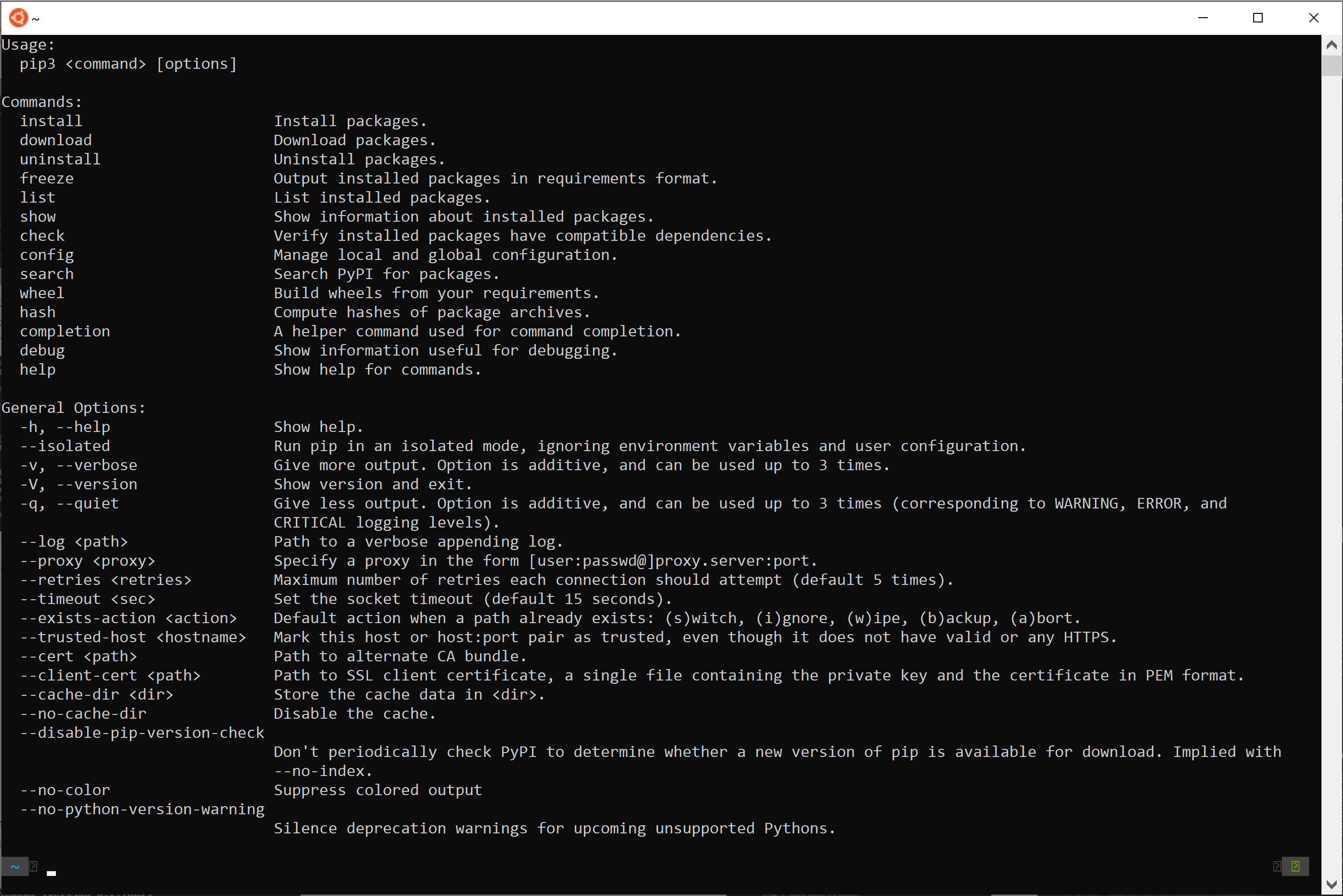
pip3 automates this entire lifecycle. When you run a command like pip3 install pandas, the tool scans the requirements of Pandas, identifies any missing dependencies, downloads the appropriate versions for your operating system, and installs them in a centralized location. It also handles versioning, allowing you to upgrade or downgrade packages as your project requirements evolve.
Installing pip3 on Windows: A Step-by-Step Approach
Windows is one of the most common platforms for Python development. Fortunately, the Python Software Foundation has made the installation process relatively seamless by bundling pip3 with the official Python installers. However, configuration errors are common, particularly regarding “Environment Variables.”
Method 1: Using the Official Python Installer
The most straightforward way to get pip3 on Windows is to install Python from the official website.
- Download the Installer: Visit python.org and download the latest stable release for Windows.
- The Critical Step: When you run the installer, look for a checkbox at the bottom that says “Add Python to PATH.” It is imperative that you check this box. If you skip this, your command prompt will not recognize the
pip3command. - Customize Installation: Click on “Customize installation.” Ensure that the “pip” checkbox is selected (it usually is by default).
- Complete the Setup: Follow the remaining prompts and click “Install.”
Method 2: The get-pip.py Script
If you already have Python installed but somehow missed pip3, you don’t need to reinstall everything. You can use a dedicated bootstrap script provided by the PyPA (Python Packaging Authority).
- Download the Script: Open your browser and navigate to the
get-pip.pyfile on the official PyPA website. Right-click and “Save As” to your desktop. - Run the Script: Open PowerShell or Command Prompt as an Administrator. Navigate to your desktop using the
cdcommand and run:
python get-pip.py - Verification: This script will automatically download and install the latest version of
pip3along withsetuptoolsandwheel, which are necessary for building many Python packages.
Troubleshooting Windows PATH Issues
One of the most frequent “Tech Support” queries involves the error: ‘pip3’ is not recognized as an internal or external command. This almost always means the folder containing pip3 is not in your system’s PATH.
To fix this, find where Python is installed (usually C:Users[Username]AppDataLocalProgramsPythonPython39Scripts). Copy this path. Search for “Edit the system environment variables” in your Windows Start menu, click “Environment Variables,” find the “Path” variable under “System Variables,” and add the copied path there. Restart your terminal, and pip3 should now be active.
Setting Up pip3 on macOS
macOS is a favorite among developers due to its Unix-like environment. While macOS comes with Python pre-installed, it is often an outdated version used by the system itself. It is highly recommended to install a separate version of Python 3 and pip3 to avoid interfering with system files.
Leveraging Homebrew for Package Management
Homebrew is the “missing package manager for macOS” and is the gold standard for installing developer tools on Mac.
- Install Homebrew: If you haven’t installed it yet, open your Terminal and paste the installation command from
brew.sh. - Install Python: Run the command:
brew install python - Automatic pip3: Homebrew’s Python package includes
pip3automatically. Once the process is finished, you can verify it by typingpip3 --version.

The benefit of using Homebrew is that it manages your paths automatically. It places binaries in /usr/local/bin (for Intel Macs) or /opt/homebrew/bin (for Apple Silicon), which are usually already in the macOS PATH.
Using the ensurepip Module
If you are using a version of Python installed directly from Python.org on Mac, you can use the built-in ensurepip module to bootstrap the installer. Run the following in your terminal:
python3 -m ensurepip --upgrade
This command tells the Python interpreter to run its internal pip installation module, ensuring that the package manager is updated to the latest version and correctly linked to the interpreter.
Installing pip3 on Linux Distributions
Linux users typically have the easiest time installing pip3, as it is usually available directly through the native package repositories (apt, dnf, yum).
Debian and Ubuntu Systems (apt)
On Ubuntu and other Debian-based distros, pip3 is not always included in the minimal Python installation to save space. To install it, you must update your local package index and use the apt utility.
- Update Repository:
sudo apt update - Install pip3:
sudo apt install python3-pip - Confirm Installation:
pip3 --version
This method is highly stable because the version of pip3 provided is specifically tested for compatibility with your version of Ubuntu.
CentOS, RHEL, and Fedora (dnf/yum)
For users on Red Hat-based systems, the process is similar but uses the dnf (or older yum) package manager.
- Install:
sudo dnf install python3-pip - Verify: Once installed, the command
pip3will be available globally for all users.
Advanced Configuration and Maintenance
Installation is only the beginning. To maintain a high-performing and secure development environment, you must know how to manage pip3 over time.
Upgrading pip3 to the Latest Version
pip3 evolves quickly. New versions often include security patches and performance improvements for faster downloading. To upgrade pip3 using pip3 itself, run:
pip3 install --upgrade pip
On some systems, you might need to use python3 -m pip install --upgrade pip to ensure the upgrade applies to the specific interpreter you are using.
Best Practices: Using Virtual Environments (venv)
In professional software development, installing every package globally is considered bad practice. This can lead to “dependency drift,” where one project requires Version 1.0 of a library, and another requires Version 2.0.
The solution is venv. Before using pip3 to install libraries, create a virtual environment:
- Create:
python3 -m venv my_project_env - Activate (Windows):
my_project_envScriptsactivate - Activate (Mac/Linux):
source my_project_env/bin/activate
Once activated, any pip3 install command will keep the libraries contained within that specific folder, keeping your global system clean.
Security Considerations with pip3
As a final note on digital security, always be cautious about the packages you install. Since PyPI is open to everyone, “typosquatting” is a common threat—where malicious actors upload packages with names very similar to popular ones (e.g., requests-py instead of requests). Always double-check the spelling of the package name and verify the project’s popularity and documentation before running an install command.
By mastering the installation and management of pip3, you have cleared the most significant hurdle in Python development. You now have the keys to a world of endless programming possibilities, from web scraping and automation to machine learning and beyond.