
YouTube TV has revolutionized how many consumers access live television, blending traditional broadcasting with the convenience and flexibility of streaming. A cornerstone of its appeal is the robust Cloud DVR service, offering unlimited storage for recorded content. However, even with an “unlimited” capacity, understanding how to manage your library, including deleting shows, is crucial for an optimized viewing experience. This guide will delve into the mechanics of YouTube TV’s DVR and provide a step-by-step tutorial on decluttering your digital entertainment hub.
Understanding YouTube TV’s DVR System
Before diving into the “how-to,” it’s essential to grasp the unique nature of YouTube TV’s Digital Video Recorder (DVR). Unlike traditional cable box DVRs that rely on physical hard drives in your home, YouTube TV employs a cloud-based system. This distinction significantly impacts how recordings are stored, accessed, and managed.
Cloud DVR Mechanics
When you choose to record a show, movie, or event on YouTube TV, it isn’t saved to a device in your house. Instead, a digital copy is stored on Google’s remote servers. This “cloud” storage offers several advantages:
- Accessibility: You can access your recordings from any device where you log into YouTube TV – smart TVs, phones, tablets, computers, and streaming boxes – as long as you have an internet connection. There’s no need to transfer files or worry about device compatibility.
- Reliability: Cloud storage is generally more reliable than local storage, as it’s not subject to hardware failures common with physical DVRs.
- Shared Instances: In many cases, if multiple users record the same program, YouTube TV might store a single instance of that program on its servers, and each user’s library simply points to that instance. This is part of how they manage “unlimited” storage efficiently.
Unlimited Storage, But For How Long?
One of YouTube TV’s most attractive features is its “unlimited” storage. This means you don’t have to worry about running out of space, regardless of how many shows or movies you choose to record. However, this unlimited capacity comes with a time limit: all recordings automatically expire and are removed from your library after nine months.
This 9-month retention policy is a critical piece of information. When you “delete” a recorded show from your YouTube TV library, you’re not freeing up personal storage space (because you don’t have a personal storage limit). Instead, you’re essentially removing the link to that recording from your personal library view, stopping future recordings of that series, or opting to discard an episode before its automatic expiration. The primary motivation for deleting, therefore, shifts from space management to library organization and content personalization.
Step-by-Step: Deleting Recorded Content
Managing your YouTube TV library is straightforward once you understand the interface. Whether you want to remove a single episode or stop recording an entire series, the process is intuitive across various devices.
Deleting from the Library
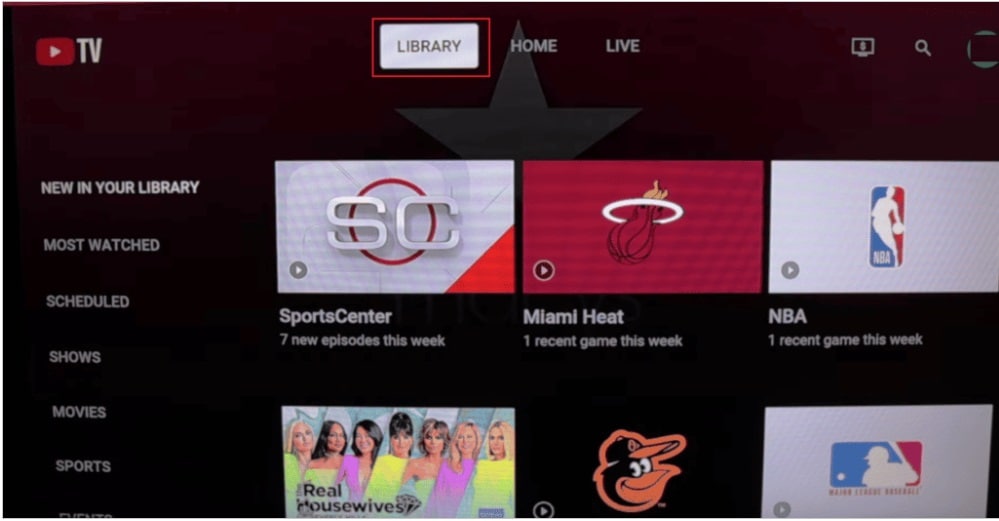
The “Library” tab is your central hub for all recorded and saved content.
- Navigate to Your Library: Open the YouTube TV app or website and go to the “Library” tab. This is usually found in the main navigation menu.
- Locate the Content: Within the Library, you’ll see categories like “Shows,” “Movies,” “Sports,” and “Events.” Browse or use the search function to find the specific show or movie you wish to delete.
- Access Content Details:
- On Smart TVs/Streaming Devices: Select the show or movie. You’ll typically see a detail page for the series or film. If it’s a series, you might need to select “Episodes” to view individual recordings.
- On Mobile Devices/Web: Tap or click on the show’s thumbnail.
- Remove Individual Episodes (for series):
- If you’re looking at a series, select the specific episode you want to remove.
- On the episode’s detail page, look for an option like “Remove from Library,” “Delete,” or an icon (often a trash can or three dots for more options). Select this option.
- Confirm your choice if prompted.
- Remove an Entire Movie or Standalone Event:
- For movies or single events, navigate to their detail page directly from the Library.
- You’ll typically find a “Remove from Library” or “Delete” option prominently displayed. Select it and confirm.
Once removed, the episode or movie will no longer appear in your Library. Remember, this does not affect its status for other YouTube TV subscribers, nor does it necessarily delete the underlying file from Google’s servers before its 9-month expiry. It simply cleans up your personal view.
Managing Series Recordings
Sometimes, you don’t just want to delete an episode; you want to stop recording an entire series altogether. This is useful if you’ve finished a show, lost interest, or found a different way to watch it.
- Navigate to the Series Page: From your Library, find the series you wish to stop recording and select it to go to its main detail page.
- Locate the Recording Option: On the series detail page, you’ll typically see a button or toggle that indicates its recording status. This might say “Recorded,” “DVR,” “Add to Library,” or have a checkmark icon.
- Disable Recording: Select this button or toggle to turn off future recordings. If it’s a toggle, switch it off. If it’s a button, it might change from “Recorded” to “Add to Library” or similar.
- Confirmation: YouTube TV usually provides a brief confirmation that future recordings for that series have been cancelled.
Important Note: Turning off series recording will prevent new episodes from being added to your library. Any episodes already recorded and currently in your library will remain there until you individually delete them (as per the steps above) or until they automatically expire after nine months.
What Happens When You Delete
When you choose to “delete” content from your YouTube TV library, it’s crucial to understand the implications:
- Visibility: The content is immediately removed from your personal “Library” view and will no longer appear in your recorded shows list.
- Future Recordings: If you deleted an episode from a series but did not disable the series recording, subsequent episodes will still be recorded and added to your library. To stop future recordings, you must explicitly manage the series recording status.
- Retention Policy: Deleting content before its 9-month expiration effectively means you are voluntarily choosing to stop watching it and remove it from your immediate access. The underlying data on Google’s servers is likely unaffected until its scheduled expiration.
Why Manage Your YouTube TV Library?
Given the unlimited storage and automatic expiration, some might question the necessity of actively managing their YouTube TV library. However, effective management offers significant benefits for your overall viewing experience.
Decluttering Your Viewing Experience
A tidy digital space contributes to a better user experience. A library filled with shows you’ve already watched, no longer want to follow, or accidentally recorded can become overwhelming. Navigating through a streamlined library makes it easier to find the content you genuinely want to watch next, reducing decision fatigue and enhancing enjoyment. It brings a sense of order to your entertainment consumption.
Enhancing Content Discovery
YouTube TV’s algorithms often consider your viewing habits and library content when suggesting new shows or recommending what to watch next. By actively managing your library and removing unwanted content, you provide cleaner data to these algorithms. This can lead to more accurate and personalized recommendations, helping you discover shows you’ll truly enjoy rather than being bogged down by irrelevant suggestions based on old recordings. Your “Continue Watching” and “New in Library” sections become more relevant and useful.
Addressing Misconceptions About Storage
As reiterated, “deleting” on YouTube TV doesn’t free up personal storage space. Discarding this misconception is vital. The act of deletion is purely for organization and personalization. It’s about taking control of what you see and interact with within your digital space, rather than a technical necessity to avoid hitting a storage cap. Understanding this empowers users to manage their libraries for the right reasons.
Advanced DVR Management Tips
Beyond basic deletion, there are strategies to get the most out of your YouTube TV DVR, making your viewing experience even smoother.
Prioritizing Recordings
While YouTube TV’s cloud DVR is excellent at handling recording conflicts (it typically records all scheduled programs, even if they air simultaneously), understanding its nuances can still be helpful. If a specific program is critical, ensure it’s set to record. In rare cases where a live event might conflict with a VOD version or if there are multiple airings, YouTube TV generally provides access to all available options. Always check your “Library” after a recording to ensure it’s there. If a program isn’t appearing, verify that it was correctly set to record and that it aired as expected.
Discovering New Content
Your DVR isn’t just for rewatching; it’s also a tool for discovery.
- “New in Library” Section: Keep an eye on the “New in Library” row. This highlights the latest episodes added from your recorded series, making it easy to jump into current content.
- Genre Filtering: Within the Library, use the genre filters to explore recorded content by type. This can help you rediscover old favorites or binge a specific category of show.
- Search and Explore: Don’t be afraid to use the search bar to find specific shows or movies, even if they’re not in your current recordings. If available, YouTube TV might offer VOD versions or prompt you to record future airings.
Troubleshooting Common Issues
While YouTube TV’s DVR is generally reliable, you might occasionally encounter issues.
- Missing Recordings: If a show you expected to record isn’t in your library, first check if the series was still set to record. Verify the air date and time. Remember the 9-month expiration; older shows might have expired.
- Partial Recordings: Sometimes, internet connectivity issues during a live broadcast can lead to partial recordings. If this happens, check if a VOD (Video On Demand) version is available for the full episode or if a re-airing is scheduled.
- Playback Issues: If you’re having trouble playing a recorded show, try basic troubleshooting steps: restart the YouTube TV app, clear your device’s cache, or check your internet connection speed.
The Future of Cloud DVRs and YouTube TV
The evolution of streaming technology continues to reshape how we interact with television. Cloud DVRs like YouTube TV’s are at the forefront of this transformation, and their capabilities are constantly expanding.
Evolving User Interfaces
Streaming platforms are in a perpetual state of refinement. Future YouTube TV updates will likely bring even more intuitive ways to manage your library. Expect enhanced filtering options, smarter categorization, and perhaps even AI-driven suggestions for shows to keep or delete based on your viewing habits. The goal is always to make the user experience as seamless and personalized as possible.
Personalization and AI
Artificial intelligence and machine learning are already influencing content recommendations, and their role in DVR management is set to grow. Imagine a system that could proactively suggest “archiving” shows you haven’t watched in months, or automatically prioritize recordings based on your indicated preferences for cast, genre, or sports teams. This level of intelligent assistance could further reduce the burden of manual library management.
Industry Trends
YouTube TV’s cloud DVR model, with its unlimited storage and time-limited retention, sets a benchmark for the industry. Competitors like Hulu + Live TV, Sling TV, and FuboTV offer similar cloud DVR functionalities, though with varying storage limits and retention periods. The trend is clear: cloud-based recording is the standard, giving users unparalleled flexibility. The focus will increasingly be on not just recording, but also on intelligent organization, rapid content discovery, and seamless playback across devices, ensuring that “deleting” becomes more about curating your ideal entertainment ecosystem than simply freeing up space.
aViewFromTheCave is a participant in the Amazon Services LLC Associates Program, an affiliate advertising program designed to provide a means for sites to earn advertising fees by advertising and linking to Amazon.com. Amazon, the Amazon logo, AmazonSupply, and the AmazonSupply logo are trademarks of Amazon.com, Inc. or its affiliates. As an Amazon Associate we earn affiliate commissions from qualifying purchases.