
Python has solidified its position as the lingua franca of modern computing, powering everything from sophisticated machine learning models to simple automation scripts. For any Linux user—whether a seasoned system administrator or a burgeoning software developer—mastering the Python ecosystem is an essential skill. At the heart of this ecosystem lies “pip,” the standard package manager for Python. Pip allows users to install, manage, and uninstall additional libraries and dependencies that are not included in the standard Python library.
Understanding how to install and configure pip on Linux is more than just a technical hurdle; it is the gateway to leveraging thousands of open-source projects hosted on the Python Package Index (PyPI). This guide provides a deep dive into the installation processes across various Linux distributions, explores best practices for package management, and discusses the critical role of virtual environments in maintaining system stability.
The Evolution of Package Management in Python
Before diving into the installation commands, it is crucial to understand what pip is and why it has become the gold standard. Pip, an acronym for “Pip Installs Packages” (or sometimes “Preferred Installer Program”), was introduced to simplify the process of finding and installing Python software.
The Shift from Python 2 to Python 3
Historically, Linux distributions shipped with Python 2 as the default. This led to the existence of pip (for Python 2) and pip3 (for Python 3). However, with Python 2 reaching its end-of-life in 2020, the industry has transitioned almost entirely to Python 3. On modern Linux distributions like Ubuntu 22.04 or Fedora 38, “Python” almost always refers to Python 3, and while some systems still use the pip3 alias, the industry is moving toward a unified standard.
Why Pip is Essential for Modern Tech
Without pip, developers would have to manually download source code from GitHub or PyPI, handle complex dependency trees, and compile binaries—a process prone to errors and “dependency hell.” Pip automates this entire lifecycle. It resolves version conflicts, ensures all required sub-libraries are present, and provides a clean interface for keeping your development environment up to date.
Step-by-Step Installation Across Major Linux Distributions
Linux is famously diverse, and the method for installing pip varies depending on your distribution’s package manager. Whether you are using a Debian-based system, a RHEL-derivative, or a rolling-release distribution like Arch, the process involves using the native system package manager to “bootstrap” pip.
Installing Pip on Ubuntu, Debian, and Linux Mint
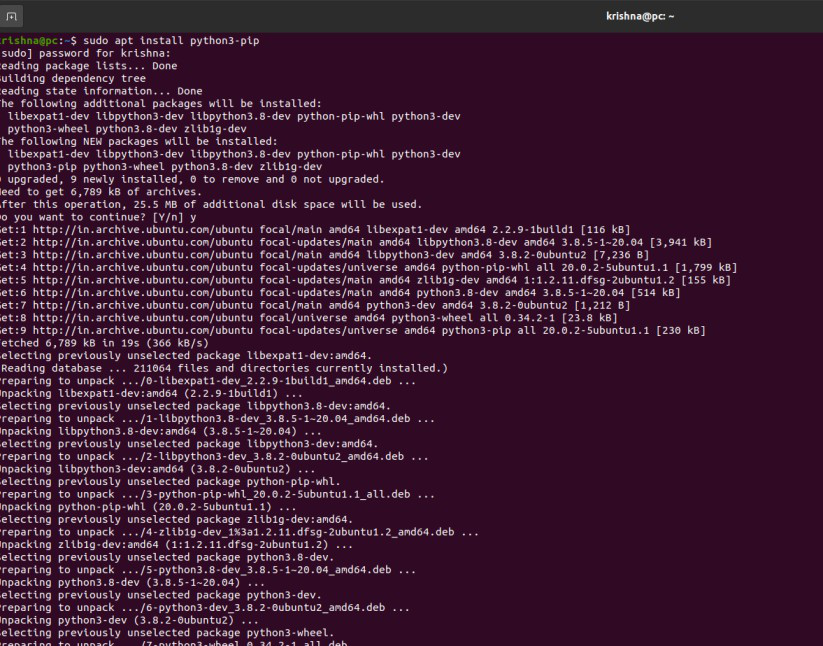
Debian-based distributions use the Advanced Package Tool (APT). Because these systems often favor stability, they split the Python installation into several packages. To get pip, you must explicitly request the python3-pip package.
- Update the Package Index: Always start by ensuring your local package list is current.
sudo apt update - Install Pip: Execute the installation command.
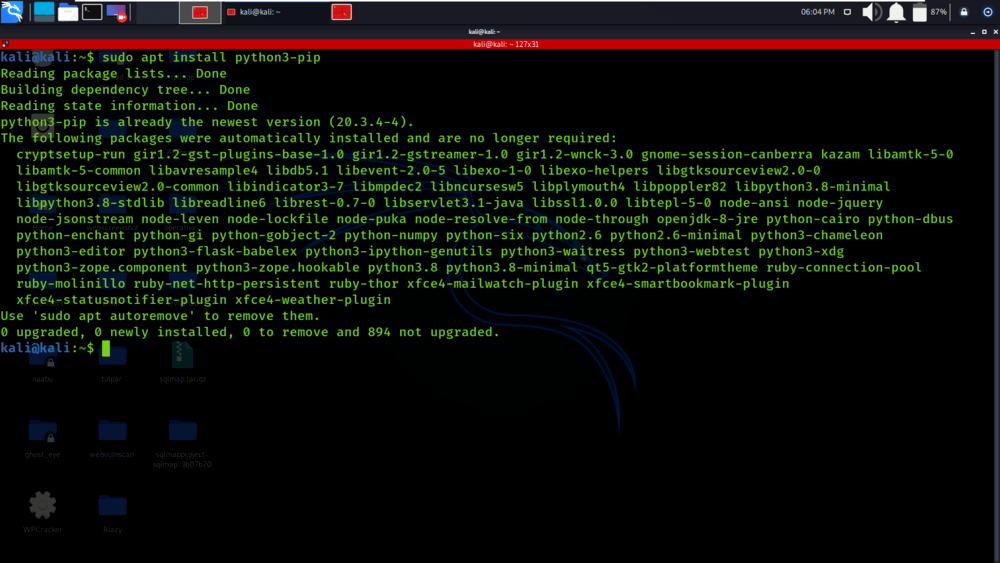
sudo apt install python3-pip - Verify the Installation: Check the version to ensure pip is correctly mapped to your Python path.
pip3 --version
Installing Pip on CentOS, Fedora, and RHEL
Fedora and modern versions of RHEL/CentOS use the DNF (Dandified YUM) package manager. Fedora, being a cutting-edge distribution, usually includes the latest stable versions of pip.
- Update Repositories:
sudo dnf update - Install Pip:
sudo dnf install python3-pip - Verification:
pip --version(Note: In many Fedora environments,pipis symlinked directly to Python 3).
Installing Pip on Arch Linux and Manjaro
Arch Linux users typically prefer the most current software available. Arch uses the pacman manager.
- Sync and Upgrade:
sudo pacman -Syu - Install the Package:
sudo pacman -S python-pip - Verification:
pip --version
The Universal Method: Using get-pip.py
If you are using an obscure distribution or do not have sudo privileges to use the system package manager, you can use the official bootstrap script provided by the Python Packaging Authority (PyPA).
- Download the script:
curl https://bootstrap.pypa.io/get-pip.py -o get-pip.py - Run the script with Python:
python3 get-pip.py
This method installs pip directly into your user’s local site-packages or the global Python environment, depending on your permissions.
Essential Pip Commands and Workflow Management
Once installed, pip becomes a powerful tool in your daily technical workflow. Understanding its command-line interface is key to efficiency.

Installing and Upgrading Packages
The most common use of pip is fetching libraries. For example, to install the popular requests library for API interactions, you would use:
pip install requests
To upgrade an existing package to the latest version, the --upgrade flag is used:
pip install --upgrade requests
Managing Project Dependencies
In professional software development, you rarely install packages one by one. Instead, you use a requirements.txt file. This file lists all the dependencies for a project, ensuring that other developers can replicate your environment exactly.
To generate this file:
pip freeze > requirements.txt
To install everything listed in a requirements file:
pip install -r requirements.txt
Searching and Inspecting Packages
Pip allows you to inspect what is installed on your system. Using pip list shows all installed packages and their versions, while pip show [package-name] provides detailed metadata, including the author, license, and where the package is physically stored on your disk.
The Critical Importance of Virtual Environments
One of the most common mistakes beginners make is installing every package globally using sudo pip install. In the world of Linux and Python, this is considered a major anti-pattern that can lead to system instability.
Avoiding “System Breakage”
Many Linux system utilities (like the Ubuntu installer or cloud-init) are written in Python. If you use pip to globally upgrade a library that a system utility depends on, you might accidentally break critical OS functions. Furthermore, different projects may require different versions of the same library. Project A might need Django 3.2, while Project B requires Django 4.0. You cannot have both installed globally.
Implementing Venv
The solution is “Virtual Environments.” A virtual environment is an isolated directory that contains its own Python binary and its own independent set of installed packages.
- Create a Virtual Environment:
python3 -m venv my_project_env - Activate the Environment:
source my_project_env/bin/activate - Install Packages: Now, when you run
pip install, the packages are confined to themy_project_envfolder.
By adopting this workflow, you keep your Linux system “clean” and ensure your development projects are portable and conflict-free.
Security, Maintenance, and Troubleshooting
As with any tool that downloads code from the internet, security and maintenance are paramount.
Upgrading Pip Itself
Pip is updated frequently to patch security vulnerabilities and improve performance. To upgrade pip using pip itself, run:
python3 -m pip install --upgrade pip
Verifying Package Integrity
When working on sensitive digital security projects or enterprise software, it is vital to ensure that the packages you download haven’t been tampered with. Pip supports hash-checking mode, which verifies the package against a provided SHA-256 hash. This prevents “man-in-the-middle” attacks during the installation process.
Troubleshooting Common Issues
- “Command not found”: This usually means the pip binary is not in your system’s PATH. You can often bypass this by calling pip through the Python module flag:
python3 -m pip install [package]. - Permission Denied: If you see this error, do not immediately reach for
sudo. Instead, consider using a virtual environment or the--userflag:pip install --user [package]. - Missing Headers: Some Python packages (like
cryptographyorpandas) require C headers to compile. On Ubuntu, you might need to install the development files:sudo apt install python3-dev.
Conclusion: Empowering Your Linux Development Journey
Installing pip is a foundational step for anyone looking to harness the power of Python on Linux. By following the distribution-specific instructions and adhering to the best practices of using virtual environments, you create a robust, scalable, and secure development environment.
As technology trends shift toward AI, data science, and cloud-native applications, the ability to manage software dependencies effectively becomes a superpower. With pip correctly installed and managed, you are no longer just a consumer of software—you are equipped with the tools to build, deploy, and innovate within the vast ecosystem of modern technology. Whether you are automating a simple task or building the next great AI tool, pip is the engine that keeps your Python projects moving forward.
aViewFromTheCave is a participant in the Amazon Services LLC Associates Program, an affiliate advertising program designed to provide a means for sites to earn advertising fees by advertising and linking to Amazon.com. Amazon, the Amazon logo, AmazonSupply, and the AmazonSupply logo are trademarks of Amazon.com, Inc. or its affiliates. As an Amazon Associate we earn affiliate commissions from qualifying purchases.